Getting Started
This walks through creating your first task — a source you pick once, and one or more destinations that receive it every time you click TRANSFER.
The first launch shows an empty task list on the left ("TASKS") and an empty preview on the right. Click New to create your first task.
In the task editor, under File(s) to transfer, you have two source modes:
- Individual files — click Add... and pick one or more specific files. Good for a small, fixed set of files (e.g. a build output, a save file).
- Choose folder... — pick a whole folder. The app finds every file inside it (recursively) and shows the folder's top-level items as a checklist so you can uncheck the ones you don't want sent. See Folder Sources for exclude patterns and the "keep folder name" option.
Under Where to send, click Add and pick a destination type:
- Local/network folder — any folder on disk or a mapped network drive.
-
FTP/FTPS — host, port (default
21), username/password (leave blank for anonymous login), and optionally enable TLS (FTPS). See FTP, FTPS and SFTP. -
SFTP — host, port (default
22), username/password.
You can add multiple destinations to the same task — every enabled one receives the same files when you transfer. Each destination has its own checkbox to enable/disable it without removing it.
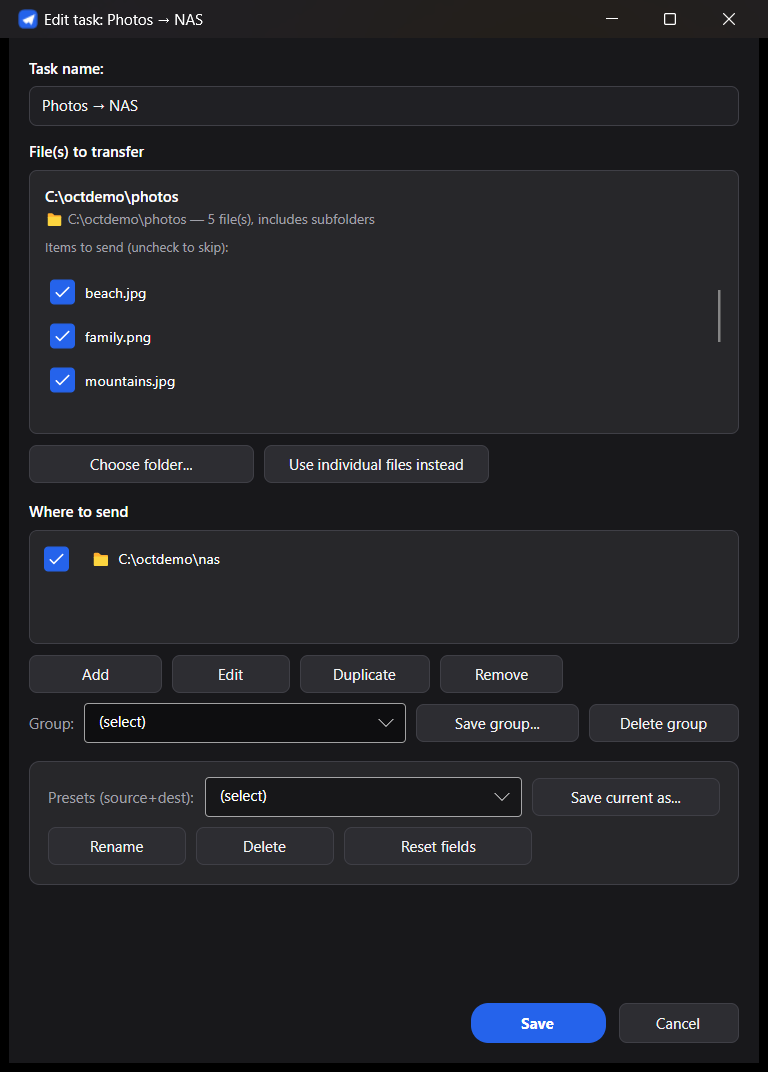
Type a name at the top (Task name), then Save. It now shows up in the TASKS list on the left, with a checkbox to enable/disable it for bulk sends.
- TRANSFER (the big button) sends every enabled task.
- Send this task (on the right panel, when a task is selected) sends just that one, whether it's enabled or not.
- A transfer shortcut key (default
F4, configurable in Settings) does the same as TRANSFER without touching the mouse.F5refreshes both the source and destination browsers.
Watch the Transfer Queue panel at the bottom — it shows each file/destination pair queued, in progress, succeeded or failed, with live progress and speed.
- Multiple destinations, saved servers, groups and presets: Tasks and Destinations.
- Auto-send when a file changes: Watch Mode and Tray.
- Scripting/automation: Command Line Interface.