Folder Sources
Instead of picking individual files, you can point a task at a whole folder — the app finds every file inside it (recursively) and keeps the source in sync with the folder's actual contents each time you transfer (add a file to the folder later, and it's picked up automatically, no need to re-edit the task).
In the task editor, click Choose folder.... The app shows:
- The folder's full path and a live count of how many files it currently contains.
- A checklist of the folder's top-level items (its immediate files and subfolders) — this is intentionally just the first level, not a full tree browser, to keep the picker fast and simple even for folders with hundreds of files buried in subfolders.
Click Use individual files instead to switch back to picking specific files.
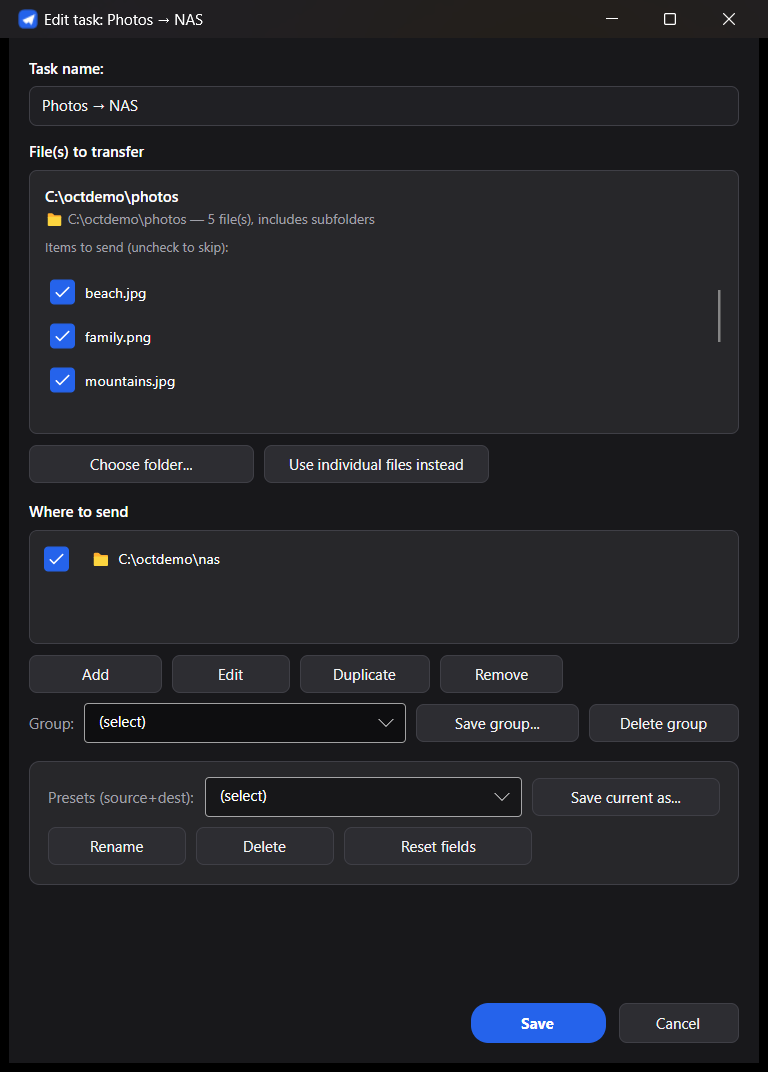
Uncheck any item in the checklist to exclude it:
- Unchecking a file excludes just that file.
- Unchecking a subfolder excludes that subfolder and everything inside it, recursively.
Under the hood this writes simple .gitignore-style patterns (a trailing / for folders) into
the task's saved source — but you never have to type a pattern by hand; the checklist does it for
you. If a task was configured with an exclude pattern some other way (e.g. an older manual entry)
that doesn't match anything currently visible in the folder, it's preserved and still applied —
it just won't show as a checkbox until something matching it exists again.
By default, the destination receives the folder's contents with subfolders preserved — e.g.
picking a folder AppGuide containing de/, en/, es/ sends de/, en/, es/ straight into
the destination folder (not AppGuide/de/, AppGuide/en/...).
If you want the destination to receive the chosen folder itself as a named container — so a
folder called AppGuide shows up as AppGuide/ at the destination too — check Keep "<folder
name>" as a folder in the destination in the task editor. This is off by default so existing
tasks keep behaving exactly as before; turn it on per task when you want the wrapping folder kept.
When deciding whether a file already exists at the destination (for Overwrite Modes other than Replace), the app compares by the file's path relative to the chosen folder (including subfolders) — so two files with the same name in different subfolders are treated as different files, and moving a file between subfolders in the source is treated as a new file at the destination, not an update to the old path.