Repository navigation
Installation
Sync your games with hakchi at least once before installing. That's when hakchi creates the folders on your console that the mod relies on.
- Hakchi2 CE
- My Options Menu fork v2.1.0 or newer — the menu this mod plugs into. CompCom's original Options Menu 1.3.4 is not compatible.
- Font Remount mod (
font_remount), one of hakchi's built-in mods — it applies the theme fonts - Hakchi Wi-Fi mod (WPA Supplicant), from KMFDManic's store in hakchi, and a USB Wi-Fi adapter — only if you want to download themes from the console. The recommended adapter is the TP-Link TL-WN725N (Realtek 8188 chipset); others may work, but aren't guaranteed to.
- A USB/SD drive (USB host) is recommended. Themes are often 5–30 MB each and the console's internal memory (NAND) fills up quickly.
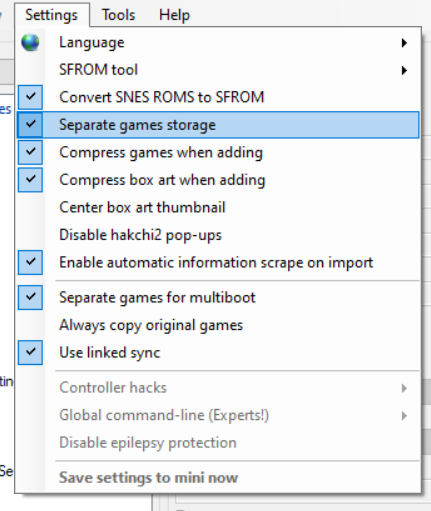
In hakchi's settings, turn on Separate games storage and Separate games for multiboot:
-
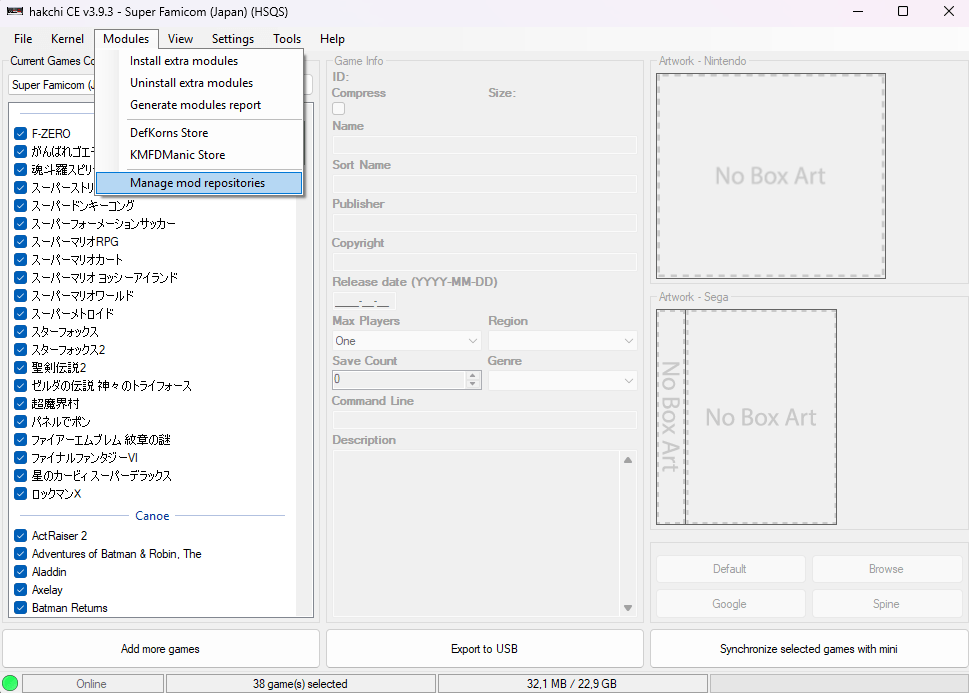
In hakchi, choose Modules → Manage mod repositories:
-
Under Add New Repository, enter a name (e.g.
DefKorns Store) and this URL, then click Add Repository:https://defkorns.github.io/hakchi-repo/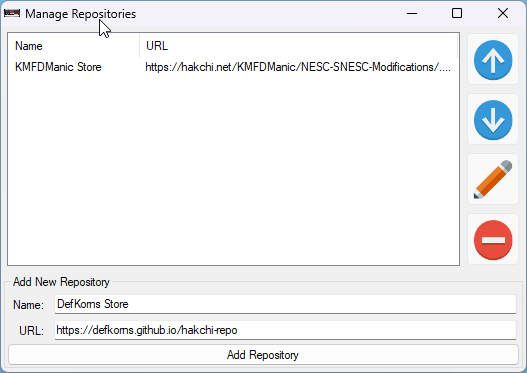
-
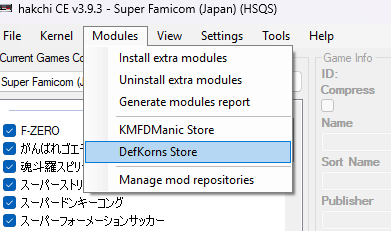
The hub is now in the Modules menu. Open it: Modules → DefKorns Store.
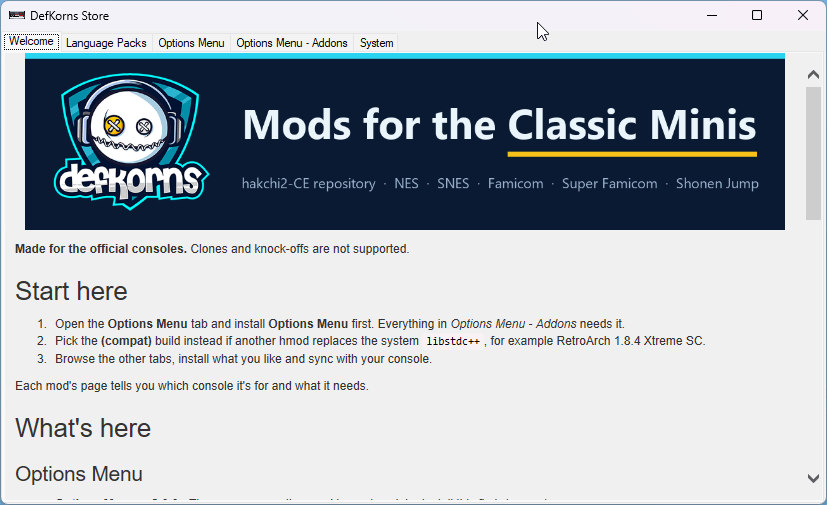
-
In the Options Menu tab, select Options Menu and click Download and Install Module. Pick Options Menu (compat) instead if another mod replaces the system
libstdc++, e.g. RetroArch 1.8.4 Xtreme SC.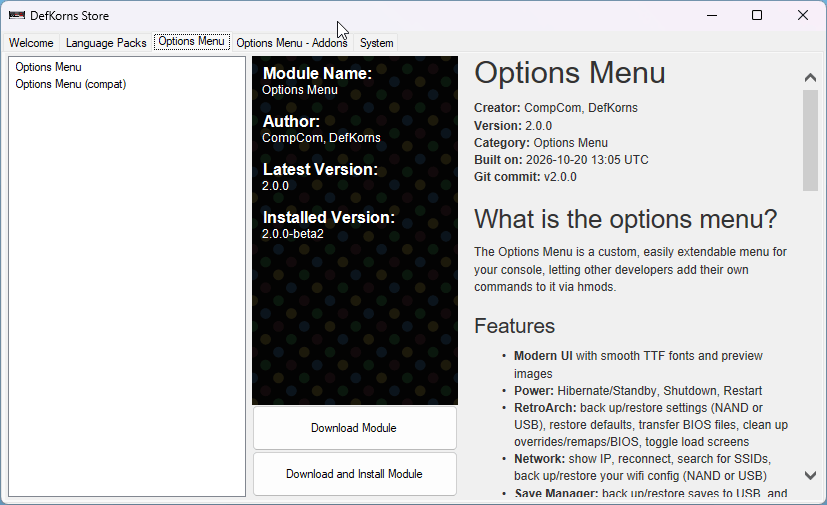
-
In the Options Menu - Addons tab, select Options Menu - Theme Selector and click Download and Install Module.
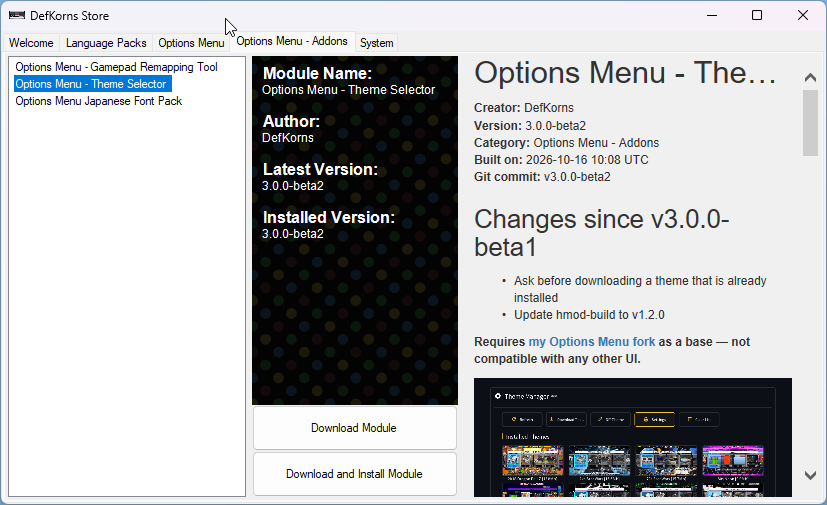
-
(Optional) Install the Wi-Fi mod from Modules → KMFDManic Store.
New versions show up in the hub automatically: each mod's page shows its Latest Version next to your Installed Version.
-
Download the latest
.hmodfiles:- Options Menu: github.com/DefKorns/OptionsMenu/releases
- Theme Selector: github.com/DefKorns/om_theme-selector/releases (
om_theme-selector.hmod)
-
Put them in hakchi's
user_modsfolder: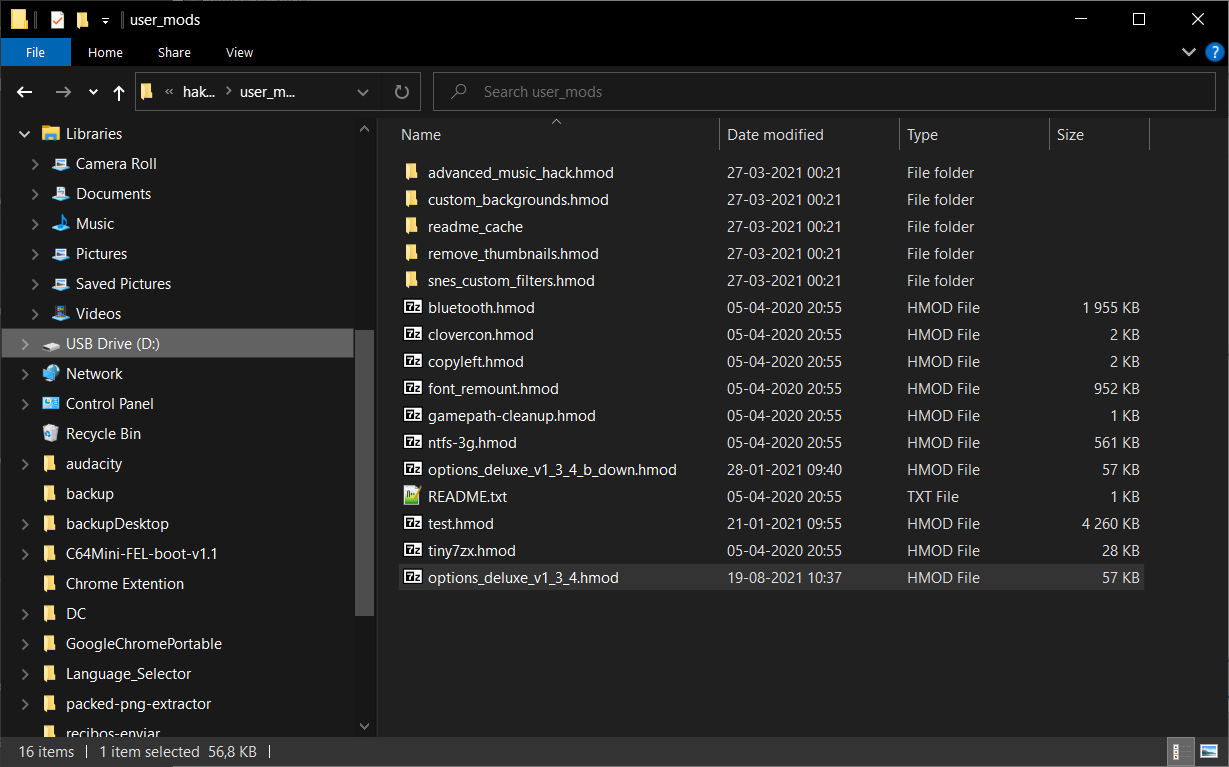
You can also drag and drop them onto the hakchi window instead.
-
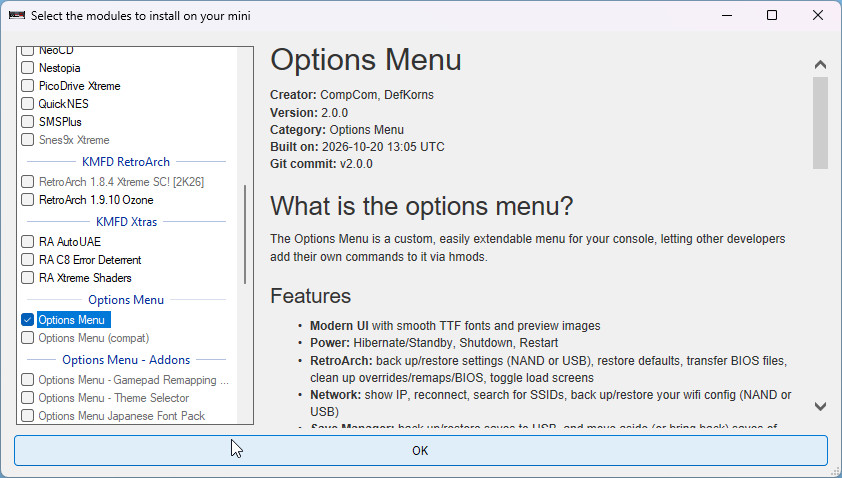
Install Options Menu first, then Options Menu - Theme Selector, from Modules → Install extra modules:
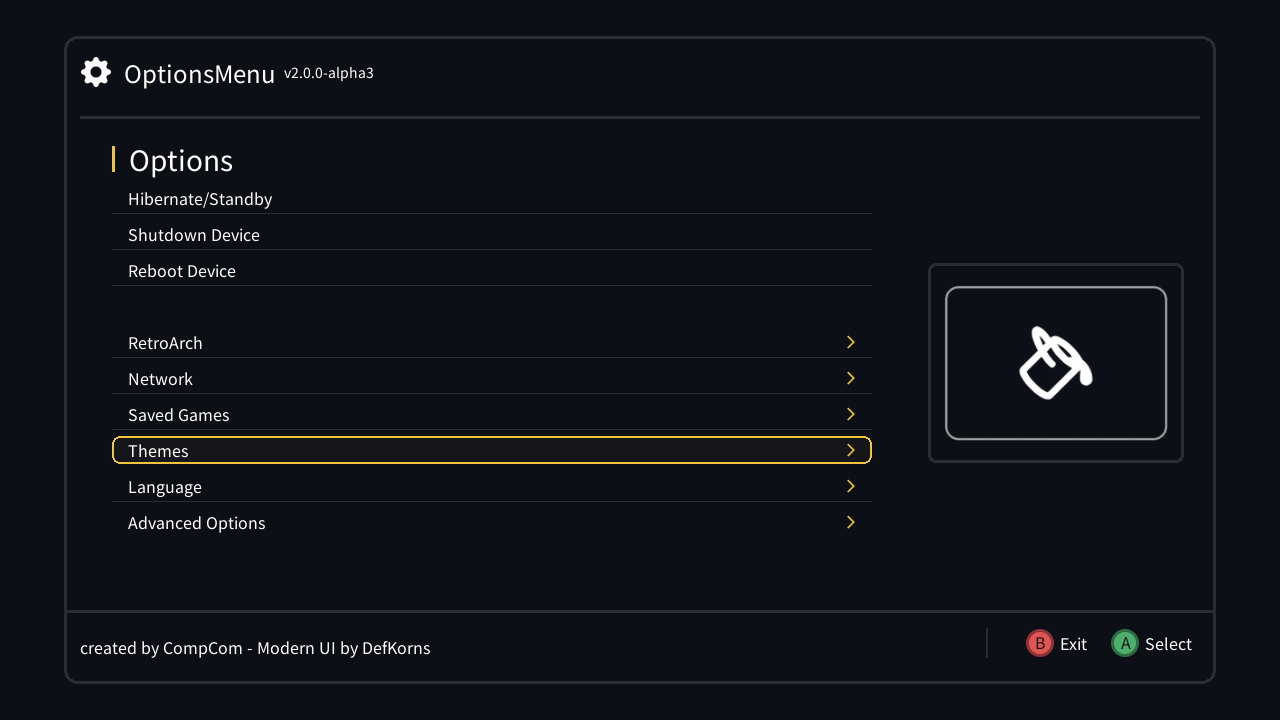
Open the Options Menu — hold L+R on a SNES/Super Famicom, or B+Down on a NES/Famicom — and go to Themes. Continue with Usage.
Just install this version. It uninstalls those mods itself and keeps your themes, your music and your last applied theme.
Install the new version over the old one. Your themes, your music, your applied theme and the themes and music you assigned to folders are kept, but every option in Settings is turned off again: turn back on the ones you use.
The first time you open Themes after installing, the files your console type doesn't use are cleaned up (see Settings → Clean Up).
Use hakchi: Modules → Uninstall extra modules. This removes the mod, its settings and your folder assignments, and puts the console's own theme back. Themes and music on the console's internal memory (NAND) are deleted too; the ones on a USB/SD drive stay.