Repository navigation
Guides
If your games are organized into folders (one per system, per series...), each folder can have its own theme.
- Go to Themes → Settings and turn on Theme Per Folder.
- Open Assign Theme to Folder, right below it.
- Your folders are listed as a tree, with Home first. On a folder:
- press Left/Right to cycle through your themes, or
- press A to pick one from a list.
- Leave the screen. The themes are applied the next time you enter each folder.
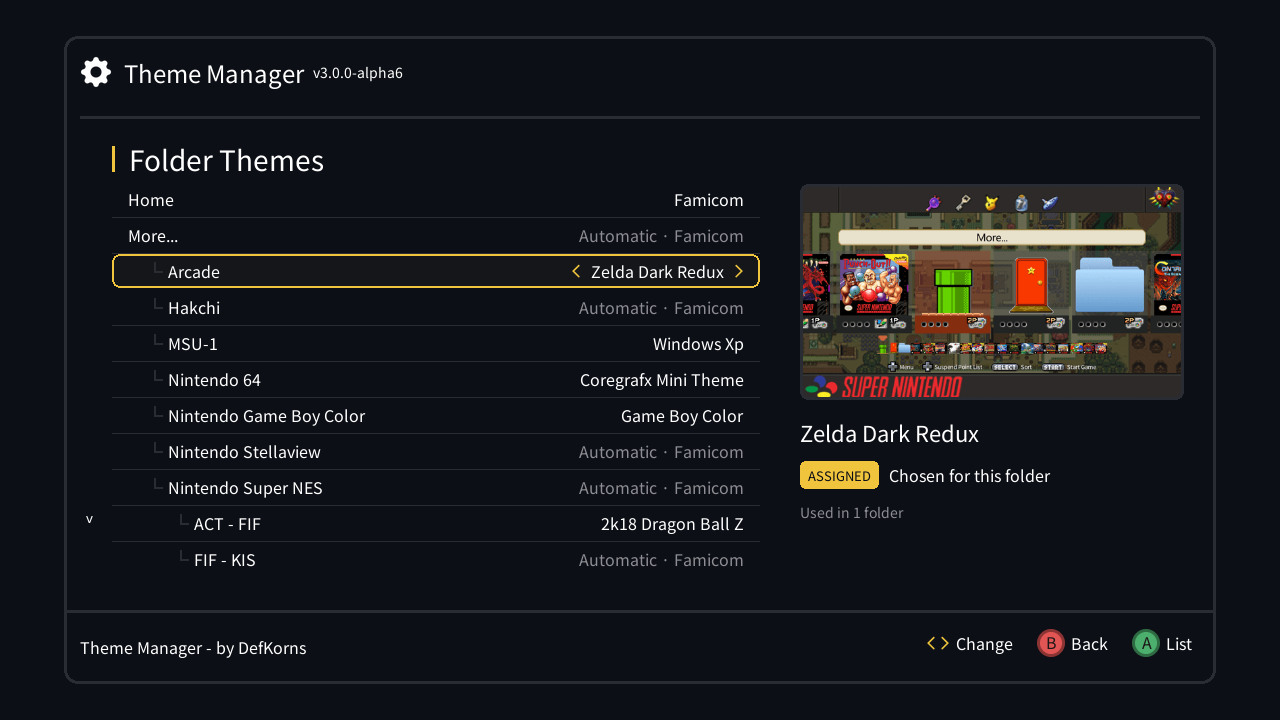
The preview on the right shows the theme the folder will use and where it comes from:
| Tag | Meaning |
|---|---|
| ASSIGNED | Chosen for this folder |
| INHERITED | Comes from a parent folder |
| GLOBAL | The theme applied for the whole console |
| BY NAME | A theme named after this folder (see below) |
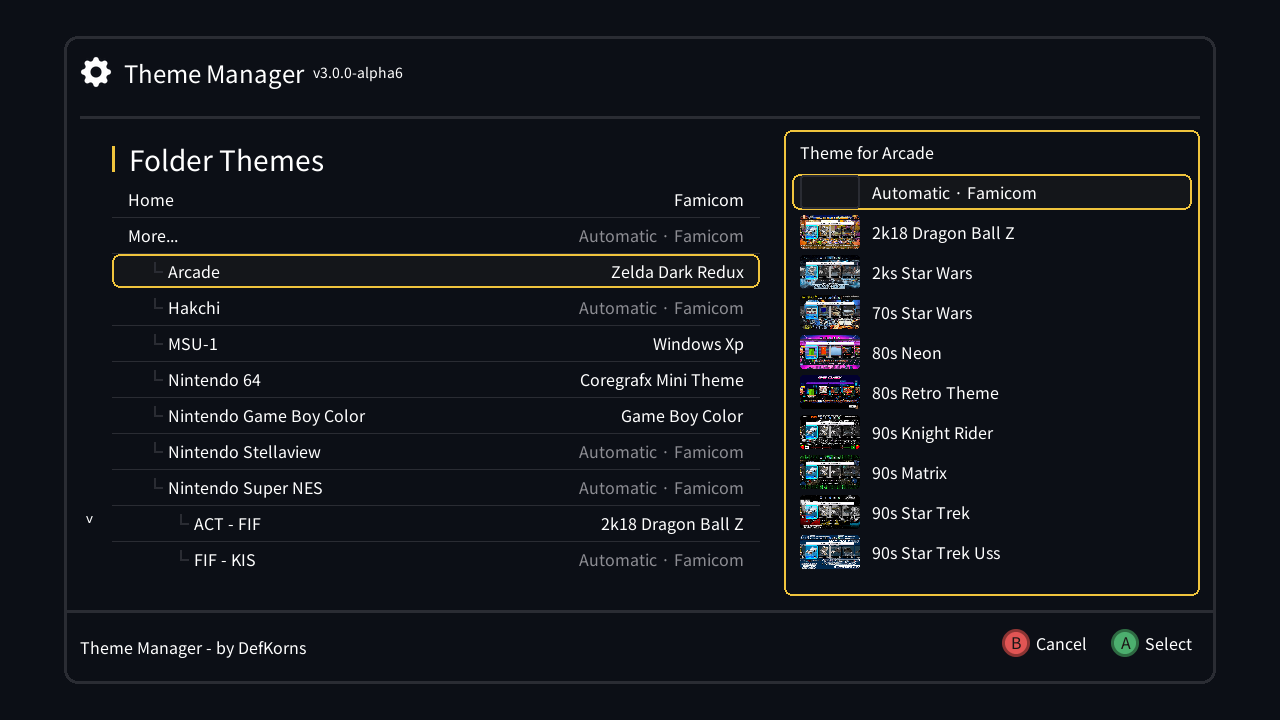
The list starts with Automatic, which clears the folder's assignment, followed by your themes. Automatic shows what the folder gets without one, e.g. Automatic · Famicom. When it ends up at the console's own theme it reads Original theme, or Random theme with the Theme Randomizer on.
On a SNES controller, Y sets the selected folder back to Automatic without opening the list (not while Use X/Y as turbo A/B is on in the Options Menu, since Y then acts as turbo B).
A folder on Automatic uses its parent folder's theme, all the way up. A top-level folder on Automatic uses the theme applied for the whole console. A folder's own theme always wins over its parent's. The same theme can go on as many folders as you like: no copies or renaming needed.
The Theme Selector 2 way still works for folders without an assignment: name a theme folder after the game folder, in lower snake_case. For example, game folder Nintendo - Nintendo Entertainment System → theme folder nintendo_-_nintendo_entertainment_system.
A theme named default is used on Home.
Same idea as theme per folder, for the menu music.
- Put your music in a
music_menufolder (see Audio randomizer for the format). - Go to Themes → Settings, turn on Music Per Folder and open Assign Music to Folder.
- Pick a track for each folder with Left/Right or A.
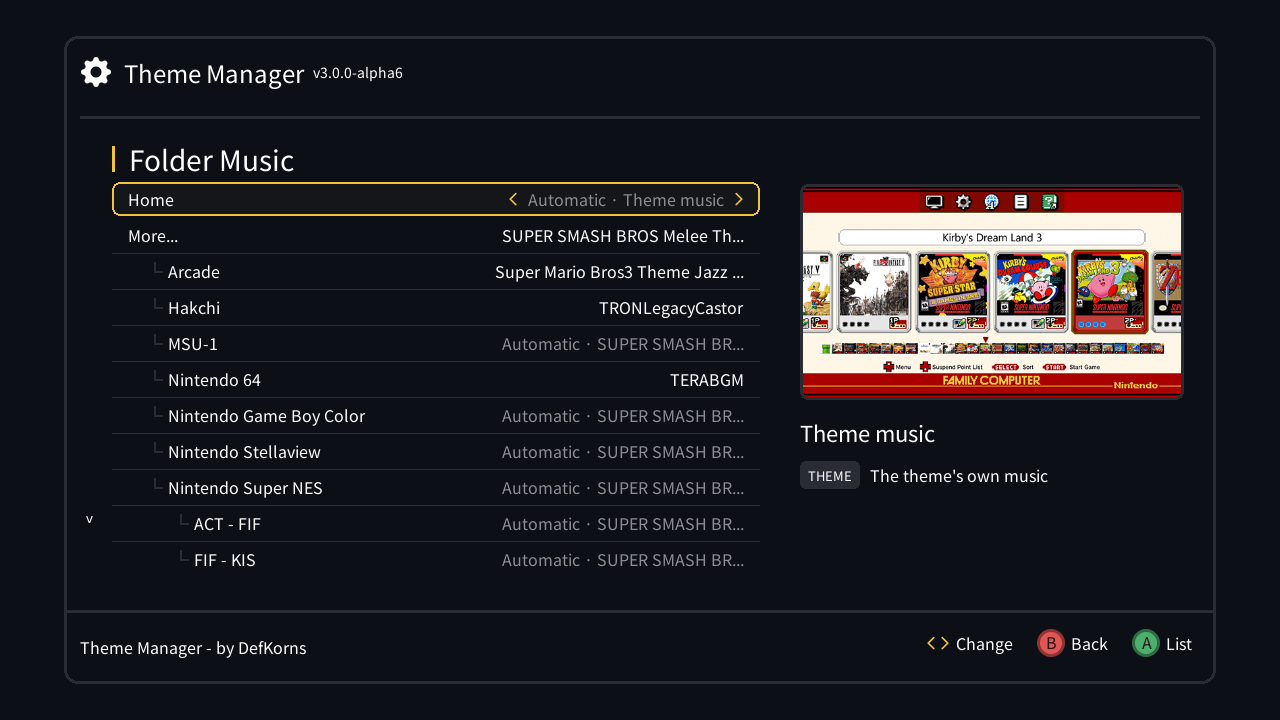
The list starts with Automatic, followed by your tracks. Like themes, a folder on Automatic uses the music assigned to a folder above it. With nothing assigned above it, it keeps the normal behaviour, shown next to it: Theme music (the theme's own music), Random music (the Audio Randomizer) or Original music (the console's stock music).
Music assigned to a folder plays instead of the theme's own music. It works with or without Theme Per Folder.
- Create a
music_menufolder:- USB/SD:
/media/hakchi/music_menu - NAND:
/var/lib/hakchi/rootfs/usr/share/music_menu(over hakchi's FTP)
- USB/SD:
- Copy your music there as
.wavfiles: PCM, and file names without spaces (e.g.super_mario_world_remix.wav). - Go to Themes → Settings and turn on Audio Randomizer: Home, and optionally All Folders.
With a USB/SD drive, its music_menu is used if it has any .wav file; otherwise the NAND one.
Menu music takes a lot of space (a 3-minute track is about 30 MB). Keep it on a USB/SD drive.
Build a theme of your own from pieces of the themes you already have.
| SNES / Super Famicom | NES / Famicom |
|---|---|
| Base UI | Base UI |
| Background | Demo: Characters |
| Demo: Character #1 (Mario) | Background Color |
| Demo: Character #2 (Luigi) | |
| Demo: Background Near / Far | |
| Demo: Pole |
-
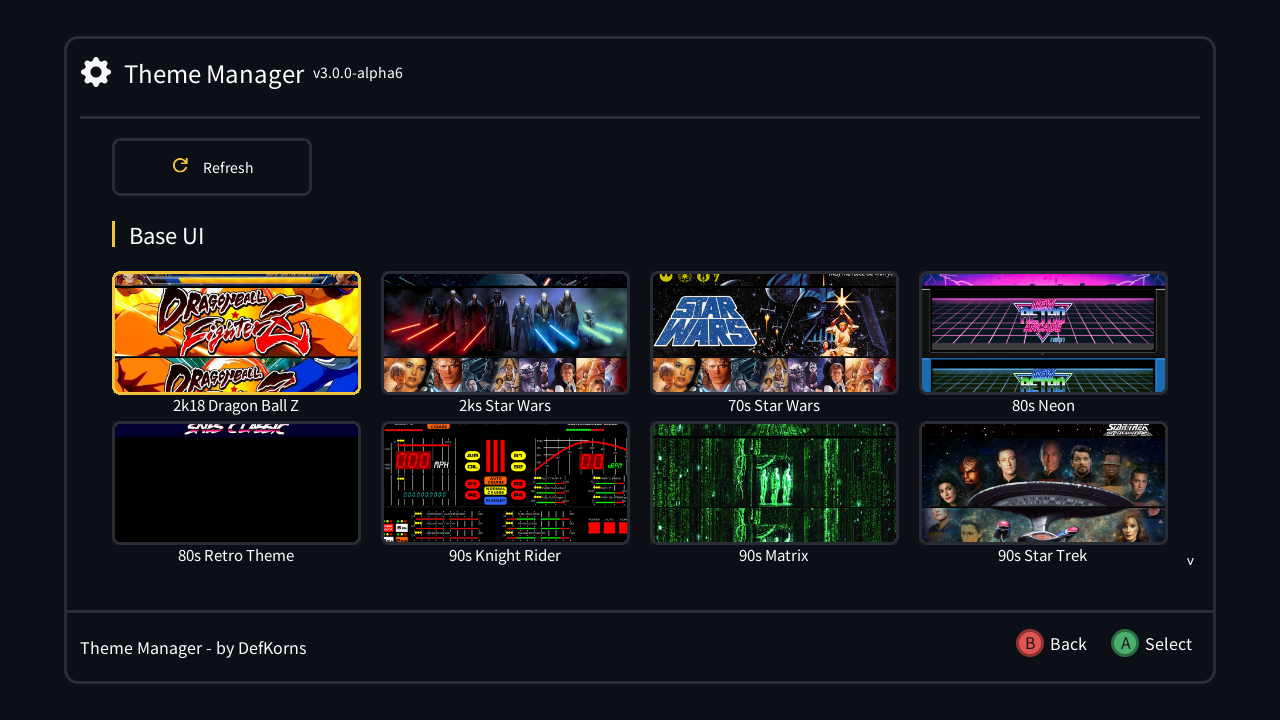
Go to Themes → DIY Theme. It shows up once you have at least one theme installed.
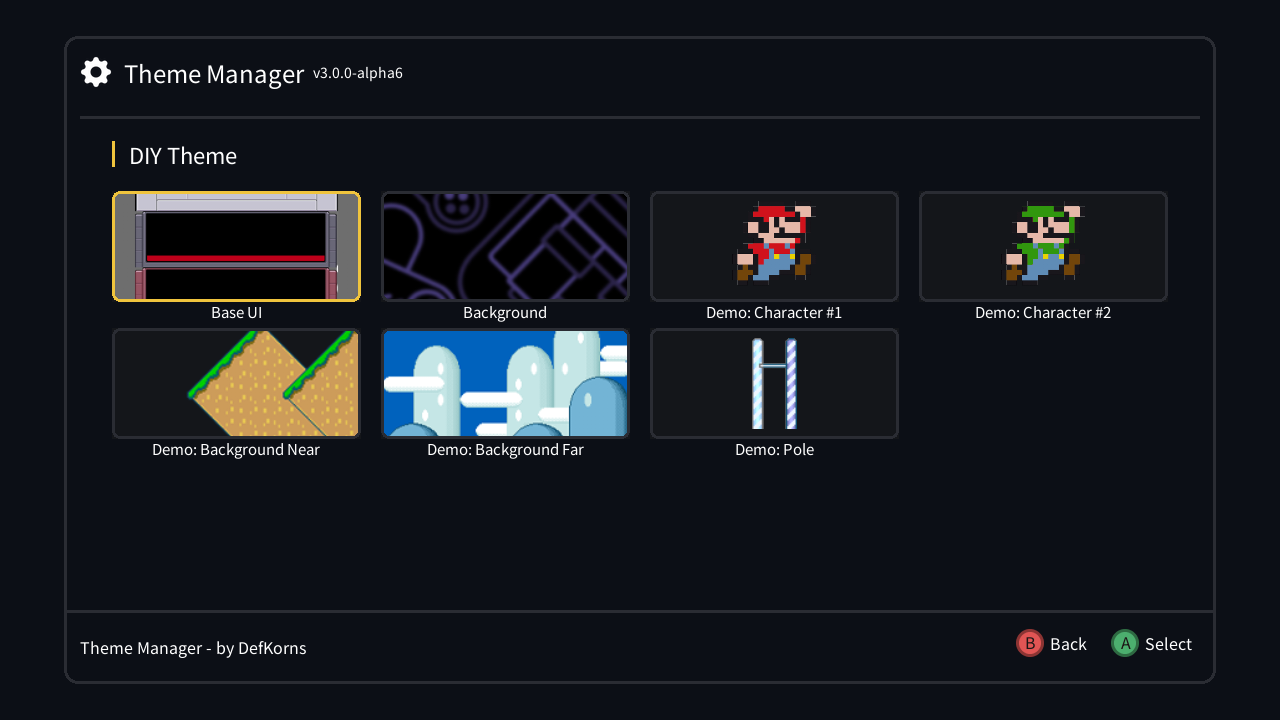
-
Open a category. The first time, Loading assets... can take a few minutes: it scans every installed theme for that piece.
-
Every asset is listed under the name of the theme it comes from. Select one and press A (Asset applied successfully!).
-
Repeat for the other categories. Pick a new asset to replace one you don't like.
-
Preview custom theme applies it so you can see the result.
-
Save custom theme saves it as a new theme,
diy_theme(thendiy_theme-1,diy_theme-2...). It shows up in Installed Themes like any other.
Clean custom theme discards the theme you're building without saving it.
The grid shows <theme name>.png, next to the theme folder, as the theme's preview. Downloaded themes come with one. For your own themes, make one:
-
Apply the theme.
-
Connect the console to your PC with the USB cable. Taking a screenshot over Wi-Fi can freeze the console and hakchi.
-
In hakchi, choose Tools → Take Screenshot (or press F8):
-
Right-click the screenshot and choose Save image to file:
-
Resize it to 569×320 and save it as PNG, with the same name as the theme folder. For example, the preview of
my_theme/ismy_theme.png. -
Copy it next to the theme folder, with hakchi's FTP or on your USB/SD drive:
- USB/SD:
/media/hakchi/themes/<console> - NAND:
/var/lib/hakchi/rootfs/usr/share/themes/<console>
- USB/SD:
-
In Themes, select Refresh.


You can add your own pieces to the DIY categories. This guide doesn't cover making the sprites themselves.
- With hakchi's FTP, go to
/etc/options_menu/themes/creator/sprites/assets/. - Open the folder for the category:
packed(Base UI),wall,wall_near,wall_far,mario,luigi,pole, or on a NESpacked_nes,smb,colors_nes. - Create a folder for your asset, without spaces in its name (e.g.
Fire_Bros). - Put your sprites in it, named exactly like the originals they replace (for Mario:
mario_run01.png,mario_jump01.png,mario_look.png...). - In DIY Theme, open that category and select Refresh to load your asset.