Sequence screen
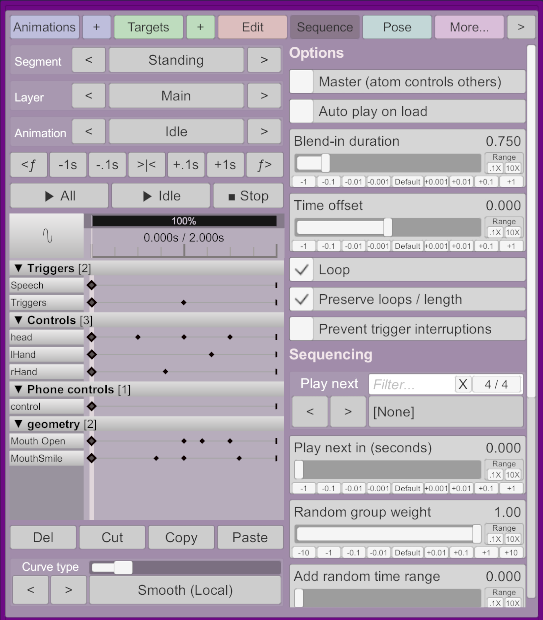
This determines how the animations will sequence and blend.
This is an atom-level setting (affects all animations). When selected, whatever sequences are playing on this atom will affect all other atoms sharing the same animation names. Note that this checkbox does not affect whether playing an animation also affects other atoms (this happens by default), it only affects animations launched through sequencing.
When loading the scene, if enabled, the animation will start playing immediately. This also affects which animation within a layer will be played what "Seq" (play all) is invoked.
The time it will take when playing this animation to transition from the current one. Ignored when using a pose.
Adds delays or advance to the animation. This can be used to adjust how animations on multiple layers are aligned. Typically this option is only useful when running animations using multiple layers.
See Loop.
When playing an animation using a trigger or automatic sequencing, loops will only play when the previous loop has completed. That that when loop 1 reaches the keyframe 0, loop 2 will start, ensuring they will loop in sync.
For non-looping animations, this will wait when animations are triggered for the end of the current animation, minus the blend duration.
When checked, using the "Play ANIM" trigger will be ignored while this animation is playing. Useful for transition animations launched by collision triggers.
After the current animation is complete, which animation in the current to play next. If animations contain the character /, you'll be able to select random animations within groups starting with the same prefix.
You can also select a segment, which will play the first animation on all layers of the target segment, and exit all animations of the current segment. Note that the blend time of all animations will be the blend time of the first animation of the first layer of the target segment.
After how much time should the Next Animation play. For looping animations this can be any value. For non-looping animations, this cannot be changed and will automatically be the animation length minus the blend duration.
You can change the value to 0 and the animation will loop forever.
Whenever this animation is part of a randomized group (either (Randomize) or Group/*), this will affect the chances of this animation being selected. For example, a weight of 2 means twice the chances of being selected compared to a weight of 1.
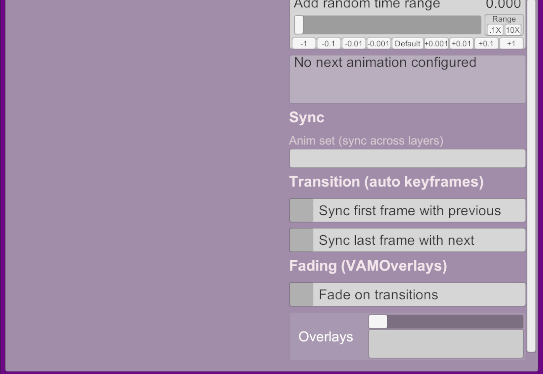
Adds between 0 and the specified time to the "Play next in" option. For example, if "Play next in" is set to 2 seconds, and you configure 4 seconds here, that means the animation will loop for a random duration between 2 seconds and 6 seconds. If the "Preserve loops" checkbox is ticked, it will randomize complete loops.
If a value is set, this animation will be part of this animation set. Whenever an animation is played on any other layer with this set, this animation (or the first animation on this layer) within the same set will play. The same behavior will affect also other atoms. For example, if Atom#1 has Anim1 in set MySet, and Atom#2 has Anim2 in set MySet, playing Anim1 will also trigger Anim2. This can be useful when multiple animations were made to work together.
Sometimes you may want to create non-looping animations to transition between two loops. This usually requires keeping the first frame synchronized with the last frame of the previous animation, and the last frame synchronized with the first frame of the next animation. When this option is enabled, these frames will always be synchronized automatically, so you only have to create the intermediate keyframes. This option is usually enabled automatically using the add animations/layers screen.
The first keyframe will always be overridden by the first animation that has it's "Play next" set to this animation.
The last keyframe will always be overridden by the animation configured in "Play next".
See Transitions
How much time should be added after the fade out and before the fade in; this time is used to allow physics to settle before making things visible again to the user.
Which atom with VAMOverlays should be used to run transitions.