Settings
This settings guide is only applicable to v2.8 and above of S'argo.
Previous bot versions use a different method of editing settings.
If you have an existing Settings.xml from v2.7 or lower of S'argo and the v2.8 and above core setting files do not exist, S'argo will automatically import your settings to the new system when you start up the bot.
Before you launch the bot, you should save a copy of your Settings.xml file until you confirm all your settings are correct after the import.
When importing, all settings will be imported EXCEPT the following:
- NoGUI (GUI use is deprecated as of
v2.8.) - UseMention (S'argo can be called by being mentioned AND through the command prefix as of
v2.8.)
Usage of the settings command is usually formatted as so:
settings <category> <setting> <add/remove/set> <value>
| Command | Result |
|---|---|
settings |
View all available setting categories. |
settings <category> |
View all settings in that category and any potential errors in your settings. |
settings <category> <setting> |
View specific details about the provided <setting>. |
settings <category> <setting> <add/remove/set> <value> |
Modify the value of <setting>. More details below. |
If you prefer editing your settings by hand and not by command, the option to do so is available.
You can find all setting files in the /data/settings/ folder. Unlike v2.7 and lower of S'argo, the setting files
are separated by type. Open the files with your preferred text editor.
Unlike editing with command, nothing will stop you from adding an invalid setting, so be careful.
Once you finish making your changes, you'll need to use the reload command to reload your setting files OR you can restart the bot.
Login settings include the following settings:
| Setting | What It Does |
|---|---|
Token |
Required to login to a bot account. |
BotOwnerID |
Determines who is the bot owner so they can use bot owner commands. |
GitHubDataRepository |
The URL of a repository that provides all the files/images/data for the bot. |
These settings cannot be modified with the use of the settings command and must be modified by editing /data/settings/Login.xml.
The values to put for these settings are covered in the Getting Started guide.
Command settings include the following settings:
| Setting | What It Does |
|---|---|
CommandPrefix |
Determines what prefix the bot should detect to call a command. |
DeleteUserMessage |
If true, the bot will delete the message that the user sent to call a command. |
MainChannel |
Determines which channel the bot should only be used in. |
BlacklistedChannels |
Only available if no MainChannel is provided. Determines which channels should not be able to use the bot. |
WhitelistedChannels |
Only available if a MainChannel is provided. Determines which channels should be able to use the bot. |
Default CommandPrefix: $
CommandPrefix can be edited by using the following command:
[Set a command prefix]
settings command commandprefix set <prefix>
If you were to run settings command commandprefix set ! and try to run the help command...
=== Example Chat ===

You:    !help
S'argo: [Display Help Menu]
If you were to run settings command commandprefix set % and try to run the help command...
=== Example Chat ===

You:    %help
S'argo: [Display Help Menu]
Default DeleteUserMessage: false
DeleteUserMessage can be edited by using the following command:
[Turn DeleteUserMessage on]
settings command deleteusermessage set true

[Turn DeleteUserMessage off]
settings command deleteusermessage set false
If you were to run settings command deleteusermessage set true and try to run the help command...
=== Example Chat ===

S'argo: [Display Help Menu]
If you were to run settings command deleteusermessage set false and try to run the help command...
=== Example Chat ===

You:    $help
S'argo: [Display Help Menu]
Default MainChannel: none
MainChannel can be edited by using the following commands:
[Set a main channel]
settings command mainchannel set <#channel>
settings command mainchannel set <channel-id>
settings command mainchannel set <channel-name>

[Remove the set main channel]
settings command mainchannel remove
[settings command mainchannel set <channel-name>, all channels named the same as the provided <channel-name> will be used. If you prefer to specify a specific channel, you should provide a <#channel> or <channel-id> instead.
Assuming your server consists of the following channels:
# general
# off-topic
# scout-simulator
If you want to make #scout-simulator your MainChannel, use settings command mainchannel set #scout-simulator.
As a result:
# general            (S'argo commands cannot be used here)
# off-topic          (S'argo commands cannot be used here)
# scout-simulator    (S'argo commands CAN be used here)
Default BlacklistedChannels: none
BlacklistedChannels can be edited by using the following commands:
[Add a channel to the blacklist]
settings command blacklistedchannels add <#channel>
settings command blacklistedchannels add <channel-id>
settings command blacklistedchannels add <channel-name>

[Remove a channel from the blacklist]
settings command blacklistedchannels remove <#channel>
settings command blacklistedchannels remove <channel-id>
settings command blacklistedchannels remove <channel-name>

[Remove all channels from the blacklist]
settings command blacklistedchannels remove
[settings command blacklistedchannels add <channel-name>, all channels named the same as the provided <channel-name> will be used. If you prefer to specify a specific channel, you should provide a <#channel> or <channel-id> instead.
Assuming your server consists of the following channels and you haven't set a MainChannel:
# general
# off-topic
# scout-simulator
# scout-simulator-private
If you want to add #general and #off-topic to the blacklist, use:
settings command blacklistedchannels add #general
settings command blacklistedchannels add #off-topic
As a result:
# general                    (S'argo commands cannot be used here)
# off-topic                  (S'argo commands cannot be used here)
# scout-simulator            (S'argo commands CAN be used here)
# scout-simulator-private    (S'argo commands CAN be used here)
Let's say you want to rename #off-topic to #bot-command-spam and want to allow S'argo commands to be used in the channel.
To do so, use settings command blacklistedchannels remove #bot-command-spam
As a result:
# general                    (S'argo commands cannot be used here)
# bot-command-spam           (S'argo commands CAN be used here)
# scout-simulator            (S'argo commands CAN be used here)
# scout-simulator-private    (S'argo commands CAN be used here)
Default WhitelistedChannels: none
WhitelistedChannels can be edited by using the following commands:
[Add a channel to the whitelist]
settings command whitelistedchannels add <#channel>
settings command whitelistedchannels add <channel-id>
settings command whitelistedchannels add <channel-name>

[Remove a channel from the whitelist]
settings command whitelistedchannels remove <#channel>
settings command whitelistedchannels remove <channel-id>
settings command whitelistedchannels remove <channel-name>

[Remove all channels from the whitelist]
settings command whitelistedchannels remove
[settings command whitelistedchannels add <channel-name>, all channels named the same as the provided <channel-name> will be used. If you prefer to specify a specific channel, you should provide a <#channel> or <channel-id> instead.
Assuming your server consists of the following channels and you set your MainChannel to #scout-simulator:
# general
# off-topic
# scout-simulator
# private-mod-chat
If you want to add #private-mod-chat to the whitelist so you can edit settings without letting your users see the changes, use settings command whitelistedchannels add #private-mod-chat
As a result:
# general                    (S'argo commands cannot be used here)
# off-topic                  (S'argo commands cannot be used here)
# scout-simulator            (S'argo commands CAN be used here)
# private-mod-chat           (S'argo commands CAN be used here)
Let's say that you end up adding more channels to the whitelist, but eventually you decide to only restrict S'argo commands to its main channel (#scout-simulator).
To remove all channels in the whitelist, use settings command whitelistedchannels remove
As a result:
# general                    (S'argo commands cannot be used here)
# off-topic                  (S'argo commands cannot be used here)
# scout-simulator            (S'argo commands CAN be used here)
# private-mod-chat           (S'argo commands cannot be used here)
Scout settings include the following settings:
| Setting | What It Does |
|---|---|
DisableImage |
If true, the bot will only send text-based scout results. |
SimpleMessage |
If true, the bot will not display scout results using embed messages. |
RarityStars |
If true, the bot will place gold stars above characters/weapons to show their rarity level. |
Rates |
Determines the rates to get copper/silver/gold/platinum characters or weapons. |
RecordCrystal |
Determines the rates for record crystals. |
CirculatingRecordCrystal |
Determines the rates for circulating record crystals. |
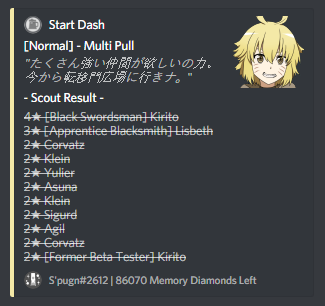
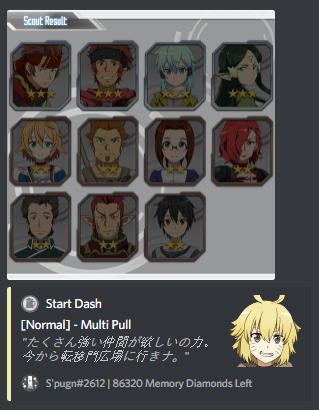
Default DisableImage: false
DisableImage can be edited by using the following commands:
[To disable images from being generated]
settings scout disableimages set true

[To allow images to be generated]
settings scout disableimages set false
If you were to run
settings scout disableimages set trueand try scouting...
If you were to run
settings scout disableimages set falseand try scouting...
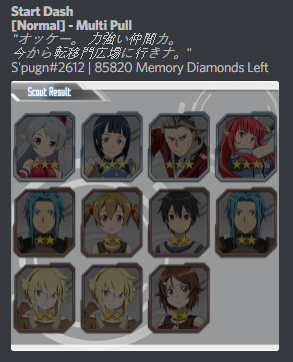
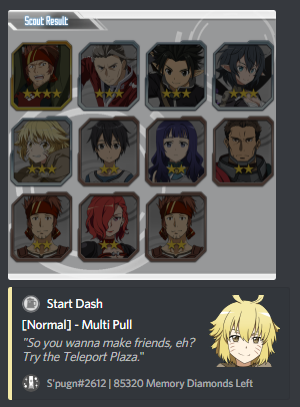
Default SimpleMessage: false
SimpleMessage can be edited by using the following commands:
[To stop the bot from using embed messages for scouts.]
settings scout simplemessage set true

[To allow the bot to use embed messages for scouts.]
settings scout simplemessage set false
If you were to run
settings scout simplemessage set trueand try scouting...
If you were to run
settings scout simplemessage set falseand try scouting...
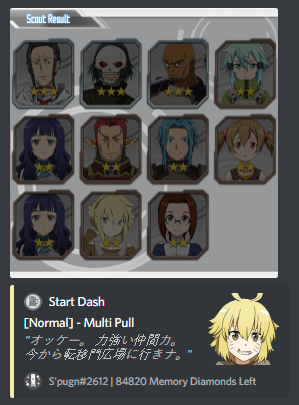
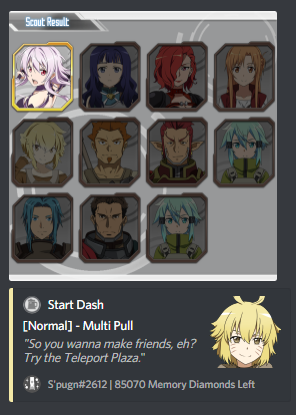
Default RarityStars: true
RarityStars can be edited by using the following commands:
[To have gold stars on characters/weapons]
settings scout raritystars set true

[To not have gold stars on characters/weapons]
settings scout raritystars set false
If you were to run
settings scout raritystars set trueand try scouting...
If you were to run
settings scout raritystars set falseand try scouting...
Default ScoutMaster: none
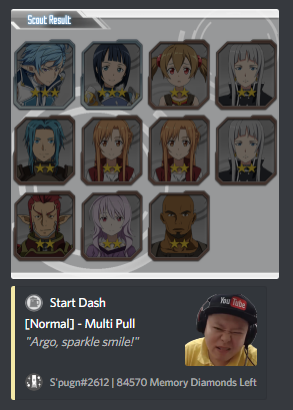
ScoutMaster can be edited by using the following commands:
[To set a scout master]
settings scout scoutmaster set <file-name>

[To remove the set scout master]
settings scout scoutmaster remove
[<file-name>.xml) does not exist in your /data/mods/ folder, you will get a warning if you perform the settings scout command.
[
If you were to run
settings scout scoutmaster set Ushiand have the example Ushi ScoutMaster file in your/data/mods/folder...
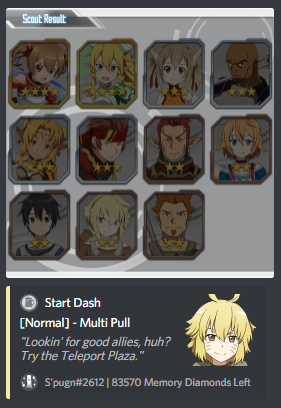
If you were to have no scoutmaster set or remove an existing scoutmaster with
settings scout scoutmaster remove...
Default Copper (2★) Rate: 0.65
Default Silver (3★) Rate: 0.25
Default Gold (4★) Rate: 0.04
Default Platinum (5★) Rate: 0.03
Default Platinum6 (6★) Rate: 0.03
Rates can be edited by using the following commands:
[To modify the copper (2★) rate]
settings scout rates copper <percentage-in-decimal>

[To modify the silver (3★) rate]
settings scout rates silver <percentage-in-decimal>

[To modify the gold (4★) rate]
settings scout rates gold <percentage-in-decimal>

[To modify the platinum (5★) rate]
settings scout rates platinum <percentage-in-decimal>

[To modify the platinum6 (6★) rate]
settings scout rates platinum6 <percentage-in-decimal>
[1.0, you will get a warning if you perform the settings scout command.
If you wanted to set the
Copper (2★)rates to be58%...
Use the commandsettings scout rates copper 0.58
If you wanted to set the
Silver (3★)rates to be30%...
Use the commandsettings scout rates silver 0.3
If you wanted to set the
Gold (4★)rates to be8%...
Use the commandsettings scout rates gold 0.08
If you wanted to set the
Platinum (5★)rates to be4%...
Use the commandsettings scout rates platinum 0.04
If you wanted to set the
Platinum6 (6★)rates to be64%...
Use the commandsettings scout rates platinum6 0.64
Default Record Crystal Rates:
1 RC  : 0.03
2 RC  : 0.37
3 RC  : 0.40
4 RC  : 0.10
5 RC  : 0.035
6 RC  : 0.035
7 RC  : 0.01
8 RC  : 0.01
9 RC  : 0.005
10 RC : 0.005
RecordCrystal can be edited by using the following command:
[To modify the rate to get <1-10> Record Crystals]
settings scout recordcrystal <1-10> <percentage-in-decimal>
[1.0, you will get a warning if you perform the settings scout command.
If you wanted to set the rate to get
1 RCto be1.5%...
Use the commandsettings scout recordcrystal 1 0.015
If you wanted to set the rate to get
10 RCto be2%...
Use the commandsettings scout recordcrystal 10 0.02
Default CirculatingRecordCrystal Rates:
1 CRC : 0.36
2 CRC : 0.60
3 CRC : 0.025
4 CRC : 0.01
5 CRC : 0.005
CirculatingRecordCrystal can be edited by using the following command:
[To modify the rate to get <1-5> Circulating Record Crystals]
settings scout circulatingrecordcrystal <1-5> <percentage-in-decimal>
[1.0, you will get a warning if you perform the settings scout command.
If you wanted to set the rate to get
1 CRCto be18%...
Use the commandsettings scout circulatingrecordcrystal 1 0.18
If you wanted to set the rate to get
5 CRCto be18.5%...
Use the commandsettings scout circulatingrecordcrystal 5 0.185
Shop settings include the following settings:
| Setting | What It Does |
|---|---|
MaxShopLimit |
Determines the max amount of memory diamond bundles a user can buy at a time. |
ShopItems |
Determines the list of items that is available with the shop command |
Default MaxShopLimit: 20
MaxShopLimit can be edited by using the following command:
[To modify the max shop limit]
settings shop maxshoplimit set <value>
If you wanted to set the max shop limit to be
50so that users can useshop 7 50to "buy" up to50bundles ofMemory Diamond G...
Use the commandsettings shop maxshoplimit set 50
If you wanted to set the max shop limit to be
10so that users can useshop 1 10to "buy" up to10bundles ofMemory Diamond A...
Use the commandsettings shop maxshoplimit set 10
Default ShopItems list:
Memory Diamond A [$0.99]  : 5   Memory Diamonds
Memory Diamond B [$4.99]  : 25  Memory Diamonds
Memory Diamond C [$7.99]  : 50  Memory Diamonds
Memory Diamond D [$17.99] : 125 Memory Diamonds
Memory Diamond E [$33.99] : 250 Memory Diamonds
Memory Diamond F [$44.99] : 360 Memory Diamonds
Memory Diamond G [$79.99] : 700 Memory Diamonds
ShopItems can be edited by using the following commands:
[To add an item to the list]
settings shop shopitems add <item-name> <item-price> <item-amount>

[To edit an existing item in the list]
settings shop shopitems add <existing-item-name> <item-price> <item-amount>

[To remove an item from the list]
settings shop shopitems remove <item-name>
[_.
If you wanted to add an item named
Best Deal Everthat costs$1and gives500 Memory Diamonds...
Use the commandsettings shop shopitems add Best_Deal_Ever 1 500
If you wanted to edit
Best Deal Everso that it costs$0.50and gives1000 Memory Diamonds...
Use the commandsettings shop shopitems add Best_Deal_Ever 0.5 1000
If you realized your
Best Deal Everlisting caused an inflation in Memory Diamonds and you want to remove it...
Use the commandsettings shop shopitems remove Best_Deal_Ever