
sidepulse is the command-line and macOS companion project for
SidePulse.
They can display the status of an AI agent, battery level, or other system signals.
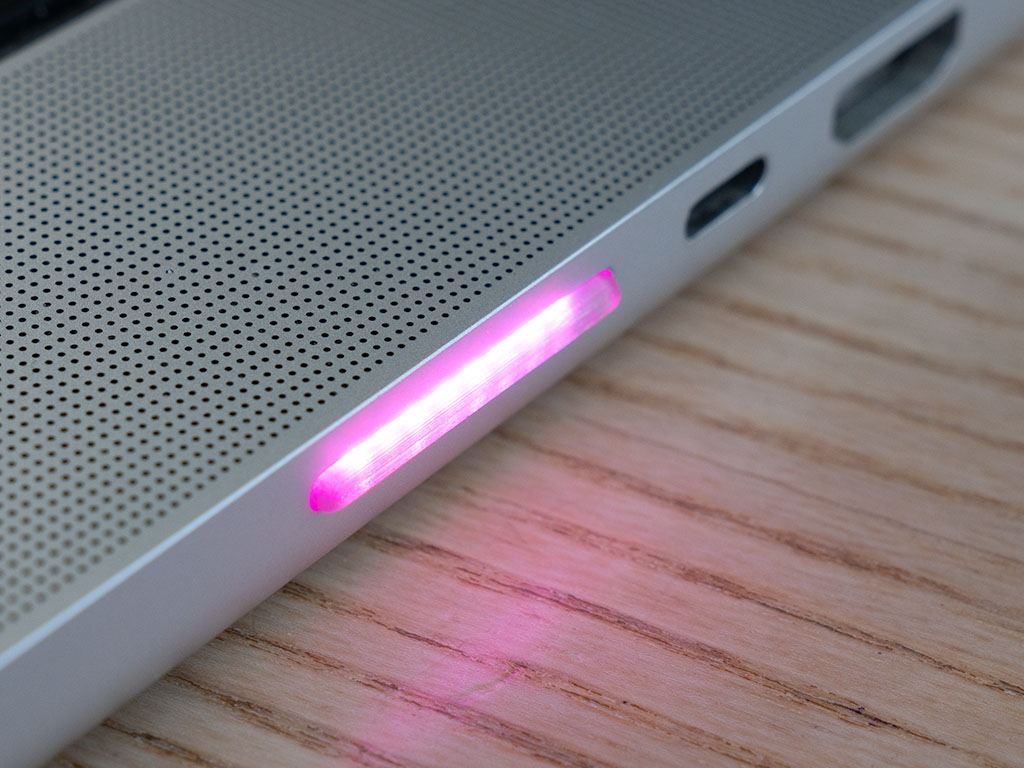 |
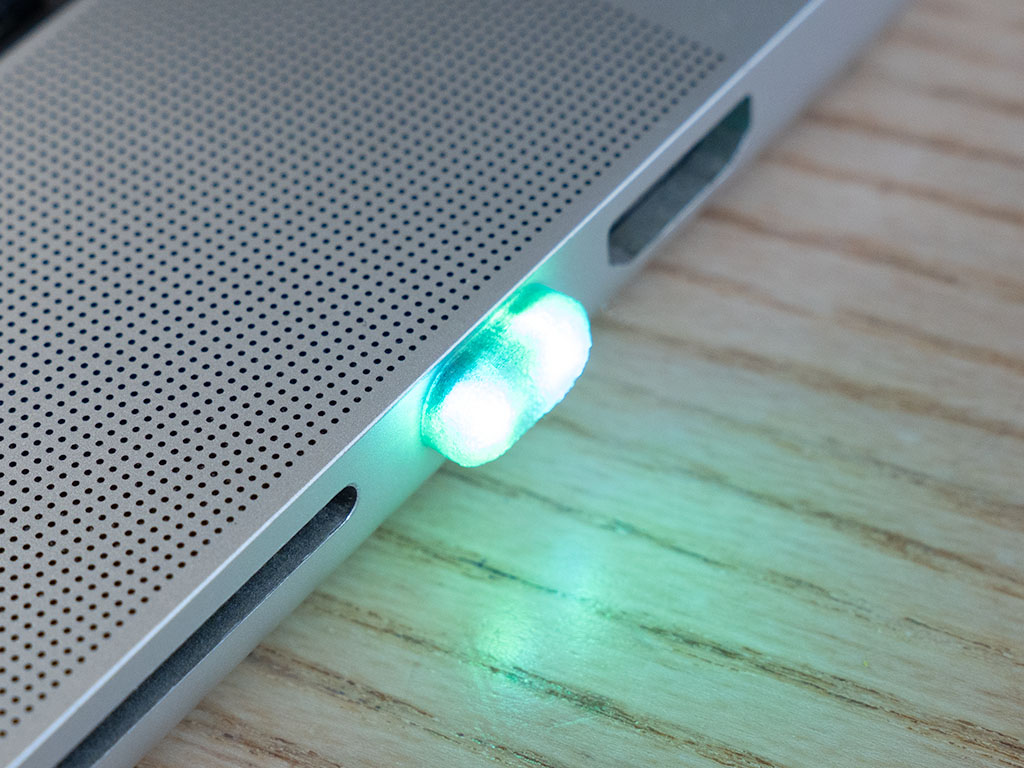 |
|---|---|
| SidePulse Pro — eight-LED SD card device for MacBook Pro. | SidePulse Dot — tiny two-LED USB-C device. |
Agent status, at a glance:
sidepulse-demo-v2.mp4
The device mounts as a disk drive. You can control the LEDs by writing to LEDS.LED.
The LED control DSL is described in LEDS_FORMAT.md.
python3 -m pip install -e .
sidepulse setup
Write an LED program directly to a mounted SidePulse Pro or SidePulse Dot device:
sidepulse write "off\n#ff3a00 1.6s pulse\nrepeat"The CLI auto-detects mounted devices under /Volumes by looking for a
SidePulse Pro/SidePulse Dot-style volume name or an existing LEDS.LED. If more than
one device is possible, pass the mounted folder or file explicitly:
sidepulse write "off\n#ff3a00 1.6s pulse\nrepeat" --device /Volumes/SidePulsePro
sidepulse write "off" --device /Volumes/SidePulsePro/LEDS.LED
The writer decodes simple escapes such as \n, then enforces the controller's
512-byte and 20-line limits before writing the LED control file.
Show the current Mac battery state:
sidepulse battery status
sidepulse battery status --json
Mirror battery level to a mounted SidePulse Pro/SidePulse Dot:
sidepulse battery leds
sidepulse battery leds --once --dry-run
sidepulse battery leds --device /Volumes/SidePulsePro --full-watts 140
SidePulse Pro uses all eight LEDs as a battery bar. At 50%, LEDs 0-3 are filled; when charging, LED 4 is the pulsing frontier LED. Live updates ease the whole strip into its new base state, then trigger one frontier pulse. The app owns the animation cadence by rewriting that one-shot pulse; the device does not run a repeated charging loop. Pulse length and rewrite frequency are based on charger wattage divided by the laptop's full-speed wattage baseline, so slow chargers produce occasional short blinks and full-speed chargers produce a steady pulse.
Save the status-bar LED display preference:
sidepulse battery configure --display battery
sidepulse battery configure --display agent
sidepulse battery configure --full-watts auto
sidepulse battery configure --show-on-power-change yes --power-change-preview-seconds 7
sidepulse includes a companion menu-bar app for macOS that controls
SidePulse Pro and SidePulse Dot.
SidePulse can monitor AI agents such as Codex, Claude, and Grok through hooks, then translate the current agent state into a small, glanceable LED status.
Agent status modes:
| Mode | Meaning | LED pattern |
|---|---|---|
| Idle / Ready | The agent is available and not currently running a task. | Very dim idle pulse. |
| Working | The agent is thinking, generating, or otherwise actively processing. | Cyan rolling animation. |
| Tool Running | A shell command, API call, or external tool is in progress. | Cyan rolling animation. |
| Waiting for Input | The agent needs a user decision, approval, or additional context. | Slow amber pulse. |
| Long Task Progress | A longer job has measurable progress. | Cyan rolling animation. |
| Blocked / Error | The agent cannot continue, a tool failed, or a recoverable error needs attention. | Slow amber pulse. |
| Completed | The agent finished successfully. | Solid green. |
When multiple states are active, SidePulse should show the most actionable mode first: Blocked / Error, Waiting for Input, Tool Running, Long Task Progress, Working, then Idle / Ready.
For multiple agents, SidePulse aggregates their statuses into one global display state. Each agent reports its own mode, and SidePulse renders the highest-priority active mode across all non-stale agents. This keeps the device useful at a glance: if any agent is blocked or waiting, the LEDs show that actionable state instead of trying to show every agent separately.
Aggregation priority:
| Priority | Mode | Aggregated behavior |
|---|---|---|
| 1 | Blocked / Error | Show immediately if any agent is blocked or has errored. |
| 2 | Waiting for Input | Show if any agent needs user input and no agent is blocked. |
| 3 | Tool Running | Show if any agent is running a tool and no higher-priority state is active. |
| 4 | Long Task Progress | Show the most recent or furthest-progressing long task. |
| 5 | Working | Show while one or more agents are actively processing. |
| 6 | Completed | Show briefly when the latest active agent completes successfully. |
| 7 | Idle / Ready | Show only when all known agents are idle or no fresh agent status exists. |
Agent statuses should include a timestamp. SidePulse should ignore stale statuses after a short timeout so disconnected or finished agents do not hold the display indefinitely.
The sidepulse Python package collects and normalizes local AI agent hook
events. The macOS status-bar app receives hook events through a lightweight
local Unix socket, keeps the latest agent states in memory, and writes only a
small latest.json restart snapshot plus provider JSONL debug logs. Hooks also
append event-status.jsonl, a compact decision log that records each hook event
and the SidePulse status it produced for debugging/export. The app does not
rescan historical logs or transcripts on every refresh.
The package can also mirror the aggregate state to a mounted SidePulse Pro or
SidePulse Dot by writing the current LED program to LEDS.LED.
The monitor currently supports:
| Provider | Config | Detected log |
|---|---|---|
| Codex | ~/.codex/config.toml |
${XDG_STATE_HOME:-~/.local/state}/sidepulse/agent-monitor/codex.jsonl |
| Claude | ~/.claude/settings.json |
${XDG_STATE_HOME:-~/.local/state}/sidepulse/agent-monitor/claude.jsonl |
| Grok | ~/.grok/hooks/sidepulse.json |
${XDG_STATE_HOME:-~/.local/state}/sidepulse/agent-monitor/grok.jsonl |
Install the optional MLX dependency, then classify a message with the default
4-bit mlx-community/Qwen2.5-0.5B-Instruct-4bit model:
python3 -m pip install -e '.[reply-classifier]'
sidepulse-reply "Could you check this for me?"
echo "Thanks, I received it." | sidepulse-reply --json
The model runs locally and uses deterministic greedy decoding. To benchmark the canonical labeled examples plus recent assistant messages collected in the SidePulse decision log:
python3 examples/benchmark_reply_classifier.py --warm-runs 20 --log-examples 12Generate the labeled dataset (eight human-collected examples plus 300 balanced, reproducible synthetic examples):
python3 scripts/generate_reply_dataset.pyThe resulting data/reply_expectation.jsonl records label, source, split,
and category. Human-collected examples are kept in the test split and synthetic
examples are explicitly marked so evaluation can report them separately.
For CLI snapshots, debugging, or recovery after missed hook events, the file-based monitor can optionally read recent local transcripts as a fallback:
- Codex:
~/.codex/sessions/**/*.jsonl - Claude:
~/.claude/projects/**/*.jsonl
Transcript monitoring is off by default and can be enabled in Settings. It can
catch active threads even when hook events are stale or missed. Claude
transcript files can be touched after their embedded event timestamps stop
moving, so a recent transcript mtime is treated as a Working heartbeat only
when the latest embedded event was already active. File mtimes never resurrect
a terminal Stop / Completed session. Internal Codex helper/suggestion
transcripts are ignored so app background work does not look like one of your
agents.
By default the monitor stores runtime logs under
~/.local/state/sidepulse/agent-monitor/, following the XDG state directory
convention. Set XDG_STATE_HOME to place them somewhere else.
Install locally for the sidepulse CLI:
python3 -m pip install -e .For an isolated user installation that does not modify system Python packages:
./scripts/install-user.sh
~/.local/bin/sidepulse setup
The installer creates ~/.local/share/sidepulse/venv and links the CLI into
~/.local/bin. Override PYTHON_BIN, SIDEPULSE_INSTALL_ROOT, or
SIDEPULSE_BIN_DIR when a different location is needed.
This also installs the Cocoa dependencies for the macOS status-bar app.
Set up this Mac explicitly after package install:
sidepulse setupsidepulse setup installs or refreshes Codex, Claude, and Grok hooks, installs
SidePulse Pro Eject Prevention, writes the status-bar LaunchAgent, starts both helpers
immediately, and enables them at login. This is intentionally an explicit
command instead of a pip install side effect. To set up only one provider, use
sidepulse setup codex, sidepulse setup claude, or sidepulse setup grok.
To skip the status-bar app but still install hooks and SidePulse Pro Eject Prevention, use
sidepulse setup --no-status-bar.
SidePulse Pro Eject Prevention keeps the built-in SD reader attached after macOS hibernate or lock-screen mount refusals. By default setup installs it system-wide when already running with system permissions, otherwise as a per-user LaunchAgent:
sidepulse setup --sd-eject-guard-scope auto
sidepulse setup --sd-eject-guard-scope user
sidepulse setup --sd-eject-guard-scope system --no-status-bar
The system scope requires the command to already have system install permissions.
Manage SidePulse Pro Eject Prevention directly:
sidepulse sdejectguard start
sidepulse sdejectguard stop
sidepulse sdejectguard uninstall
sidepulse sdejectguard logs
sidepulse sdejectguard start -it
start -it runs the guard in the current terminal for interactive debugging.
On Homebrew Python, use the user-site install form:
python3 -m pip install --user --break-system-packages -e .
ln -sf "$(python3 -m site --user-base)/bin/sidepulse" ~/.local/bin/sidepulseA signed and notarized PKG release can be built with
packaging/build_macos_pkg.sh. See
packaging/README.md for the required Developer ID
certificates and notarization profile.
Check the current hook configuration:
sidepulse agent-monitor doctorInstall or refresh the monitor hooks:
sidepulse agent-monitor install
sidepulse agent-monitor install codex
sidepulse agent-monitor install claude
sidepulse agent-monitor install grok
Each hook invokes a small, standard-library-only Python entry point. It writes the event to the monitor log and then makes a short best-effort local socket delivery to the status-bar app.
Show current aggregated status:
sidepulse agent-monitor statusWatch a live dashboard of recently active agents:
sidepulse agent-monitor liveThe dashboard refreshes every second and shows agents updated in the last hour
by default. Use --recent-seconds to change that window, or --all to
include stale/older sessions:
sidepulse agent-monitor live --recent-seconds 120
sidepulse agent-monitor live --all
By default, Tool Running events are not time-limited, so genuinely long tools
remain visible. If a provider drops completion hooks and you want protection
against stale tool starts, set --tool-running-timeout.
PostToolUse means the tool returned, not that the whole turn is finished. The
monitor keeps it as Working for a short settling window while the assistant
writes the response, then treats it as Done if no newer hook event arrives. This
prevents a missed final Stop event from leaving the status bar stuck on
Working.
Completed remains visible for 20 minutes so the status bar and LEDs can show
Done long enough to be noticed. After that it drops out instead of counting as
an active session for the full stale window, and the LEDs return to the very
dim Idle pattern. Idle/session-start records also do not count as active
sessions.
Status detection is strongest when the agent tells the monitor its intended handoff state explicitly. A final assistant message can include a hidden marker line:
<!-- sidepulse:ask -->
<!-- sidepulse:done -->
<!-- sidepulse:working -->
<!-- sidepulse:blocked -->
<!-- sidepulse:idle -->
Explicit markers win over text heuristics. If no marker is present, the monitor
falls back to provider events and then to conservative question detection in the
final assistant message. Casual closing questions such as "Anything else?" are
treated as Done unless the agent emits <!-- sidepulse:ask -->; concrete
follow-ups such as "Want me to push?" still count as Ask. Questions inside
markdown code spans or fenced code examples are ignored.
Codex PermissionRequest events are treated as Ask and remain sticky until the
matching tool command finishes. This prevents unrelated same-session activity
from hiding an approval prompt that is still waiting on the user.
For Codex, Claude, or Grok projects that should report this reliably, add guidance like this to the relevant agent instructions:
When your final response needs user input, approval, or a decision, include
`<!-- sidepulse:ask -->` as a final hidden marker line. When the work is complete
and no user response is needed, include `<!-- sidepulse:done -->`.
Mirror the aggregate agent status to the LEDs in a foreground process:
sidepulse agent-monitor ledsThe LED mirror writes only when the aggregate display state changes. Use
--once to write the current state and exit, or --dry-run to inspect the LED
program:
sidepulse agent-monitor leds --once --dry-run
sidepulse agent-monitor leds --device /Volumes/SidePulseDot
SidePulse Dot programs are generated for two LEDs. SidePulse Pro programs are generated for eight LEDs. The monitor detects this from the mounted device name and falls back to the eight-LED SidePulse Pro layout if the name is unknown.
Remove monitor hooks:
sidepulse agent-monitor uninstall
sidepulse agent-monitor uninstall codex
sidepulse agent-monitor uninstall claude
sidepulse agent-monitor uninstall grok
Install and start the macOS status-bar app:
sidepulse status-bar
sidepulse status-bar start
This writes ~/Library/LaunchAgents/io.sidepulse.agentstatus.plist, starts the
menu-bar app immediately, enables it at login, and mirrors the same aggregate
state to the LEDs. For debugging, run it in the foreground:
sidepulse status-bar start --foregroundOn first launch, the status-bar app shows a SidePulse Setup window. It can:
- enable Run at Login;
- install or uninstall SidePulse Pro Eject Prevention, which keeps SidePulse Pro/SidePulse Dot available after sleep;
- open the one-time closed-lid sleep prevention installer in Terminal.
The Setup window can be reopened from the dropdown with Setup....
The status-bar item shows one of four collapsed states:
| Label | Meaning |
|---|---|
| Idle | No recent active agent work. |
| Working | One or more agents are thinking, running tools, or progressing. |
| Done | The most recent active agent completed successfully. |
| Ask | An agent needs input, permission, or attention. |
Click the status-bar item to expand the recent session list. Click a session row to open that agent using the remembered choice for that provider. Use the session's Open Options row to choose and remember another opener, such as the provider app, Terminal resume, or Claude Code in VS Code.
The dropdown also includes a checked Connect to Device item. A checkmark means
the status-bar app is actively connected to a mounted SidePulse Pro/SidePulse Dot target.
If both devices are mounted, the status-bar app prefers SidePulse Pro, then
SidePulse Dot. Click the item to disconnect and turn the LEDs off; click it again to
reconnect.
The dropdown and Settings window can switch the LEDs between agent status and
battery status. When agent status is selected, Show Battery on Plug/Unplug
can briefly show the battery animation for seven seconds after the power source
changes.
The Devices section also offers Add Screen Bar, an optional virtual
eight-LED device. It appears as a notch-shaped status-bar overlay that covers
the camera island/notch footprint and adds a straight 5 px LED band along the
bottom edge, or the corresponding top-center position on a display without a
notch. Each virtual LED blends across a three-LED footprint: centered on the
target LED, fading one LED width left and right. It shares the physical
device's status animations, display-mode selection, and per-device brightness
control. The Screen Bar evaluates the same LEDS.LED programs with the
firmware/websim sdled.wasm engine, then AppKit only draws the returned RGB
frames.
Open Settings... from the dropdown to manage agent integrations. The settings
window can install or uninstall Codex, Claude, and Grok hooks. The transcript
checkboxes control the file-based CLI/debug fallback; the status-bar app gets
live updates from the local hook event socket. Settings are stored at
${XDG_CONFIG_HOME:-~/.config}/sidepulse/agent-monitor/settings.json.
Settings can export the hook decision log as CSV or HTML. This log lives at
${XDG_STATE_HOME:-~/.local/state}/sidepulse/agent-monitor/event-status.jsonl
and shows the path from provider hook event to interpreted SidePulse status.
The Keep Awake With Lid Closed menu section controls the stronger sleep
prevention policy:
| Choice | Behavior |
|---|---|
| Never | Do not use the closed-lid sleep override. |
| When Agents Work | Keep the Mac awake while agents are Working / Tool Running / Progressing, plus the existing five-minute Ask / Done / Error grace period. |
| Always | Keep the closed-lid sleep override active while the status-bar app is running. |
The status-bar app still keeps the SidePulse Pro/SidePulse Dot volume active by touching
a keepalive file on each connected device at least once per minute. The
closed-lid policy uses the SidePulse sleep helper when it is installed. The PKG
installer sets this up automatically; source/dev installs can run the one-time
setup command:
sudo "$(command -v sidepulse)" status-bar install-sleep-helperThe helper is a narrow sudoers rule for exactly
/usr/bin/pmset -a disablesleep 0|1, so the status-bar app can toggle it
silently with non-interactive sudo. SidePulse uses this automatically for
Keep Awake With Lid Closed and only restores the setting if SidePulse changed
it. Remove the helper with:
sudo "$(command -v sidepulse)" status-bar uninstall-sleep-helperOpen Settings... to edit and preview the Lid Closed and Lid Open LED
animations. Animation programs use the same LEDS.LED syntax as
sidepulse write; device brightness is applied automatically before writing.
The app is also installed as a user LaunchAgent at
~/Library/LaunchAgents/io.sidepulse.agentstatus.plist.
Stop and remove the LaunchAgent:
sidepulse status-bar stopUse it from another Python app:
from sidepulse import AgentMonitor, LiveAgentMonitor

snapshot = AgentMonitor.from_default_sources().snapshot()
print(snapshot.aggregate.mode.value)
for status in snapshot.statuses:
    print(status.provider, status.mode.value, status.cwd)

live = LiveAgentMonitor()
Publish a hook-shaped event to the status-bar app from another local process:
from sidepulse import send_hook_event

send_hook_event(
    "codex",
    {
        "logged_at": "2026-07-13T12:00:00Z",
        "event": {
            "hook_event_name": "Stop",
            "session_id": "example",
            "last_assistant_message": "Done.",
        },
    },
)examples/audio_monitor.py turns microphone volume into a smooth LED level
bar. The LEDs stay dim at rest, run green through yellow to red, and brighten as
the audio level fills the bar.
Install the optional live-audio dependencies:
python3 -m pip install sounddevice numpyPreview the meter in the terminal without touching a device:
python3 examples/audio_monitor.py --dry-run --terminalWrite to a mounted SidePulse Pro or SidePulse Dot:
python3 examples/audio_monitor.py --device /Volumes/SidePulsePro --terminal
python3 examples/audio_monitor.py --device /Volumes/SidePulseDot --terminal
List audio inputs or tune sensitivity:
python3 examples/audio_monitor.py --list-inputs
python3 examples/audio_monitor.py --device /Volumes/SidePulsePro --gain-db 8 --release 0.45...
python3 -m pip install -e '.[test]'
python3 -m pytest tests -q
CI runs the suite on macOS and Linux, and a tagged release will not publish unless it passes. Four files, each guarding a different failure mode:
| File | Guards against |
|---|---|
tests/test_packaging.py |
Importing a module no dependency declares. Every module-level import must resolve to a declared distribution, so a new import without a matching pyproject.toml entry fails at commit time rather than on a user's machine. |
tests/test_environment.py |
A working dev machine hiding a broken install. Builds an empty virtualenv, runs pip install . against pyproject.toml alone, then imports every module and runs the real commands — including sidepulse status-bar start --foreground — inside it. An undeclared dependency is simply absent there. |
tests/test_hook_stability.py |
Breaking somebody's agent session. Hooks must exit 0 and stay silent on stdout for every input and internal failure — and must still work with PyObjC entirely unavailable. |
tests/test_status_bar_ui.py |
Menus and windows that build but crash when clicked. Runs headlessly against a real StatusBarController; verifies every selector string resolves to a real method. |
tests/test_sidepulse.py |
Collector, settings, install, and provider logic. |
The UI tests skip if AppKit is unavailable. Set SIDEPULSE_REQUIRE_UI_TESTS=1
to turn that skip into a failure, which is how CI runs them.
The clean-room install tests take ~15s because they build a virtualenv and
install into it. Set SIDEPULSE_SKIP_CLEAN_INSTALL=1 to skip them while
iterating; CI always runs them.
git tag v0.1.0 && git push --tags runs the full suite, checks the tag against
the version in pyproject.toml, builds, publishes, and then reinstalls the
release from PyPI on clean macOS and Linux runners to re-run the clean-room
tests against the artifact users actually download.
Bump the version in both pyproject.toml and src/sidepulse/__init__.py — a
test fails if they disagree, and the tag guard fails if the tag disagrees with
either. To point the clean-room tests at any other build:
SIDEPULSE_INSTALL_SPEC='sidepulse==0.1.0' python3 -m pytest tests/test_environment.py -v