
[Blog] [Demo on YouTube] [Paper]

Search any folder by what its images contain. Use natural language, an example image, or both – without tagging, uploading, or importing your files into a photo library.
Local. Terminal-native. Works over SSH. Plays well with Unix tools.
cd ~/Photos
rclip "two parrots on a branch"- Natural-language search – find photos by describing them, e.g.
rclip "two parrots on a branch". - Reverse / image-to-image search – search by an example image from a local path or a URL.
- Combined & arithmetic queries – mix and weight text and image queries, e.g.
rclip "2:golden retriever" + "./pool.jpg" - fruit. - Local & private – works fully offline; your photos never leave your computer.
- Wide format support –
jpg,png,webp,tiff,gif, and more, plus native HEIC on macOS/Windows and experimental RAW (arw,cr2,dng). - Fast incremental indexing – only new and changed images are reprocessed on subsequent runs.
- Interactive terminal UI – search a responsive thumbnail grid without leaving the terminal.
- Terminal previews – view images inline in terminals supporting Kitty graphics, such as Kitty, Ghostty, latest iTerm2, and Konsole.
- Cross-platform – Linux, macOS (Apple Silicon), and Windows.
sudo snap install rclipAlternative options (AppImage and pip)
If your Linux distribution doesn't support snap, you can use one of the alternative installation options:
On Linux x86_64, you can install rclip as a self-contained executable.
-
Download the AppImage from the latest release.
-
Execute the following commands:
chmod +x <downloaded AppImage filename>
sudo mv <downloaded AppImage filename> /usr/local/bin/rclippip install --extra-index-url https://download.pytorch.org/whl/cpu rclipbrew install yurijmikhalevich/tap/rclipNote: We only support Apple Silicon (arm64) on macOS.
Alternative option (pip)
pip install rclip- Download the "*.msi" from the latest release.
- Install rclip by running the installer.
Alternative option (pip)
pip install rclipSearch the current directory with a natural-language query:
cd photos && rclip "search query"Example output
score  filepath
0.297  "/photos/sunrise-beach.jpg"
0.286  "/photos/dawn-walk.png"
0.274  "/photos/morning-hike.heic"
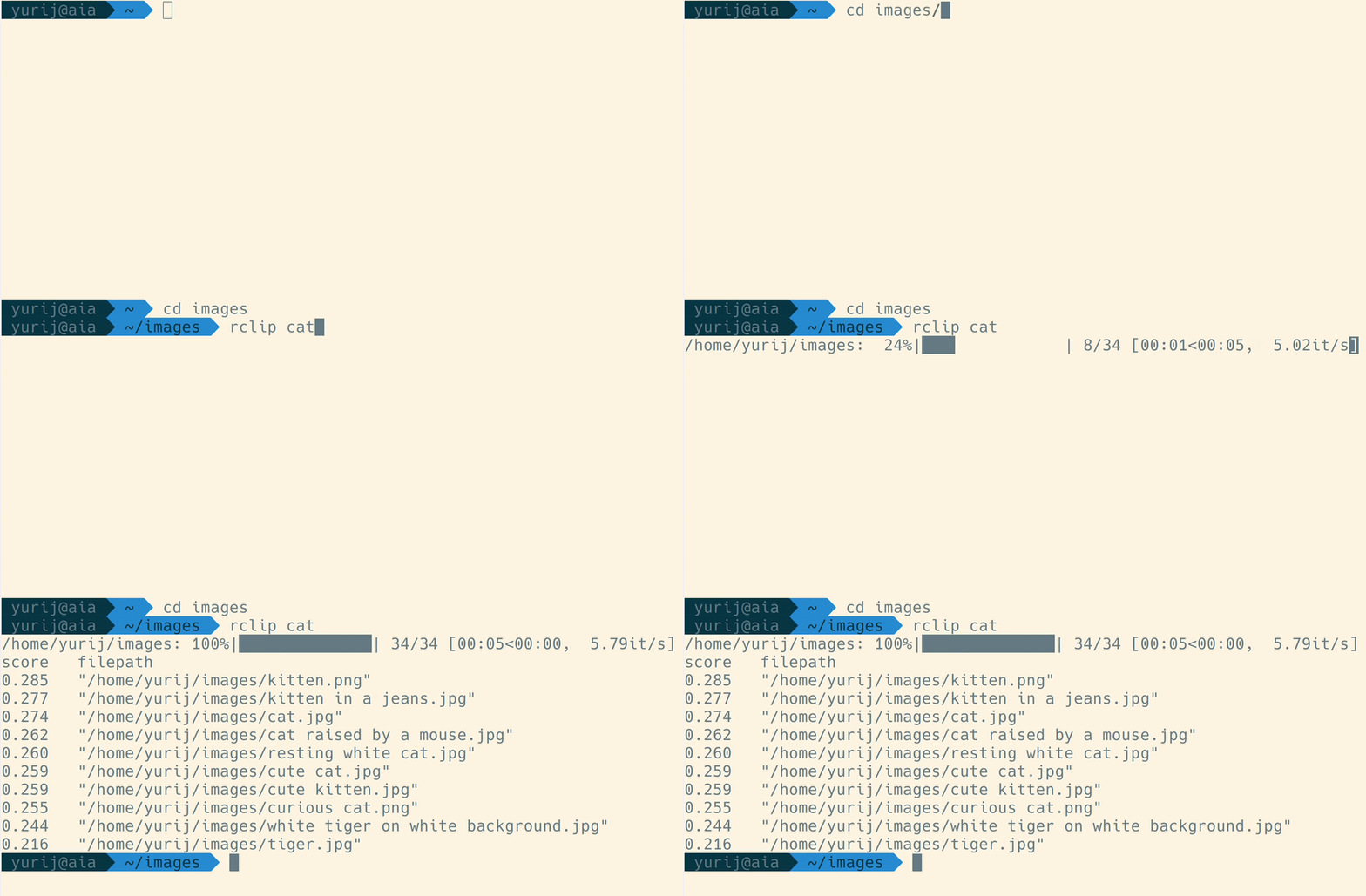
The first time you run rclip in a directory, it extracts features from your images to build the search index. How long this takes depends on your CPU and the number of images you search. On my hardware, it took 15 hours to process 84,725 photos on a NAS with an old Intel Celeron J3455, 7 minutes to index 50,000 images on a MacBook with an M1 Max, and 3 hours to process 1.28 million images on the same MacBook.
For a detailed demonstration, watch the video: https://www.youtube.com/watch?v=tAJHXOkHidw.
Open the interactive UI and enter a query in its search input:
rclip --interactiveThe UI requires Kitty graphics with Unicode-placeholder support. It uses the terminal's default colors and ANSI palette. With an empty query it browses recently modified images, loading more as you scroll. Searches are ranked once and loaded in batches of up to 100 results as you scroll; pass --top N to use a smaller search batch. Enter text queries in the UI; image queries remain available in the non-interactive CLI. Cached previews load as they become visible, and Detail view loads a higher-resolution display image.
| Action | Shortcut | Browse alias |
|---|---|---|
| Focus search | Ctrl+F | / |
| Toggle grid/detail | Ctrl+O | o |
| Copy image | Ctrl+Y | y |
| Copy image path | Ctrl+P | p |
| Download image | Ctrl+S | s |
| Quit | Ctrl+C |
In search, Enter runs the query immediately and Down or Esc focuses the results. In the grid, arrows or hjkl navigate and Enter opens detail; in detail, Left/Right or h/l browse images. Esc returns from detail to the grid. Use Ctrl+F or / to return from browsing to search. Double-click a grid image to open detail and the main detail image to return; click a filmstrip thumbnail to select it.
Copy and download act on the focused grid result or the displayed detail image. They are unavailable while search is focused in the grid. In detail, their modifier shortcuts work while typing, and Ctrl+O preserves search focus and cursor position in either view. Download transfers remote images to your computer through a supported terminal.
Image copying requires Kitty 0.27 or newer and a discoverable kitten executable; the rest of the UI does not invoke Kitty executables.
Over SSH, Ctrl+S or s downloads the original file to ~/Downloads on the terminal host. Kitty 0.30+ requires a remote kitten executable (kitten ssh provides it) and asks for confirmation; iTerm2 3.5+ is also supported. If detection fails, set RCLIP_DOWNLOAD_PROTOCOL to kitty or iterm2. Locally, the same shortcuts only shows the file path.
You can also use an image as the query by passing a file path or image URL. rclip will return the images most similar to that query image. If you use a relative path to a local image, you must prefix it with ./. For example:
cd photos && rclip ./cat.jpg

# or use URL
cd photos && rclip https://raw.githubusercontent.com/yurijmikhalevich/rclip/main/tests/e2e/images/cat.jpg
Check this video out for the image-to-image search demo: https://www.youtube.com/watch?v=1YQZKeCBxWM.
You can combine and subtract image and text queries; here are a few examples:
cd photos && rclip horse + stripes
cd photos && rclip apple - fruit
cd photos && rclip "./new york city.jpg" + night
cd photos && rclip "2:golden retriever" + "./swimming pool.jpg"
cd photos && rclip "./racing car.jpg" - "2:sports car" + "2:snow"
If you want to see how these queries perform when executed on the 1.28 million images ImageNet-1k dataset, check out the demo on YouTube: https://www.youtube.com/watch?v=MsTgYdOpgcQ.
rclip always indexes the following image formats: jpg, jpeg, png, webp, tiff, tif, bmp, gif, jp2, pnm, pbm, pgm, and ppm.
HEIC images are supported on macOS through Image I/O and on Windows through Windows Imaging Component (WIC), when the operating system has an HEIF/HEVC codec installed. rclip does not bundle an HEVC codec. HEIC is currently unavailable in Linux distributions of rclip.
RAW formats (arw, cr2, and dng) are supported when you pass the --experimental-raw-support flag:
rclip --experimental-raw-support catWhen this flag is enabled, a RAW file is skipped if a processed image (e.g., a JPEG) with the same name sits alongside it, so previews and exported variants are indexed instead of the RAW original.
In a terminal supporting Kitty graphics, such as Kitty, Ghostty, latest iTerm2, or Konsole, pass the --preview (or -p) flag to rclip:
rclip -p kittyUsing a different terminal or viewer
If you use another terminal or want to open the results in a viewer of your choice, you can pipe rclip's output into it. For example, on Linux, the command below will open the top 5 results for "kitty" in your default image viewer:
rclip -f -t 5 kitty | xargs -d '\n' -n 1 xdg-openThe -f or --filepath-only flag makes rclip print only file paths, without scores or the header, which makes it ideal for use with a custom viewer as in the example.
I prefer to use feh's thumbnail mode to preview multiple results:
rclip -f -t 5 kitty | feh -f - -tYes. You can pipe rclip's output to another tool to copy matching images. For example, to copy the top 3 images matching "search query" to /path/to/destination on macOS, Linux, or WSL:
rclip -f -t 3 "search query" | xargs -I {} cp {} /path/to/destinationWhen you run rclip in a directory that has already been processed, it indexes only the new images added since the last run and removes deleted images from its index. This makes consecutive runs much faster.
If you know no images have been added or deleted since the last run, you can use
the --no-indexing (or -n) flag to skip indexing entirely and speed up the
search even more.
rclip -n catrclip currently uses the OpenCLIP's ViT-B/32 AI model to generate embeddings for images and text. This enables natural-language search, similar-image search, and mixed text-and-image queries entirely on your machine. The model builds on the CLIP architecture introduced by OpenAI.
Run rclip --help (or rclip -h) to see this list in your terminal. The positional query and all options are summarized below:
| Option | Description |
|---|---|
query |
A text query or a path/URL to an image file. Cannot be used with --interactive. A relative path must be prefixed with ./ (e.g. ./cat.jpg). Any query can be prefixed with a multiplier, e.g. 2:cat or 0.5:./cat.jpg. |
--add, -a, + QUERY |
A text query or a path/URL to an image file to add to the "original" query. Can be used multiple times. |
--subtract, --sub, -s, - QUERY |
A text query or a path/URL to an image file to subtract from the "original" query. Can be used multiple times. |
--top, -t N |
Number of top results to display, or search results to load per batch with --interactive. Default: 10, or 100 with --interactive; interactive maximum: 100. |
--interactive, -i |
Open the interactive terminal UI and enter text queries there. Does not accept a positional query or --add/--subtract. Mutually exclusive with --preview and --filepath-only. |
--preview, -p |
Preview results in the terminal using Kitty graphics (e.g. Kitty, Ghostty, latest iTerm2, Konsole). Mutually exclusive with --filepath-only. |
--filepath-only, -f |
Output only filepaths, without scores or the header. Mutually exclusive with --preview. |
--preview-height, -H PX |
Preview height in pixels. Default: 400. |
--no-indexing, --skip-index, --skip-indexing, -n |
Skip updating the index. Use only when no images were added, changed, or removed since the last run. |
--indexing-batch-size, -b N |
The size of the image batch used when updating the search index. Larger values may slightly improve indexing speed on some hardware but increase RAM usage. Default: 8. |
--exclude-dir DIR |
Directory to exclude from search. Can be used multiple times. Specifying this overrides the default of @eaDir, node_modules, .git, and System Volume Information. |
--include-hidden |
Index dot-prefixed hidden files and directories (e.g. .DS_Store, ._IMG_1234.JPG, .Spotlight-V100). Skipped by default since they are usually OS metadata rather than user files. |
--experimental-raw-support |
Enable support for RAW images (arw, cr2, and dng are supported). |
--max-image-megapixels MP |
Maximum size, in megapixels, an image may have to be indexed. Larger images are skipped to avoid running out of memory on huge or maliciously crafted images. Pass none to disable the limit. Default: chosen automatically based on the available memory. |
--version, -v |
Print the rclip version and exit. |
--help, -h |
Show the help message and exit. |
https://github.com/yurijmikhalevich/rclip/discussions/new/choose
This repository follows the Conventional Commits standard.
To run rclip locally from source, you must have Python and uv installed.
Then run:
# clone the source code repository
git clone git@github.com:yurijmikhalevich/rclip.git

# install dependencies and rclip
cd rclip
uv sync
Then use uv run rclip, as described in the Usage section above.
Thanks go to these wonderful people and organizations (emoji key):
 ramayer 💻 |
 Caphyon 🚇 |
 AbId KhAn 💻 |
 Ben 💻 |
 Tanmay Chaudhari 💻 |
 Leo Auri 💻 |
 SergeyKarleev 💻 |
Thanks to Caphyon and the Advanced Installer team for generously supplying the rclip project with the Professional Advanced Installer license for creating the Windows installer.
This project follows the all-contributors specification. Contributions of any kind are welcome!
Self-contained rclip bundles include a THIRD_PARTY_NOTICES.txt file and the
complete licence and patent notices for their redistributed dependencies. Each
GitHub release also includes CycloneDX SBOMs and corresponding rawpy/LibRaw and
textual-image source archives. The reviewed dependency and codec policy is
documented in compliance/.
The separately downloaded model includes its model card, attribution, and the MIT notices for OpenCLIP and the OpenAI CLIP tokenizer and vocabulary.
This product includes DNG technology under license by Adobe.
MIT