


-%E2%9C%93-ff9130?style=flat-square&logo=googlechrome&logoColor=white)


Markdown files are built for AI agents. Markdown Explorer makes them pleasant for humans.
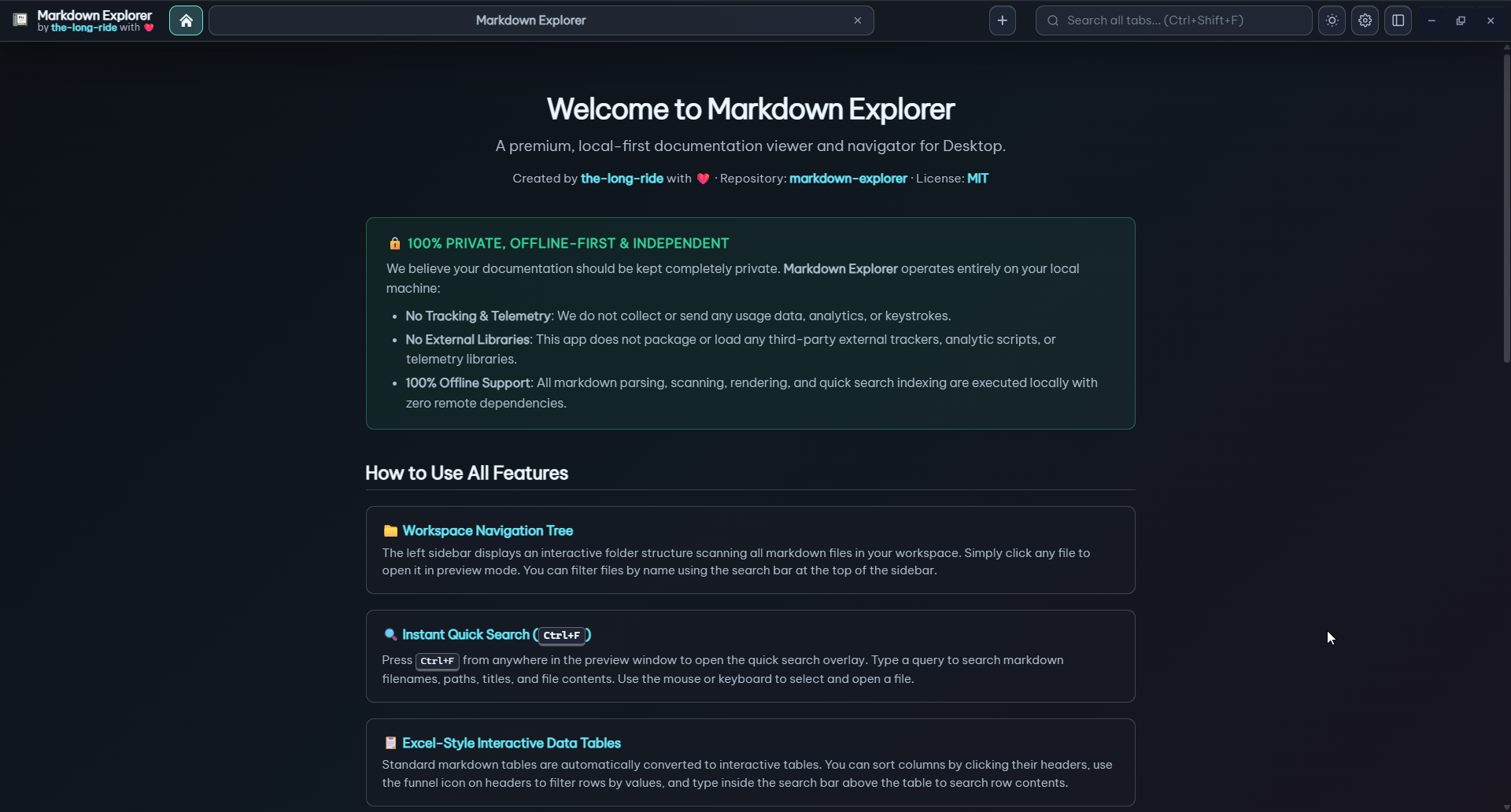
It turns .md and .mdx folders into a private, searchable documentation app with workspace navigation, local Markdown editing, split-document views, rendered diagrams, math, videos, highlighted code, interactive tables, charts, tabs, and support for VS Code, Chromium browsers, desktop apps (Windows, Linux, macOS), and an interactive demo web app.
Homepage: https://the-long-ride.github.io/markdown-explorer/
| Capability | Traditional Markdown Readers | Why Markdown Explorer Feels Different |
|---|---|---|
| Workspace Navigation | Open loose individual files; flat directory lists; lose reading place easily. | True workspace app with responsive file tree, table of contents, Scope Focus, multi-workspace tabs, and automatic scroll/collapsed-heading memory for up to 100 recent files. |
| Local Markdown Editing | Read-only previews or heavy external editors; risk silent external overwrites. | Switch between Rendered, Inline Edit, and Plain modes with revision-guarded atomic saves, conflict handling, and unsaved-change guards without leaving the reader. |
| Two-Pane Split View | Single-pane view only, requiring multiple separate application windows. | Resizable split view with independent document, mode, and scroll synchronization, plus real-time debounced render mirroring. |
| Local Git History & Diff | Requires terminal or external Git GUI to inspect document revisions. | Read-only repository commit graph, lazy snapshot browsing, per-document history, and dependency-free Myers Source and Rendered Diff comparisons. |
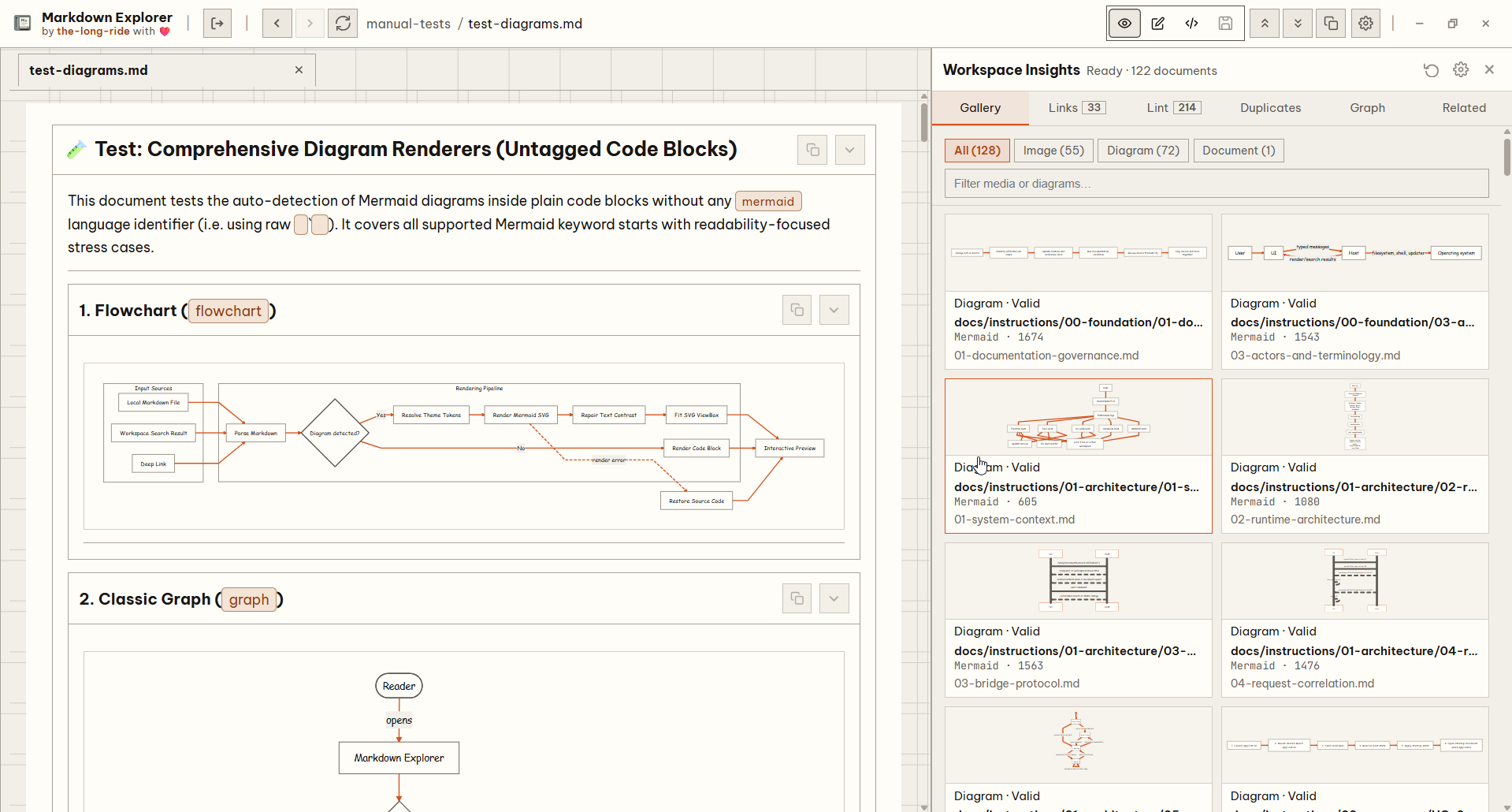
| Workspace Insights & Graph | No knowledge-base structure auditing; broken links go unnoticed. | Offline-first audit panel with Gallery, Link validator, Markdown Lint diagnostics, Duplicate detector, interactive Document Relationship Graph, and related-document rankings. |
| Wiki Links & Transclusion | Standard Markdown links only; embedded documents require special plugins. | Native [[Wiki Links]], label aliases, heading anchors, and transclusion embeds (![[Note]]) with cycle detection and depth guards. |
| Deep-Dive Scope View | Clicking a link abandons reading context and destroys your place. | Isolated Scope View modal with a bounded 10-step history stack and breadcrumb trail to inspect linked documents without losing editor or tab state. |
| Deep Workspace Search | Basic in-file string search; slow or missing whole-workspace queries. | Streamed 10,000-match search across current file, workspace, or all open desktop tabs with bounded window rendering and exact jump-to-match highlighting. |
| Interactive Tables & Charts | Static plaintext tables; CSV/TSV requires opening spreadsheet software. | Delimited CSV/TSV code fences become interactive tables with row sorting, multi-select column filtering, column visibility toggles, and instant 9-type chart conversions. |
| Rich Media & Offline Diagrams | Diagrams break offline or require external CDNs; media cannot be inspected. | 100% offline theme-aware Mermaid diagrams, KaTeX math formulas, 25+ language syntax highlighting, isolated HTML sandboxes, video embeds, and fullscreen zoomable media modal. |
| Multi-Format Document Previews | Reject Word, PDF, or Office files. | Opt-in local, privacy-first conversion and preview for DOCX, PDF, XLSX, PPTX, ODT, ODP, ODS, RTF, HTML, and TXT files with smart timestamp caching. |
| All-in-One Export Center | Basic print-to-PDF with messy browser chrome and clipped SVG graphics. | Clean standalone offline HTML bundles, static website ZIP archives, and client-side vector-quality hybrid PDFs with zero cloud dependencies. |
| Keyboard-First & Hardware Parity | Mouse-heavy navigation; rigid keybindings. | Full Sidebar Cursor mode (Alt+Z), target locator (Alt+Q), customizable keybindings, and Logitech/hardware mouse back/forward button parity across all runtimes. |
| Privacy & Zero Telemetry | Cloud-based indexing, remote telemetry, or tracking scripts. | 100% local parsing, indexing, and rendering. Zero telemetry, zero analytics, zero file uploads, and MIT open-source license. |
| Multi-Runtime Flexibility | Locked to a single packaging format. | Run natively in VS Code, VSCodium (Open VSX), Chromium browsers, lightweight Tauri desktop, or battle-tested Electron desktop. |
| Platform | Get It |
|---|---|
| VS Code | Install from VS Code Marketplace |
| Open VSX | Install from Open VSX |
| Windows desktop | Download the latest .exe (or Tauri version for better performance and smaller bundle size) |
| Linux desktop | Download .AppImage or .deb (or Tauri version for better performance and smaller bundle size) |
| macOS desktop | Download .dmg for arm64 or x64 (or Tauri version for better performance and smaller bundle size). First launch notes: macOS guide |
| Chromium extension | Download .zip release. Setup guide: Chromium guide |
| Microsoft Store and Ubuntu App Center | Automated Tauri publishing is prepared; use GitHub Releases until the store listings are enabled. |
Workspace Navigation & Organization
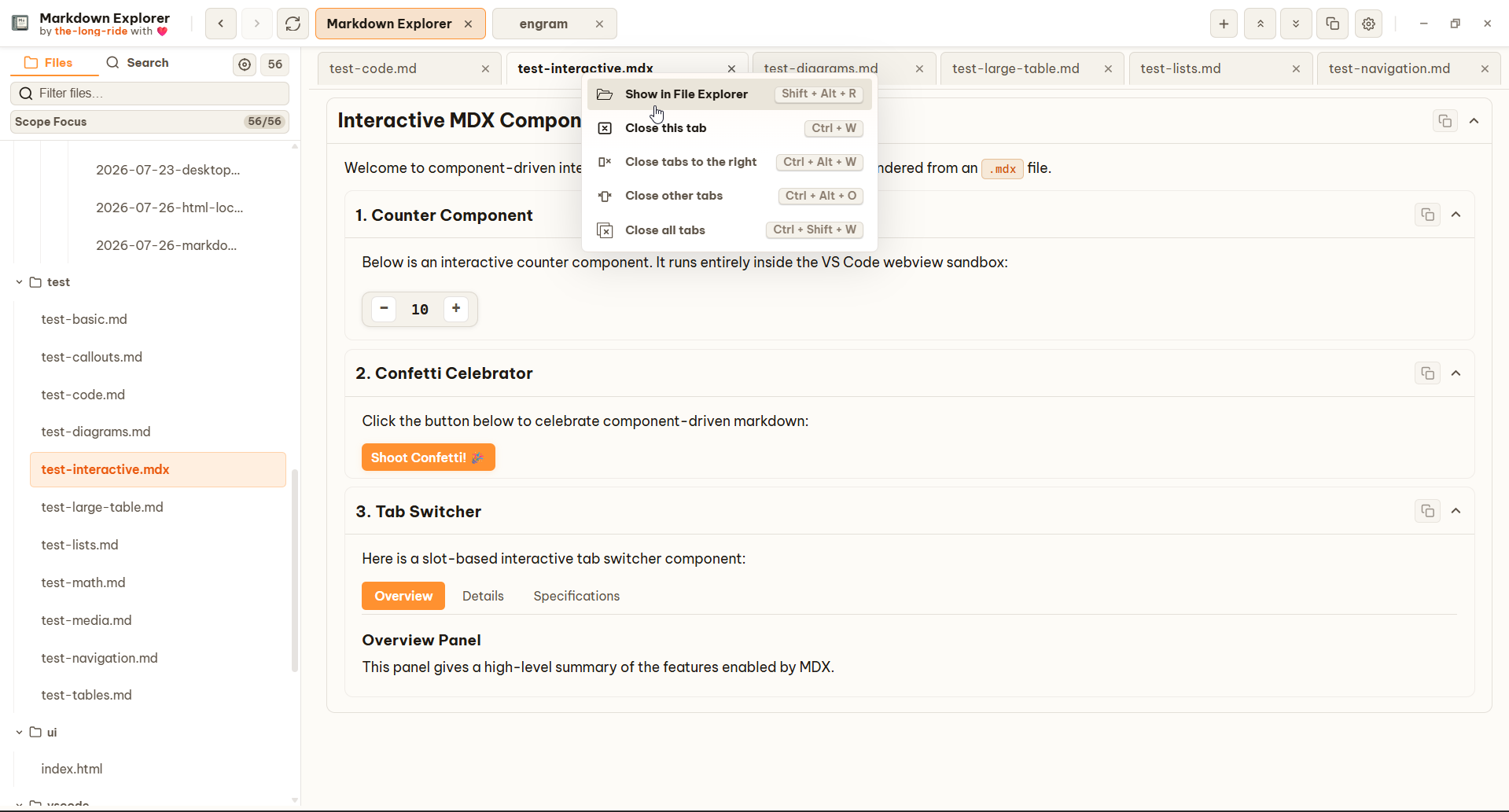
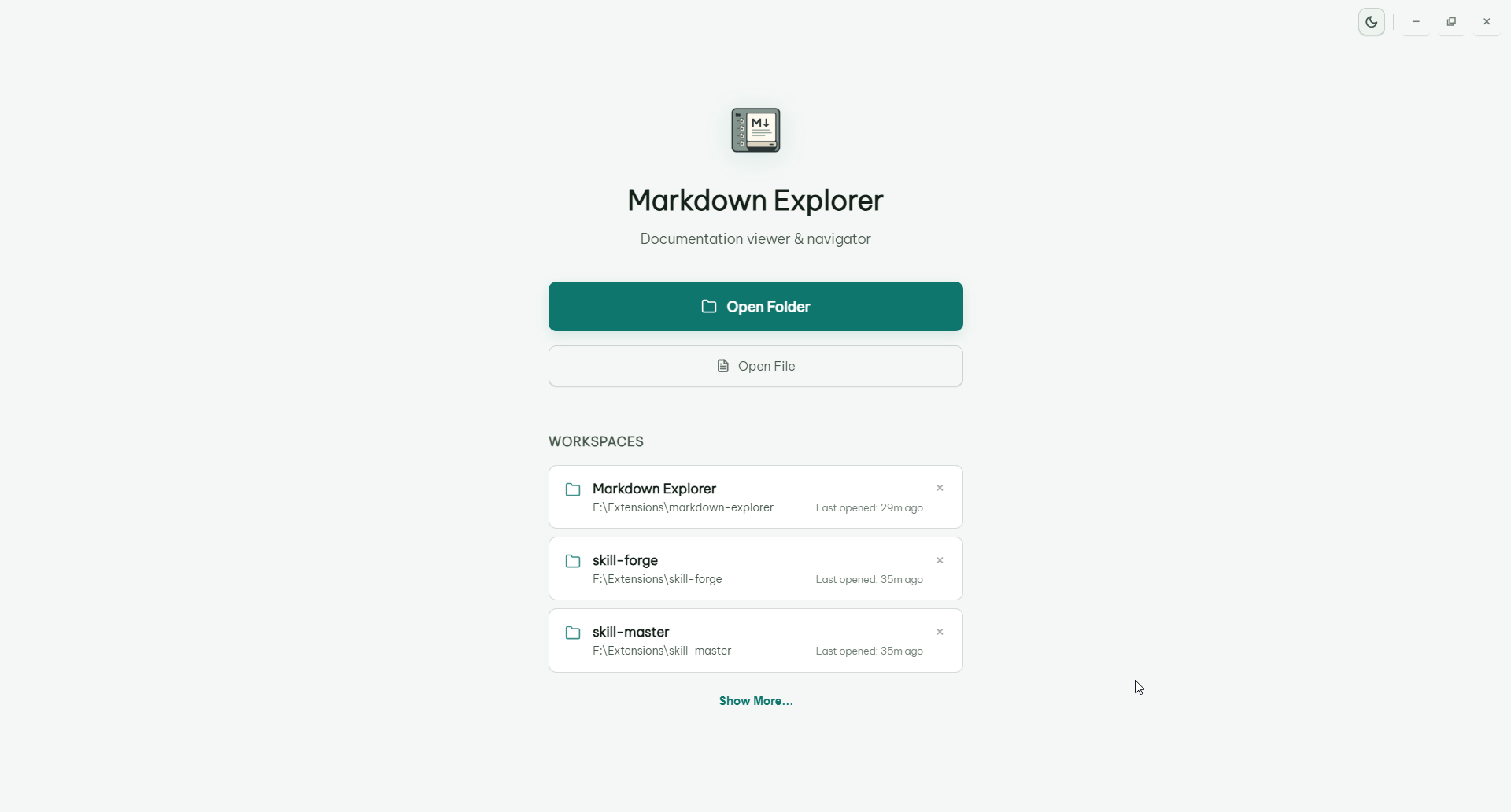
- Workspaces & Folders: Open local folders, manage recent workspaces, and navigate multi-workspace desktop tabs.
- Desktop Tab & Focus Views: Switch between multi-workspace Tab View for managing multiple workspaces simultaneously and Focus View for distraction-free single-workspace reading (
Ctrl+Alt+T/Ctrl+Alt+F). - Workspace Feature Aliases: Assign custom alias names to workspaces for easier identification.
- Open Folder / File from File Explorer: Launch folders or
.md/.mdxfiles directly from OS File Explorer context menus. On Windows, right-clicking a file to open with Markdown Explorer automatically sets the parent directory as the active workspace. - Universal Hardware Mouse Navigation: Logitech and all hardware mouse back/forward buttons (Mouse Buttons 3 and 4) along with
BrowserBack/BrowserForwardkeys provide seamless history navigation across all runtimes. - macOS Native Integration: Standard AppKit Edit application menu (Undo, Redo, Cut, Copy, Paste, Select All).
- Edit from preview: Desktop keeps Edit in More actions (
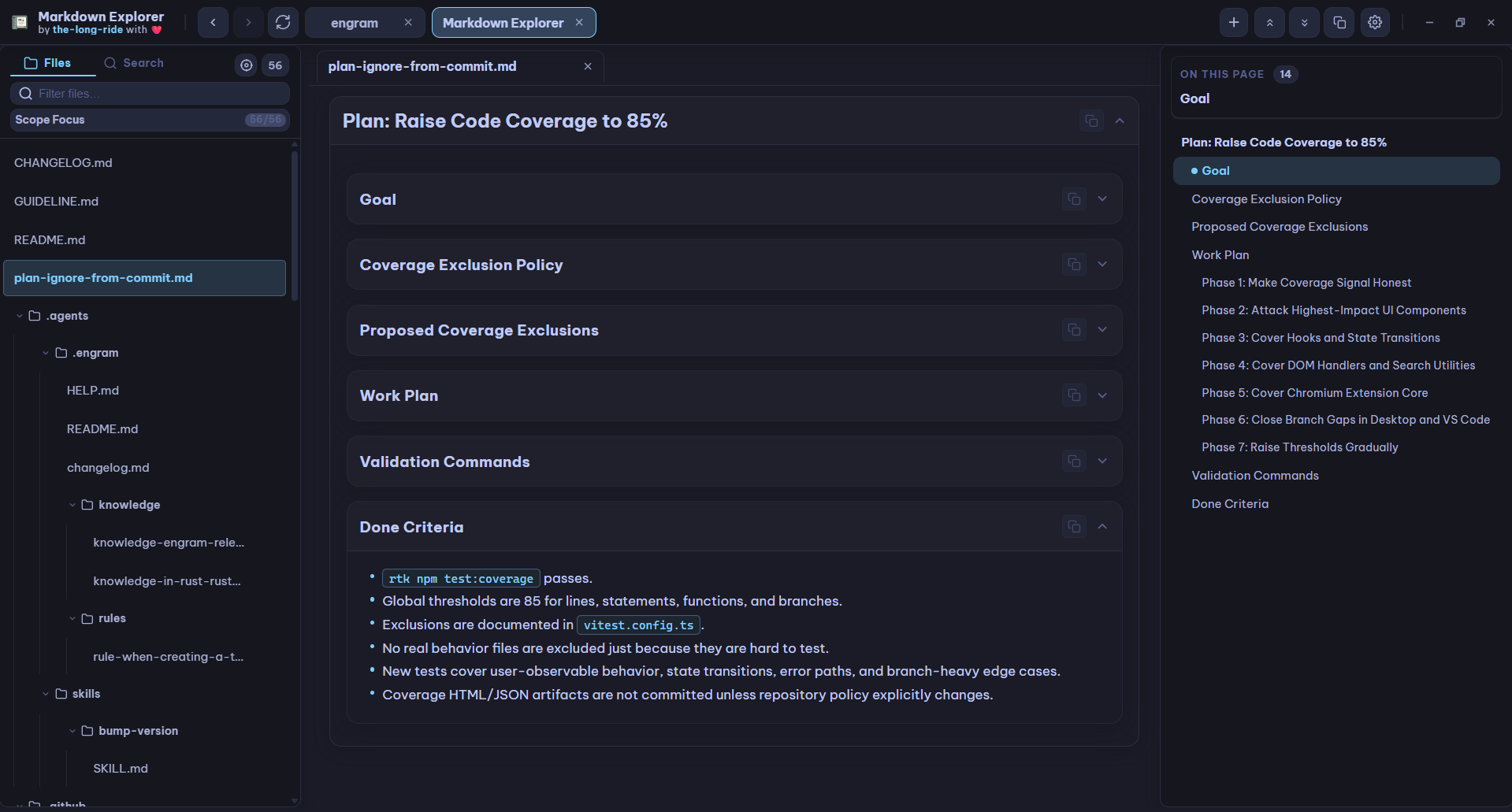
Ctrl+E), while VS Code exposes a dedicated Edit icon beside More actions (Ctrl+Alt+E/Cmd+Alt+E) to open the current.md/.mdxsource in a normal editor tab. Chromium/Web does not expose this external-editor action. - Locate Current File: Highlight and reveal the currently open file in the sidebar tree using the target icon button or
Alt+Qshortcut. - Sidebar Cursor Mode: Keyboard-first file tree navigation (
Alt+Z) with arrow keys,Enter, andEsc. - Content File Tabs & Scope Focus: Open files in tabs and narrow sidebar view to selected files or folders.
- Reading Progress & Scroll Memory: Persist exact scroll positions and collapsed-heading state for up to 100 recent files per workspace, restoring the reading context across sessions.
- Safer Workspace Operations: Cancel running scans, reveal files and folders in native file manager, replace missing recent workspaces, and avoid stale scan results reopening old content.
- Richer Context & Row Menus: Sidebar, document-tab, and workspace-tab menus expose context-aware actions and shortcuts.
- Relative Workspace Links: Navigate across workspace files (
/,./,../) with back/forward history. - Live Auto-Refresh: Instant workspace tree updates from native filesystem change events.
- Desktop Workspace Scans: Fast recent folder opening, drag-and-drop support, running scan counters with graceful fallback rendering in batches of 32 for large directories, and clean empty-workspace handling.

Local Markdown Editing, Split View & Git History
- Feature Controls: Markdown editing is opt-in and starts disabled. The History Sidebar setting starts enabled, but the History tab appears only when the active runtime/workspace reports supported local Git capability.
- Rendered, Inline Edit, and Plain modes: Writable Markdown documents can be edited directly inside Markdown Explorer without adding CodeMirror, Monaco, TipTap, ProseMirror, or another editor framework.
- Conflict-Protected Save: Each save carries the revision observed when the document was loaded/saved. If the file changed externally, Markdown Explorer refuses a silent overwrite and offers Reload, Compare, or an explicit keep-mine action.
- Unsaved-Change Guards: Closing tabs, changing workspaces, or closing the app protects dirty working copies until they are saved or deliberately discarded.
- Two-Pane Split View: Open two documents side by side with independent active document, mode, and scroll position. A pane can show Rendered, Inline Edit, Plain, Revision, or Diff when the required data is available.
- Isolated Split Rendering: Each document carries its own render revision so editing, scrolling, or activating one pane does not rerender an unrelated document in the other pane. When both panes show the same document and one is editing while the other is Rendered, the rendered mirror updates after a short 150 ms debounce and flushes immediately around save transitions.
- Local Git History: Electron, Tauri, and VS Code use your installed local
gitexecutable to load document history lazily, follow renames, and open historical snapshots read-only. Chromium and Web explicitly report Git as unsupported and never start a local process. - Repository History Sidebar: On capable hosts, the History tab can load a bounded repository commit graph with merge parents, refs, and exact
HEAD, browse files from a selected revision inside the active workspace, and open a read-only historical file without changing branches or the working tree. Back to current HEAD exits snapshot browsing without runninggit checkoutand restores the live tabs/editor/split state already mounted underneath. - Read-Only Git Boundary: Markdown Explorer exposes no stage, commit, checkout, restore, reset, stash, branch, merge, or rebase operation. Git processes receive structured argument arrays rather than shell command strings, and revision/path inputs are validated before reads.
- Source & Rendered Diff: Compare a revision with the persisted file, the dirty working copy, or another revision. Source Diff uses a dependency-free Myers line diff; Rendered Diff renders both complete Markdown documents and highlights changed source-backed blocks.
- Conflict Compare Without Git: The same Diff UI can compare disk content against an unsaved working copy even outside a Git repository.
- Nine-Locale UI: Editing, split-view, History, Git unavailable/not-repository states, repository snapshot browsing, diff modes, and Added/Removed/Unchanged labels are localized in all nine supported languages.
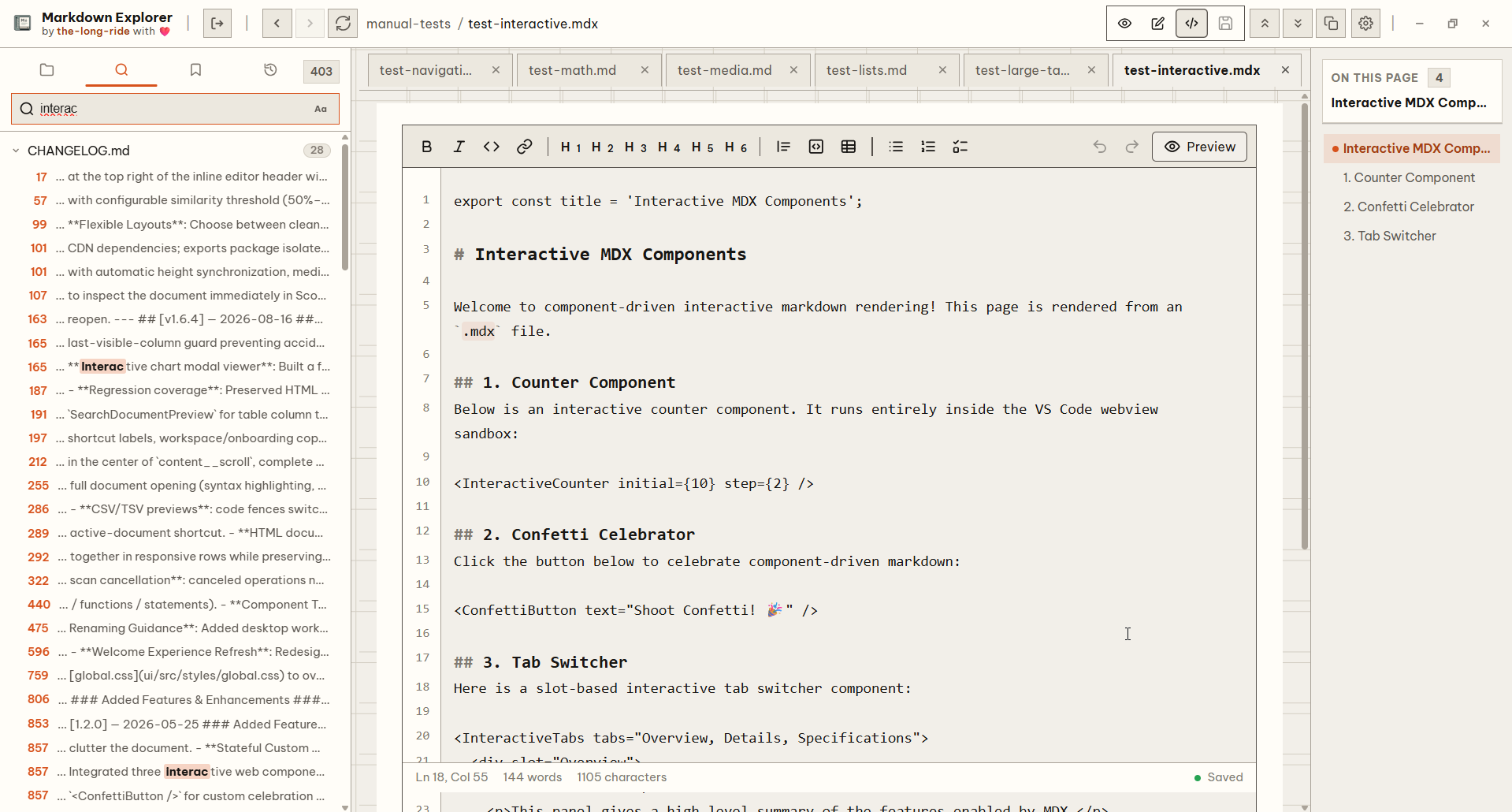
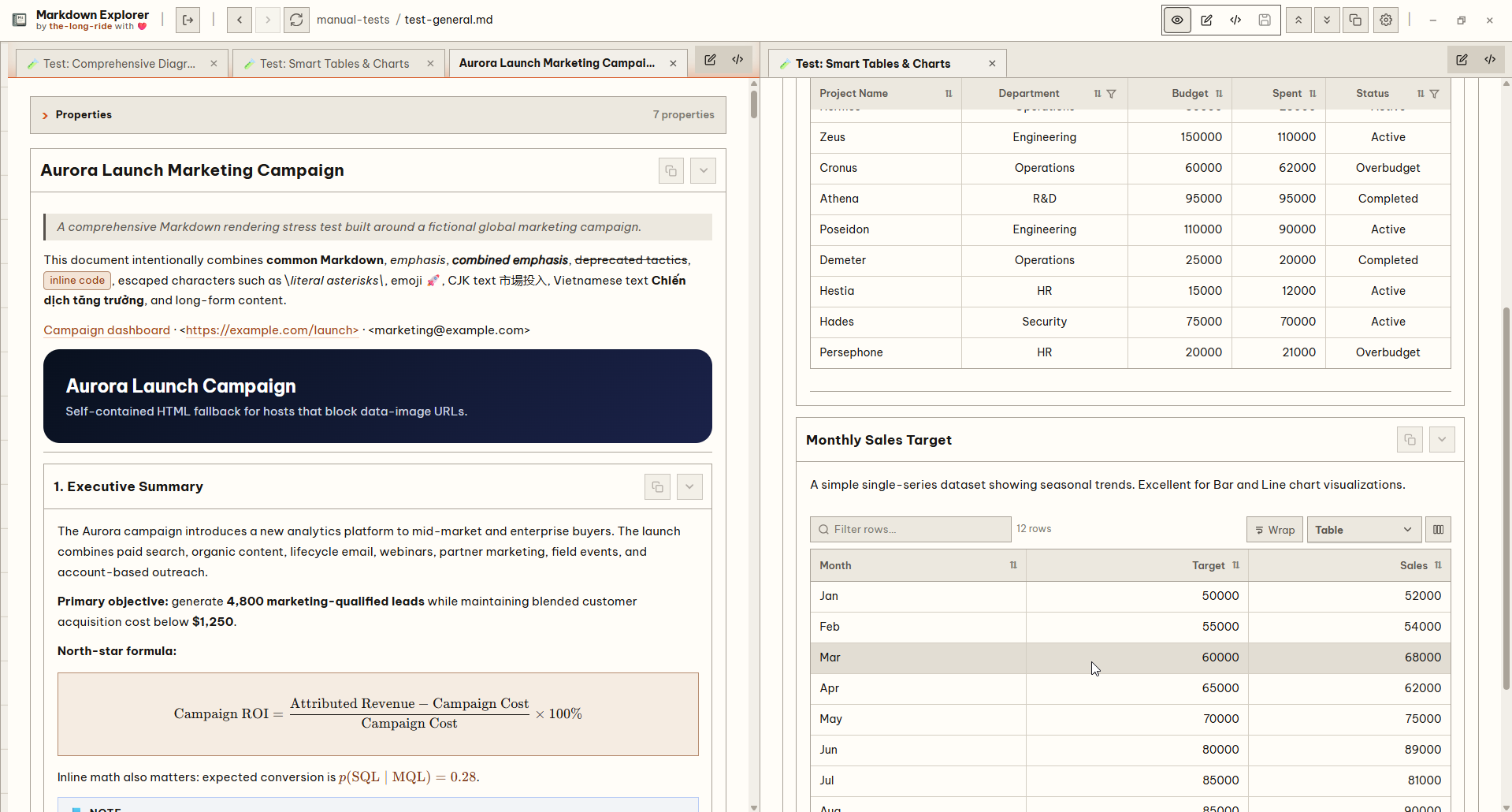
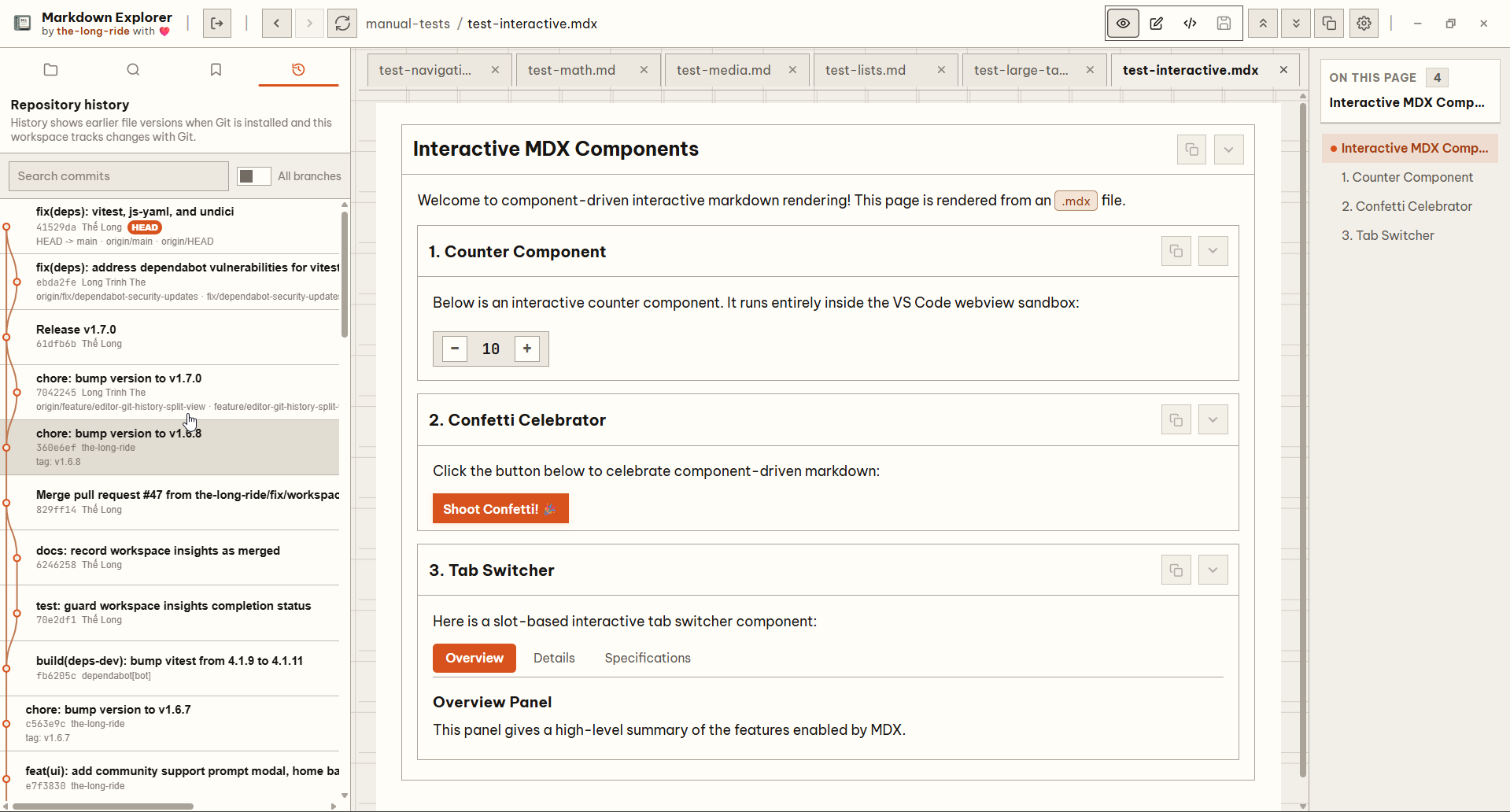
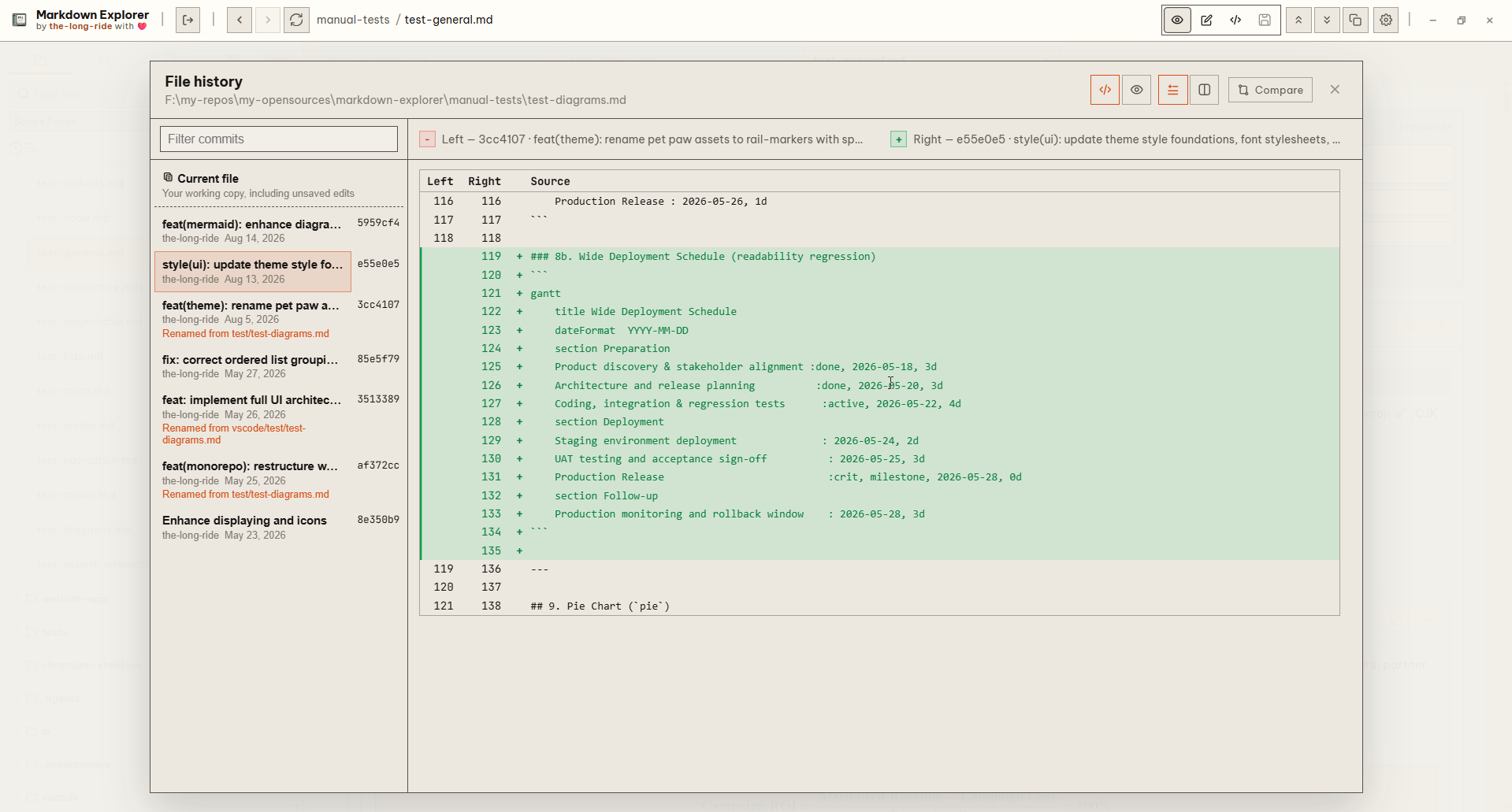
See Local Git History and Diff and the document-history comparison use case.
Pin & Bookmarks
- Sidebar Pinning: Pin any file or folder to the top of the sidebar for fast one-click access. Pinned items inside subfolders are hoisted and displayed at the root level of the file tree.
- Persistent Bookmarks: Save named bookmarks from selected document text. Jump back to the exact location with search-style highlighting, and manage items through rename, delete, and three-dot or right-click menus.
- Source-Anchored Targets: Bookmarks store the exact Markdown source range and a fingerprint so they survive edits and relocate contextually. Multi-line, mixed-format, LaTeX, Mermaid, image, and link selections are all supported. Repeated content resolves to the saved occurrence; edited targets report Target changed instead of jumping incorrectly.
- Bookmark Sidebar Tab: Dedicated sidebar tab with live saved-count badge, sort controls, and instant search. Tab View groups bookmarks by workspace; Focus View shows only the current workspace.
- Batch Management: Checkbox selection mode with confirmed batch deletion (
Ctrl+Shift+Bon Desktop,Alt+Shift+Bon VS Code / Chromium / Web). - Fully Localized: All pin and bookmark labels, dialogs, empty/error states, and actions are available in English, Vietnamese, French, Spanish, Chinese, Norwegian, Japanese, Korean, and Russian.
Export & Scope View
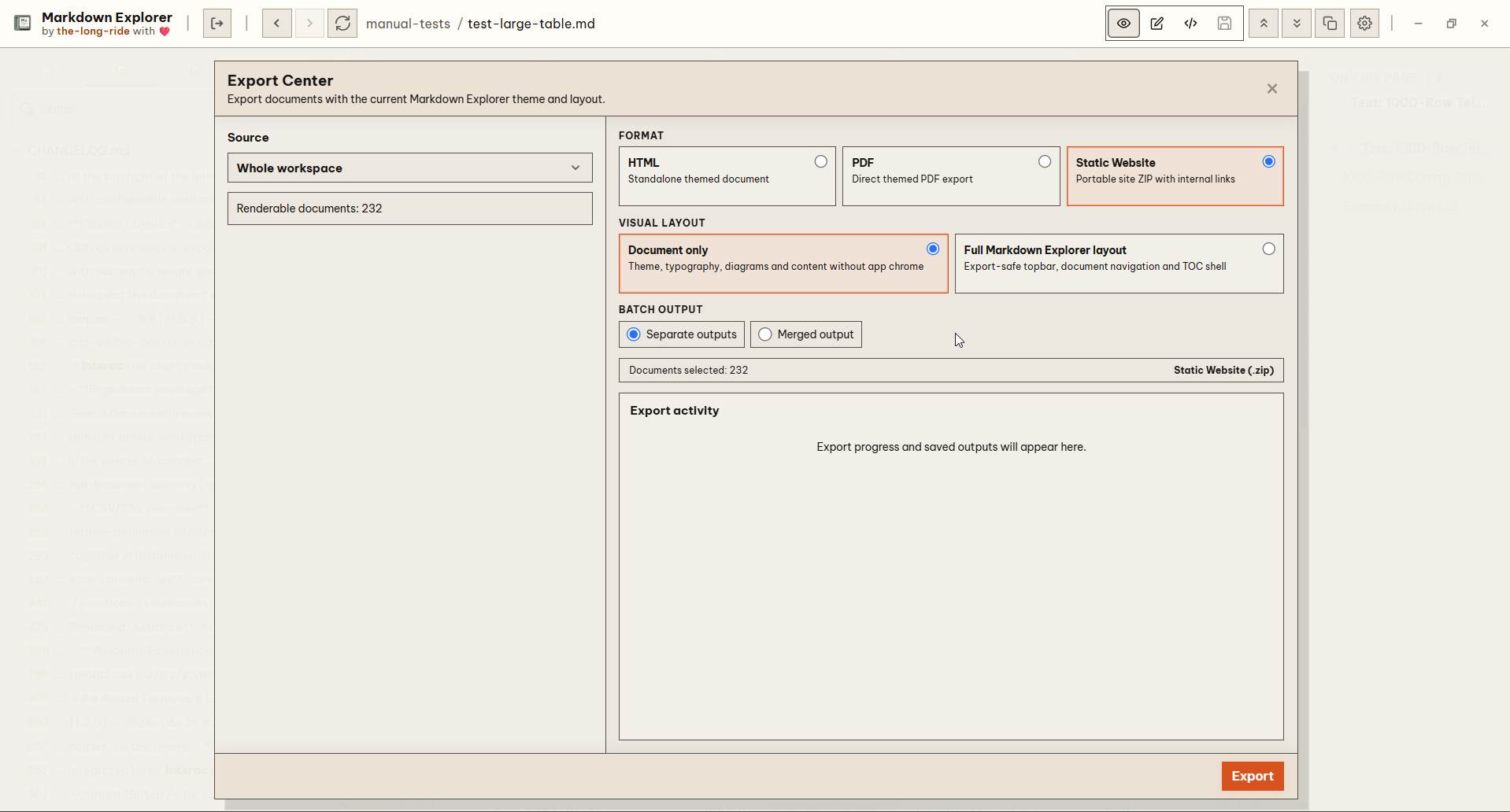
- All-in-One Export Center: Export your documentation to Standalone HTML, Static Website (ZIP), or client-side hybrid PDF across all runtimes.
- Source Scopes: Export the Current document, Selected files (with instant search filtering and multi-select checkboxes), a Folder, or the Whole workspace.
- Flexible Layouts: Choose between clean Document-only layout or Full Explorer interactive viewport shell (including responsive sidebar tree, search, breadcrumbs, TOC, and theme switcher).
- Batch Modes: Export as separate standalone files or merge multiple documents into a single document with collision-safe headings and anchor rewriting.
- 100% Offline Local Runtimes: Zero external CDN dependencies; exports package isolated local runtime bundles for core interactions, sandboxed HTML iframe previews with automatic height synchronization, media modal inspection, table filtering/sorting, and interactive Chart.js visualizations.
- Client-Side Hybrid PDF: High-quality PDF generation via
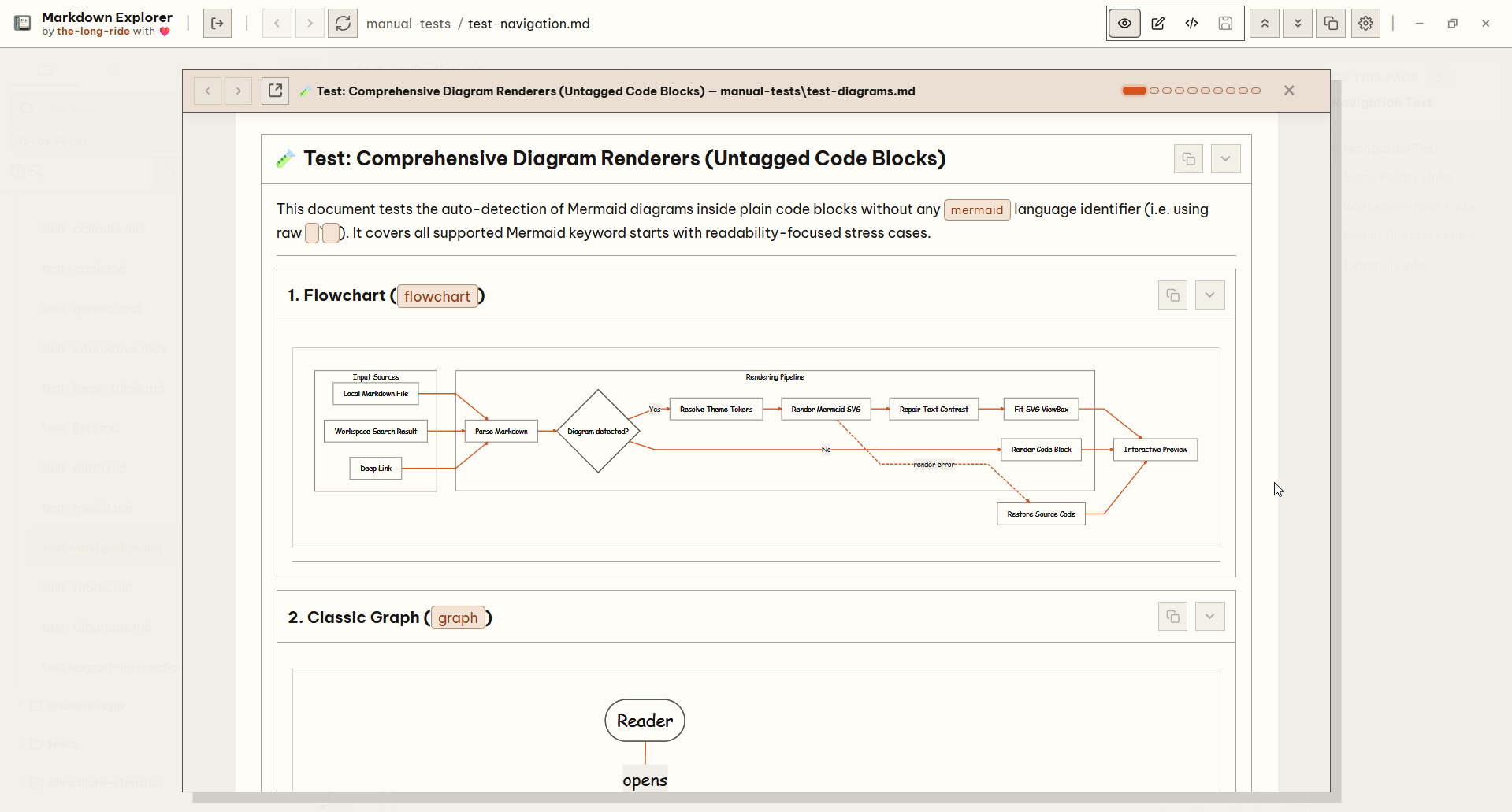
pdfmakethat keeps textual content semantic, selectable, and searchable while capturing complex visual blocks (Mermaid diagrams, charts, and math) as crisp vector SVGs or raster images without opening the system print dialog. - Scope View Modal: Deep-dive into linked documents in an isolated preview modal without losing your current editor or tab position.
- 10-Step History Stack: Bounded history stack (
MAX_SCOPE_DEPTH=10) with animated depth indicators and Prev/Next navigation. - Open File Button: Dedicated Open file header button (
OpenFileIcon) navigates the main workspace to the previewed document and closes the modal. - Link Context Menu: Right-click any Markdown link and select Open as scope to inspect it immediately.
- Hardware Navigation Parity: Full support for keyboard (
Alt+Left/Alt+Right,BrowserBack/BrowserForward,Escape) and hardware mouse back/forward buttons.
- 10-Step History Stack: Bounded history stack (
Document Previews & Rich Media
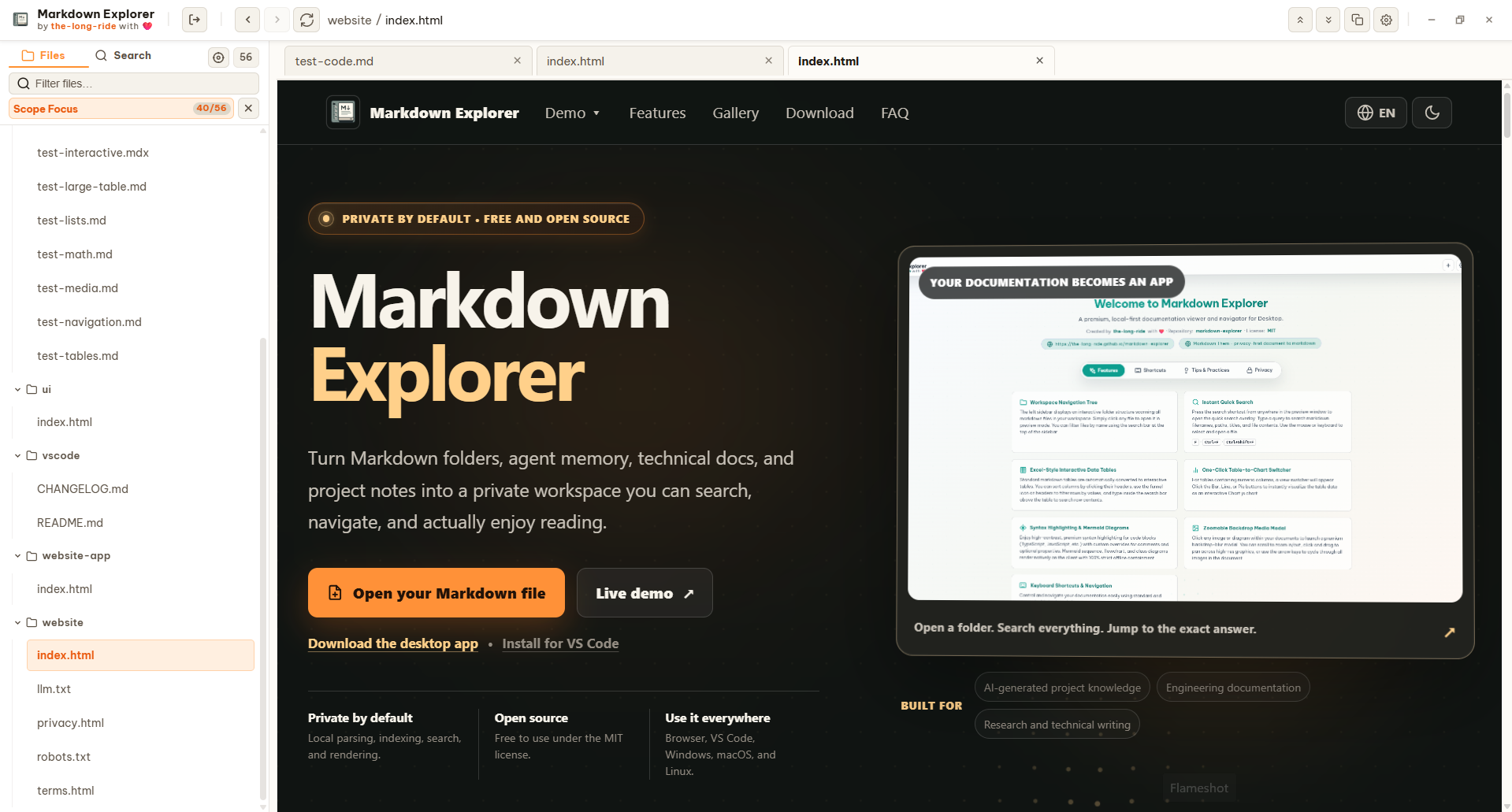
- HTML Document Modes: Open
.htmland.htmfiles as isolated interactive previews or converted Markdown, switch active tab withCtrl+Alt+H, and use Open in Browser when full browser behavior is needed (with embedded local CSS/JS support). - Responsive Image Rows: Same-paragraph Markdown images stay together across viewport sizes.
- GFM & GitHub Callouts: Full GFM support with callout boxes (
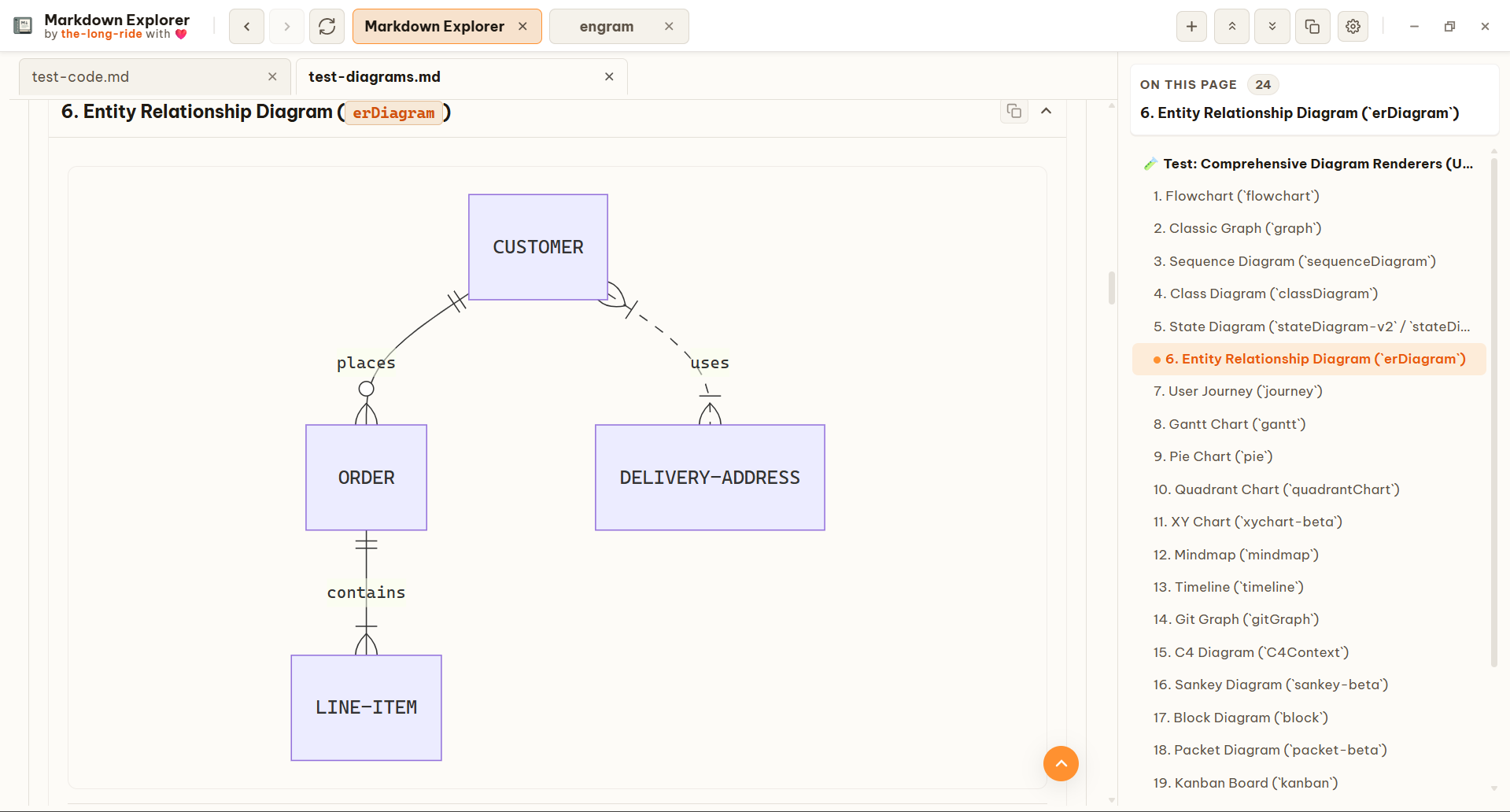
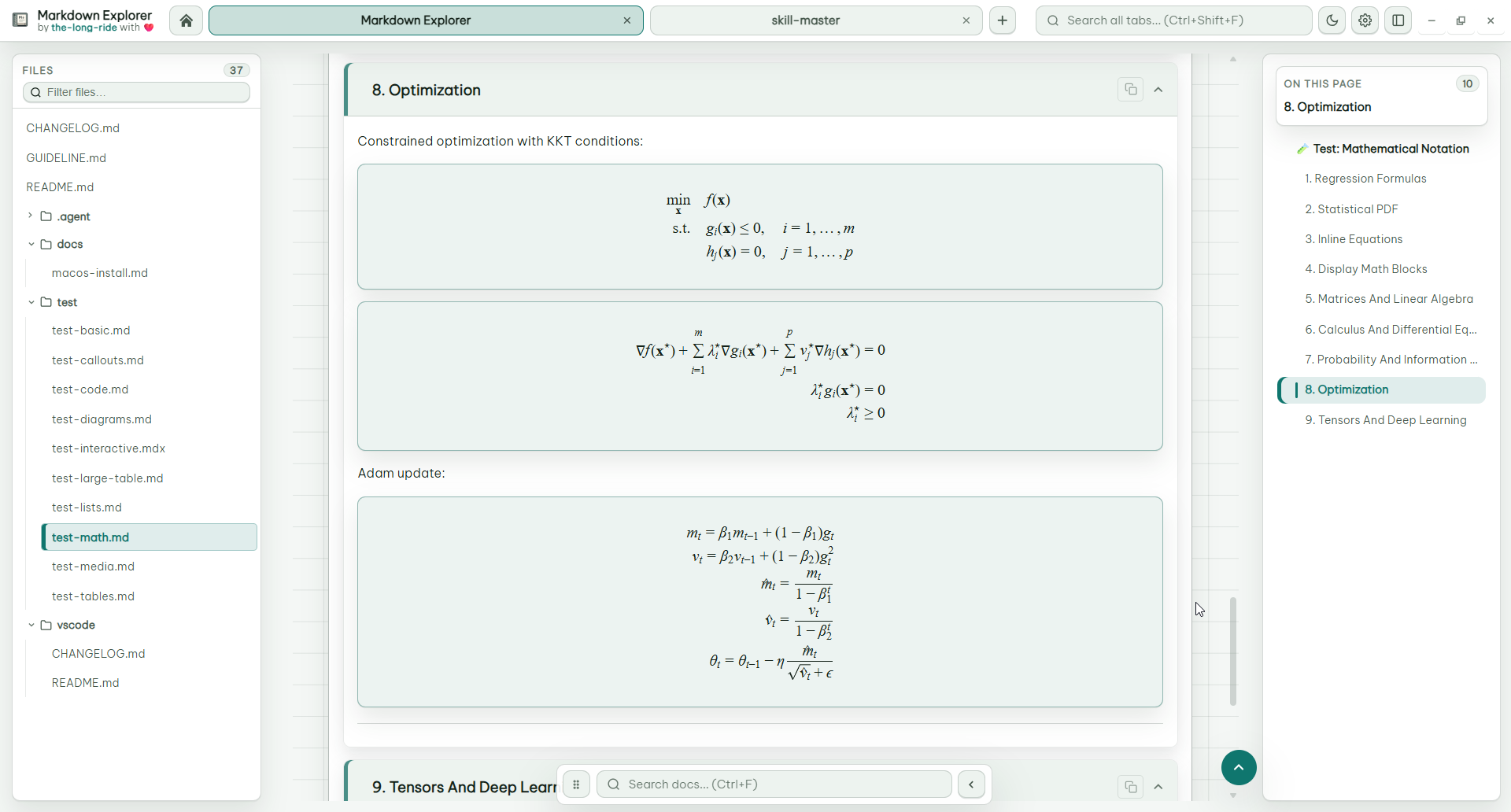
[!NOTE],[!TIP],[!IMPORTANT],[!WARNING],[!CAUTION]). - Diagrams & Math: Offline Mermaid diagrams (flowchart, sequence, ER, mindmap, Gantt, timeline, etc.) and KaTeX math formulas. Mermaid diagrams render offline using the current Markdown Explorer theme with family-aware spacing and clean vector SVG output. Authored semantic colors remain intact, while default decorative colors follow the active theme; switching theme or light/dark mode re-renders visible diagrams, and wide Gantt diagrams scroll before labels become unreadable. The media viewer remains available for zooming and inspection.
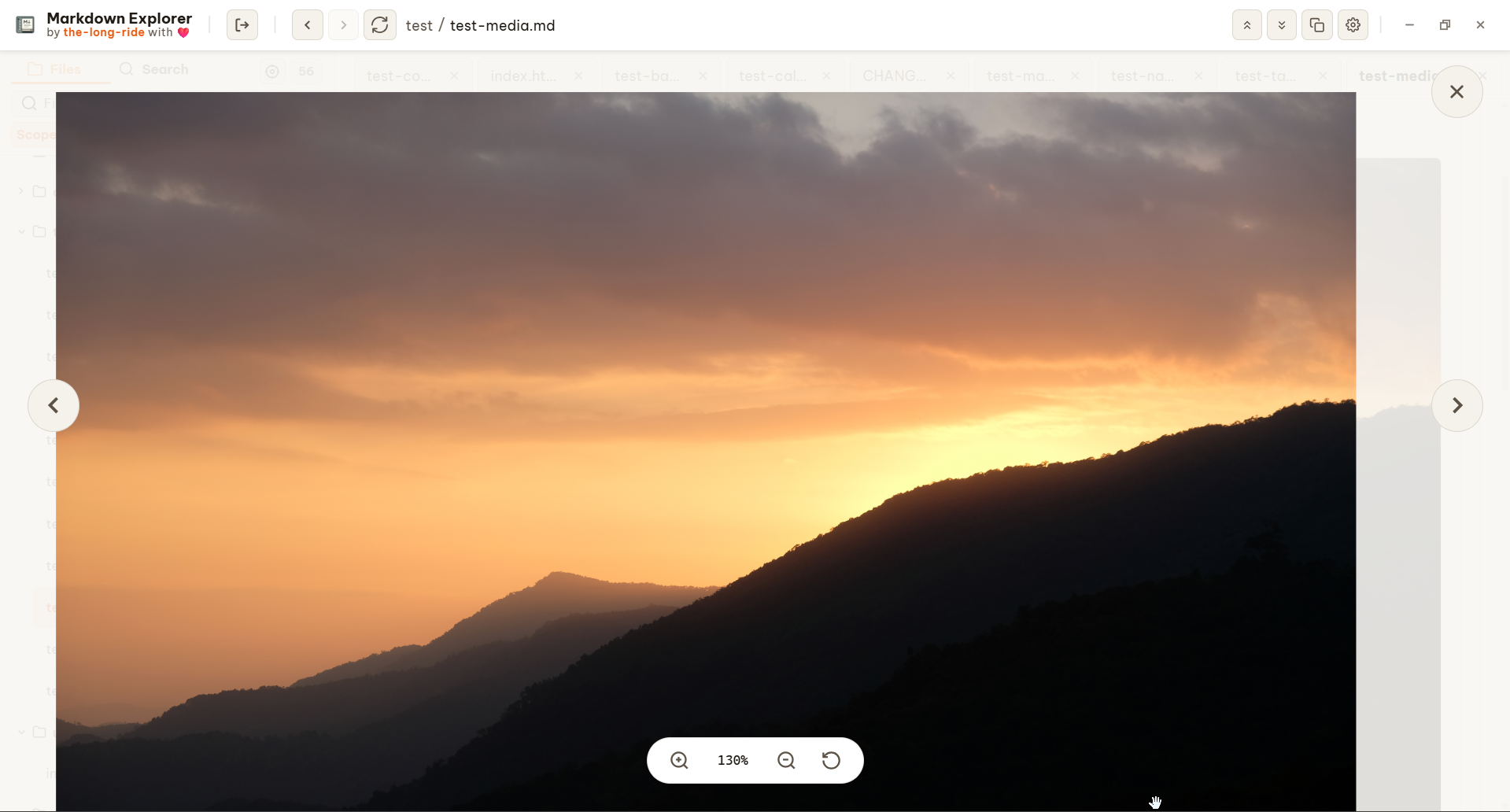
- Image & Mermaid Diagram Modal View: Fullscreen, zoomable media modal to pan, zoom, and inspect images and Mermaid diagrams in detail.
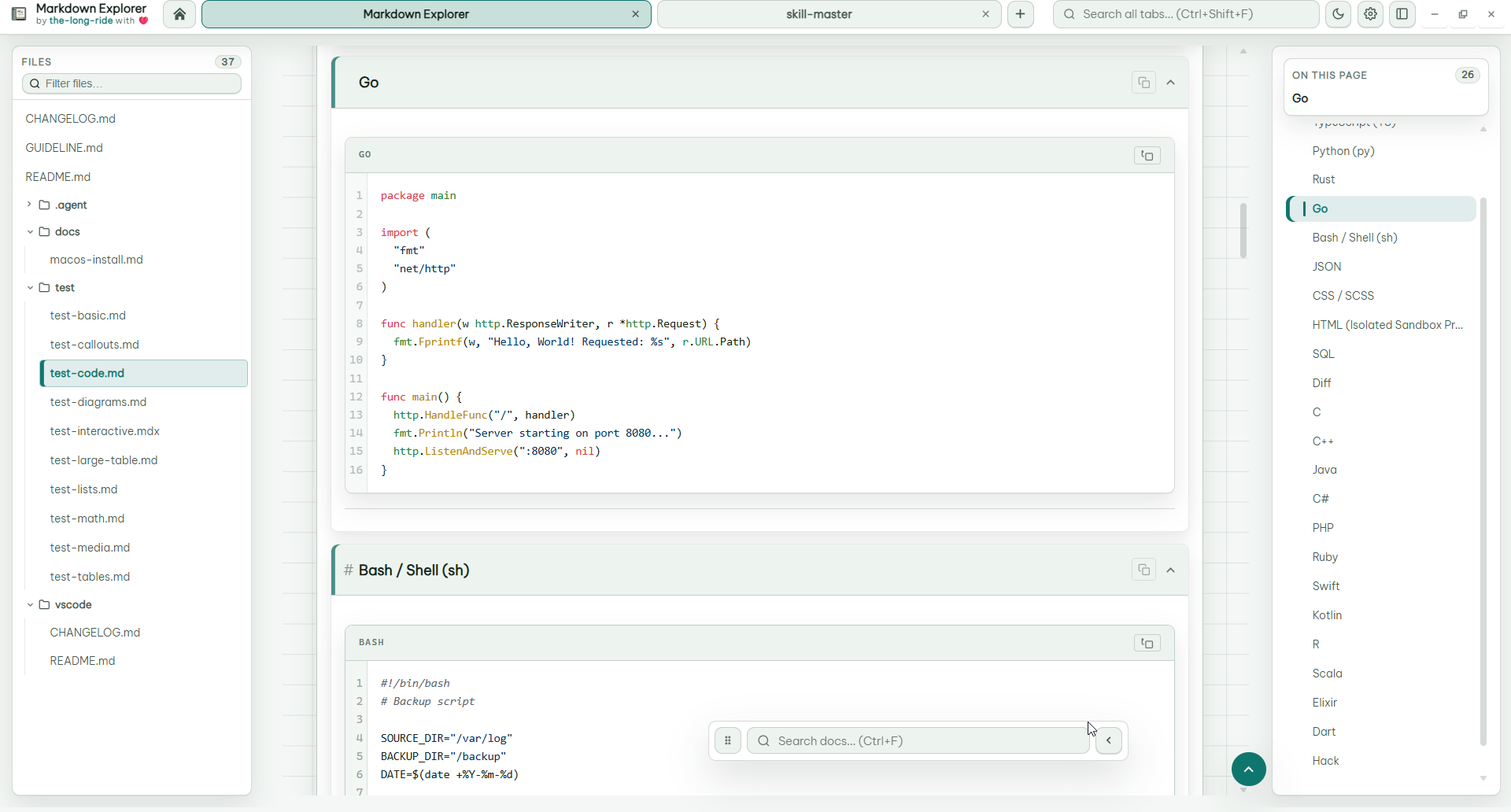
- Syntax Highlighting & Fences: 25+ programming languages highlighted with line numbers, copy buttons, and terminal command fences (
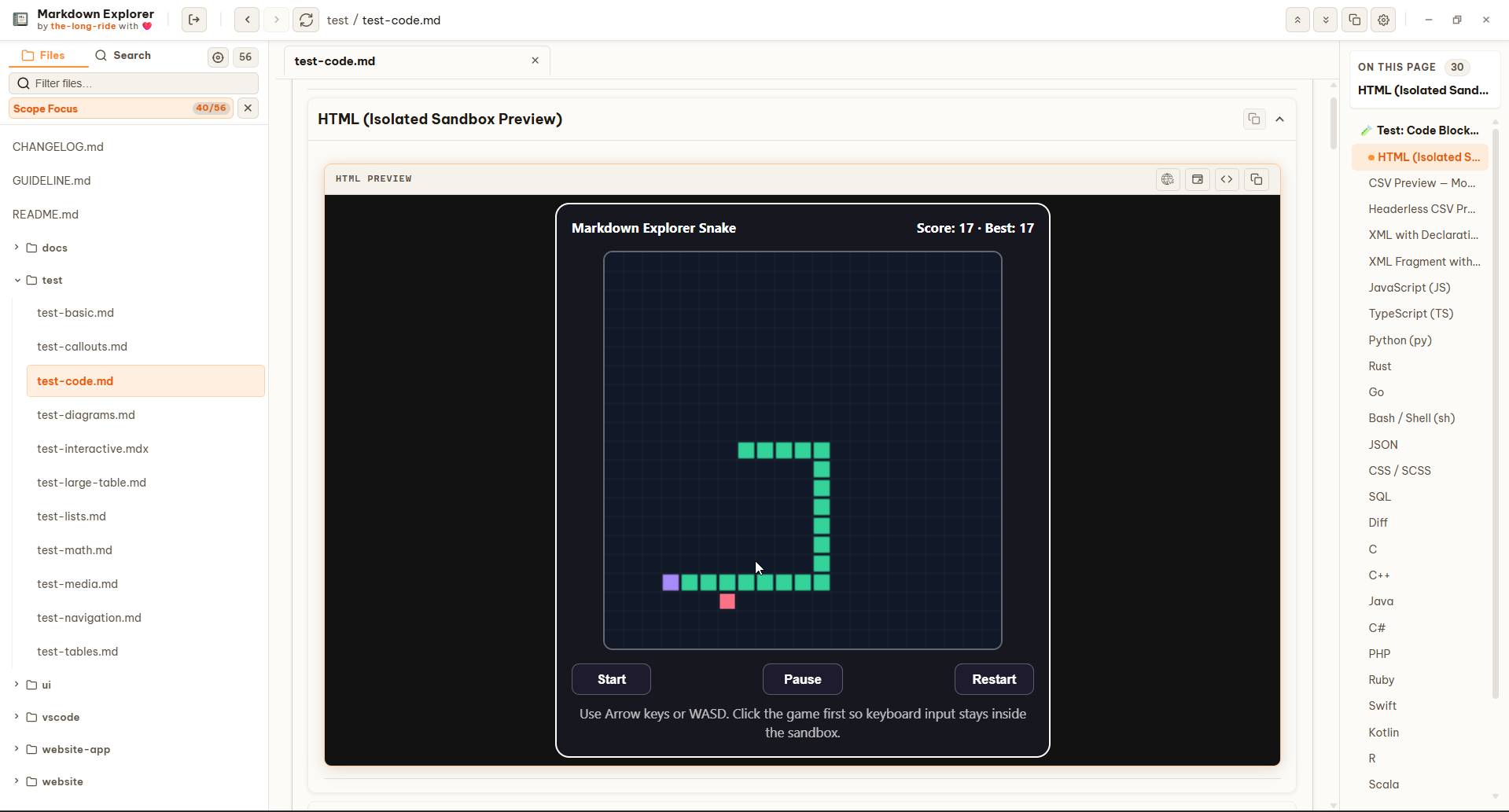
bash,pwsh,sh,zsh,cmd). - Interactive HTML Sandboxes: Isolated HTML iframe previews for interactive code examples.
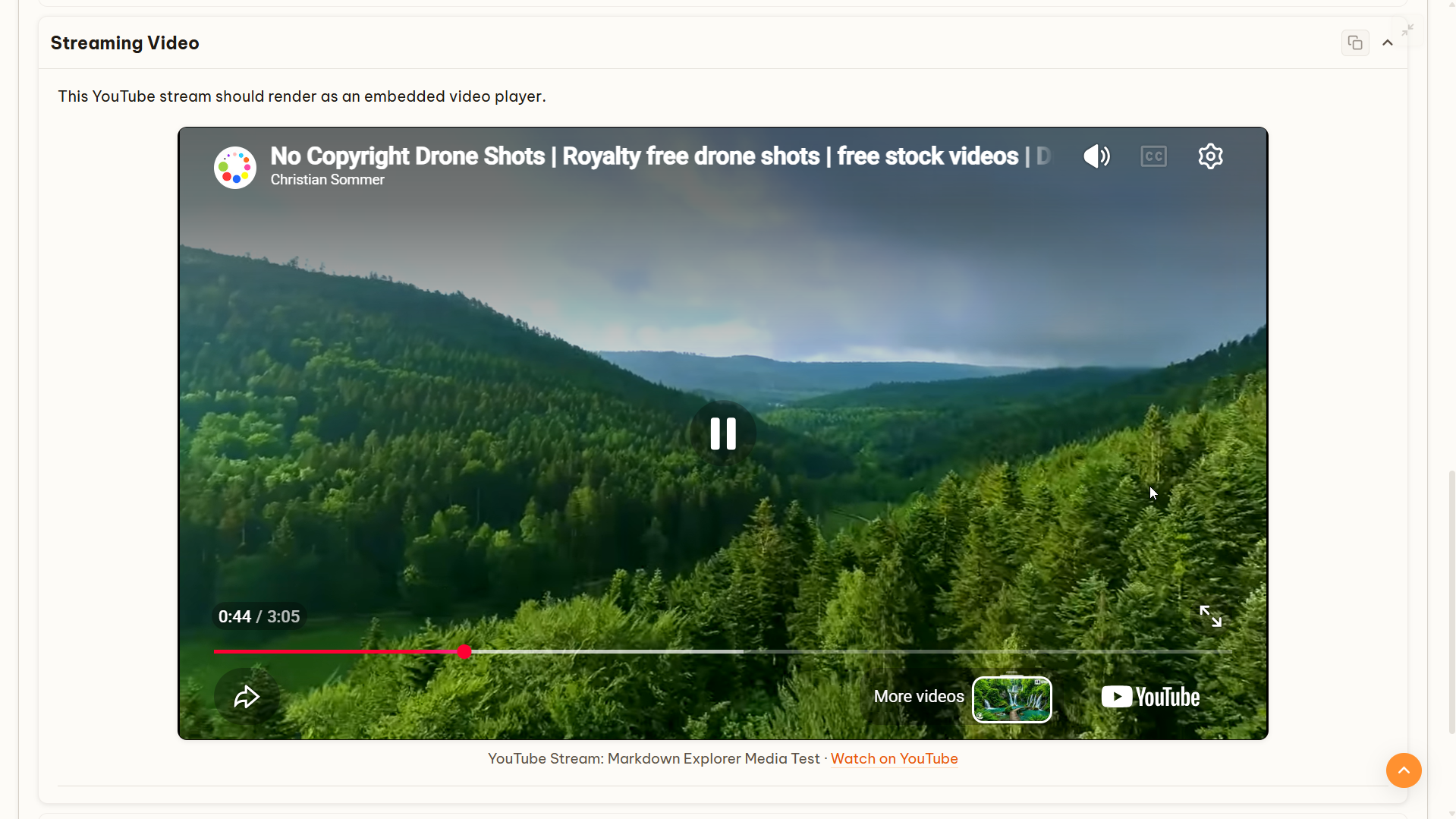
- Video Embedding: Support for local video files and YouTube/streaming video embeds.
Data Tables & Charts
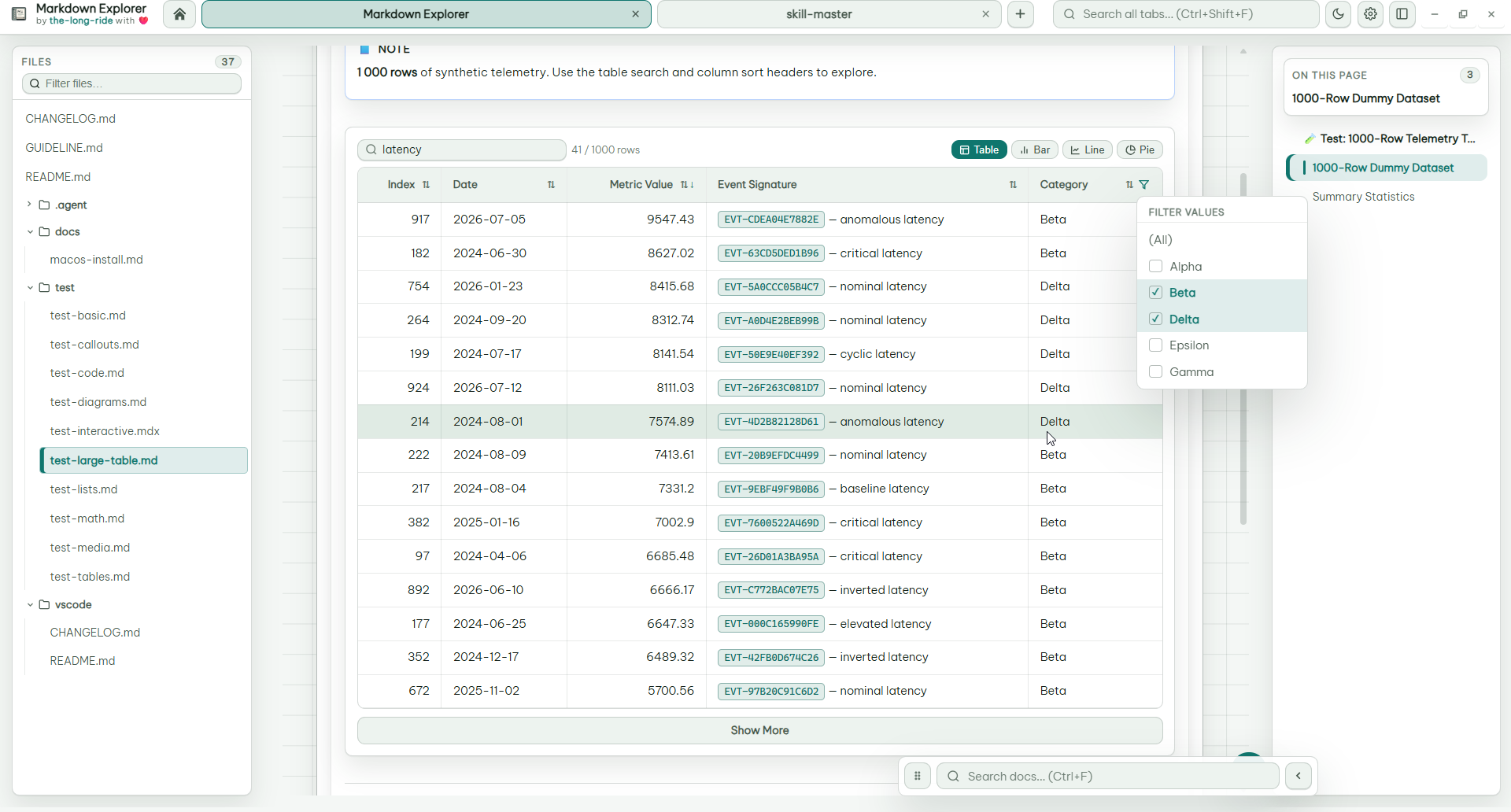
- CSV and TSV Code Fences: Switch highlighted delimited text into interactive tables with delimiter detection, header inference, Excel-style column labels, sorting, filtering, wrapping, and chart controls.
- Interactive Filtering & Sorting: Multi-select column filters, row sorting, and text wrap/unwrap controls.
- Interactive Column Visibility: Per-table Columns dropdown menu with accessible switch toggles for each column, Show all, and last-visible-column guard.
- Collapsible Datasets: Compact view for large datasets (1000+ rows).
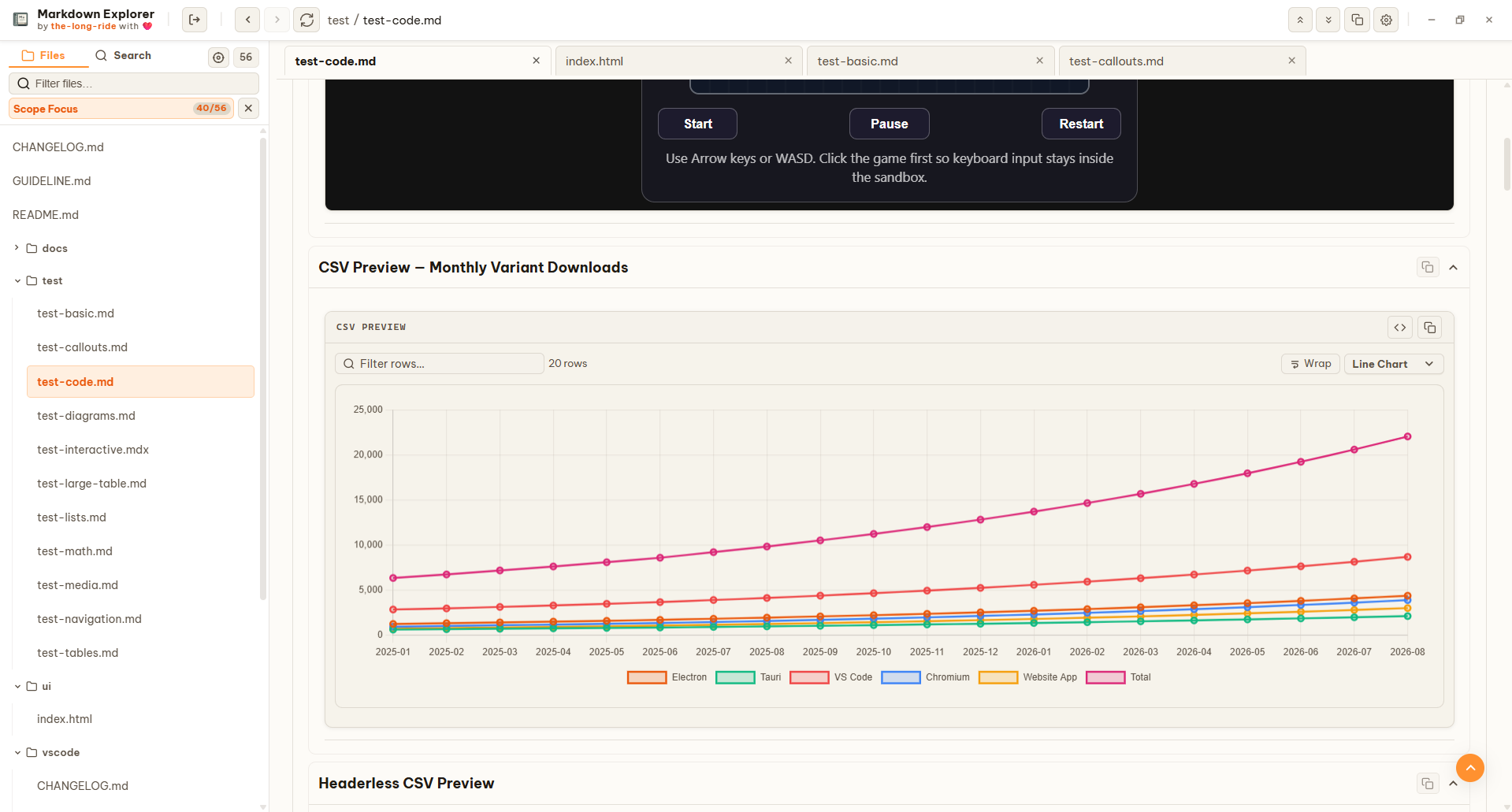
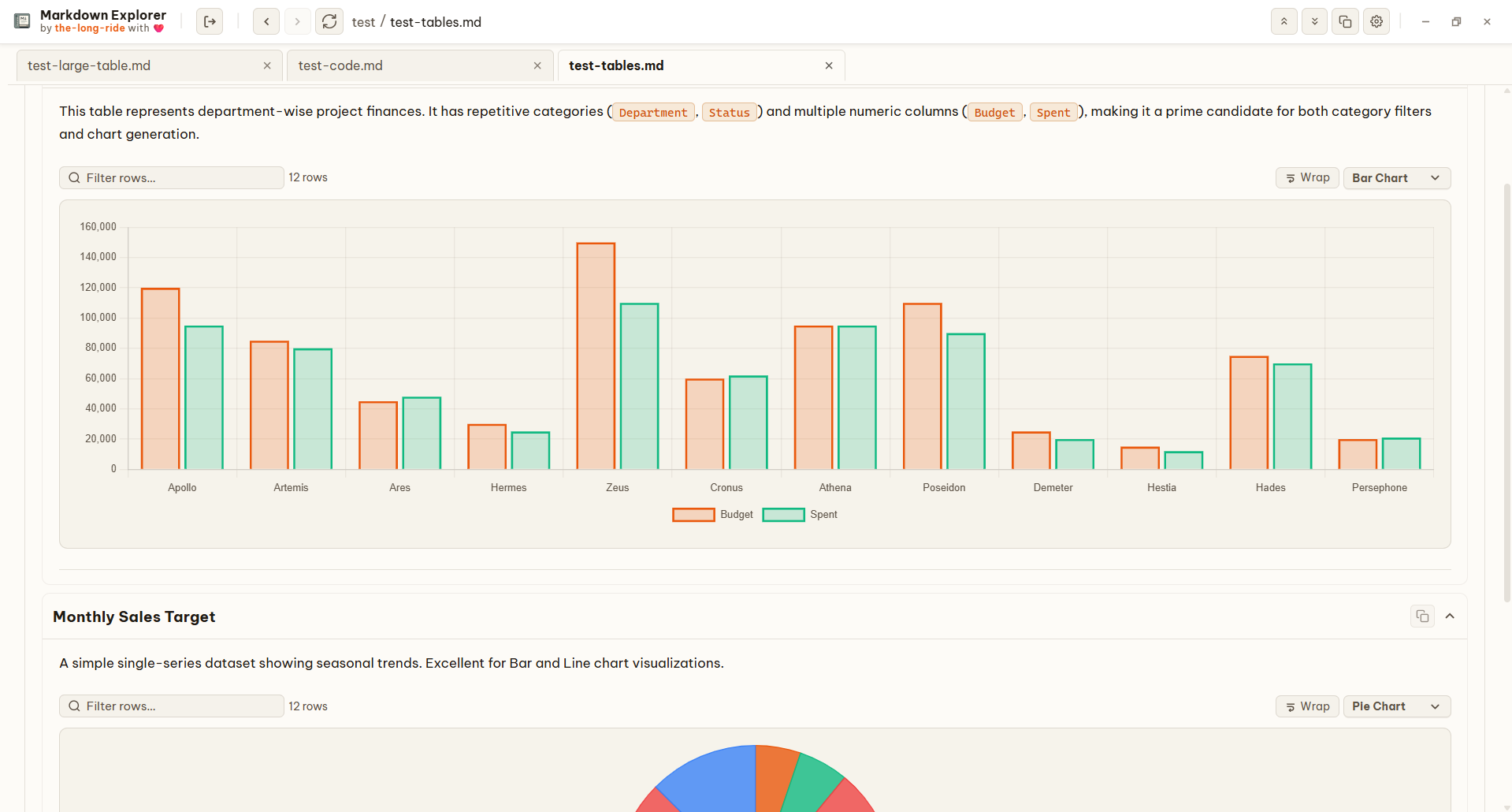
- Expanded Chart Visualizations: Automatically convert numeric table data into 9 interactive chart types: Bar, Horizontal Bar, Line, Area, Scatter (with multi-numeric X/Y point mapping), Radar, Polar Area, Pie, and Doughnut.
- Fullscreen Chart Modal Viewer: Dedicated chart inspection viewer with 50%–1000% continuous zoom, mouse/touch pan, fit/reset, on-the-fly chart type switching, and image copy/save PNG.
- Native Chart PNG Export: Native file dialog and direct PNG binary export for charts on desktop runtimes.
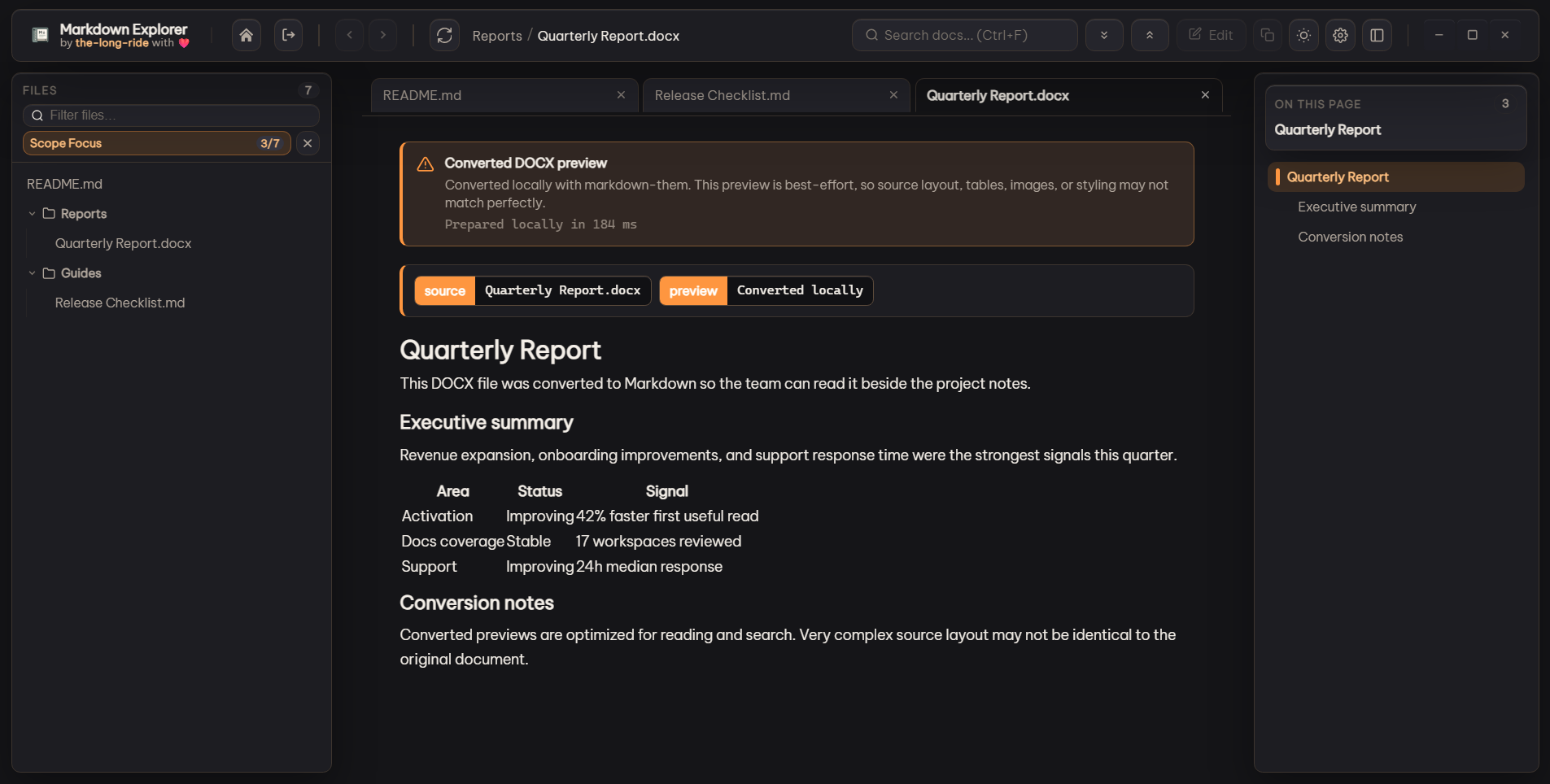
Converted Document Previews
- Multi-Format Local Conversion: Opt-in previews for DOC, DOCX, PDF, HTML, XLS, XLSX, XLM, PPTX, ODT, ODP, ODS, RTF, and TXT files. Tauri performs conversion in-process with local Rust adapters; Electron and VS Code retain
@the-long-ride/markdown-them. See Native document conversion. - Smart Caching: Fast re-views using file timestamp and size caching.
- Simple Configuration: Turn on Read DOCX, PDF, Office, and text files in Settings. The app scans those extra extensions only after the toggle is enabled, converts files only when opened, and caches converted Markdown by file timestamp and size for faster repeat views. Converted previews are best-effort and can differ from the original layout, tables, images, or styling.
Search & Discovery
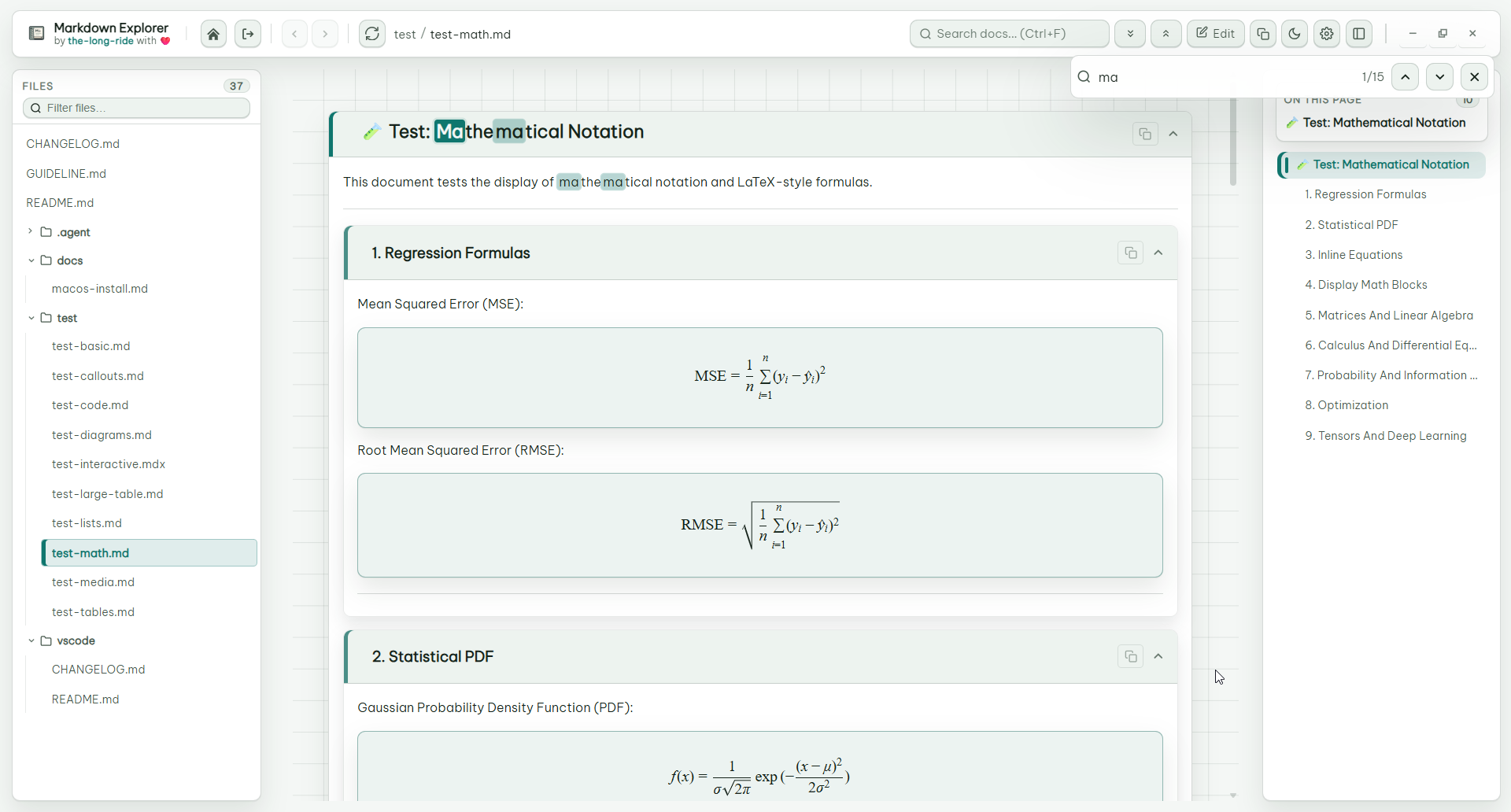
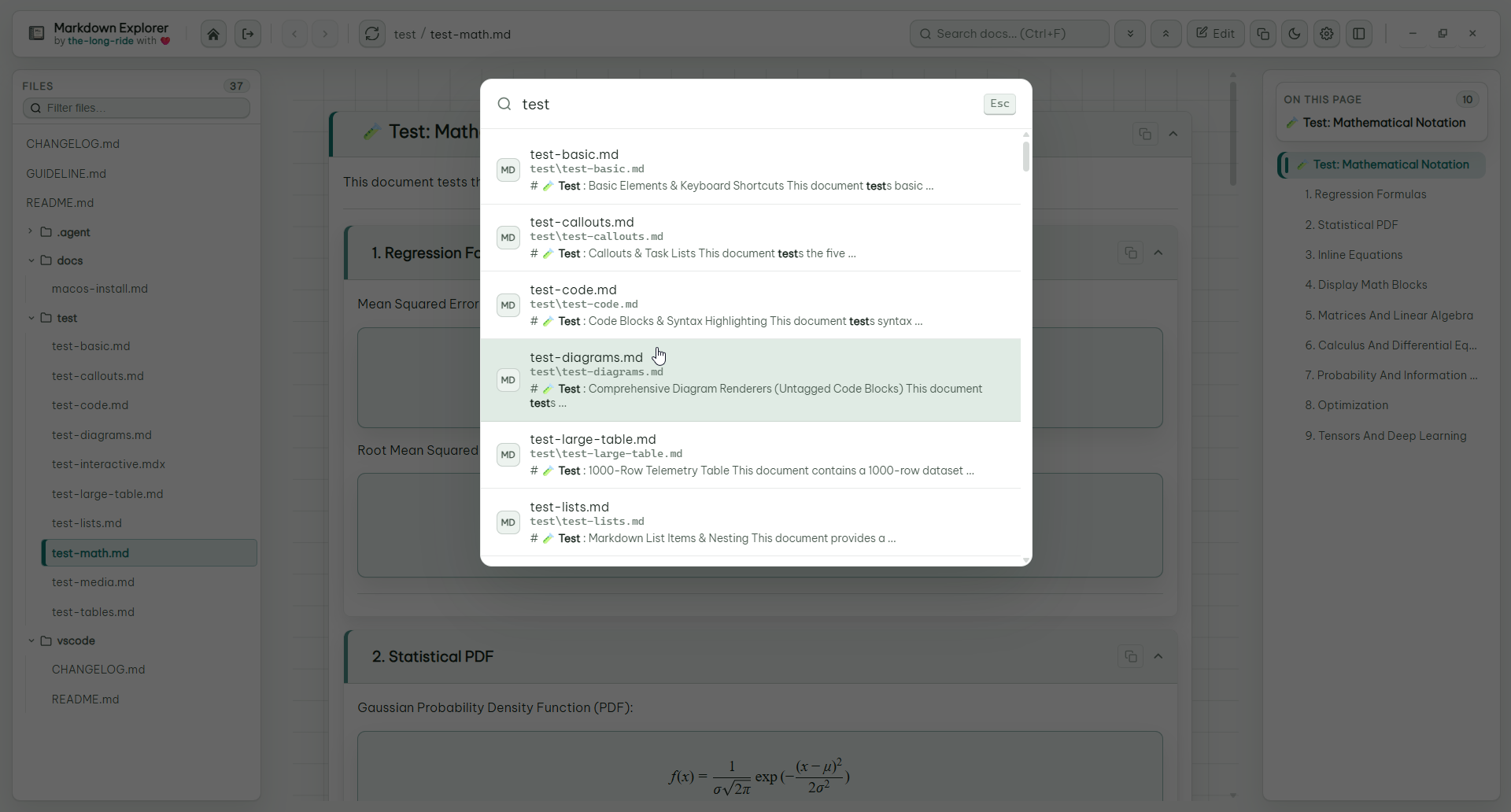
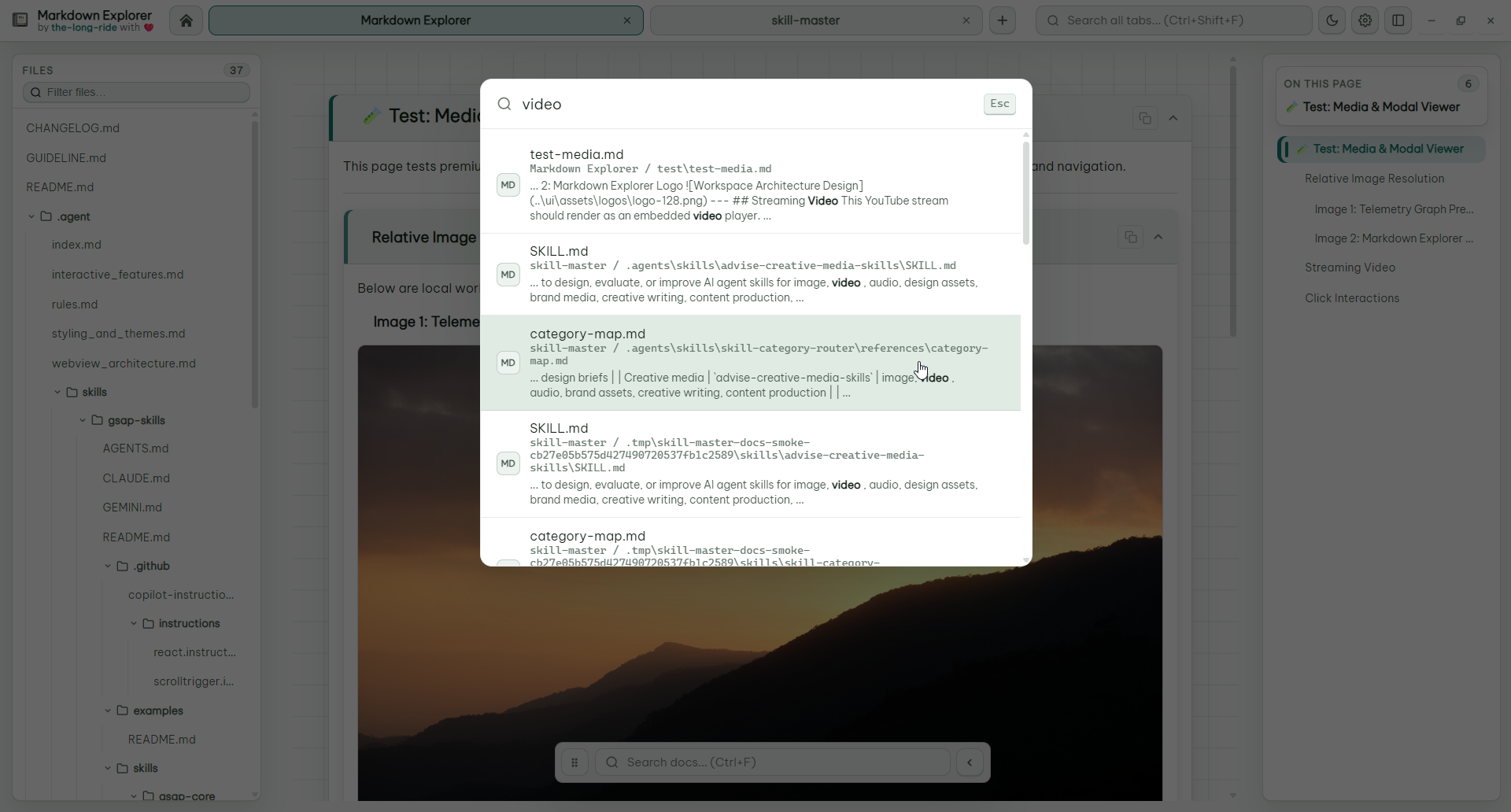
- Flexible Search Scopes: Search inside current file, current workspace, or across all open desktop tabs.
- Lazy Workspace Search: Stream up to 10,000 matches in 100-result batches, cancel stale queries, apply focused scopes before the cap, and render results in bounded 100-row windows.
- Jump-to-Result: Click search excerpts to jump directly to exact matches.
Workspace Insights & Wiki Links
- Workspace Insights: On supported runtimes, open the offline-first audit panel with
Ctrl+Alt+Ito explore Gallery, Links, Lint, Duplicates, Graph, and Related views for media references, broken links, Markdown diagnostics, duplicate content, document relationships, and related-document rankings. - Wiki Links & Transclusion: Navigate
[[Note]],[[Note#Heading]],[[Note|Label]],[[#Heading]], and relative Wiki Links, or embed targets with![[Note]]and![[Note#Heading]]. Fragment navigation expands collapsed sections, while cycle and depth guards keep transclusion safe.
Customization & Platform Support
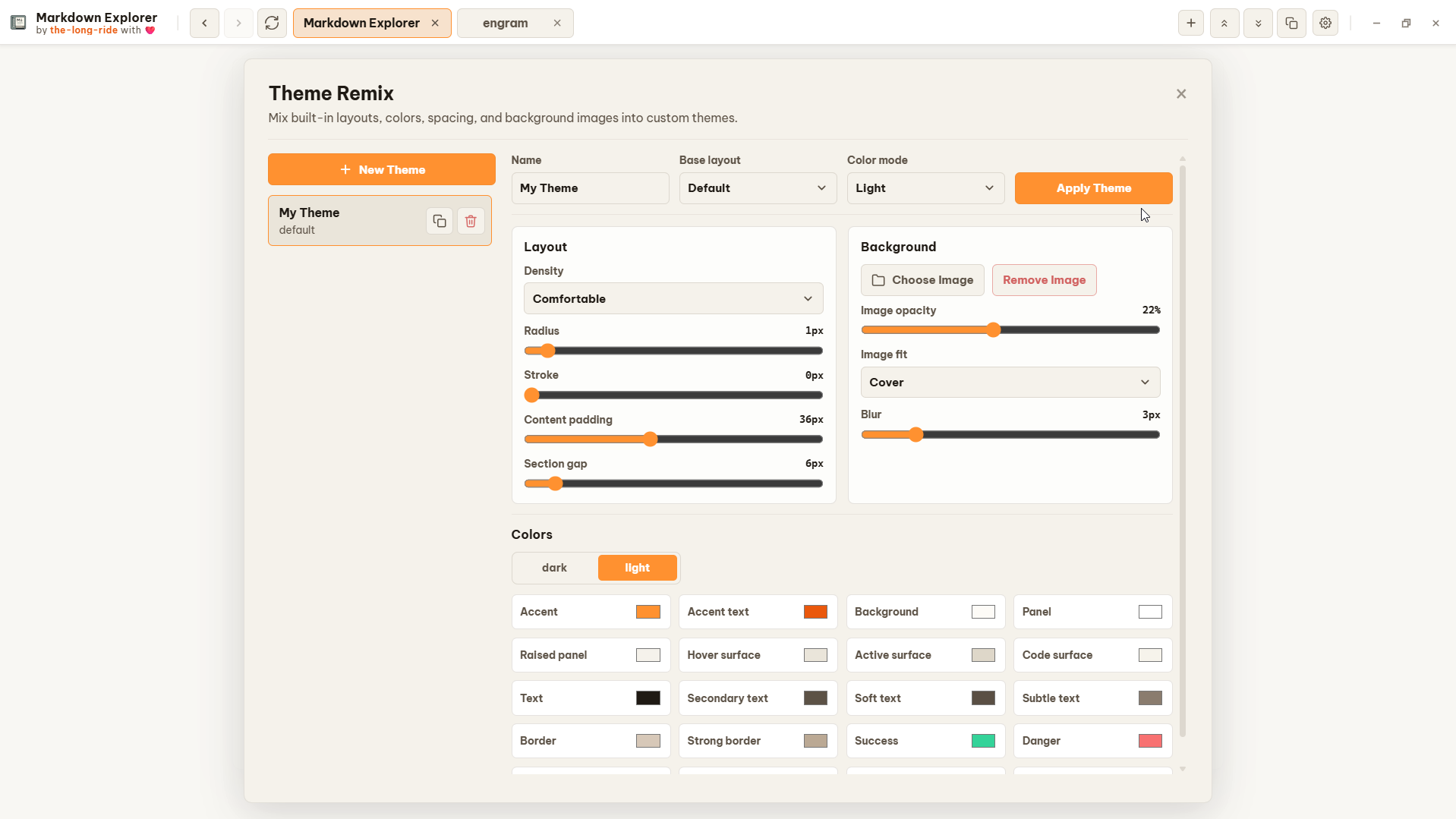
- Built-in Theme Families & Theme Remix: Choose grouped built-in themes—including Aurora Glass, Neon Voltage, and Default—pet themes, or create, edit, import, and export custom themes with color, density, spacing, and background image controls.
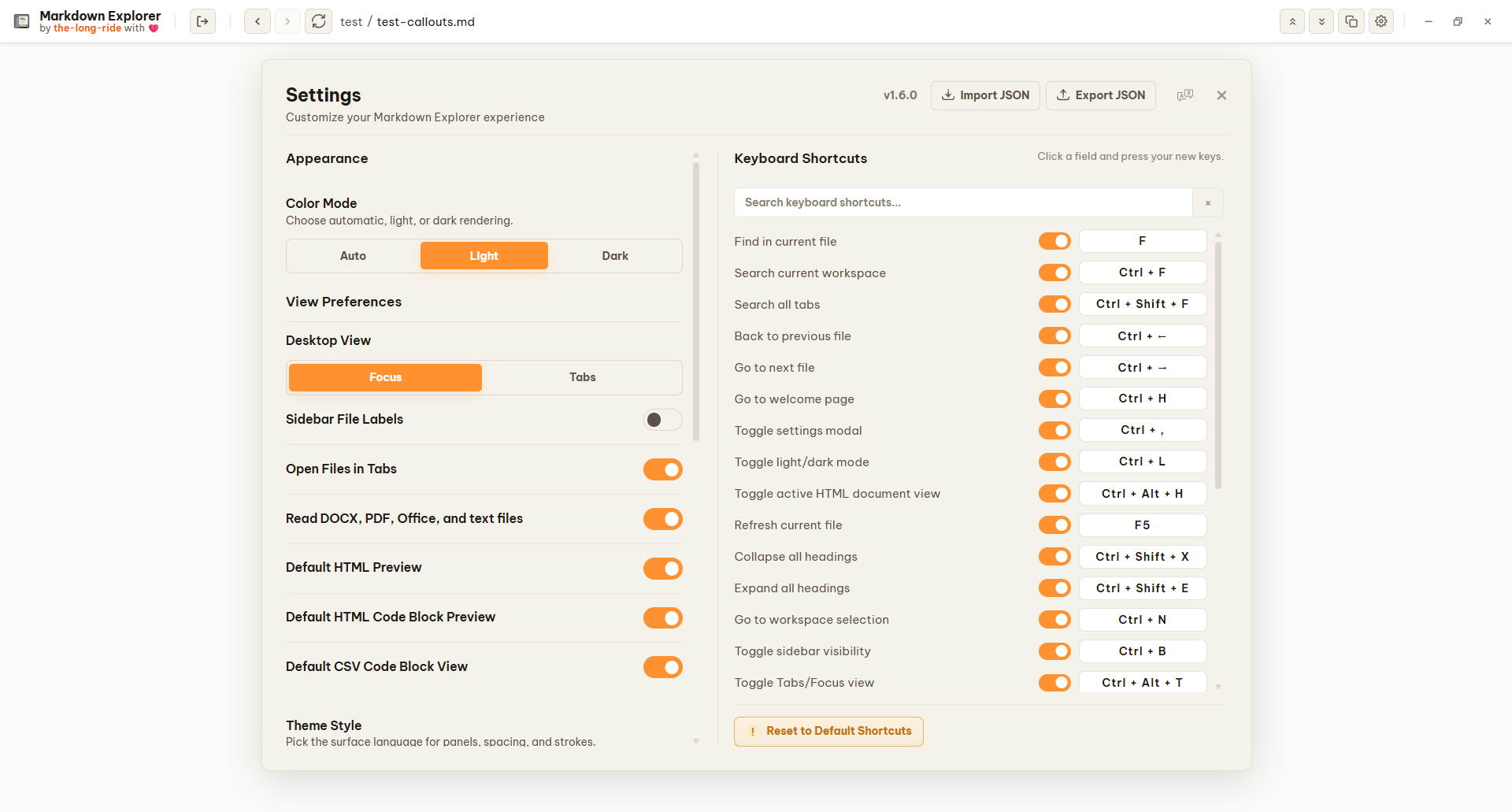
- Keyboard Shortcuts: Fully customizable keyboard shortcuts covering virtually all actions, navigation controls, and features in the app.
- Desktop Store Publishing: Automated release pipeline for signing and submitting Tauri builds to Microsoft Store and Ubuntu App Center.
- Settings Navigation: Settings uses a sidebar with Appearance, Typography, Theme Style, Features, Keyboard Shortcuts, and Update & Backup sections so related controls stay focused instead of sharing one long form.
- Searchable User Manual: The Welcome page includes a localized, task-oriented manual with searchable sections, platform-aware shortcut keycaps, direct action cards, and an AI help prompt across all nine supported languages.
- Typography: Electron, Tauri, and VS Code support independent App UI, Body, Heading, Quote, Code, and Mermaid font bindings. Each role can choose a detected system family or an imported
.ttf/.otffile plus an explicit supported style/weight. Chromium and Web runtimes persist imported.ttf/.otf/.woff/.woff2fonts in IndexedDB and activate them via theFontFaceAPI. Code defaults to JetBrains Mono, and changing the Mermaid font re-renders diagrams in the current document. - Update Notifications: Desktop releases can show a new-version dialog at startup with Download, Later, changelog, and Skip notify for this version actions. Skipping suppresses only that release; a newer release is shown again.
- Cross-Platform: Available for VS Code, Open VSX, Desktop (Electron & Tauri), and Chromium extensions.
- Native OS Integration: Windows File Explorer context menus and customizable desktop shortcuts.
- Privacy First: 100% local rendering and search with zero telemetry and no file uploads.
Windows File Explorer Integration
The Windows installer provides checked-by-default choices to create a desktop shortcut, add Open with Markdown Explorer for .md and .mdx files, and add Open Folder in Markdown Explorer to folder and empty-folder-background menus. Opening a Markdown file loads its containing folder as the workspace and displays that selected file. Opening a folder loads that exact folder. In Tab view this opens a workspace tab; in Focus view it replaces the current workspace. Portable and ZIP builds do not modify File Explorer automatically.
Desktop shortcuts can be customized in Settings. VS Code keeps editor-friendly defaults inside the webview.
View Keyboard Shortcuts
| Action | Desktop app | VS Code extension | Chromium extension |
|---|---|---|---|
| Open Markdown Explorer | N/A | Ctrl+Shift+M / Cmd+Shift+M |
N/A |
| Toggle preview for current Markdown file | N/A | Ctrl+Alt+V / Cmd+Alt+V |
N/A |
| Search current workspace | Ctrl+F |
Ctrl+K / Cmd+K |
Ctrl+K / Cmd+K |
| Search all open workspace tabs | Ctrl+Shift+F |
Ctrl+Shift+K / Cmd+Shift+K |
Ctrl+Shift+K / Cmd+Shift+K |
| Find in current file | F |
K |
K |
| Back to previous file | Ctrl+ArrowLeft or mouse back |
Ctrl+ArrowLeft / Cmd+ArrowLeft or mouse back |
Ctrl+ArrowLeft / Cmd+ArrowLeft or mouse back |
| Go to next file | Ctrl+ArrowRight or mouse forward |
Ctrl+ArrowRight / Cmd+ArrowRight or mouse forward |
Ctrl+ArrowRight / Cmd+ArrowRight or mouse forward |
| Go to welcome page | Ctrl+H |
Ctrl+H / Cmd+H |
Ctrl+H / Cmd+H |
| Open current document in external editor | Ctrl+E |
Ctrl+Alt+E / Cmd+Alt+E |
N/A |
| Open settings | Ctrl+, |
Ctrl+I / Cmd+I |
Ctrl+I / Cmd+I |
| Toggle theme | Ctrl+L |
Ctrl+Shift+L / Cmd+Shift+L |
Ctrl+Shift+L / Cmd+Shift+L |
| Refresh workspace | F5 |
R |
R |
| Collapse all heading sections | Ctrl+Shift+X |
Ctrl+Shift+X / Cmd+Shift+X |
Ctrl+Shift+X / Cmd+Shift+X |
| Expand all heading sections | Ctrl+Shift+E |
Ctrl+Shift+E / Cmd+Shift+E |
Ctrl+Shift+E / Cmd+Shift+E |
| Go to workspace selection | Ctrl+N |
Ctrl+Alt+W / Cmd+Alt+W |
Ctrl+Alt+W / Cmd+Alt+W |
| Open current document folder | Shift+Alt+R |
N/A | N/A |
| Toggle sidebar | Ctrl+B |
Alt+A |
Alt+A |
| Toggle table of contents | Ctrl+T |
Alt+C |
Alt+C |
| Locate current file | Alt+Q |
Alt+Q |
Alt+Q |
| Toggle Focus mode | Ctrl+Alt+F |
Ctrl+Alt+F / Cmd+Alt+F |
Ctrl+Alt+F / Cmd+Alt+F |
| Toggle active HTML document view | Ctrl+Alt+H |
Ctrl+Alt+H / Cmd+Alt+H |
Ctrl+Alt+H / Cmd+Alt+H |
| Toggle desktop Tabs/Focus view | Ctrl+Alt+T |
N/A | N/A |
| Close current content tab | Ctrl+W |
N/A | N/A |
| Close all content tabs | Ctrl+Shift+W |
N/A | N/A |
| Close content tabs to the right | Ctrl+Alt+W |
N/A | N/A |
| Close other content tabs | Ctrl+Alt+O |
N/A | N/A |
| Toggle fullscreen | F11 |
N/A | N/A |
| Sidebar cursor mode | Alt+Z |
Alt+Z |
Alt+Z |
| Zoom in | Ctrl+=, Ctrl+Plus, or Ctrl+MouseWheelUp |
Use editor/webview zoom | Use browser zoom |
| Zoom out | Ctrl+- or Ctrl+MouseWheelDown |
Use editor/webview zoom | Use browser zoom |
| Reset zoom | Ctrl+Alt+Z |
Use editor/webview zoom | Use browser zoom |
- No telemetry.
- No file upload.
- Local parsing, indexing, rendering, editing, diff computation, and search.
- Local Git history and repository snapshot browsing on Electron/Tauri/VS Code use the installed
gitexecutable and expose read-only operations only. - MIT licensed public source.
- Website
- Demo Web App
- VS Code Marketplace
- Open VSX
- Latest GitHub Release
- Changelog
- Git History and Diff guide
- Issues
Bug reports and feature ideas are very welcome. Clear reports make fixes faster, and screenshots or tiny sample Markdown files are especially helpful.
Before opening a new issue, please take a quick look at the existing issues so we can keep related reports together.
When you open an issue, include what you can:
- Short title: one clear sentence, such as
Search result opens wrong match. - App surface: VS Code extension or desktop app.
- Version: app or extension version, plus OS.
- Steps to reproduce: the smallest click/key sequence that triggers the problem.
- Expected behavior: what you thought should happen.
- Actual behavior: what happened instead.
- Screenshot or screen recording: useful for layout, theme, zoom, and interaction bugs.
- Minimal Markdown sample: helpful for parser, Mermaid, math, table, video, or code-block issues.
- Console or log output: include errors from VS Code Developer Tools, Electron Developer Tools, or the terminal when available.
No need to make it perfect. A small reproducible example is already a huge gift to the project 💕.
This project is licensed under the MIT License. See the LICENSE file for details.
the-long-ride - passionate about making Markdown more enjoyable and useful for everyone. If you find this project helpful, consider starring the repository or sharing it with others who might benefit!