Configuration
For general information, have a look at the VisiCam Wiki start page.
Open your VisiCam URL with the web browser. From there you can open the configuration.
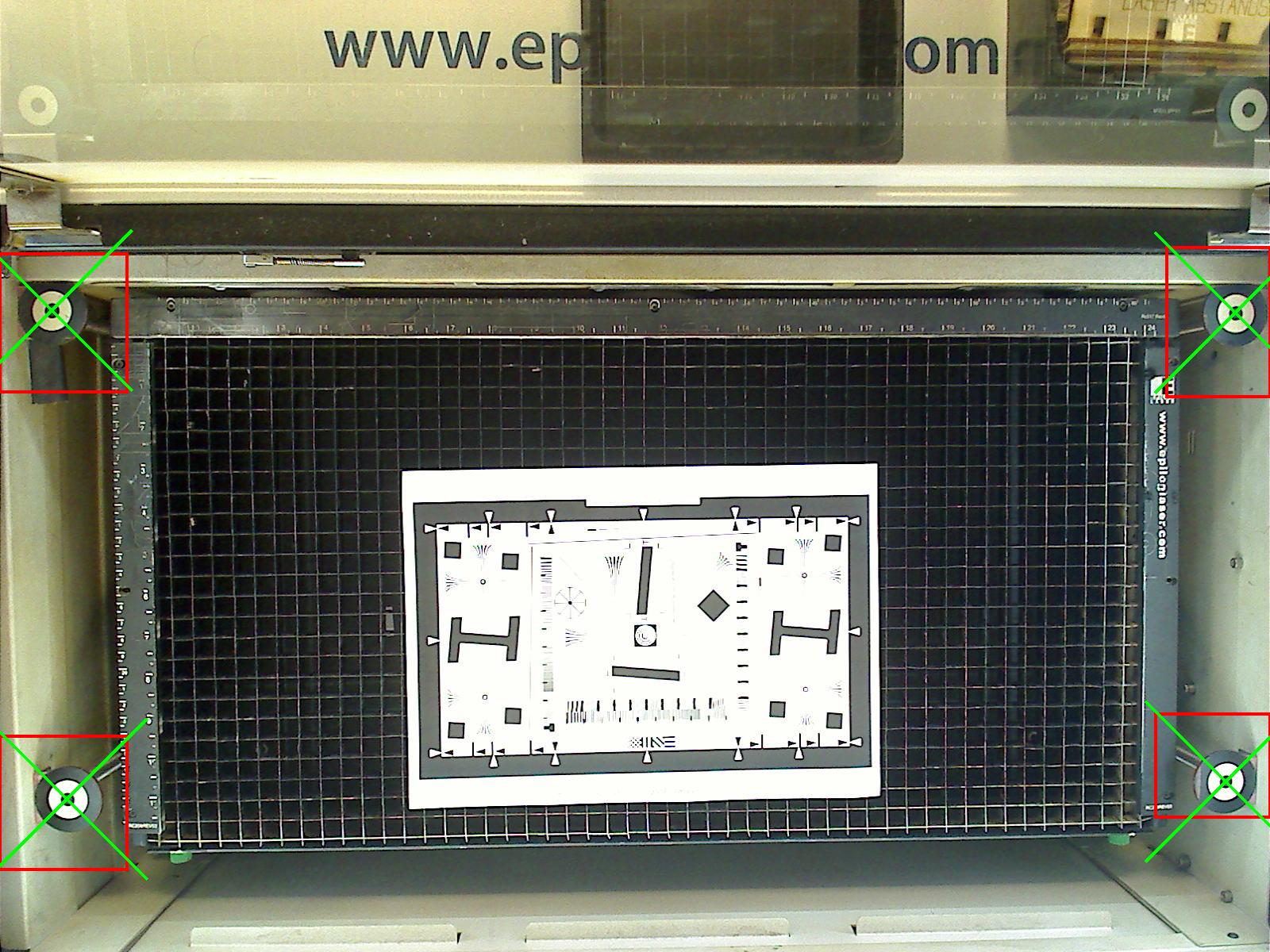
Select which marker (e.g. top-left), then click and drag in the image to select a not too large area in which the marker is searched. Repeat for all four markers. Save and go back to the main page.
The result should like this:
Control how much inside/outside the markers can be seen in the output image.
100 = The output is exactly the rectangle-like area between the markers
more than 100, e.g. 200 = The output is zoomed in, only a small area in the middle is shown
less than 100, e.g. 50 = The output is zoomed out, you can also see the area outside of "the marker rectangle"
...
Please feel free to extend this documentation.