Keyboard Shortcuts
Shortcuts work in the Stream View. Open the Shortcuts window (or press it in the control bar) to view and remap any of them; bindings are saved between sessions.
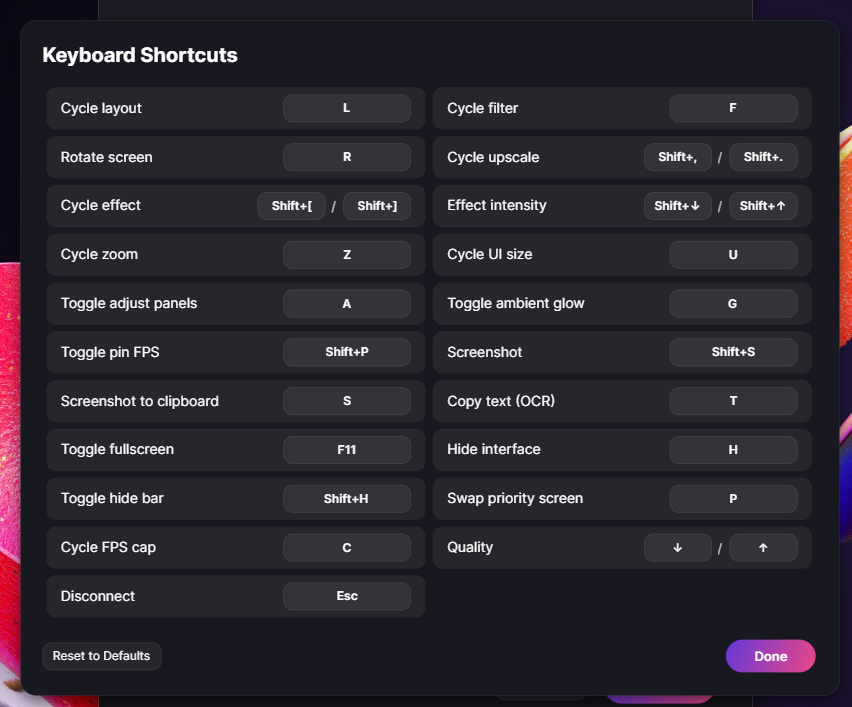
Every shortcut shows a brief on-screen toast confirming what changed — except Toggle UI, since decluttering the screen is the whole point there.
| Group | Action | Default key |
|---|---|---|
| Display | Cycle layout | L |
| Display | Cycle filter | F |
| Display | Rotate screen | R |
| Upscale & FX | Cycle upscale (prev / next) |
Shift + , / Shift + .
|
| Upscale & FX | Cycle effect (prev / next) |
Shift + [ / Shift + ]
|
| Upscale & FX | Effect intensity (decrease / increase) |
Shift + ↓ / Shift + ↑
|
| Geometry | Cycle zoom | Z |
| Visual | Cycle UI size | U |
| Visual | Toggle adjust panels | A |
| Visual | Toggle ambient glow | G |
| Visual | Toggle pin FPS | Shift + P |
| Capture | Screenshot (save to folder) | S |
| Capture | Screenshot to clipboard (Windows) | Shift + S |
| Capture | Copy text from the stream (OCR) | T |
| Window | Toggle fullscreen | F11 |
| Window | Toggle UI (clean / hide mode) | H |
| Window | Toggle hide bar | Shift + H |
| Session | Swap priority screen (Top ⇄ Bottom) | P |
| Session | Cycle FPS cap | C |
| Session | Quality (decrease / increase) |
↓ / ↑
|
| Session | Disconnect / exit clean mode | Esc |
Open the Shortcuts window, click a binding, and press the new key (modifiers like Shift, Ctrl,
Alt are supported). Changes take effect immediately and persist. If a key conflicts with another
action, the window flags it.
Note: quality changes (
↑/↓) re-init the NTR stream, so there's a brief reconnect blip — that's normal for NTR.