10 ‐ File Manager
This application includes file management support, allowing you to upload files related to your games. You can access this feature through Admin Menu -> File Manager. Here you will see the standard search facility.
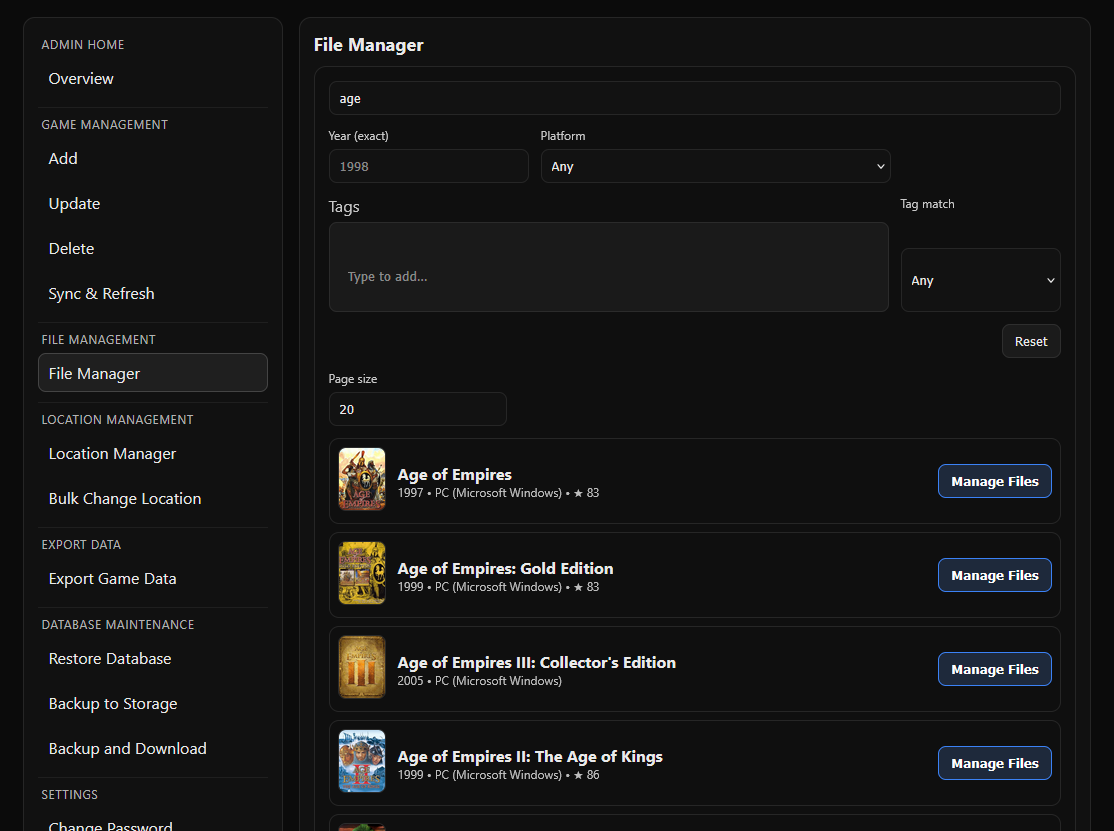
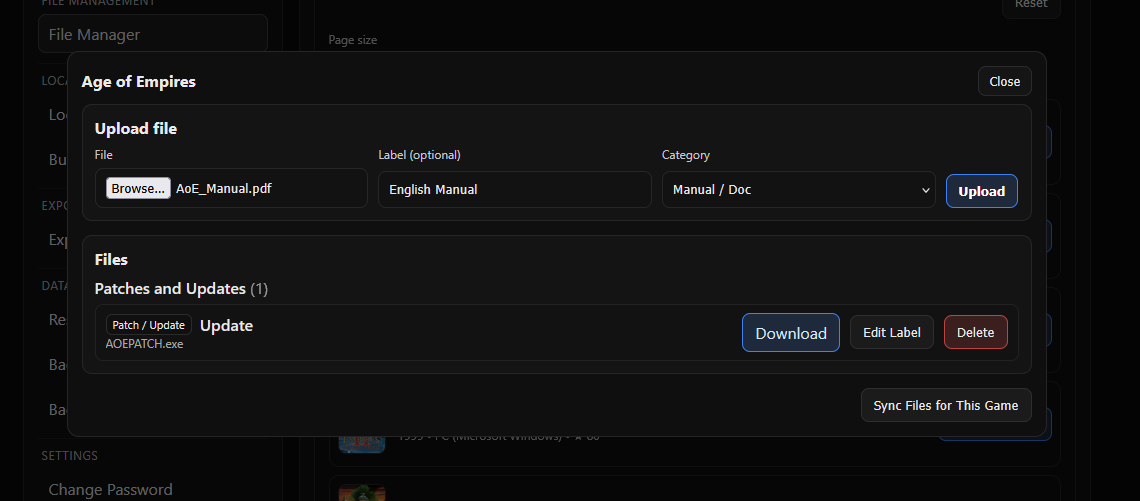
Once you search and select a game, you will see the File Manager window. In this window you can download, delete, or edit the label of an existing file, or upload a new file.
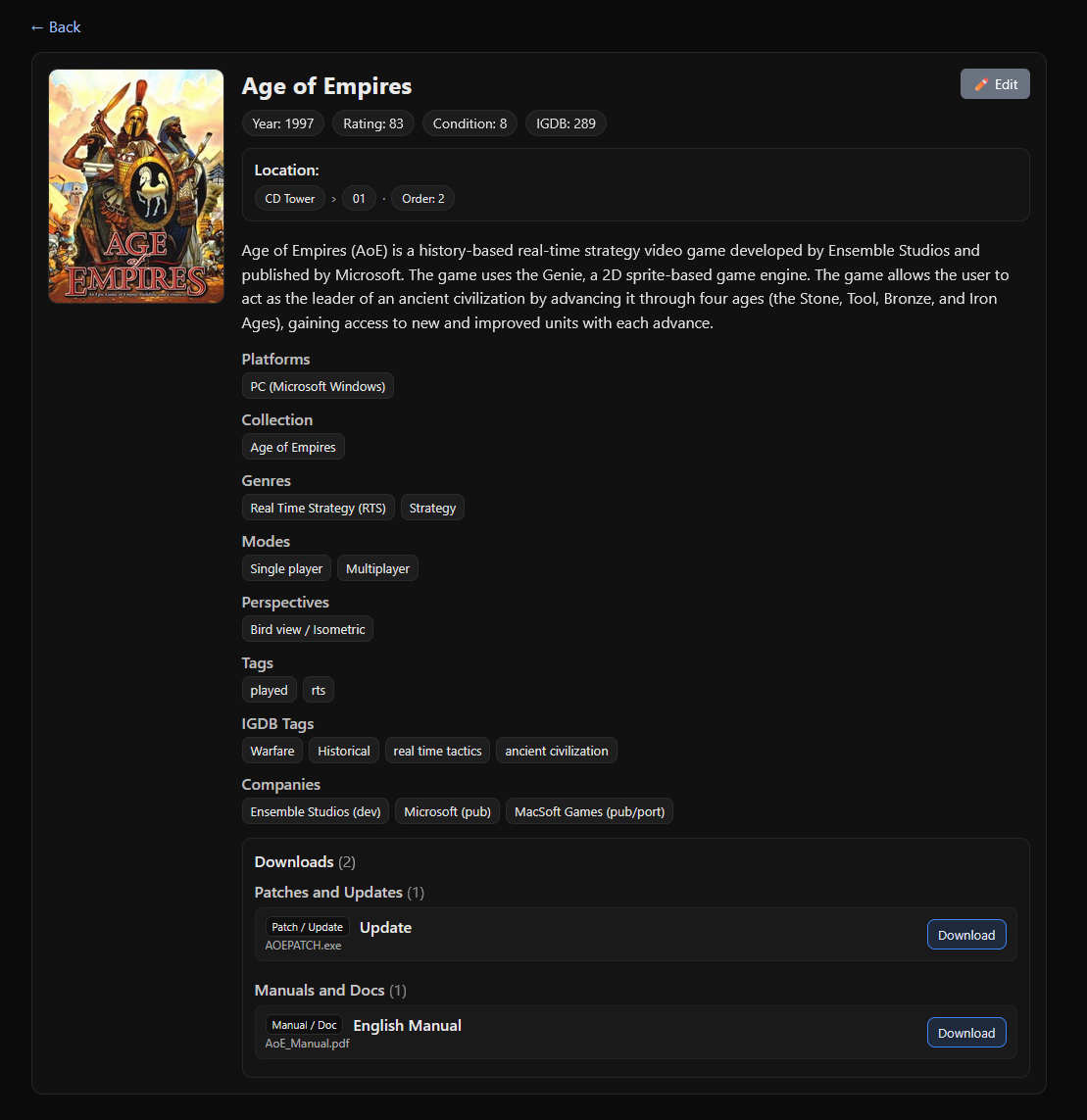
Once files are added, you can see them at the bottom of the game detail page for the relevant game.
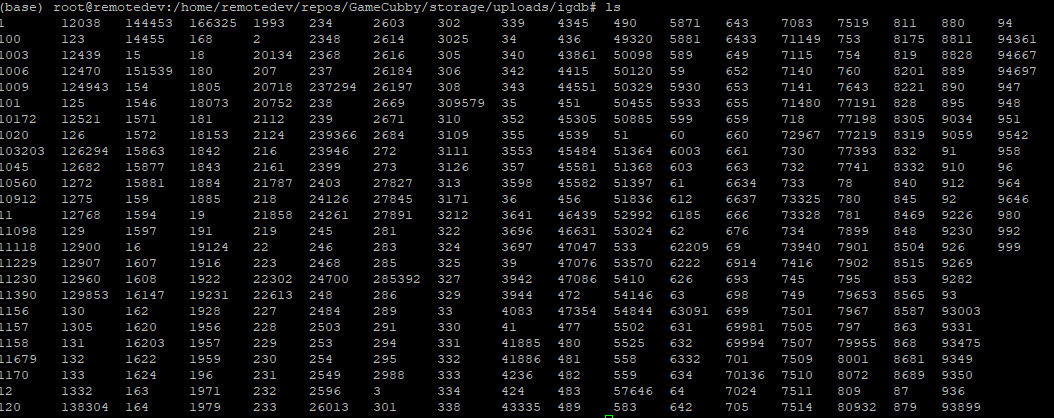
In the background, the application creates a folder based on the IGDB ID of the game. This way, multiple copies of the same game will share the same files. For example, if you have three copies of Age of Empires, you only need to upload the files once. Since they share the same IGDB ID, the files will be accessible from all three copies in your library.
For custom games, as long as the name matches between multiple copies, they will share files in the same way.
Here’s how it looks in the filesystem (though you’ll likely never need to check it yourself):
IGDB:
Custom Games:

If you upload files directly into a game directory in the filesystem, you can use this button to search for missing files. The files found will be labelled as FILE FOUND!. You can then use the Edit Label function to update file labels.
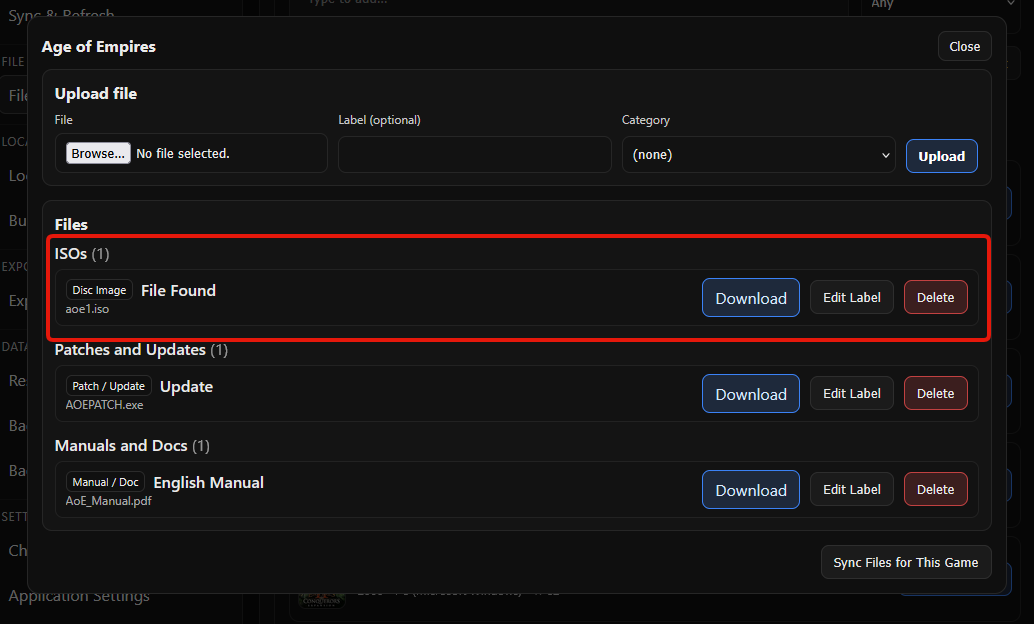
This function will be used rarely, but it’s helpful if you have very large ISO files you want to upload manually. Just make sure you upload the files into the correct folders.
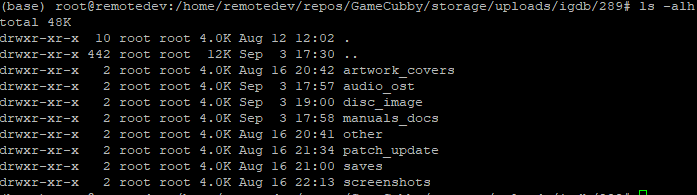
In this example, you can see the IGDB ID 289, which belongs to Age of Empires (you can find this ID on the game’s detail page). I uploaded aoe1.iso into the disc_images folder, and then clicked Sync Files for This Game.