

OpenPuck is an opensource firmware for NRF52840 Pro Micro that copycats the Steam Controller 2 Puck and allows emulation of Xbox, Original Xbox, Switch, and PS3/4/5 controllers and also includes an independant lizard mode (which can work on UAC prompts/task manager/etc). The Switch, PS3, and Original Xbox modes have been verified to work on real consoles and Switch, PS4/5 modes have gyro (and touchpad where available) hooked in. Back 4 buttons are mappable for all emulated modes.
Warning
Every part of this project HEAVILY used LLMs*
This is ripps818's fork of safijari/openpuck. Its builds are on this fork's releases page, and it has two configurators:
- Stable: ripps818.github.io/openpuck, matching the latest release.
- Nightly: ripps818.github.io/openpuck/nightly.html, matching the
nightlypre-release built frommain. It has the newest settings, which need nightly firmware.
Upstream's configurator doesn't have the settings below.
- DualSense 4-channel USB audio & voice-coil haptics: DualSense mode presents the same USB audio function as a real DualSense (4-channel output, silent 2-channel mic). Channels 3 & 4 (the haptic tracks) are turned into Steam Controller haptic commands in real time and sent over the 2.4GHz RF link. The default wave style streams the haptic waveform itself to the grip actuators as PCM; rumble, tone and split (low frequencies as rumble, the rest as tones) remain as options. Linux/Proton setup: DualSense mode & audio haptics on Linux / Proton.
- Controller speaker: in DualSense mode, what a game sends to the DualSense speaker can play through the grips, up to about 1.6 kHz with the bass cut. The grips are vibration actuators, so it is more a vibration trick than a speaker: voices come through but sound buzzy and thin. Off by default; turn it on in the DualSense tab.
- HD rumble in Switch Pro mode: each grip plays the game's HD rumble as a waveform at the game's frequencies (both bands, streamed as PCM), and each trackpad plays the high band as tones. Effects keep their texture, closer to a real Pro Controller than motor-style rumble. In the Eden emulator, enable "Direct Pro Controller driver (experimental)" to get the game's real HD rumble data.
- Grip limiter: strong grip vibration above a set level (70% by default) is rounded off instead of clipping into a pop. On the Switch and DS5 tabs, with a separate setting for Switch HD rumble and DualSense audio haptics, as is the Haptics style.
- Trackpad haptic strength: each mode's tab has click strength, tick spacing and tick strength sliders. With a tick spacing chosen the puck plays the movement ticks and the clicks itself, so both have a strength you set. This is experimental. Details: docs/CONTROLLER_FEATURES.md.
- Per-mode rumble: each mode keeps its own rumble switch and grip strength, and the rumble style follows the mode. See Rumble below.
- Trackpad D-pad and Quick Access + Select: in every emulated mode, trackpads can act as a D-pad on touch or on click (diagonals included), and Quick Access + Select can act as a button of your choice (a screenshot on the Switch). Details: docs/CONTROLLER_FEATURES.md.
- Full-rate haptic streams in Steam mode: the controller's PCM haptic commands are relayed at full rate, so audio-to-haptics apps such as Fancy Haptics play as cleanly through OpenPuck as over USB.
- Trigger deadzone and full-press point: emulated modes can ignore the first part of the trigger travel and treat a pull past a set point as a full press. This helps games made for DualSense resistive triggers that never see a full pull.
- Shortcut modifier choice: mode shortcuts can use Quick Access as the modifier instead of all four back buttons. Shortcuts can also play a confirmation pulse or be turned off entirely. See Mode shortcuts.
- Touchpad toggle: modifier + either trackpad click turns touchpad reporting on or off (high buzz = on, low buzz = off). Useful to stop accidental trackpad touches when you only use the sticks.
- Enhanced PlayStation HID & feature reports: a byte-for-byte copy of a real DualSense's report descriptor, and Feature Reports
0x03,0x08,0x09(pairing & MAC),0x0A,0x20(accurate hardware revision and firmware version fields),0x21, and0x22, plusGET_REPORT(0x01)support for DirectInput game polling. - Nightly builds: every push to
mainis built and can be flashed in-page from this fork's configurator. See How to install/use it.
Released in 2026, the Steam Controller 2 represents the peak (IMO) of controller design. Trackpads, gyro, 4 back buttons, all with the flexibility of Steam Input brings the amazing flexiblity of the Steam Deck's controls to gaming PCs in general.
The "puck" is what the controller uses for wireless communication with the host device. It can handle 4 controllers paired to it at the same time and can run at a very low latency with all 4 connected. While the controller has a bluetooth mode too it has over twice the latency so the puck is truly where it's at.
There are two fundamental problems with the controller:
-
The puck is not (yet) available for purchase separately from the controller so if you want a replacement or a second one (a single controller can pair to two) you're out of luck. Given Valve's track record I predict it'll never be available to buy as a separate accessory.
-
Steam Input isn't just a nicety, it's a requirement. This means that the controller is basically useless unless you have Steam running (outside of certain contexts that I personally consider niche). If, for example, you have gamepass and want to play FH6 through Gamepass you're gonna be in for a bad time and you'll probalby need specialized software running on your computer in order to make the controller work with it.
Video Intro
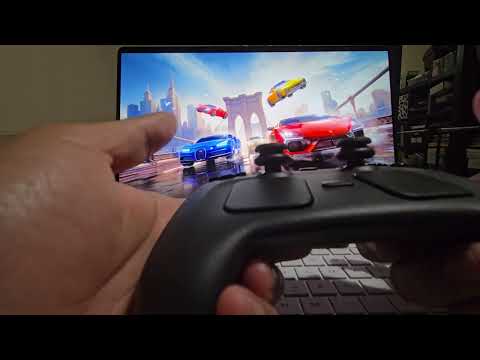
OpenPuck uses a Pro Micro NRF52840 ($8 on Amazon, possibly cheaper elsewhere) which uses a radio similar to the one being used by the controller and the puck. Once the arduino sketch is uploaded it emulates the puck over USB to Steam by default and allows pairing the controller normally (almost, the lizard mode for when Steam is off might not be 1:1). Latency has been measured to be within 1ms of the official puck.
At any point you can hold the shortcut modifier (all four back buttons by default) and press X to switch over to Xbox mode which maps all canonical inputs to their expected counterparts (plus L4 -> LB, L5 -> L3, etc which are configurable). In this mode the right trackpad acts as a mouse but at present this only works in Android and SteamOS.
Similarly you can hold the modifier and press Y to switch (teehee) over to a Switch mode. This emulates a pro controller full with gyro and haptics. There's other modes as well.
Hold the modifier and press a button. The modifier is all four back buttons by default; the configurator's Mode shortcuts card can change it to Quick Access, reassign every shortcut except A, add a confirmation pulse, or turn shortcuts off.
Modifier ( by default) + by default) + |
Default | Notes |
|---|---|---|
 |
Steam | Fixed: always the way back |
 |
Lizard | Configurable |
 |
Xbox 360 | Configurable |
 |
Switch Pro | Configurable |
 Left Left |
PS3 | Configurable |
 Up Up |
PS4 DualShock (single HID) | Configurable |
 Right Right |
PS5 DualSense (single HID) | Configurable |
 Down Down |
Switch HORIPAD | Configurable |
  Trackpad click Trackpad click |
Toggle touchpad | High buzz = on, low buzz = off |
Also in every mode: Steam + Y held for 2 seconds turns the controller off. Quick Access + Select can act as any button you pick for each mode (a screenshot on the Switch, for example); it does nothing until you choose one in the Button map card.
| Mode (configurator name) | What it is |
|---|---|
| Steam | Steam Controller mode |
| Lizard | Lizard mode, even if Steam is open |
| Xbox 360 | Xbox 360 controller |
| Original Xbox | Original Xbox Controller S; enumerates on a real Original Xbox |
| Switch Pro | Switch Pro Controller + gyro + HD rumble |
| Switch HORIPAD | Switch mode with no gyro or haptics |
| PS3 DualShock | DualShock 3 / Sixaxis; enumerates on a real PS3 (+ gyro/haptics) |
| PS4 DualShock | DS4 + gyro + trackpad (PC) |
| PS4 DualShock (single HID) | Same DS4 as a bare single-HID device; one controller |
| PS5 DualSense | DualSense + gyro + trackpad + 4-channel audio haptics (PC) |
| PS5 DualSense (single HID) | Same DualSense as a bare single-HID device, for PC games that refuse composite devices (e.g. Fortnite); one controller |
| DirectInput | Every axis at once, as two DirectInput joysticks |
| SInput | Sticks + analog triggers + gyro + both trackpads + battery |
The two single-HID modes and PS3 drop the configurator's WebUSB connection; use modifier + A to get back to Steam.
DirectInput mode exists because Steam Input funnels everything through XInput, so only a handful of the controller's analog inputs can be live at once — a problem for flight and space sims, which bind axes through DirectInput. DirectInput itself caps a device at 8 axes, so this mode presents the controller as two joysticks (two HID collections, one USB interface):
| Device | Axes | Buttons |
|---|---|---|
| #1 | X/Y = left stick, Rx/Ry = right stick, Z/Rz = left/right trigger, hat = D-pad | 1-26: A B X Y, LB RB, LT RT, Start, Select, L3 R3, D-pad U D L R, L4 R4 L5 R5, pad clicks, pad touches, Steam, QAM |
| #2 | X/Y = left trackpad, Rx/Ry = right trackpad, Z/Rz/Slider = gyro X/Y/Z | 1-4: left/right pad click, left/right pad touch |
Trackpad axes latch: they hold the last touched position (so a pad works as a throttle/trim slider) and re-centre when you click that pad. No remapping is applied in this mode — every physical button, paddles included, is its own bindable button, since the sim does the binding. The mode is input-only: DirectInput force feedback is a separate HID class, so rumble is not wired up here (use another mode if you want rumble). DirectInput is a Windows API — on Linux/SteamOS the SInput mode below is the one that exposes everything.
SInput mode speaks SInput, Hand Held Legend's open gamepad protocol that SDL3 and Steam Input bind with a dedicated driver. It is the one mode that doesn't impersonate anybody: sticks, both analog triggers, gyro + accelerometer, both trackpads (as two touchpads) and the battery level are all reported natively and simultaneously, with rumble coming back from the host. It needs an SDL build that ships the SInput driver (SDL 3.4+ / a current Steam client); older hosts fall back to seeing a plain HID gamepad.
I'm also adding various QOL items as I go as well. For example having to hold the Steam button for like 6 seconds feels like an eternity. If Steam is open you can do Steam + Y for a shutdown. I'm adding Steam + Y for 2 seconds as a shutdown chord in ALL modes now.
Note: to use the Switch mode on a real Switch you'll need to enable the pro controller wired communication option.
In the translated modes (Xbox, Switch, PlayStation) the puck decodes the host's rumble packet itself. Each mode's tab under Button mapping has its own rumble on/off switch and Grip rumble strength (200% by default, 100% on the Switch tab). The rumble style follows the mode: Switch Pro mode plays HD rumble, the other modes normal rumble. The Switch and DS5 tabs also have a Haptics style (Wave, Tone, Split or Rumble; both start on Wave), Soft boost (raises quiet haptics such as footsteps so you can feel them; up to 1.5× by default) and Grip limiter (85% by default: strong grip vibration above that level is rounded off instead of clipping into a pop; raise it for more punch on the strongest hits, lower it for smoother ones). Both are kept separately for Switch HD rumble and DualSense audio haptics, so each system can use what suits it. The DS5 tab also has Trigger haptics: the Steam Controller has no trigger motors, so a game's adaptive-trigger effects play on the trackpads (or the grips, or both) as ticks into the resistance zone and a click when a weapon trigger breaks. The puck reports the trigger state a real DualSense would, so games that fire on it, like Stellar Blade's gun, work with their adaptive triggers on. The Test rumble button buzzes the controller at the current mode's strength, and Test haptic rumble pans a tone across the grips, left to right and back. Steam mode relays Steam's own haptics untouched, so these settings don't apply there.
Full notes, measurements and known issues: docs/DUALSENSE_HAPTICS.md.
- PipeWire: no WirePlumber config is needed. The stock DualSense profile gives a 4-channel
...Wireless_Controller-00.Direct__Direct__sink. Set its haptic channels to 100% once (WirePlumber starts new outputs at about 6% signal):Optional:pactl set-sink-volume alsa_output.usb-Sony_Interactive_Entertainment_Wireless_Controller-00.Direct__Direct__sink 40% 40% 100% 100%
make install-wireplumberinstalls a hook that does this automatically for a new output. - Proton: games that open the "Wireless Controller" audio endpoint by name (e.g. Hi-Fi Rush) work on any Proton. Sony PC ports using libScePad (e.g. Stellar Blade) need GE-Proton 11-6 or newer and Steam Input turned off for the game. Don't set
PROTON_SONY_DUALSENSE_AS_DUALSHOCK4, which hides the DualSense. Proton-Wineland beforewineland-11.0-20261005loses DualSense haptics through its PipeWire audio driver: update it, or addPROTON_USE_PIPEWIRE=0 %command%on an older build. - Final Fantasy XIV: input and haptics work through its DualSense mode (USB, "PlayStation controller support" on). On Wine 11 builds (GE-Proton 11.x) an older prefix can leave the game with no buttons; close the game and run
tools/fix-dualsense-prefix.py <prefix> --ffxiv-cfg <FFXIV.cfg>(details in the haptics notes, section 9). - In-game: enable the controller haptics / controller sound effects option where the game has one. The haptics style and gain are in the web panel's DualSense tab; wave, the default, feels best overall.
The Lizard mode behaves similarly to how the controller behaves when Steam is closed, but this will work even when Steam is open. This has a few advantages the biggest one being that you can use inputs when a high privilege application is in the foreground (like the Task Manager, when using Steam if you wanna be able to do that Steam must be run as admin).
Additionally it has some shortcuts that might be useful: Steam + L5/R5 will do volume control, RB is Alt so you can RB + Select to move through windows, LB is Ctrl and Steam + L4 ls Ctrl + Alt + Delete.
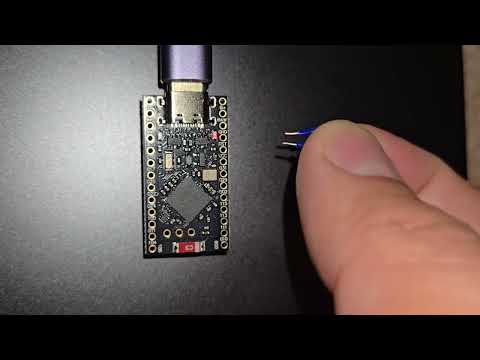
The easiest way to install is to grab a uf2 file from the GitHub releases and drag and drop it onto the folder that the microcontroller mounts when in DFU mode. Fresh microcontrollers should already be in DFU mode and present like a flash drive. If they are not in DFU mode you'll need to short the RST and GND pints twice in quick succession. If you've already flashed openpuck you can update it straight from the webusb configurator's Firmware update tab: pick a version from the built-in releases list (with an optional factory-reset variant), or drag and drop a .uf2 — the firmware is sent to the puck over the same WebUSB connection, verified on-device, and applied automatically on a reboot. A failed or interrupted transfer leaves the running firmware untouched, and even a power cut during the apply just leaves the puck in its UF2 bootloader (drag-and-drop recovery) — it can't end up half-flashed. The UF2 DFU button still reboots into the mass-storage bootloader for manual drag-and-drop.
This fork's builds: every push to main replaces the nightly pre-release on this fork's releases page. Builds that prove themselves are promoted to permanent releases tagged ripps-<commit hash>. Both come with standard and factory-reset .uf2 files. The configurator's built-in releases list shows these builds and flashes them in-page; drag and drop works too. That page is the stable panel, matching the newest promoted release; nightly.html is the panel as of main, for trying the nightly firmware.
See build instructions document for details on how to flash the MCU during development.
Both OpenPuck and the controller need to be hooked up to the same machine with a data capable USB C cable at the same time and Steam must be running. Steam should in most cases automatically pop up a menu to pair the controller. If not, you can go to Settings -> Controllers and press "Add Controller".
If you want to use the second slot for OpenPuck, you'll need to first turn the controller off and then hold LB + A + Steam to turn the controller back on (the chime when the controller comes on in this mode sounds different). Then connect the USB C cable and continue to pair.
Switching slots requires turning the controller off (Steam + Y if steam is running, Steam + Y held for 2 seconds if Steam isn't running or if you're in a different mode, or just hold the Steam button for an eternity until the controller shuts off) and then you hold RB for slot 1 and LB for slot 2 while holding A and Steam to turn the controller back on.
The onboard user LED (P0.15 / Pin 24 on the SuperMini) indicates connection and pairing state:
- Solid ON: Connected to controller.
- Fast blink (5 Hz): Scanning, pairing, or connecting.
- Slow blink (1 Hz): Idle / disconnected.
- Off: Host PC asleep (flashes 500 ms when waking the PC).
LED behavior can be customized in the WebUSB configurator under the Status LED card. You can choose different behaviors (Connection status, Heartbeat pulse, Wake-only flash, Always on, or Always off / stealth mode), select pin presets (SuperMini / Nice!Nano, Nordic Dongle PCA10059, Feather), configure custom GPIO pins with independent behaviors per LED, invert polarity, and trigger a test flash.
A webusb based configuration UI is available here. It allows switching the mode manually, remapping buttons with three mapping profiles per controller type and for Lizard mode (switchable from the controller with the shortcut modifier + LB/RB; see CONTROLLER_FEATURES.md), adjusting rumble strength (each Button mapping tab has a Reset to defaults button), configuring status LED behavior, and more. This will likely only work in Chrome and Edge and needs the pro micro to be connected via USB to the same computer for it to function. Note that it might not work in all modes on all machines but should always work in the Steam Controller mode (which you can revert to with modifier + A). Note that in some modes the webusb connection might not work. If you're encountering that try going back to the Steam Controller mode and unplugging and replugging the dongle.
This is this fork's configurator, with its settings (triggers, per-mode rumble, grip limiter, DualSense haptics and speaker, shortcut modifier). Upstream's configurator at safijari.github.io doesn't have them.
If you're running Linux and your browser still shows "disconnected" after selecting the OpenPuck in the device selector, it's probably a permissions issue. Check this document for more details.
You can copy configurations between OpenPucks using the export/import card in this webusb UI as well. This allows for some interesting hotswapping capability where controllers can switch between pucks without needing to swap slots.
- jaki-gh has contributed a 3D printable housing with OpenPuck written on it alongside a Steam logo. You can find that here.
- BOT-Yanni designed a slim case with OpenPuck written on it and a cute little glyph of the Steam Controller. You can find that here.
- StonnedModder built a case meant to accomodate a USB C to USB A adapter which you can find here.
- Another plain case for these pro micros can be found here.
- Possibly the cutest case by TheMeanCanEHdian
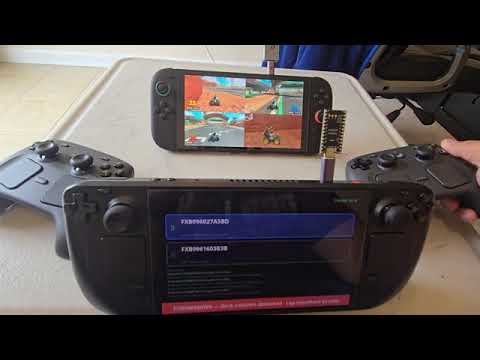
This is a tool to emulate a Steam Controller 2 with almost all of its inputs (except grip) using a Steam Deck and allow it to connect over a low latency 2.4ghz connection to OpenPuck (this does not work with the official puck yet). Flash the firmware onto an NRF52840 Pro Micro and copy over the ReversePuck folder onto the Steam Deck (you might need to install UV). Then add the ReversePuck script as a non steam game. Attach both the dongle and OpenPuck to the same machine and do pairing through Steam (which will say pairing has failed but it's actually fine). Then connect the OpenPuck to whatever machine you want to use your controllers on and the dongle to the Steam Deck. Launch the ReversePuck app in gamemode and you'll see the serial number of the OpenPuck show up in green. Press it and it'll turn blue at which point the Deck will show up as a controller on the host device. See video below for a demonstration of this in action (yes, other Steam Controllers can be connected to the same OpenPuck at the same time).
ColdBoot lets a paired Steam Controller turn the PC on from a fully off state: a short press of the Steam button makes the puck pulse a GPIO pin that closes the motherboard's power-switch circuit, exactly like pressing the case power button. It works because the USB port keeps standby power on the board while the PC is off, so the puck stays awake and keeps listening. It only fires when the host is genuinely off (USB not enumerated), so it can't send a stray power press during normal use.
This needs a little extra wiring (one resistor, one transistor, two wires to the front-panel header) and is off by default in the firmware -- build it with make uf2 EXTRA_FLAGS="-DOPK_PWR_SWITCH=1".
Bill of materials, schematic, and step-by-step wiring instructions: How to wire up an NRF52 board for cold boot.
- Find a way to make Xinput mode and mouse work together on all platforms
- Design the charging portion (and make it short proof)
- Make ReversePuck into a system that you can plug into most controllers and allow them to talk to OpenPuck
- A BLE version of OpenPuck that can allow Steam Controllers and other BLE controllers to coexist
The firmware is split into small, single-responsibility modules under OpenPuck/ (one file per emulated controller, plus the RF, config, and host-interface layers). Start with ARCHITECTURE.md for the map of how it all fits together and how to add a new USB personality.
I have tested this software fairly extensively but I have limited resources. Please submit issues with any issues you find. PRs also welcome of course.
- Valve for putting out the amazing controller
- Whoever wrote the drivers for SDL / Linux
- Alan for not scalping and selling me this controller for $120
- https://github.com/knflrpn/2wiCC for the Switch Pro controller mode help
- Massive thanks to u/Careful_Tune4744 for latency testing as well as testing and giving feedback on the Switch Pro mode
- Thanks to Lawstorant from a mutual discord server for constructive criticism of the repo's state
- Everyone that participated in issue #17 or reported/tested stability issues on various boards
- Froggerdog for pull request #303 (Switch Pro back-button profiles) and cadenabelcannon-ctrl for pull request #309 (on-controller paddle profiles and the profile-switch gesture): this fork's button mapping profiles build on their designs
Upstream's author (safijari) wrote this about the original project:
Everything from discovery of the protocol to writing the arduino sketch and running various automated benchmarks invovled Claude and Codex. This readme is the only organic, single origin, ethically sourced and humanely slaughtered assemblage of words in this project. I have done my level best to review the code and I invite anyone concerned about the stability or security of this project to do the same. I test thoroughly and obsessively as the primary purpose of this project is to bring some much needed QOL to my own use of the Steam Controller.
I want nothing more than for there to be a fully human coded alternative to OpenPuck that's on par with or better in every way. I would love to stop working on OpenPuck. If someone builds an alternative that matches this criteria I would also happily change the name of this project and archive this repo.
In this fork, the README is no longer hand-written. Large parts of it were written with Claude: the fork notes and feature list at the top, the mode shortcut and mode tables, and the DualSense setup notes. This fork's code and other docs were also written with heavy LLM help. The upstream statement above describes upstream's README, not this one.