Urban sensing class team project. We build a "rat detector" prototype with a Raspberry Pi. The detector uses background subtraction to identify moving objects in a video stream and counts them.
- Emil Christensen
- Eduardo Franco
- Juan Medina
- Peter Varshavsky
The only way I am able to view images when connecting to RPi with ssh is in ASCII art mode. To do this, install FIM (which stands for 'Fbi IMproved' where FBI stands for FrameBuffer Image viewing) with sudo apt-get install fim.
To view images in ASCII art mode, run fim -at <image.png>.
TODO: figure out how to do X-forwarding and view images for real through SSH.
Currently capturing series of images. Camera can save to files or to byte stream. Camera docs are here and some advanced recipes are here.
Get constant manually set exposure. Camera docs (link above) have that info.
-
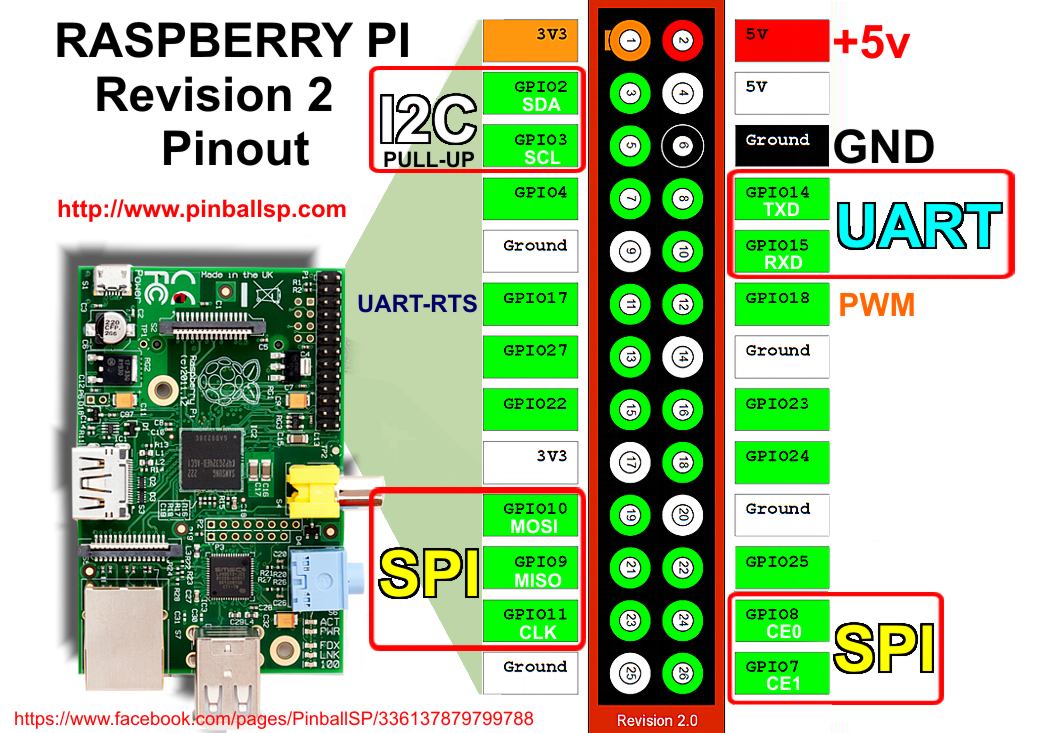
Using this Raspberry Pi Cookbook tutorial. See this image for Raspberry Pi 2 pin layout.
-
Tried to implement this multithread callback interrupts tutorial to have more control of camera, but having issues connecting to the web at the moment. It needs a newer version of
RPi.GPIOlibrary than what I have at the moment. More info onwait_for_edge()andevent_detected()GPIOfunctions here
Add this to your ~/.ssh/config to forward your SSH Agent to your RPi. This allows you to ssh into GitHub and other servers using your laptop's private keys without storing them on RPi.
# Raspberry Pi ssh Agent forwarding
Host <raspberry_pi_IP_address>
   ForwardAgent yes
More info in this GitHub guide
To SSH into Raspberry Pi you need to know its IP address. By default your router probably assigns IP addresses of its choice to Ethernet and WiFi devices. This instructable step shows how to set up static IP to connect to your router with Ethernet.
These two docs helped me set up static IP WiFi. Very useful to SSH into Raspberry Pi from a machine on the same network:
- https://www.raspberrypi.org/documentation/configuration/wireless/wireless-cli.md
- http://weworkweplay.com/play/automatically-connect-a-raspberry-pi-to-a-wifi-network/
This instructable goes over setting up a startup shell script to launch a python script and setting up a cron job to launch the shell script.
In my case the launcher script for capture.py is
#!/bin/sh
# rat_launch.sh
cd /home/pi/projects/rats/code
sudo python capture.py
cd /home/pi/logs
it drops me off in the ~/logs directory.
git config --global color.ui auto
From this text editors doc:
sudo apt-get install vim
This gist has my .vimrc file. Place it in your home folder to automatically set vim to highlight syntax, set tab to 4 spaces and convert tabs to spaces. It also highlights lines longer than 79 characters to keep you PEP8 compliant.
Run sudo update-alternatives --config editor and follow the prompts.