




WireMan is a terminal-based gRPC client with a user-friendly interface. It reads .proto files from a config file and keeps a history of requests.
WireMan is an ideal choice for developers testing gRPC endpoints directly from the terminal.
- Demo
- Quick Start
- Usage
- Navigation & Controls
- Advanced Features
- Neovim Integration
- Troubleshooting
- Features
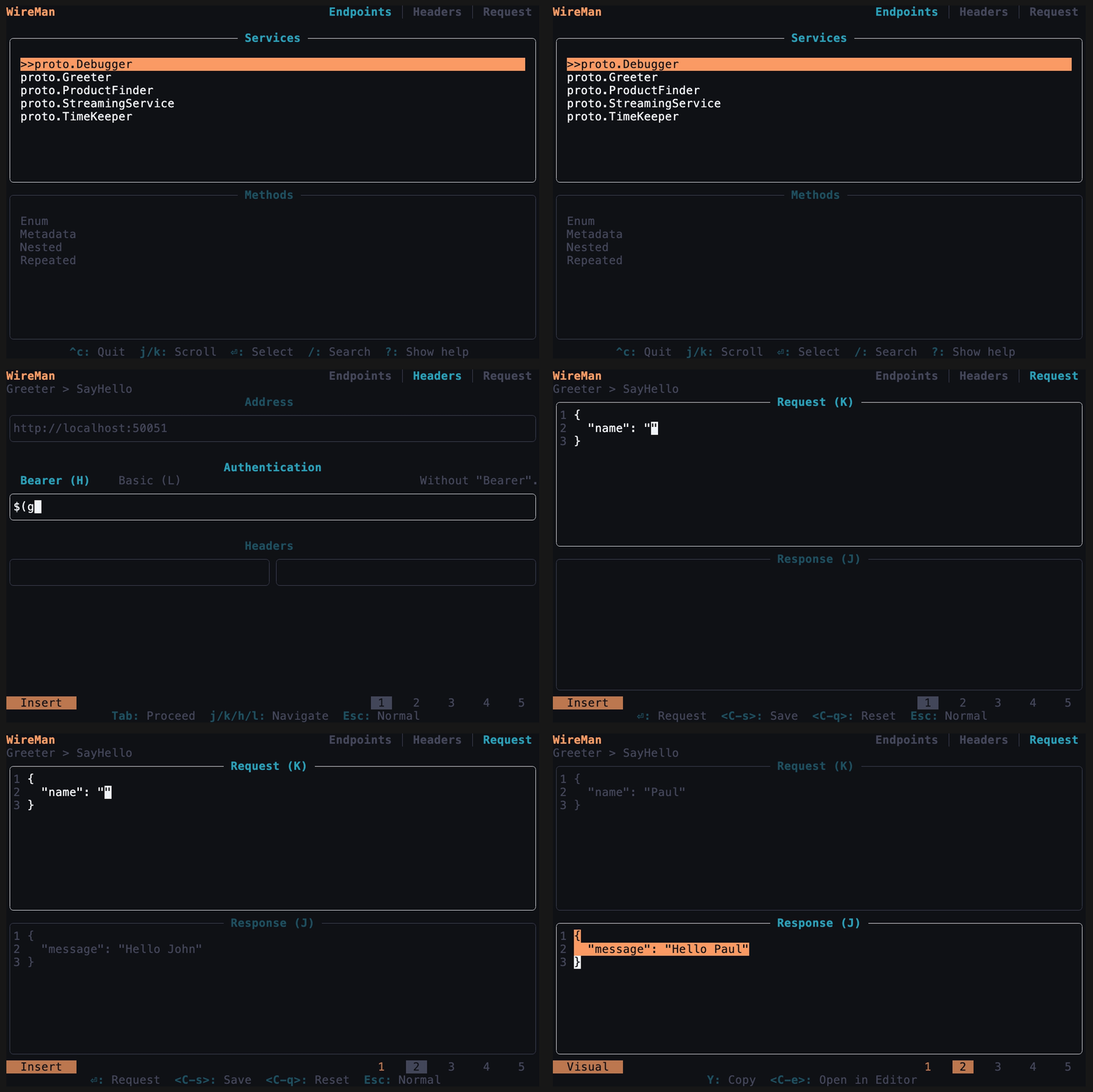
If you prefer a quick overview, you can check out the official website.
Or follow the guide below.
- Rust: [Minimum required Rust version is 1.70] (Installation Guide)
cargo install wireman
brew install preiter93/wireman/wireman
x install wireman
You can download the latest wireman binary from the releases page.
-
Clone the repository:
git clone https://github.com/preiter93/wireman.git
-
Build in release mode:
cd wireman cargo build --release -
Copy the binary to your PATH, e.g.:
cp target/release/wireman /usr/local/bin
Alternatively, you can create an alias to the binary in your
.bashrcor.zshrcfile:echo "alias wireman='CURRENT_DIRECTORY/target/release/wireman'" >> ~/.zshrc
-
Set the
WIREMAN_CONFIG_DIRenvironment variable to specify the directory where your configuration file will be located:export WIREMAN_CONFIG_DIR=~/.config/wireman
This step is optional. By default, wireman will be installed to
~/.config/wireman. -
Follow the setup steps:
wireman init
-
The previous step creates a
wireman.tomlfile in your configuration directory. Here's an example configuration:includes = [ '$HOME/my-project/services', '$HOME/my-project/protos' ] files = [ 'order/api.proto', 'price/api.proto' ] [server] default_address = "http://localhost:50051" default_auth_header = "Bearer $(getToken.sh)" [history] directory = "$WIREMAN_CONFIG_DIR/history" # Optional. Defaults to $WIREMAN_CONFIG_DIR/history. autosave = true # Optional. Autosaves history on request. Defaults to true. disabled = false # Optional. History is enabled by default. [logging] directory = "$WIREMAN_CONFIG_DIR" # Optional. Defaults to $WIREMAN_CONFIG_DIR. level = "Debug" # Optional. Defaults to Debug. # [ui] # skin = "$WIREMAN_CONFIG_DIR/skins/dracula.toml" # Optional. Set a UI theme.
Replace with the appropriate values for your project.
-
At last, you can now verify the setup configuration:
wireman check
-
After adding the protos in the config, start
wireman. -
Basic key mappings are displayed in the footer of each page. For extended help, press
?and close with?orEsc. If you want to close the app entirely, typeCtrl+c. -
The first page of Wireman will list your grpc services and their methods. You can navigate with
up/downorj/k, select withEnteror unselect withEsc, then clickTab. -
The second page is the message screen. Edit your request message, you can format it with
Ctrl+f. Then click tab. The navigation of the editor is vim-inspired: useh,j,k,lfor motion, go into insert mode withi, and escape insert mode withEsc. For more details, refer to edtui. -
The third page is the config screen where you can edit the address or metadata. Wireman allows for using bash scripts to get your tokens. Place the name of your script in the bearer token field, which must be in your PATH, between
$(). For example, if you have a bash script namedgetToken.shthat prints the Bearer tokeney..., you would use$(getToken.sh)(the script output should not include the word 'Bearer', as it is automatically added). Additional headers can be added withCtrl+aand deleted withCtrl+d. Go to the request page with Shift+Tab or click tab twice. -
Now you can make the request by clicking Enter. You can save it with
Ctrl+s. Saved requests are stored in spots 1 to 5. Switch to a spot by clicking the respective number. You can restore the default request withCtrl+d, which deletes the history. You can also cancel a request with Esc. Switch between request and response withJ/K.To copy the request or response clickY. Or follow step 6. -
If you want to get the current request as a gRPCurl command, click
Ctrl+yon the request tab, and it's copied to your clipboard.
-
check
Runs a health check and displays configuration details. -
init
Sets up wireman by creating a default configuration file.
-
-c, --config <CONFIG>
Specifies an optional path to a configuration file. If not provided, wireman uses the default configuration path. -
-l, --local-protos
Uses local protobuf files instead of the files and includes from the configuration file.
- Vim-style navigation: Navigate with vim-style keybindings. Hit
?to see what's available. - Mouse & system editor: Wireman can also be operated with the mouse. And you can open your system editor with
Ctrl+e.
Wireman also supports server reflection of gRPC servers. To activate reflection mode, press Ctrl+r on the selection tab, enter the host along with optional authentication headers, and then press Enter. To switch back from reflection mode to file mode press Ctrl+r again.
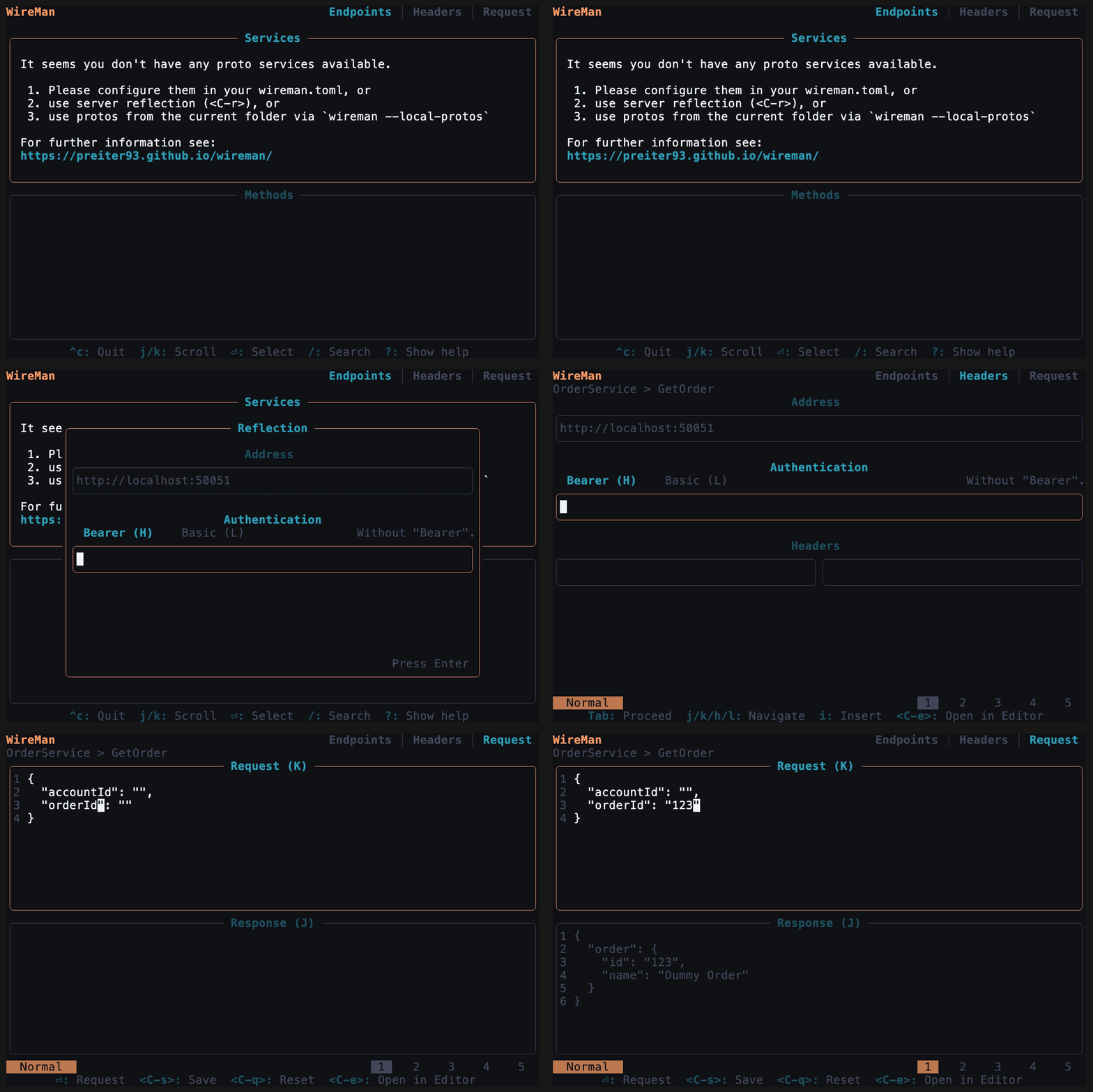
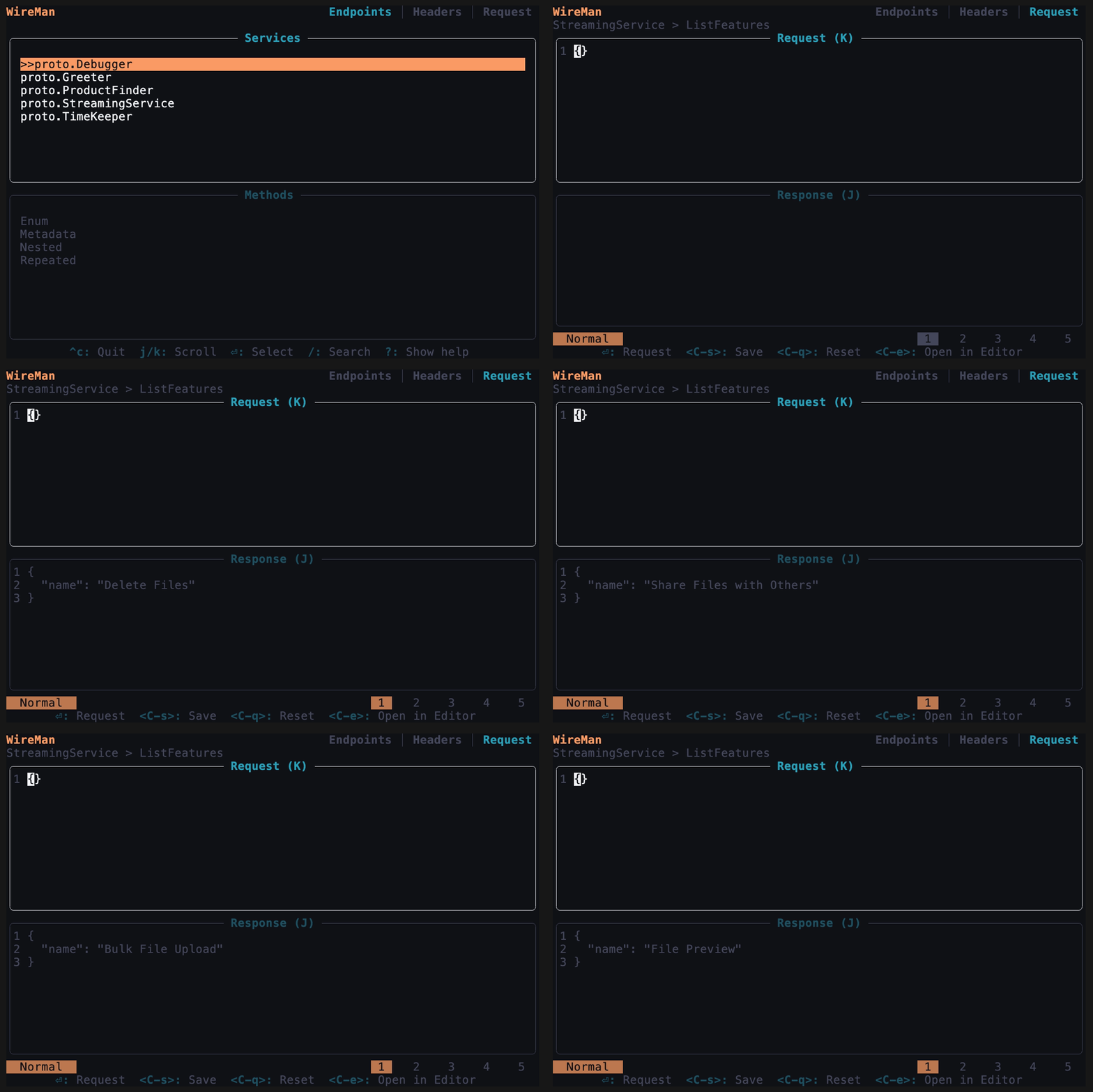
Wireman supports all four gRPC method types and detects the type automatically from the .proto definition.
For an endpoint like:
rpc ListFeatures (ListFeaturesReq) returns (stream ListFeaturesResp) {}Wireman detects that the endpoint is server-side streaming and renders each response message as it arrives.
For endpoints where the client sends a stream of messages:
rpc CollectFeatures (stream CollectFeaturesReq) returns (CollectFeaturesResp) {}
rpc EchoFeatures (stream EchoFeaturesReq) returns (stream EchoFeaturesResp) {}
Wireman streams messages interactively, one at a time:
- Edit the request message, then press
Enterto send it and open the stream. - Edit again and press
Enterto send the next message. Repeat as often as you like. - Press
Ctrl+dto finish sending (half-close the stream). The server then sends its response(s). - Press
Escto cancel the call at any point.
For bidirectional endpoints, response messages are rendered live as they arrive while you keep sending. For client-side endpoints, the single response appears once you finish with Ctrl+d.
Wireman allows you to open the current editor content in your system's default editor (e.g., export EDITOR=nvim). When you're in normal mode on any input field, press Ctrl+e to open the content in your external editor. After saving and closing the external editor, the content will be updated in Wireman.
This feature was introduced in v0.2.13.
You can manage your configuration directly within the app:
- Navigate to the services page.
- Press
Ctrl+eto edit the configuration. - Save your changes with
Ctrl+s. - Exit with
Esc.
Wireman allows users to customize the appearance of the UI by adding custom skins. To do this, simply specify the desired skin file in the wireman.toml file config:
[ui]
skin = "path_to_file/custom_skin.toml"
For a collection of pre-made themes, check out the Wireman themes repository.
Use Wireman in nvim with a floating terminal via wireman.nvim.
Wireman logs important information and errors to assist in troubleshooting. By default, logs are stored in $WIREMAN_CONFIG_DIR/wireman.log.Make sure to check this log file if you encounter any unexpected behavior or errors while using the application.
If you are unable to resolve the issue on your own or need further assistance, please don't hesitate to open an issue.
- Unary gRPC
- Set host address
- Set authentication headers
- Request History
- Defaults of repeated/nested fields
- Yank/Paste from clipboard
- Yank request as grpcurl command
- Vim like editor feeling
- Show loading indicator
- Metadata headers
- Provide installation help
- Custom themes
- Server reflection
- Edit config file in app
- Server side Streaming
- Client side Streaming
- Bidirectional Streaming
- Supports wayland
- Edit with system editor
- Mouse navigation