Advanced content search for the Umbraco backoffice. Editors can search content by document type and property, view results in a sortable grid, export to CSV or Excel, and save searches for later.
Content Search adds a new Content Search section to the Umbraco backoffice. From there, editors can:
- Search content using a single property-based filter (text, numbers, dates, choices, media, and more)
- Filter by language/culture
- View results in a paged, sortable table and open items directly in the content editor
- Use quick presets for common tasks (e.g. recently created or updated content)
- Save searches for personal use or share them with the team
- Export results to CSV or Excel
Search runs against Umbraco's Examine index, so results stay fast even on large sites. Results respect each user's content start nodes and permissions.
- Umbraco CMS 17.4+
- .NET 10
Install the NuGet package in your Umbraco website project:
dotnet add package Phases.Umbraco.ContentSearchThe package registers itself automatically via Umbraco's composer — no extra Program.cs setup is required.
After installing, restart the site. The Content Search section should appear in the backoffice.
By default, the Administrators user group is granted access to the Content Search section on first startup.
To give access to other groups:
- Go to Settings → Users → User groups
- Open the group you want to update
- Under Sections, enable Content Search
- Save
Users only see content they are allowed to access in the backoffice.
In the backoffice, click Content Search in the main navigation.
In the Search panel:
- Optionally pick a culture (or search all cultures)
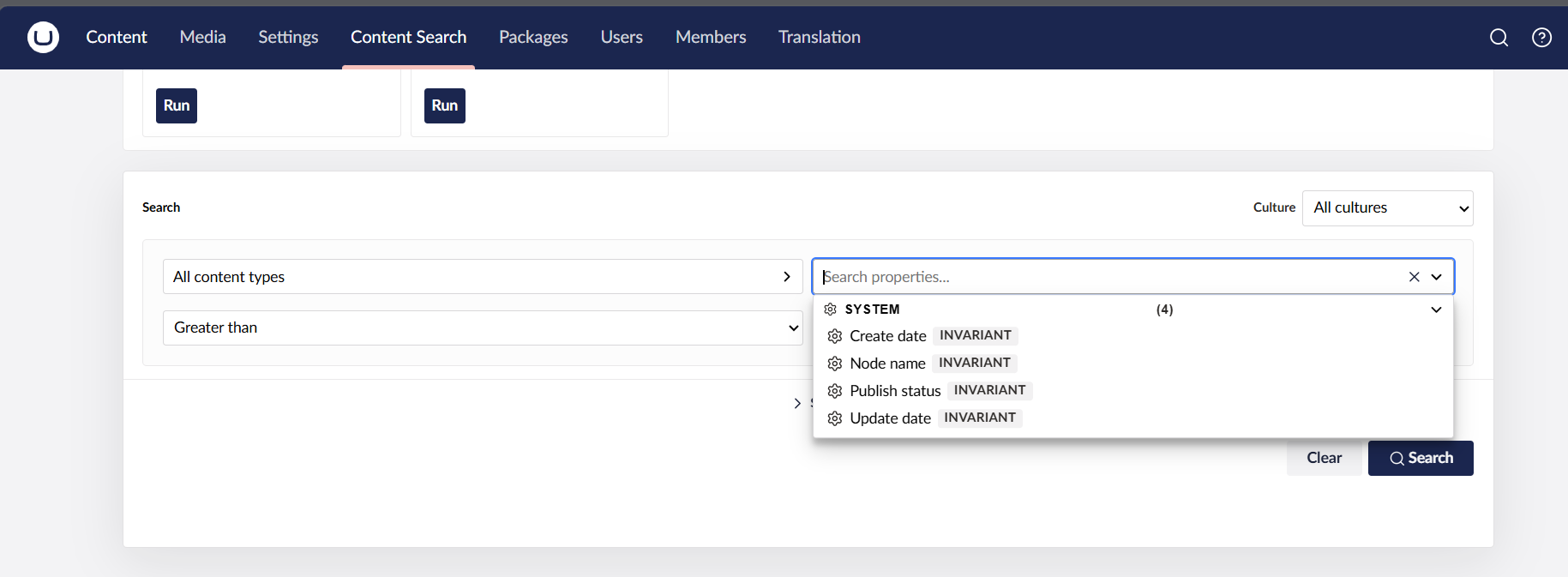
- Set your search filter:
- Document type — which content type to search (or all types)
- Property — a field on that type (including system fields like name, create date, URL)
- Operator — e.g. contains, equals, is empty, greater than
- Value — what to compare against (not needed for operators like "is empty")
- Click Search
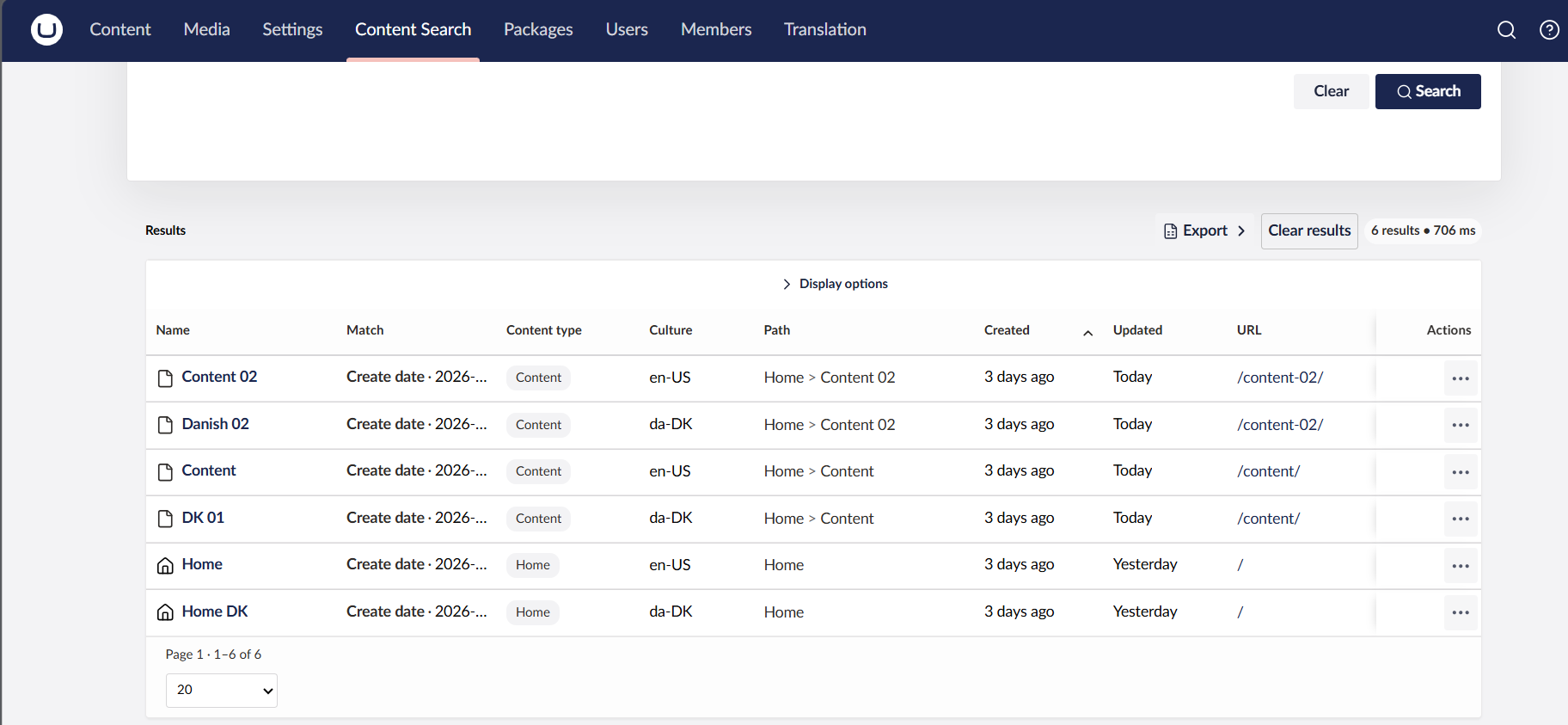
The Results panel shows matching content. You can:
- Sort by column headers
- Change page size and move between pages
- Click a content name to open it in the editor
- Export the current result set to CSV or Excel
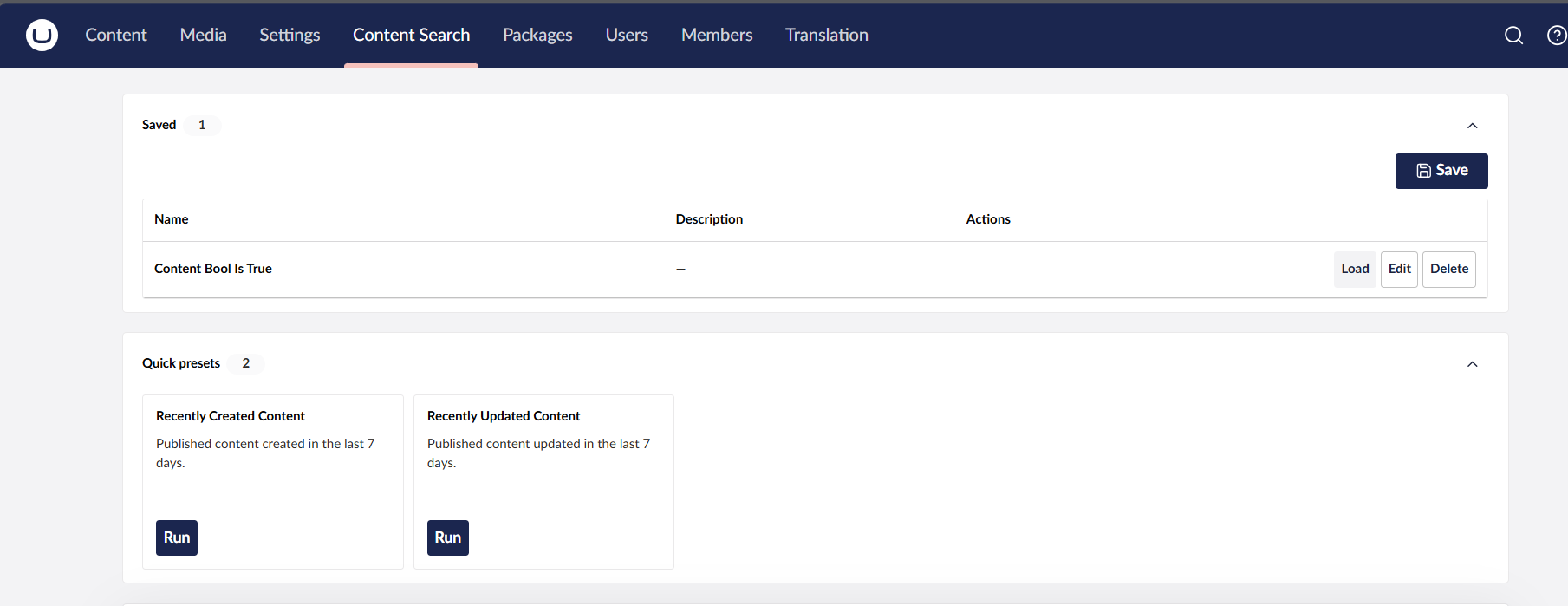
Use the preset cards (e.g. Recently Created Content, Recently Updated Content) to run a ready-made search with one click. You can adjust the filter before searching again.
After running a search you want to keep:
- Click Save search
- Enter a name and optional description
- Choose Personal (only you) or Shared (visible to all users with access)
Saved searches appear in the Saved panel. From there you can load, rename, pin, favourite, duplicate, or delete them. Recent searches are tracked automatically.
| Property type | Examples |
|---|---|
| Text | equals, contains, starts with, is empty |
| Number | equals, greater than, less than, between |
| Date | equals, today, last 7 days, this month, between |
| Yes/No | is true, is false, is empty |
| Single choice | equals, does not equal |
| Multiple choice | contains, contains any, contains all |
| Media | has media, has no media |
| Content picker | has value, equals |
Operators available for each property depend on its data type. Block editor properties are supported where indexed by Examine.
You can tune behaviour in appsettings.json:
{
  "Umbraco": {
    "CMS": {
      "ContentSearch": {
        "DefaultPageSize": 20,
        "MaxPageSize": 100,
        "MaxExportRows": 10000,
        "GrantSectionToAdminGroupOnInstall": true
      }
    }
  }
}| Setting | Default | Description |
|---|---|---|
DefaultPageSize |
20 | Results shown per page |
MaxPageSize |
100 | Maximum page size editors can request |
MaxExportRows |
10000 | Maximum rows in a single export |
GrantSectionToAdminGroupOnInstall |
true | Auto-grant section to Administrators on startup |
Dashboard
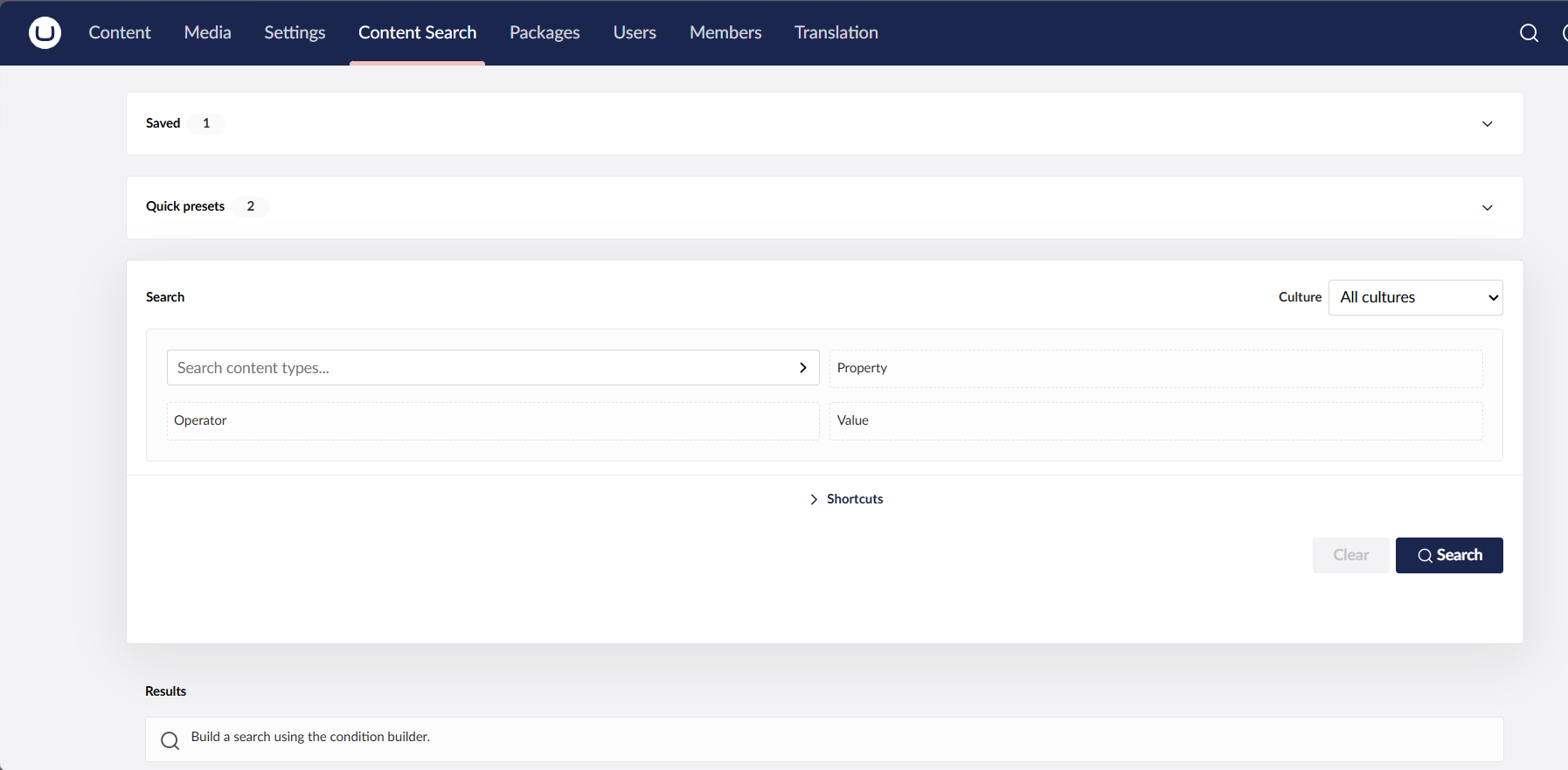
Quick Filters, Filter Section and Result Section
For issues, feature requests, or contributions, contact Phases or open an issue in the package repository.