
A modern, feature-rich web-based SSH terminal with SFTP file manager
Features • Quick Start • Installation • Configuration • Themes • Security




Web SSH Terminal is a self-hosted web application that provides secure SSH access to your servers directly from your browser. Perfect for homelabs, server management, and teams that need browser-based terminal access. It is multi-user from the ground up, with individual accounts and per-user profiles, keys, and settings.

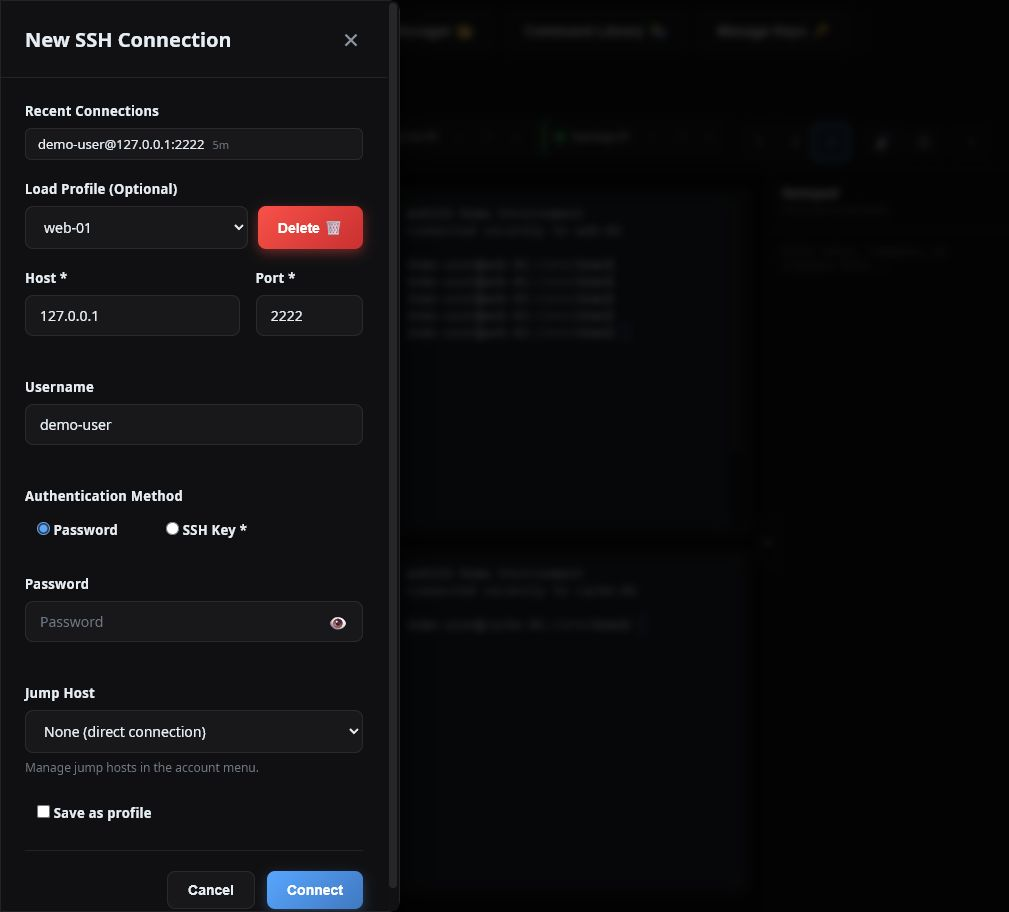
- Broadcast Input - Send a command to all open SSH sessions simultaneously (cluster-SSH style)
- Multi-Session Support - Up to 10 concurrent SSH sessions with tabs
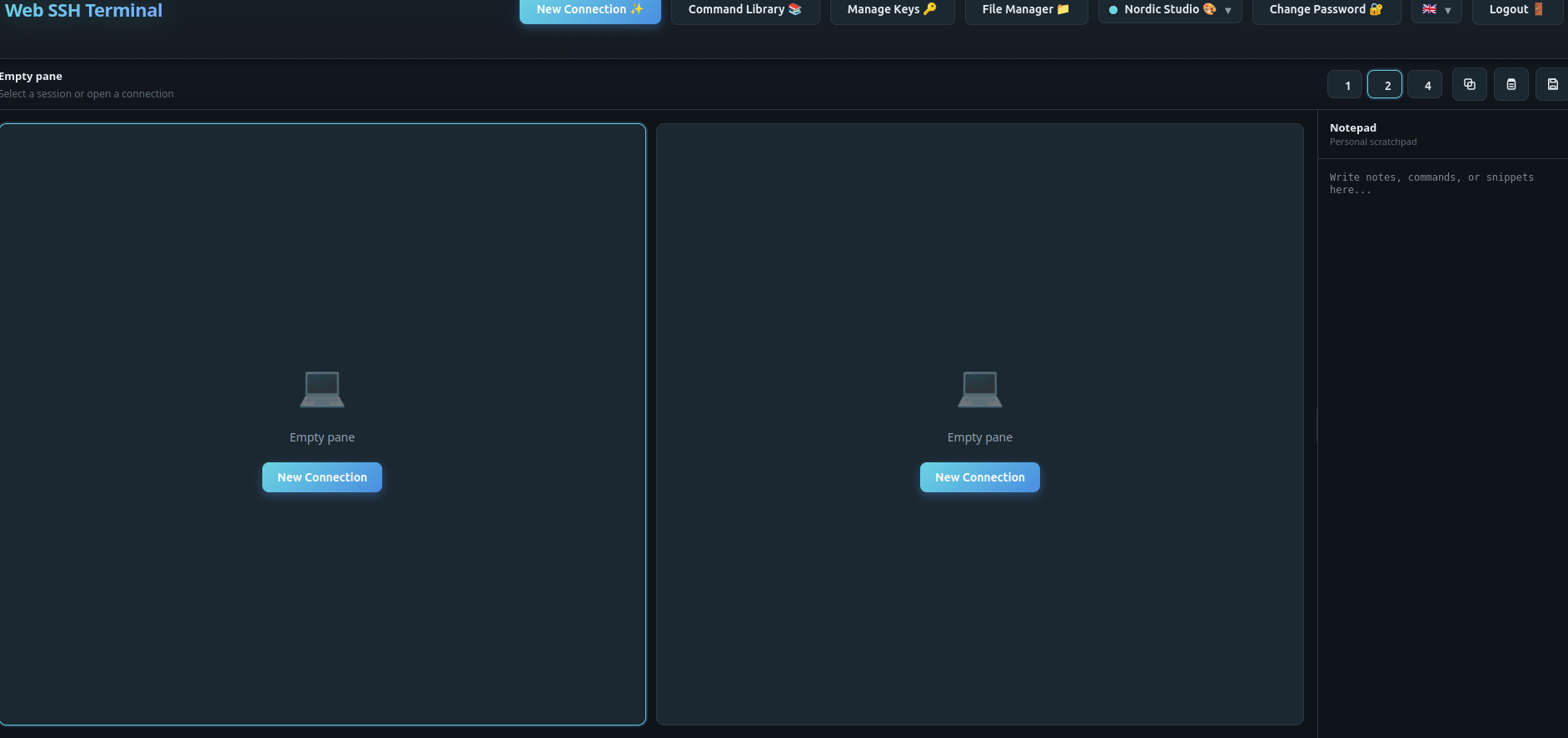
- Split Panes - 1, 2, or 4-pane layouts for monitoring multiple servers
- Session Restoration - Restore live sessions after a page refresh without injecting terminal input
- Persistent tmux Sessions - Keep remote shells and running commands alive across browser closes and WebSSH restarts, then reattach later
- Manual Reconnect - Reconnect from a session tab; SSH-key and Tailscale sessions can reconnect directly, while password sessions reopen the pre-filled connection form
- Profile Launcher - Empty terminal panes show saved profiles; key and Tailscale profiles connect immediately when no password is needed, while password-dependent profiles open pre-filled at the required field
- Post-Connect Command Sets - Build named, ordered command sequences and assign one to a connection or saved profile
- Persistent Session Names - Custom tab names are retained for persistent sessions across browsers
- Configurable Scrollback - Set 50 to 10,000 terminal lines and navigate them with the custom scrollbar
- Copy/Paste -
Ctrl+Ccopies selected terminal text but still sends an interrupt when nothing is selected;Ctrl+Vpastes (Cmd+C/Cmd+Von macOS) - Keyboard Shortcuts - Ctrl+K command palette, Ctrl+F search, Ctrl+1–9 tab switching
- Terminal Search - Regex or plain-text in-terminal search (Ctrl+F)
- Save Transcript - Download the session output as a text file
- Recent Connections - Quick reconnect from your connection history
- Session Notes - Per-session notes, auto-saved as you type
- Command Palette - Fuzzy command launcher (Ctrl+K)
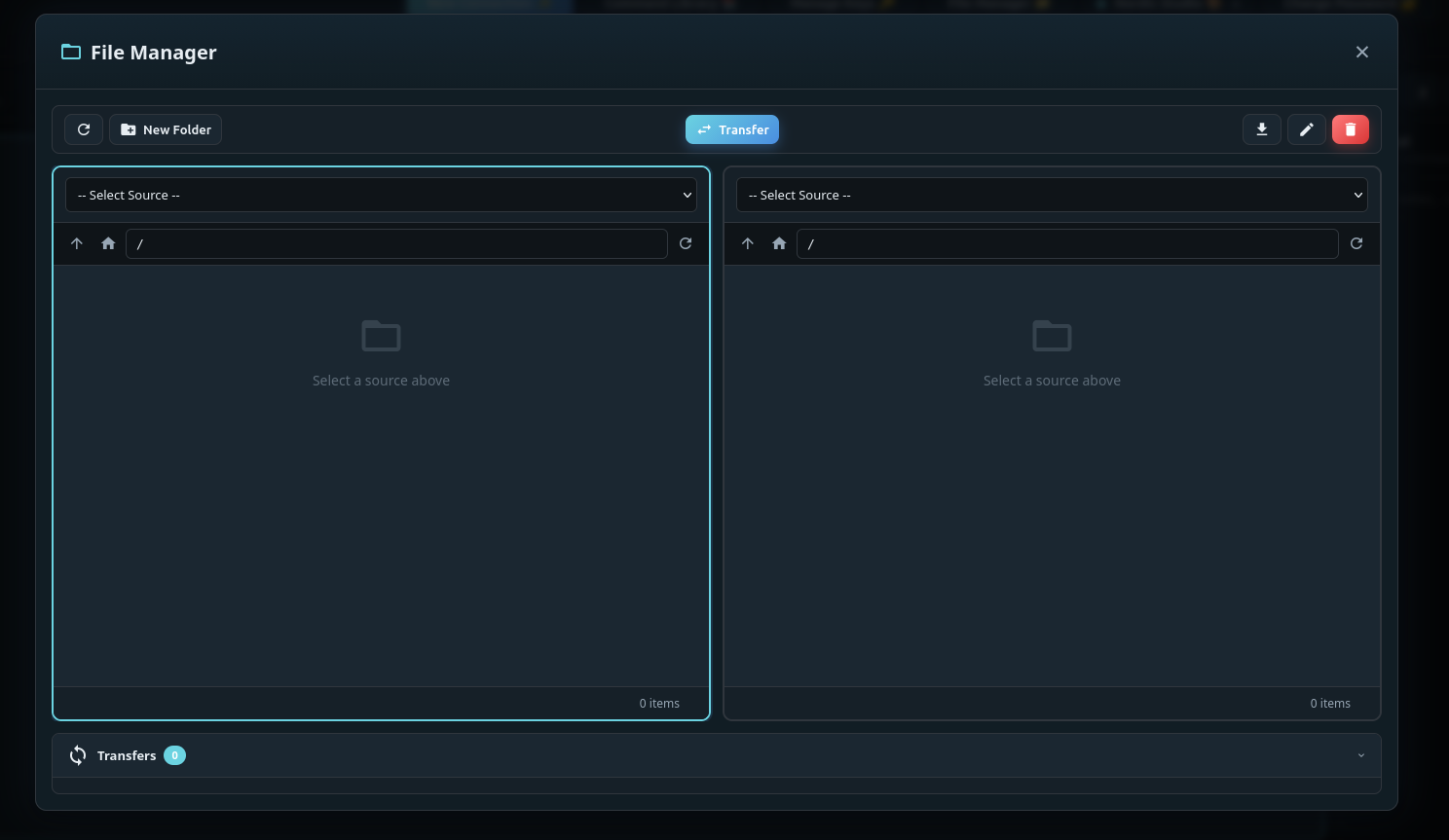
- Dual-Pane Browser - Side-by-side file browsing
- Drag & Drop - Transfer files between local and remote
- Server-to-Server - Direct transfer between SSH hosts
- Batch Operations - Multi-select for bulk actions
- Context Menu - Right-click for quick actions
- File Preview - Inline preview for images and code (syntax-highlighted), with log tail mode
- Folder Download as ZIP - Download entire directories as a ZIP archive
- Quick Connect - Browse files over SFTP without opening a terminal session
- Local Filesystem Source - Use your browser's local files as a transfer source
- Transfer Queue - Progress tracking with conflict resolution (skip / overwrite / apply to all)
- Efficient Binary Transfer - Raw binary streaming (~33% smaller than base64)
- Inline Editor - Edit text files directly in the browser and save back over SFTP

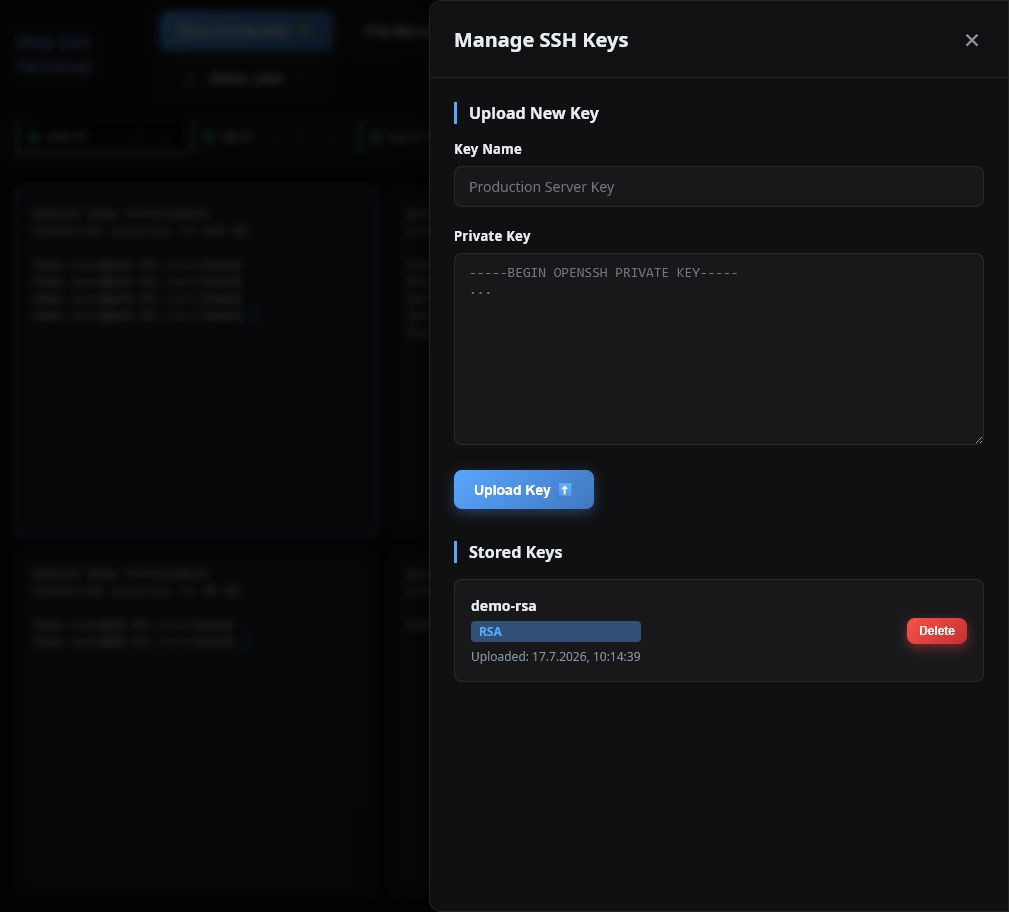
- Encrypted Key Storage - SSH keys encrypted at rest (Fernet / AES-128-CBC + HMAC)
- Per-User Key Encryption - Encryption key derived per user (
SECRET_KEY+ user id) - Secure Authentication - bcrypt password hashing
- CSRF Protection - Token-based request validation
- Rate Limiting - Brute-force protection
- Security Headers - HSTS, CSP, X-Frame-Options
- SSRF Protection - Optionally block SSH to internal/loopback addresses (
BLOCK_INTERNAL_SSH) - Host Key Auditing - Persistent
known_hostspolicy with change detection - Audit Logging - Structured JSON logs for auth, SSH, and file events
- Session Ownership Checks - Guards against cross-user session hijacking
- Tailscale SSH - Optional credential-free SSH through the WebSSH node's shared Tailscale identity, restricted by WebSSH users, targets, remote users, and tailnet policy
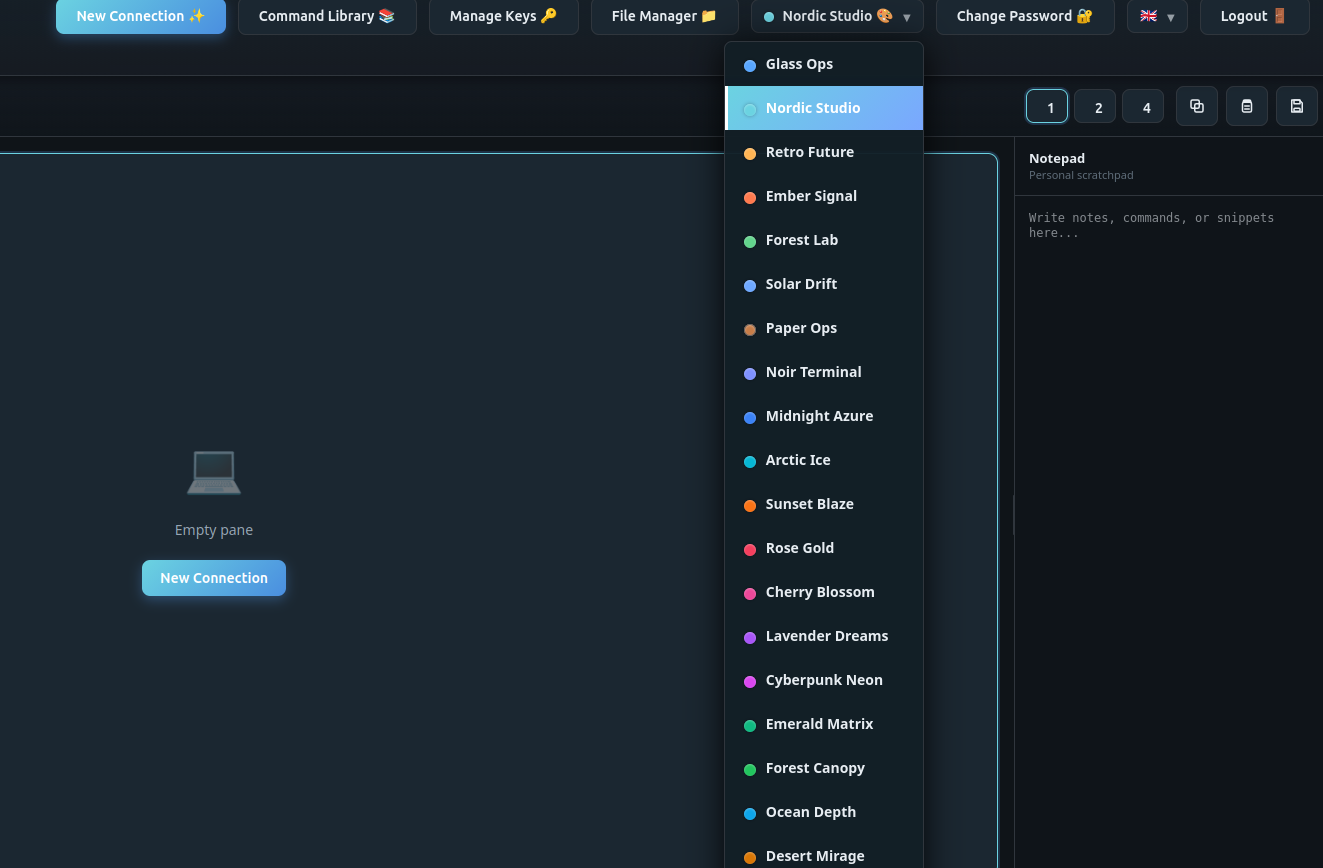
- 10 Themes - Dark, light, and colorful options
- 6 Languages - English, Vietnamese, German, French, Spanish, Chinese
- Connection Profiles - Save server configurations
- Jump Hosts / ProxyJump - Reach targets through a bastion; save jump hosts once, pick them per connection, with a clear "via <bastion>" indicator on the session
- Command Library - Store frequently used commands
- OS-Aware Command Library - Filter commands by detected OS (Linux / macOS / BSD / Windows)
- Reusable Command Sets - Combine library commands and free-text steps, reorder them, and reuse the result across profiles
- SSH Key Management - Import RSA, Ed25519, and ECDSA keys, encrypted at rest
- Notepad - Persistent scratchpad for notes, commands, and snippets
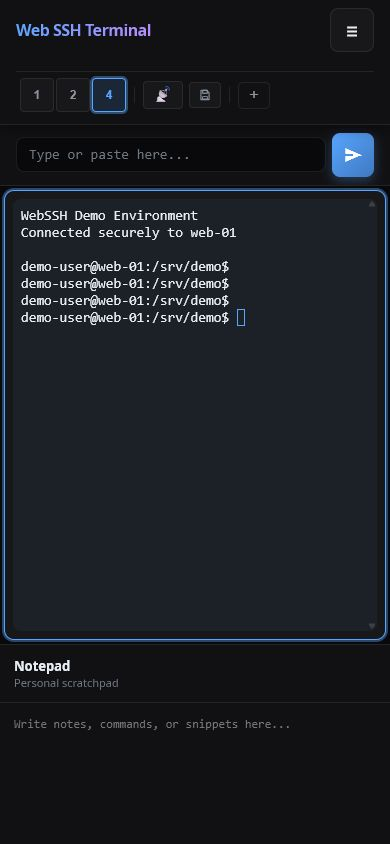
- Mobile-Friendly - Responsive layout for phones and tablets

- Admin Panel - Dedicated
/adminpage for administrators (role-gated) - User Management - Create, lock/unlock, promote/demote and delete users; deletion revokes live access and quarantines the user's files outside the active user namespace
- Audit Log Viewer - Browse security events with level filter, search and pagination
- Registration Toggle - Enable or disable self-registration at runtime (hides the public sign-up link)
- Zero-Touch Bootstrap - First registered user becomes admin; when upgrading an older install, the oldest existing account is granted admin automatically (additional admins configurable via
ADMIN_USERS)
- Docker & Docker Compose - Single-command deployment with healthcheck
- Reverse Proxy Ready - Traefik, nginx, and Caddy examples included
- Subfolder Deployment - Host under a URL subpath like
/webssh(see Subfolder Deployment) - Homelab Friendly - Wildcard CORS mode for internal networks
# Run with Docker — SECRET_KEY is auto-generated and persisted to the volume
docker run -d \
  --name webssh \
  -p 5000:5000 \
  -e CORS_ORIGINS=http://localhost:5000 \
  -v webssh_data:/app/data \
  --restart unless-stopped \
  ghcr.io/bifrost0x/webssh:latest
Note: Mounting a volume on
/app/datakeeps your users, keys, and the generatedSECRET_KEYacross updates. SetSECRET_KEYexplicitly only for multi-replica deployments.
Open http://localhost:5000 and create your first account.
# Download docker-compose.yml
curl -O https://raw.githubusercontent.com/bifrost0x/webssh/main/docker-compose.yml

# Start the service — SECRET_KEY is auto-generated and persisted to the volume
docker compose up -d
Open http://localhost:5000 and create your first account.
Tip: Edit
docker-compose.ymldirectly to change settings. No.envfile needed!
Tailscale SSH is disabled by default because every authorized WebSSH account uses the WebSSH node's same Tailscale identity. Enable it only for trusted administrators or explicitly allowed homelab users. Use a dedicated Tailscale tag, narrow ACL/SSH rules, and the optional WebSSH target and remote-username allowlists. The backend enforces these controls; hiding the UI option is not the security boundary.
Before enabling the feature, create the first administrator from a trusted network and disable self-registration in the Admin Panel. Do not enable the shared Tailscale identity on a fresh, publicly reachable installation: the first registered WebSSH account becomes an administrator.
See Tailscale SSH deployment and security for all configuration variables, ACL guidance, audit behavior, and a Docker sidecar example with persistent Tailscale state.
Only authorized WebSSH users see Tailscale SSH as an authentication method. They can select it together with a saved profile and an optional post-connect command set in the normal connection dialog.

The provided docker-compose.yml enables persistent tmux sessions and selects
them by default for new connections. tmux must be installed on the remote SSH
host, not inside the WebSSH container. WebSSH checks the target before starting
a persistent session; if tmux is unavailable, it logs a warning and falls back
to a regular shell without failing the SSH connection.
Closing the browser, an idle timeout, or restarting WebSSH leaves the remote tmux session running so it can be reattached later. Explicitly disconnecting a session from the WebSSH interface terminates its remote tmux session.
The connection dialog offers four explicit choices under Run after connecting: nothing, one reusable Command Set, one saved Command, or one-off Free text. Only the active mode is sent to the server. An exact preview shows what will run before the connection is started. A selected Command can use its saved parameters, an override, or an intentionally empty override without modifying the library entry.
Open Commands to manage both reusable commands and sets. The Command Sets tab is first and opens by default. The builder can search the complete command library by name, command text, parameters, description, or category and filter the results by operating system.
A command set is an ordered list of steps. A step can reference a command from the command library or contain free text. Library steps use the command's current parameters by default; disable Use library parameters to provide an override or intentionally leave the override empty. Free-text steps can stay in the set or be moved into the command library with Save as library command. Steps can be reordered by drag and drop or by the accessible up/down buttons.

Run commands with sudo is opt-in for new command sets. When enabled, WebSSH
prefixes each non-empty resolved command line unless it already starts with
sudo; blank and comment-only lines remain unchanged. Existing command sets
from an earlier version and sets produced by legacy conversion keep their saved
sudo setting, so upgrading or converting does not change what runs.
WebSSH does not store or answer a sudo password. If the remote account requires one, its normal prompt appears in the terminal. The added prefixes count toward the existing maximum 4096 characters for the resolved command text.
Profiles are managed independently from connecting under the account menu. They can be created, inspected, updated, or deleted without opening an SSH session. A profile stores the selected post-connect mode and only its relevant reference or free text; credentials are never stored. Editing a referenced set or library command therefore updates every profile that uses its saved definition. A set cannot be deleted while a profile references it, and a user-created library command cannot be deleted while a set or profile references it. The UI reports the profiles or sets that must be changed first.
After a new SSH connection succeeds, WebSSH resolves the latest referenced
commands on the server, validates the combined text (maximum 4096 characters),
and sends the steps to the remote interactive shell in their saved order.
Resolved command-set steps are joined with && only between steps, so the next
block starts only when the preceding block succeeds. WebSSH does not rewrite a
step: line breaks inside a free-text step remain unchanged, including its
authored shell control flow, and the final command's exit status determines
whether the next step starts. The commands run on the remote SSH host, never
inside the WebSSH container. Reattaching to an existing persistent tmux session does not run them again.
Existing profiles that still contain the former free-text startup commands keep working after an update. They show a legacy notice in the connection dialog and can be converted into a named set. Conversion creates the set first, then links the profile; the old text remains stored as a fallback but is ignored while the new set reference is valid. The profile's legacy startup commands retain their original multiline behavior until they are converted.
Command output and errors appear normally in the terminal. The remote shell
evaluates the && chain; WebSSH does not interpret exit statuses itself. Treat
command sets like any other remote administration automation: review their
contents and grant WebSSH accounts only the SSH privileges they actually need.
No additional environment variable, Compose setting, frontend build step, or
external service is required. Command sets are stored per user in the existing
DATA_DIR volume alongside profiles and the command library.
# Clone the repository
git clone https://github.com/bifrost0x/webssh.git
cd webssh

# Create virtual environment
python -m venv venv
source venv/bin/activate  # Linux/macOS
# or: venv\Scripts\activate  # Windows

# Install dependencies
pip install -r requirements.txt

# Set required environment variable
export SECRET_KEY=$(openssl rand -hex 32)

# Run the application
python start.pydocker build -t webssh:local .| Variable | Required | Default | Description |
|---|---|---|---|
SECRET_KEY |
No | auto | Session encryption key. Auto-generated and persisted to DATA_DIR/secret_key on first run (Docker). Set explicitly for multi-replica setups or non-Docker production: openssl rand -hex 32 |
DEBUG |
No | False |
Enable debug mode (development only) |
DATA_DIR |
No | /app/data |
Persistent data directory |
| Variable | Required | Default | Description |
|---|---|---|---|
HOST |
No | 127.0.0.1 |
Bind address (0.0.0.0 in Docker) |
PORT |
No | 5000 |
Listen port |
APPLICATION_ROOT |
No | - | URL subpath when deploying under a prefix (e.g. /webssh). See Subfolder Deployment |
TRUSTED_PROXIES |
No | 0 |
Set 1 when behind a reverse proxy |
| Variable | Required | Default | Description |
|---|---|---|---|
CORS_ORIGINS |
No | localhost:5000 |
Allowed origins for CORS (comma-separated) |
ALLOW_CORS_WILDCARD |
No | false |
Set true to allow * as CORS origin (homelab use only) |
SESSION_COOKIE_SECURE |
No | Auto | Set true/false to explicitly control secure cookies (auto-enabled in production) |
| Variable | Required | Default | Description |
|---|---|---|---|
REGISTRATION_ENABLED |
No | True |
Initial self-registration state (can be toggled later in the Admin Panel) |
ADMIN_USERS |
No | - | Comma-separated usernames granted admin on startup (e.g. alice,bob) |
SESSION_TIMEOUT |
No | 1800 |
Idle SSH session timeout in seconds (30 minutes) |
BLOCK_INTERNAL_SSH |
No | false |
Block SSH connections to internal/loopback addresses (true or false) |
TMUX_ENABLED |
No | false |
Show and allow persistent tmux sessions. The provided Compose file sets this to true |
TMUX_DEFAULT |
No | false |
Select persistent tmux for new connections by default. The provided Compose file sets this to true |
TMUX_SESSION_PREFIX |
No | webssh |
Prefix used for tmux session names created on remote hosts |
TAILSCALE_SSH_ENABLED |
No | false |
Enable shared-identity Tailscale SSH for administrators and explicitly allowed users |
TAILSCALE_SSH_ALLOWED_WEBSSH_USERS |
No | - | Comma-separated non-admin WebSSH usernames allowed to use Tailscale SSH |
TAILSCALE_SSH_ALLOWED_TARGETS |
No | - | Optional comma-separated exact host/IP allowlist for Tailscale SSH targets |
TAILSCALE_SSH_ALLOWED_REMOTE_USERS |
No | - | Optional comma-separated exact remote OS username allowlist for Tailscale SSH |
MAX_DOWNLOAD_SIZE |
No | 104857600 |
Maximum file download size in bytes (100 MB) |
MAX_ZIP_DOWNLOAD_SIZE |
No | 524288000 |
Maximum ZIP download size in bytes (500 MB) |
MAX_EDITOR_FILE_SIZE |
No | 5242880 |
Maximum file size editable in the inline editor in bytes (5 MB) |
| Variable | Required | Default | Description |
|---|---|---|---|
RATELIMIT_ENABLED |
No | True |
Enable rate limiting (true or false) |
RATELIMIT_LOGIN_LIMIT |
No | 5 per minute |
Login rate limit (format: N per {second|minute|hour}) |
SSH_CONNECT_RATELIMIT |
No | 10 per minute |
Per-user limit on SSH connection attempts (ssh_connect / quick_connect; format: N per {second|minute|hour}) |
RATELIMIT_DEFAULT |
No | 200 per hour |
Default rate limit for endpoints (format: N per {second|minute|hour}) |
RATELIMIT_STORAGE_URL |
No | memory:// |
Rate-limit storage (memory://, redis://, or rediss://). Redis preserves counters across app restarts while the Redis service remains available; it does not remove the single-worker requirement. |
Instead of exporting every variable, you can place them in a .env file in the
project root. It is loaded automatically on startup. Copy the provided template
to get started:
cp .env.example .env
# edit .env and set at least SECRET_KEY
python start.py
Real environment variables (set via the shell, Docker, or systemd) always take
precedence over values in .env, so the file works safely alongside existing
deployments. .env is git-ignored — never commit your real secrets.
labels:
  - "traefik.enable=true"
  - "traefik.http.routers.webssh.rule=Host(`ssh.example.com`)"
  - "traefik.http.routers.webssh.tls.certresolver=letsencrypt"
- "traefik.http.services.webssh.loadbalancer.server.port=5000"location / {
proxy_pass http://webssh:5000;
proxy_http_version 1.1;
proxy_set_header Upgrade $http_upgrade;
proxy_set_header Connection "upgrade";
proxy_set_header Host $host;
proxy_set_header X-Real-IP $remote_addr;
proxy_set_header X-Forwarded-For $proxy_add_x_forwarded_for;
proxy_set_header X-Forwarded-Proto $scheme;
}ssh.example.com {
reverse_proxy webssh:5000
}To serve the app under a URL subpath like https://server.local/webssh, set:
APPLICATION_ROOT=/webssh
TRUSTED_PROXIES=1
Then configure your reverse proxy to strip the prefix and forward it via X-Forwarded-Prefix.
location /webssh/ {
    proxy_pass http://webssh:5000/;
    proxy_http_version 1.1;
    proxy_set_header Upgrade $http_upgrade;
    proxy_set_header Connection "upgrade";
    proxy_set_header Host $host;
    proxy_set_header X-Real-IP $remote_addr;
    proxy_set_header X-Forwarded-For $proxy_add_x_forwarded_for;
    proxy_set_header X-Forwarded-Proto $scheme;
    proxy_set_header X-Forwarded-Prefix /webssh;
}labels:
- "traefik.enable=true"
- "traefik.http.routers.webssh.rule=Host(`server.local`) && PathPrefix(`/webssh`)"
- "traefik.http.middlewares.webssh-strip.stripprefix.prefixes=/webssh"
- "traefik.http.middlewares.webssh-prefix.headers.customrequestheaders.X-Forwarded-Prefix=/webssh"
- "traefik.http.routers.webssh.middlewares=webssh-strip,webssh-prefix"
- "traefik.http.services.webssh.loadbalancer.server.port=5000"server.local {
handle_path /webssh/* {
reverse_proxy webssh:5000 {
header_up X-Forwarded-Prefix /webssh
}
}
}For homelab use where you access the service from various internal IPs:
CORS_ORIGINS=*
ALLOW_CORS_WILDCARD=true
TRUSTED_PROXIES=1
Note: Only use wildcard CORS in trusted network environments.
Web SSH Terminal includes 10 themes:
| Theme | Style | Theme | Style |
|---|---|---|---|
| Glass Ops | Dark Blue | Paper Ops | Light |
| Retro Future | Amber | Noir Terminal | Purple |
| Solar Drift | Blue/Gold | Arctic Ice | Cyan |
| Rose Gold | Rose | Cyberpunk Neon | Magenta |
| Emerald Matrix | Matrix Green | Obsidian | Pure Black |
- Always use HTTPS in production (terminate TLS at reverse proxy)
- Generate unique SECRET_KEY for each deployment
- Set specific CORS_ORIGINS instead of wildcard
- Enable TRUSTED_PROXIES only when behind a proxy
- Use strong passwords (minimum 8 characters enforced)
- Password Hashing: bcrypt with automatic salt
- Constant-time Login: failed logins run a dummy hash so response timing does not reveal whether an account exists (user-enumeration resistant)
- Key Encryption: Fernet (AES-128-CBC + HMAC) for SSH keys at rest
- Rate Limiting: 5 login attempts per minute per IP, plus a per-user cap on SSH connection attempts (
ssh_connect/quick_connect) to prevent abuse as a brute-force/scan proxy - CSRF Tokens: All forms protected
- Secure Cookies: HttpOnly, SameSite=Lax, Secure (in production)
- Security Headers: HSTS, CSP, X-Content-Type-Options, X-Frame-Options
- SSRF Protection: with
BLOCK_INTERNAL_SSH=true, hostnames are resolved and connections to loopback, link-local (incl. cloud-metadata169.254.169.254), private, and reserved addresses are blocked — a hostname that resolves to an internal address cannot bypass the guard - Upload Limits: bounded sizes for file uploads, editor saves, notepad, and SSH key uploads to prevent resource exhaustion
- Folder Download Limits:
MAX_ZIP_DOWNLOAD_SIZEis enforced both when a ZIP is created on the remote host and while it is streamed to the Web SSH Terminal server; the SFTP fallback enforces the same configured cap
Web SSH Terminal uses Paramiko 5 and supports imported RSA, Ed25519, and ECDSA private keys. Modern RSA keys remain supported when the server negotiates RSA/SHA-2 signatures. Passphrase-encrypted imported private keys are not currently supported.
Paramiko 5 no longer supports DSA/DSS, RSA signatures using SHA-1
(ssh-rsa as a signature algorithm), SHA-1 key exchange, GSSAPI, or
group-exchange parameters below 2048 bits. Required SSH servers must offer
modern algorithms; Web SSH Terminal does not re-enable the removed algorithms.
Existing DSA/DSS key files are not deleted or rewritten automatically and must
be replaced before upgrading.
Before deploying the upgrade, run the read-only compatibility check against a
copy of DATA_DIR, using the same SECRET_KEY that encrypted the stored
keys:
SECRET_KEY='the-current-deployment-secret' \
python scripts/check_paramiko5_readiness.py \
  --data-dir /absolute/path/to/copied-data
Exit code 0 means every discovered key is compatible. Exit code 2
means rollout is blocked by an unsupported, encrypted, unreadable, or unsafe
key entry. Never point the check at the active writable data volume; it is
designed for a read-only snapshot and never migrates plaintext legacy keys.
Its report omits key content, configured key names, filenames, paths, and the
SECRET_KEY.
Web SSH Terminal is the SSH/SFTP client: the browser connects to this server, and this server opens the connection to the target host. For team use or a hosted deployment, treat the Web SSH Terminal host as trusted infrastructure.
While a connection is being established or is active, the server handles:
- SSH credentials during connection setup. Target and jump-host passwords, or the decrypted private key selected for authentication, are passed to Paramiko. Passwords are not written to profiles, the database, or audit logs, and credentials are not kept in the in-memory SSH session object. Local references are dropped after the connection attempt; Python does not provide a guarantee that secret bytes are securely zeroed from process memory.
- Terminal data. Keystrokes, remote output, broadcast input, and transcript data are relayed through the server.
- SFTP data. Uploads, downloads, previews, editor saves, and ZIP folder downloads pass through the server process.
The persistent data directory contains:
- The SQLite database with usernames, bcrypt password hashes, account flags, timestamps, browser-session metadata, and SSH-session metadata. SSH transport connections themselves remain in memory; the database record does not make a connection survive a server restart.
- Per-user JSON files for profiles, jump hosts, commands, notepad content, and settings. Saved profiles and jump-host definitions do not contain passwords.
- Encrypted SSH private keys and their metadata.
- Quarantined files from deleted accounts under
DATA_DIR/deleted_users/user_<id>_<uuid>. Deleting an account revokes its live access and moves its activeusers/user_<id>directory atomically out of the active namespace; it does not securely erase the retained files. - Persistent
known_hostsfingerprints. - Application and audit logs. Depending on the event, audit entries include usernames, source IPs, user agents, target hosts, filenames, sizes, and timestamps.
An administrator with access to the host or Python process can observe live
session content. Access to the data volume exposes account metadata, saved
configuration, logs, and — with the default Docker setup — the persisted
SECRET_KEY. Restrict access to the host, data volume, logs, and backups.
- SSH connection passwords are not intentionally persisted. Web SSH Terminal login passwords are stored only as bcrypt hashes.
- The project contains no built-in telemetry and serves its frontend libraries
from
static/vendor/instead of runtime CDNs. Connections explicitly requested by users, such as SSH targets and DNS lookups, still leave the host. - This is not end-to-end encryption between the browser and target host. TLS protects browser-to-server traffic when configured at the reverse proxy, and SSH protects server-to-target traffic, but the Web SSH Terminal process necessarily handles terminal and file data in plaintext between those links.
- Private keys are encrypted at rest with Fernet (AES-128-CBC with HMAC-SHA256 authentication).
- A per-user Fernet key is derived with PBKDF2-HMAC-SHA256 (600,000 iterations)
from
SECRET_KEYand the user id. One user's derived key therefore does not decrypt another user's key files. - The keys directory is set to
0700, and key files are written with0600permissions. - Keys are decrypted when needed for authentication. Legacy plaintext key files are migrated to the encrypted format when first read.
SECRET_KEYis the root of trust. Docker generates it on first start and stores it inDATA_DIR/secret_keyunless supplied through the environment. Anyone with both the encrypted key files and this secret can decrypt the keys. For stronger separation, provideSECRET_KEYthrough an external secrets mechanism and protect backups ofDATA_DIRaccordingly.
Browser sessions use Flask-Login cookies signed with SECRET_KEY. Session and
remember-me cookies are HttpOnly, SameSite=Lax, and secure by default outside
debug mode unless explicitly overridden with SESSION_COOKIE_SECURE. Remember-me
cookies last seven days. Logins without “Remember me” use browser-session
cookies; the application does not currently enforce a separate 30-minute HTTP
idle timeout. Forms are protected by Flask-WTF CSRF tokens. Login attempts are
rate-limited, unknown-user checks perform a dummy bcrypt verification, and new
or changed passwords are limited to 72 bytes when encoded as UTF-8 before they
are passed to bcrypt.
Locking or deleting an account immediately rejects further HTTP and WebSocket authorization and revokes its tracked Socket.IO, SSH, and temporary SFTP connections. An explicit logout performs the same live-connection cleanup.
Authenticated application WebSocket events use socket_login_required.
Session-scoped terminal and SFTP operations additionally verify ownership before
acting on a session, and terminal output is emitted to the owning user's private
room. SSH connection attempts are rate-limited per user. SESSION_TIMEOUT
(default: 1800 seconds) closes idle SSH sessions, and at most ten live SSH
sessions are retained by one application process.
New host keys use a persistent trust-on-first-use policy: the fingerprint is
stored and logged. A changed key for a known host is rejected by Paramiko. The
optional BLOCK_INTERNAL_SSH guard additionally blocks loopback, link-local,
private, and reserved targets after DNS resolution.
- Terminate TLS at a trusted reverse proxy and configure
CORS_ORIGINS,TRUSTED_PROXIES, and secure cookies for the public hostname. - Restrict and encrypt backups of
DATA_DIR; they may contain logs, account metadata, encrypted private keys, and the Docker-generatedSECRET_KEY. - Define a retention and secure-disposal policy for
DATA_DIR/deleted_users. Account deletion quarantines those files to prevent numeric user-id reuse from exposing them, but does not wipe them automatically. - Configure log rotation and a retention policy. The application writes log files but does not rotate them itself.
- Keep the service single-worker while SSH state remains in memory. Running multiple workers does not share live SSH sessions.
Please report security vulnerabilities by opening a GitHub issue or contacting the maintainers directly. Do not disclose security issues publicly until they have been addressed.
Web SSH Terminal uses WebSocket (Socket.IO) for real-time communication. HTTP routes handle authentication, the main UI is served over WebSocket.
| Endpoint | Method | Description |
|---|---|---|
/ |
GET | Main application |
/login |
GET/POST | Authentication |
/register |
GET/POST | User registration |
/logout |
POST | End the browser login and revoke tracked Socket.IO, SSH, and temporary SFTP connections |
/change-password |
GET/POST | Password change |
/api/upload |
POST | File upload (multipart) |
/admin, /admin/api/* |
GET/POST | Admin panel: user management, audit log, settings (admin-only) |
/socket.io/ |
WS | Terminal, SFTP, profiles, keys, commands |
pytest tests/# Format code
black .
# Lint
flake8 .Browser libraries (xterm.js, socket.io-client, highlight.js, Material Icons) are
vendored into static/vendor/ and served locally — no CDN requests, so the
app works fully offline/air-gapped. Versions are pinned in package.json; the
committed files under static/vendor/ are what runs in production.
Node is only needed to update these assets, never at runtime:
npm install            # fetch pinned versions into node_modules/
npm run vendor         # copy them into static/vendor/
# commit the changed static/vendor/ files
To bump a library, change its version in package.json, then re-run the two
commands above. Dependabot keeps package.json up to date.
Vollständiger Abhängigkeitsgraph des Tools

webssh/
├── app/                    # Flask application (24 modules)
│   ├── __init__.py        # App factory, routes, security headers
│   ├── auth.py            # Authentication + rate limiting
│   ├── models.py          # SQLAlchemy models
│   ├── socket_events.py   # WebSocket event handlers
│   ├── ssh_manager.py     # SSH connection management
│   ├── sftp_handler.py    # SFTP file operations
│   ├── connection_pool.py # SSH connection pooling
│   ├── key_manager.py     # SSH key storage
│   ├── key_encryption.py  # SSH key encryption at rest
│   ├── ssh_key_loader.py  # Shared Paramiko private-key validation
│   ├── profile_manager.py # Connection profiles
│   ├── jump_host_manager.py # Jump host (bastion) storage
│   ├── command_manager.py # Command library
│   ├── binary_transfer.py # Binary file transfer protocol
│   ├── user_settings.py   # User preferences
│   ├── user_lifecycle.py  # Account revocation and deletion quarantine
│   ├── app_settings.py    # Runtime app settings (e.g. registration toggle)
│   ├── storage_utils.py   # Atomic JSON writes + per-user locks
│   ├── audit_logger.py    # Security audit logging
│   └── decorators.py      # Shared decorators
├── static/
│   ├── css/               # Stylesheets (4 files)
│   ├── js/                # Frontend JavaScript (18 modules)
│   └── vendor/            # Vendored browser libs (see Frontend Assets)
├── templates/             # Jinja2 templates (5 files)
├── config.py              # Central configuration
├── scripts/               # Vendor and readiness utilities
├── start.py               # Entry point
├── Dockerfile             # Container definition
└── docker-compose.yml     # Compose file
Contributions are welcome! Please feel free to submit a Pull Request.
- Fork the repository
- Create your feature branch (
git checkout -b feature/amazing-feature) - Commit your changes (
git commit -m 'Add amazing feature') - Push to the branch (
git push origin feature/amazing-feature) - Open a Pull Request
This project is licensed under the MIT License - see the LICENSE file for details.
- xterm.js - Terminal emulator
- Paramiko - SSH implementation
- Flask-SocketIO - WebSocket support
- SQLAlchemy - Database ORM
Made with ❤️ for the homelab community