Connects pretix to your bank via Enable Banking (PSD2/Open Banking). Once configured, it periodically fetches bank transactions and feeds them into pretix's bank transfer pipeline — automatically matching incoming payments to orders.
Key capabilities:
- OAuth-based bank connection via 400+ European banks (PSD2)
- Automatic and on-demand transaction import
- Multi-account support with per-account activation toggle
- Configurable auto-fetch interval (every 1h, 4h, 12h, or 24h)
- Works at organizer level (one connection per organizer)
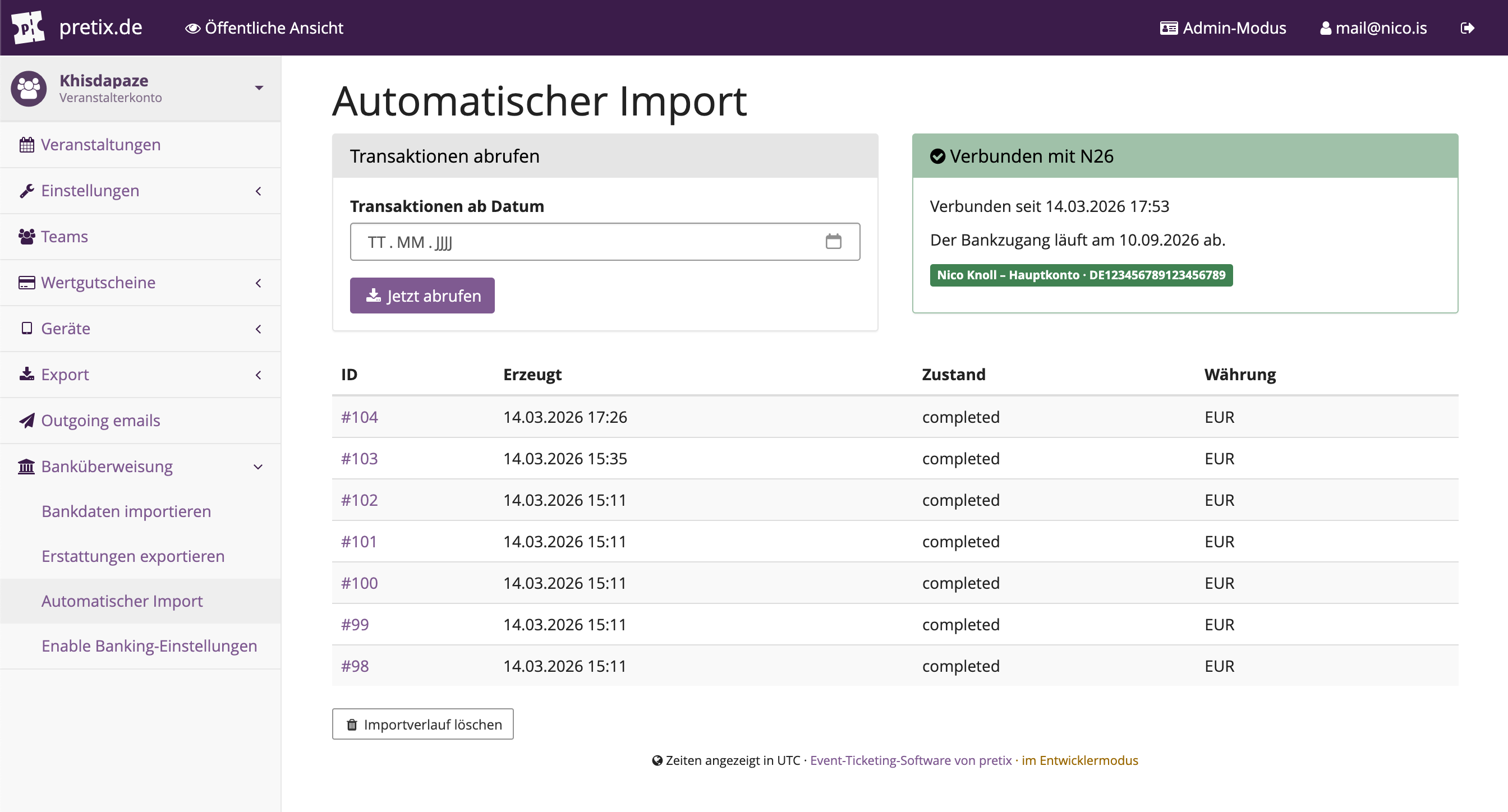
Import — manual fetch & job history
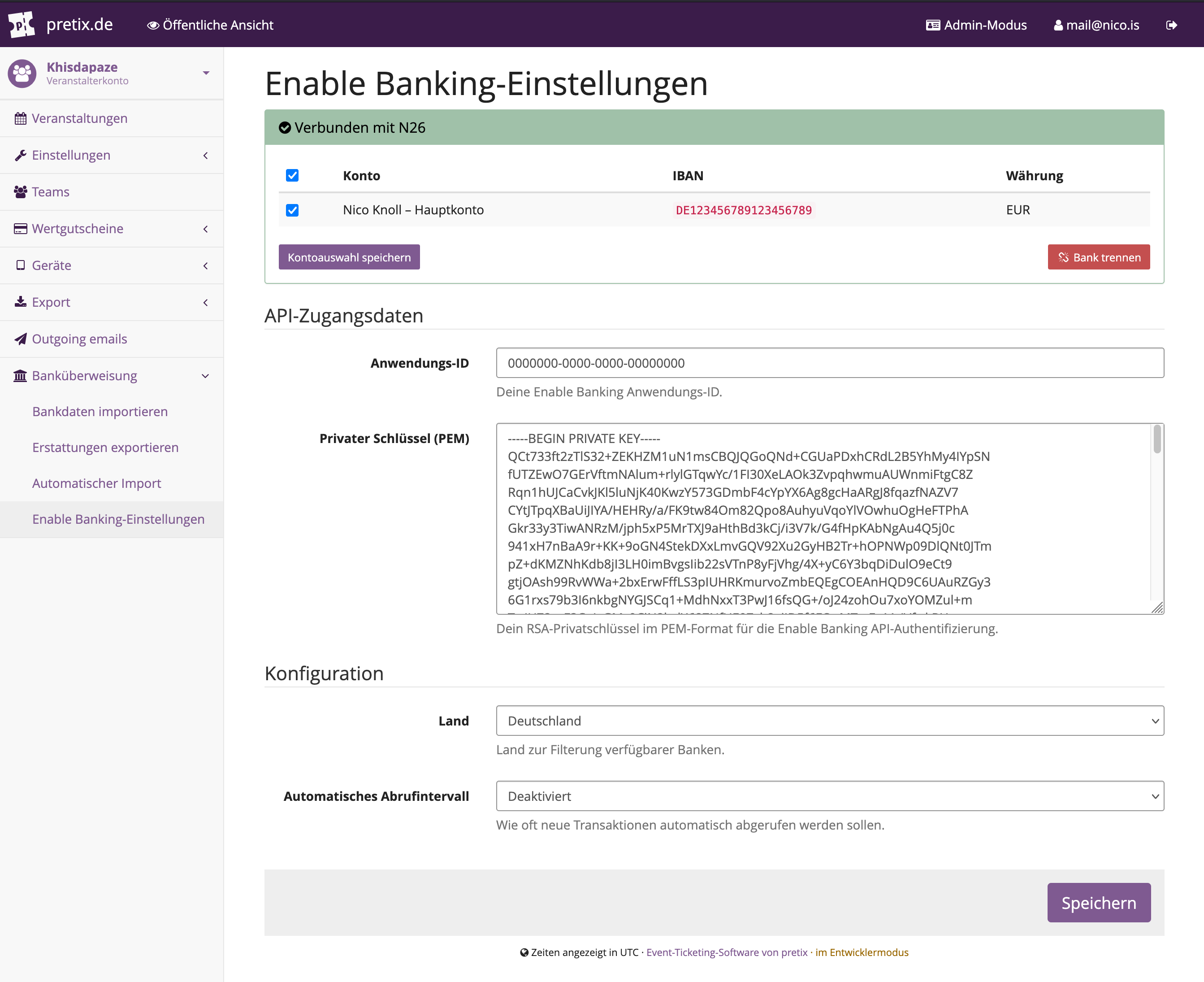
Settings — bank connection & API credentials
- You register an app at Enable Banking and get an App ID + RSA private key.
- You enter those credentials in the plugin settings and initiate an OAuth flow to connect your bank account.
- After authorization, Enable Banking provides access to your bank accounts. You activate the ones you want to import from.
- The plugin fetches transactions (automatically or on demand) and creates
BankImportJobrecords, which pretix then processes to match payments against open orders.
The transaction import runs as a Celery task and uses Enable Banking's paginated transactions API. The last-fetched date per account is tracked to avoid re-importing.
pip install pretix-enablebankingThen run migrations and restart the server:
python -m pretix migrateThe plugin registers itself automatically via the pretix.plugin entry point — no manual INSTALLED_APPS edit needed.
git clone https://github.com/nicoknoll/pretix-enablebanking.git
cd pretix-enablebanking
pip install -e .- Sign up at https://enablebanking.com/cp/applications and create an application.
- Generate an RSA key pair. Register the public key with Enable Banking and keep the private key (PEM format).
- Note your Application ID.
- Set the redirect URL to https://your.domain/control/organizer/organizer/enablebanking/callback/ (apply your own settings for "your.domain" and "example")
In the pretix backend, go to your organizer → Bank transfer → Enable Banking settings:
- Application ID — the App ID from Enable Banking
- Private key (PEM) — your RSA private key (
-----BEGIN PRIVATE KEY-----format) - Country — used to filter the list of available banks (ASPSPs)
- Auto-fetch interval — how often transactions should be fetched automatically (set to "disabled" to import manually only)
Save, then select your bank from the dropdown and click Connect with bank. You'll be redirected to Enable Banking's hosted authorization page where you log into your bank and grant consent.
After authorization, you're redirected back and your accounts appear in the settings. Activate the accounts you want to import from and save.
Go to Bank transfer → Automatic import to:
- Trigger a manual import (optionally specify a start date)
- View recent import jobs and their status
- See when your bank connection expires (Enable Banking consent is typically valid for 90 days — renew before it expires)
Enable Banking provides a sandbox environment with a mock bank. Use these credentials when connecting Aachener Bank (country: DE):
| Field | Value |
|---|---|
| VR NetKey | VRK1234567890ALL |
| PIN | password |
| OTP | 123456 |
The import view shows a Sandbox mode warning when a mock bank is connected.
| Package | Purpose |
|---|---|
pretix >= 2.7.0 |
Host platform |
requests |
HTTP calls to Enable Banking API |
PyJWT |
RS256-signed JWT for API authentication (transitive via pretix) |
Python 3.10+ required.
The plugin operates at organizer level. Users need can_change_organizer_settings to access settings and trigger imports.
MIT — see LICENSE.