


TastyTunes is a desktop controller for Cambridge Audio StreamMagic streamers. It shows what's playing with full artwork and synced lyrics, browses every local media server and the streamer's USB drive as a single library, searches all of it instantly, tunes internet radio, and edits the queue and the streamer's 99 presets.
Beyond that: playlists and favorites, a log of what you've played, artist and album notes, tone and EQ, a menu bar / system tray panel, a mini player, a Fullscreen Display mode, sleep timers and schedules, scrobbling to ListenBrainz, and an optional MCP server for local AI agents.
It all runs on your machine and talks to the streamer over your own network. There's no account and no cloud service requirements.
- Get the installer for your platform from the releases page: macOS 11+ (universal, signed and notarized), Windows 10+ (x64 & arm64, one signed installer), Linux (x64 or arm64 AppImage).
- Launch it. TastyTunes discovers StreamMagic streamers on your network; if discovery comes up empty, enter the streamer's IP directly.
- There's no account and nothing else to configure.
Without a streamer on the network, demo mode on the connect screen runs the whole app against a built-in virtual one.
You'll need a Cambridge Audio network player built on the StreamMagic platform, on the same network as your computer: Evo 75/150, CXN100 / CXN (V2), MXN10, AXN10, EXN100, Edge NQ, 851N. Developed and tested daily against an Evo 150.
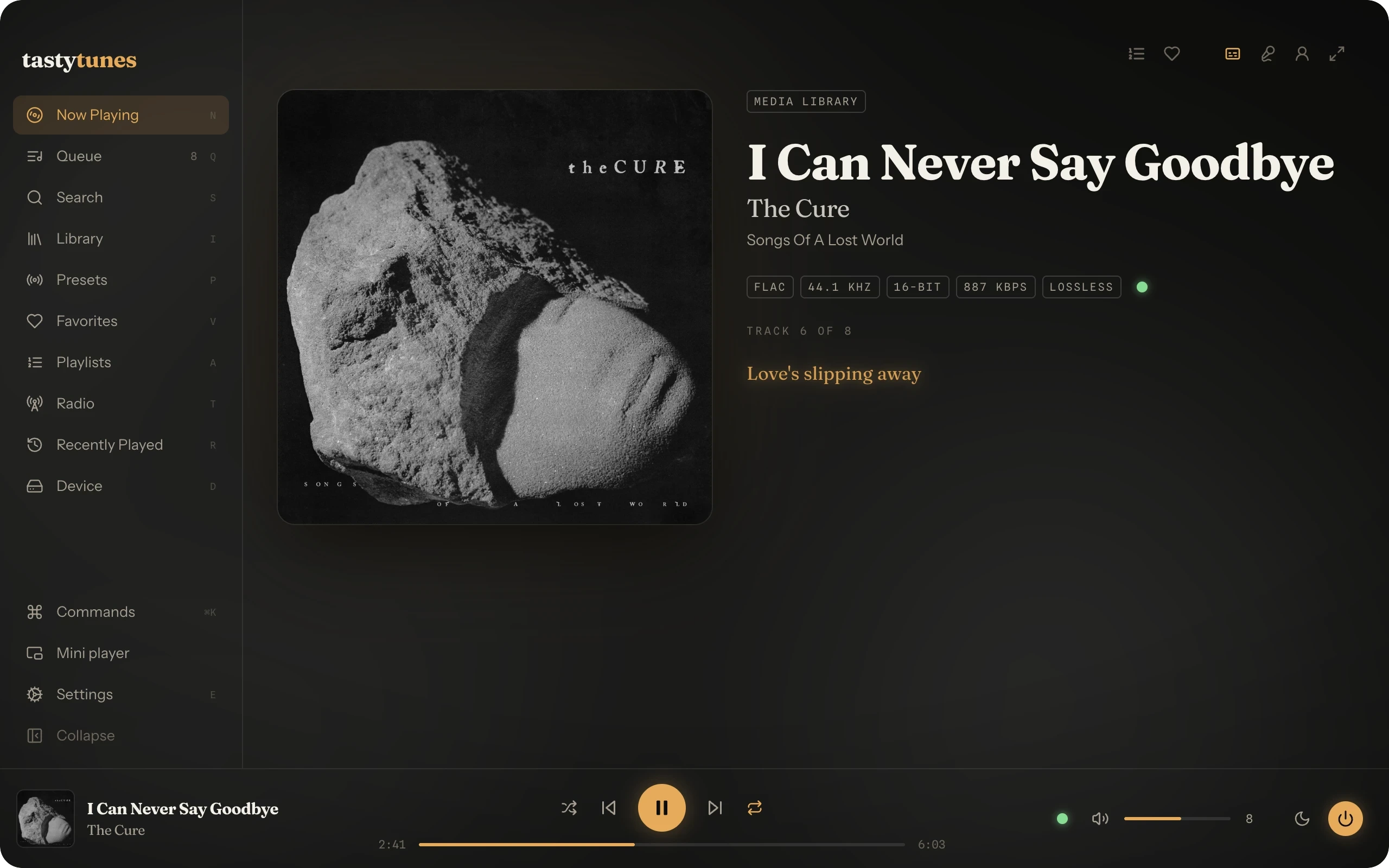
Album art, track details, format badges and the live lyric line. The transport bar sits along the bottom of every screen.
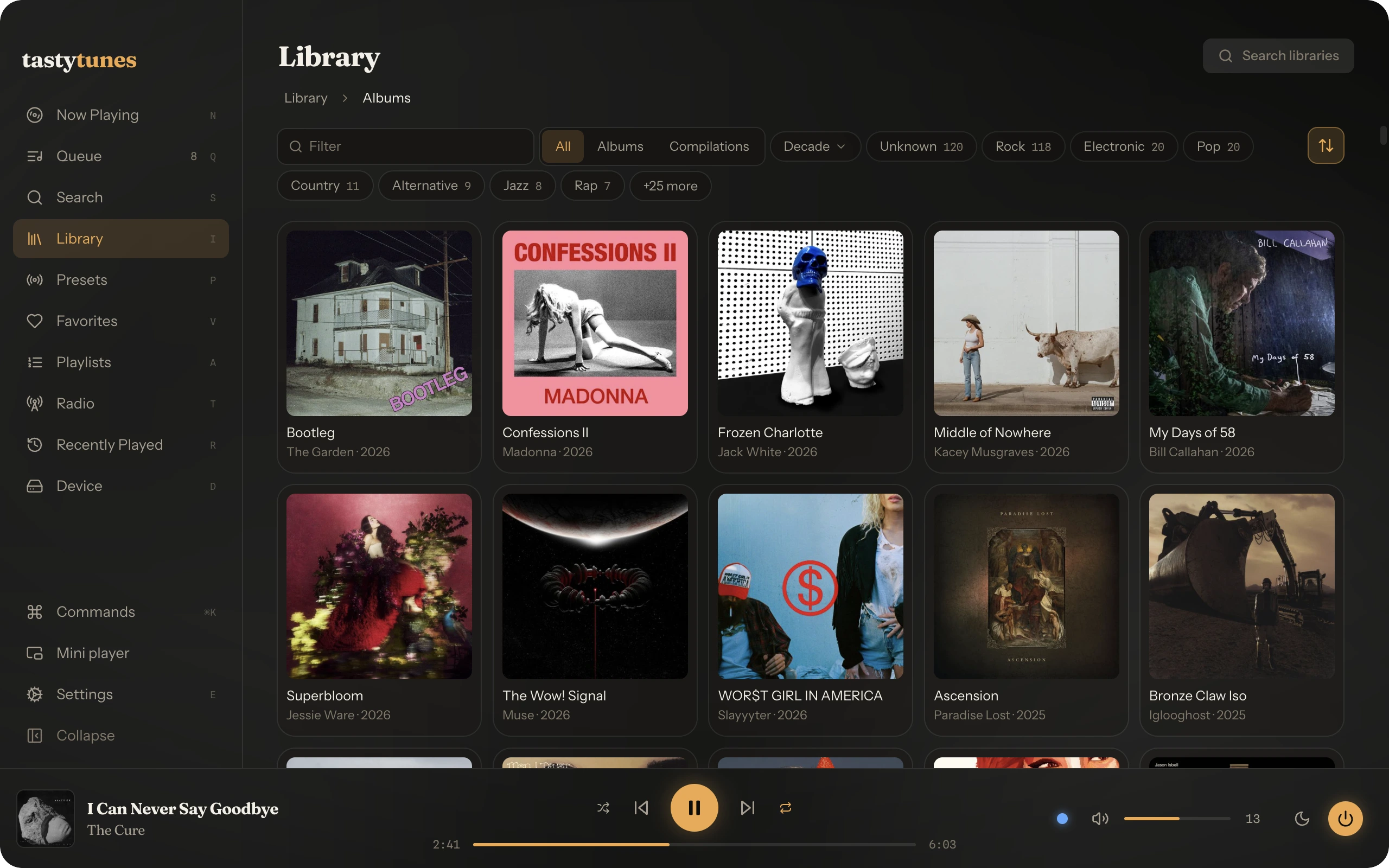
Local UPnP servers and the streamer's USB drive, pooled into Artists and Albums views with genre and decade filters.
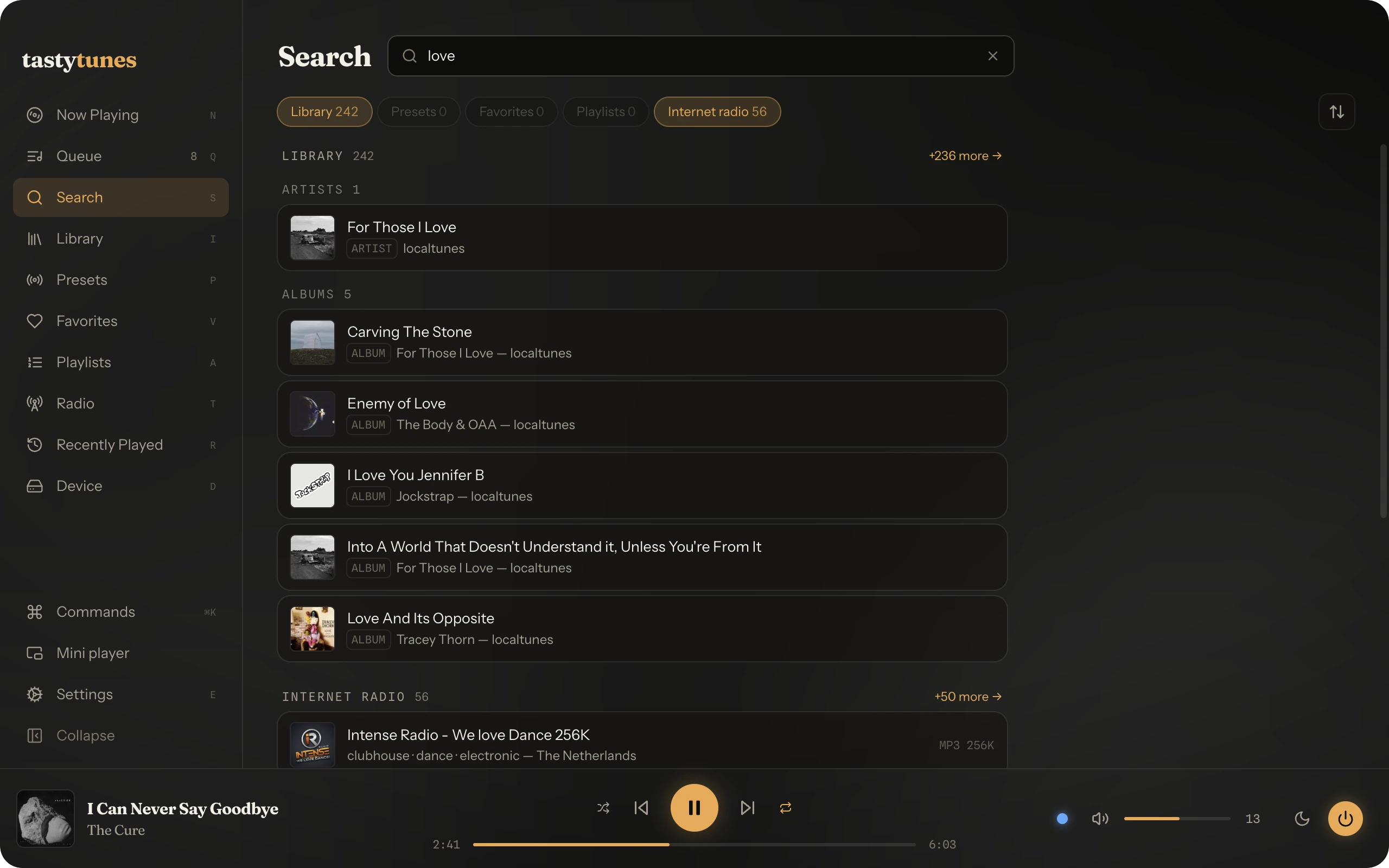
Libraries, playlists, favorites, presets and internet radio, with results grouped by where they live. Library results come from a local index.
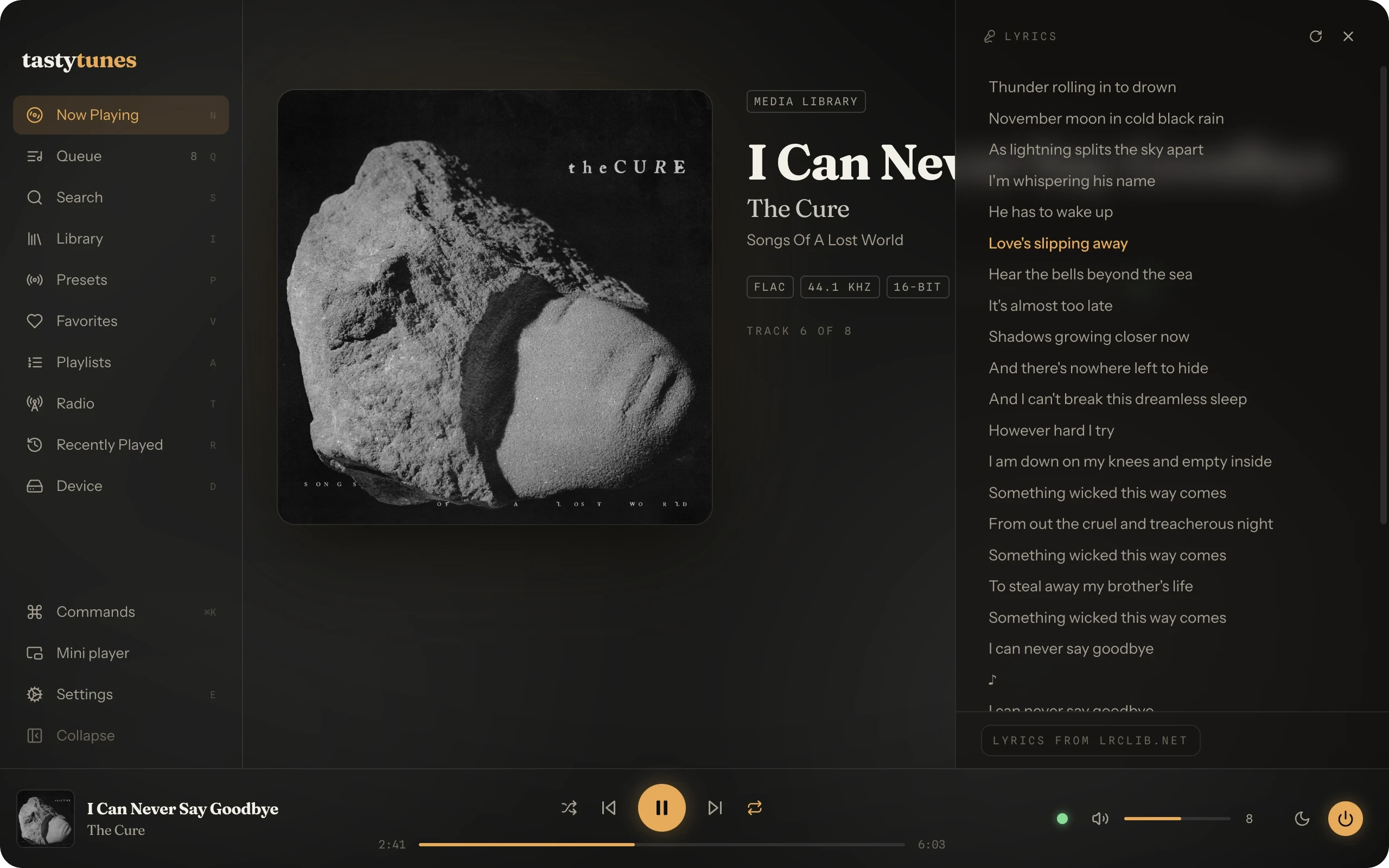
The current line is highlighted and kept in view. Click a line to seek there.
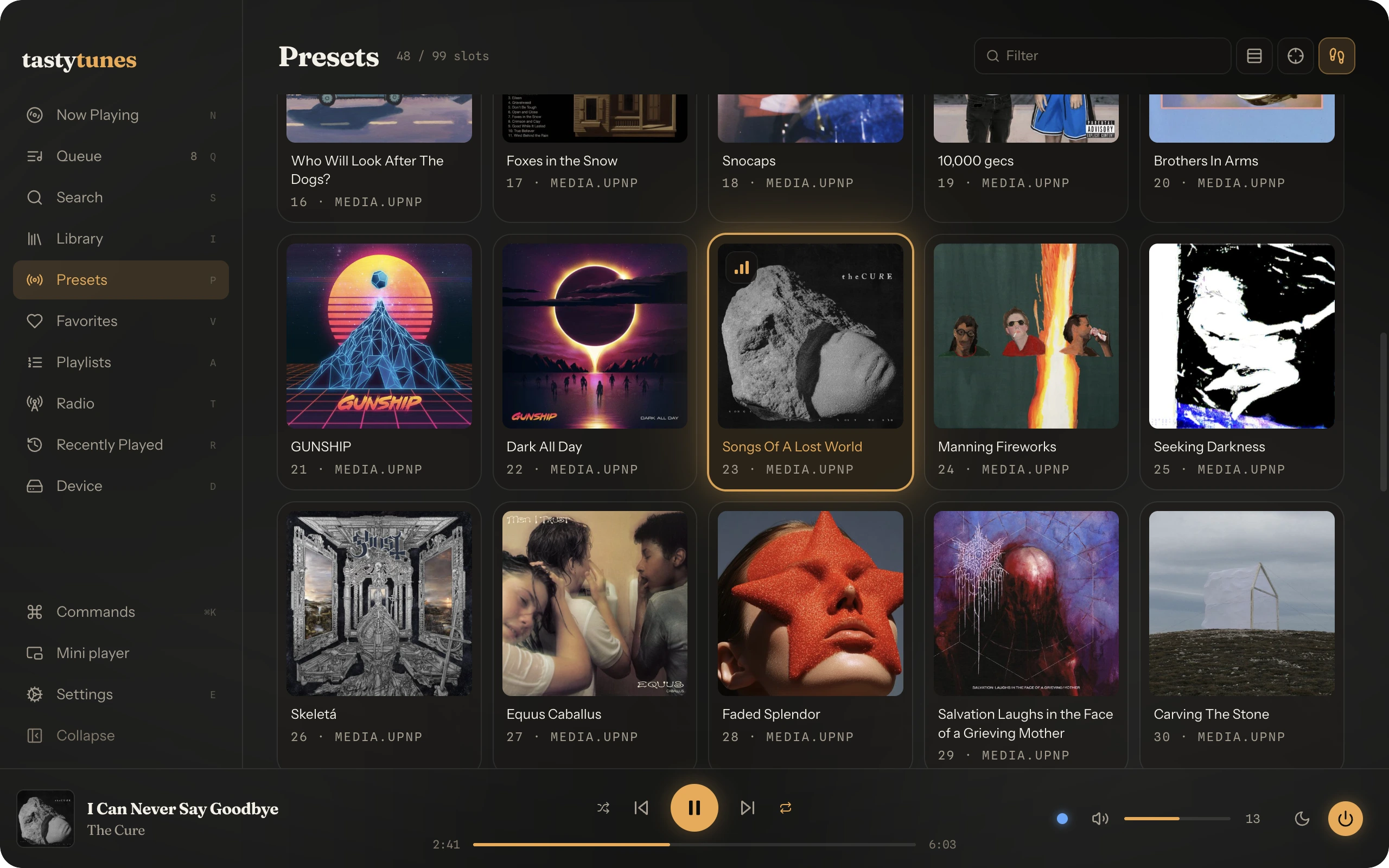
The streamer's preset slots as a card grid (or table rows), each recallable with a click and holding its own volume. The playing preset stays lit.
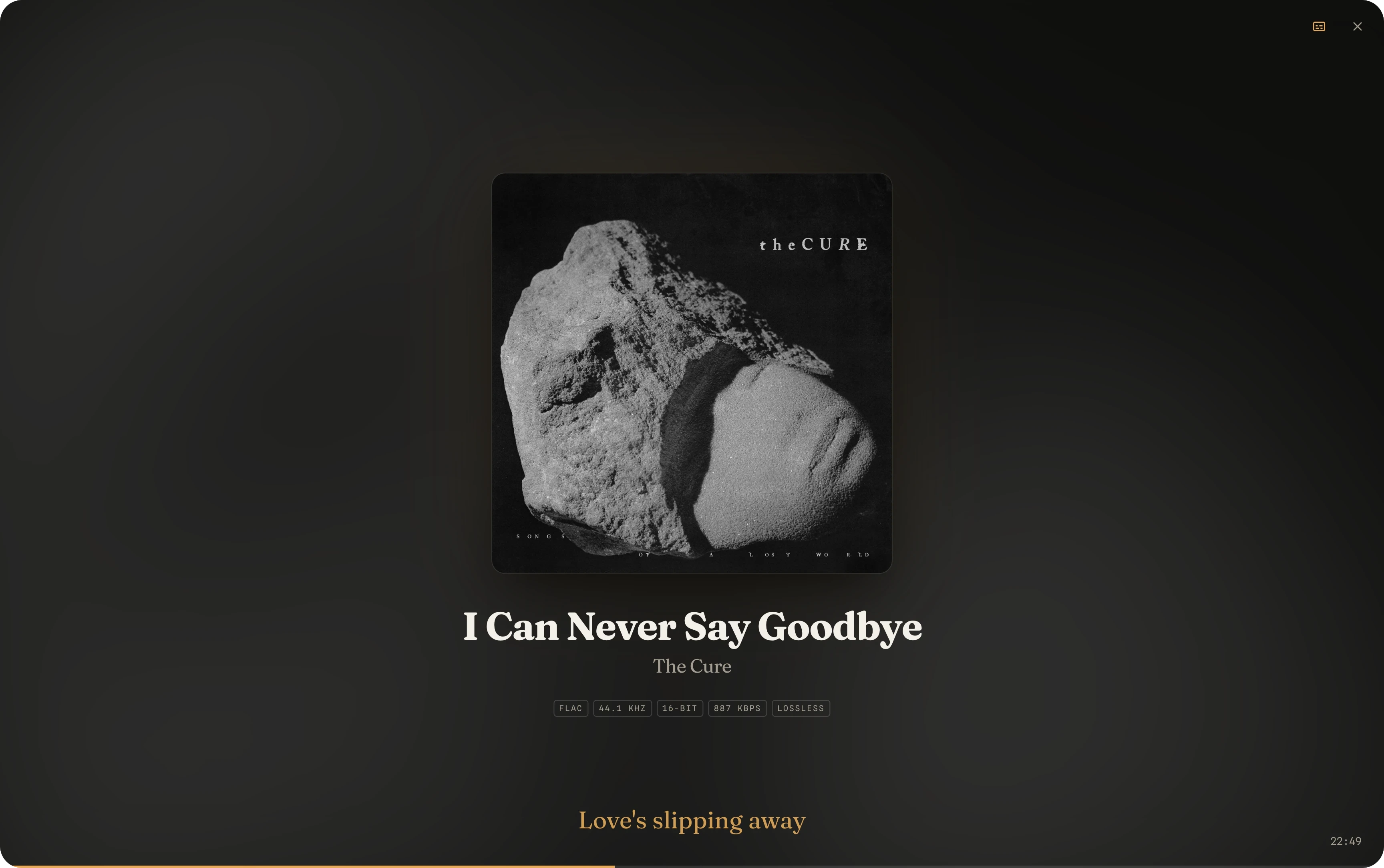
Press F for the front-panel view: album art, track details, the current lyric line and a clock.
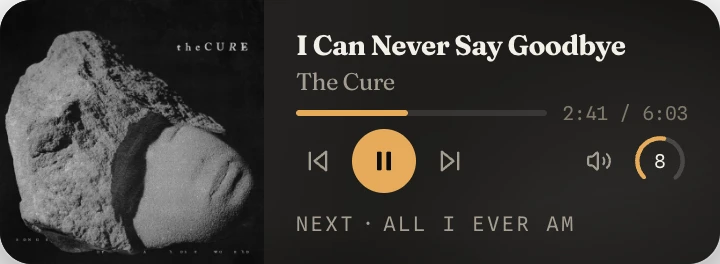
A small always-on-top window: art, transport, playhead, volume and what's next.
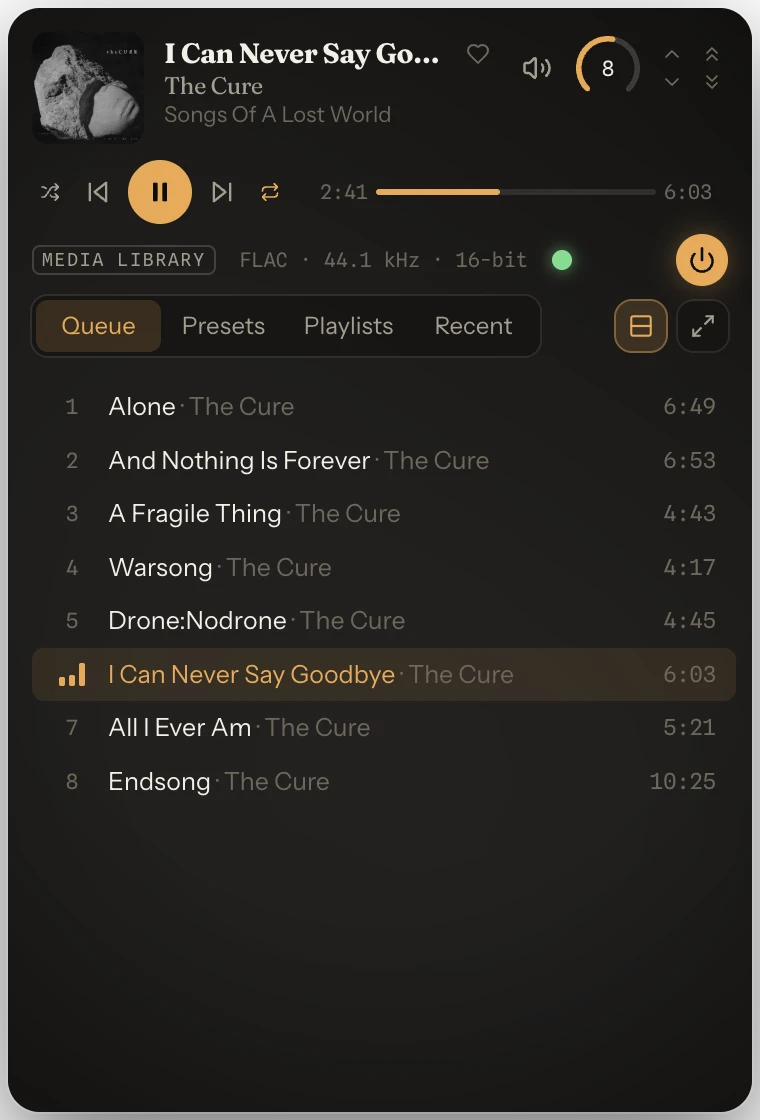
Many of TastyTunes' features, shrunk down into a menu bar / system tray panel, accessible by clicking the TastyTunes icon from any desktop screen.
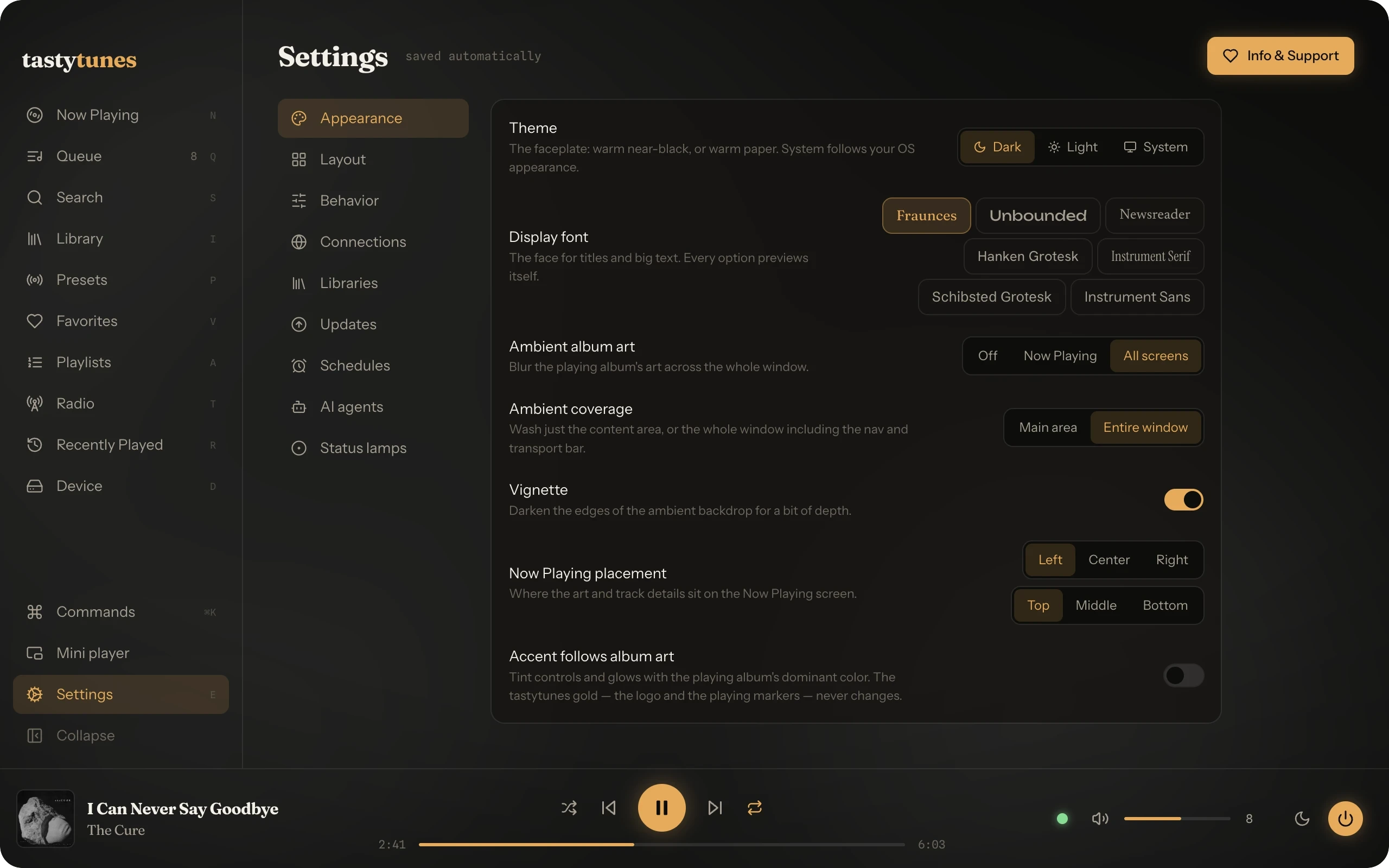
Themes, fonts, layouts and sort orders, and much more, stored on your machine.
MCP tools that let local AI agents see and control the streamer.
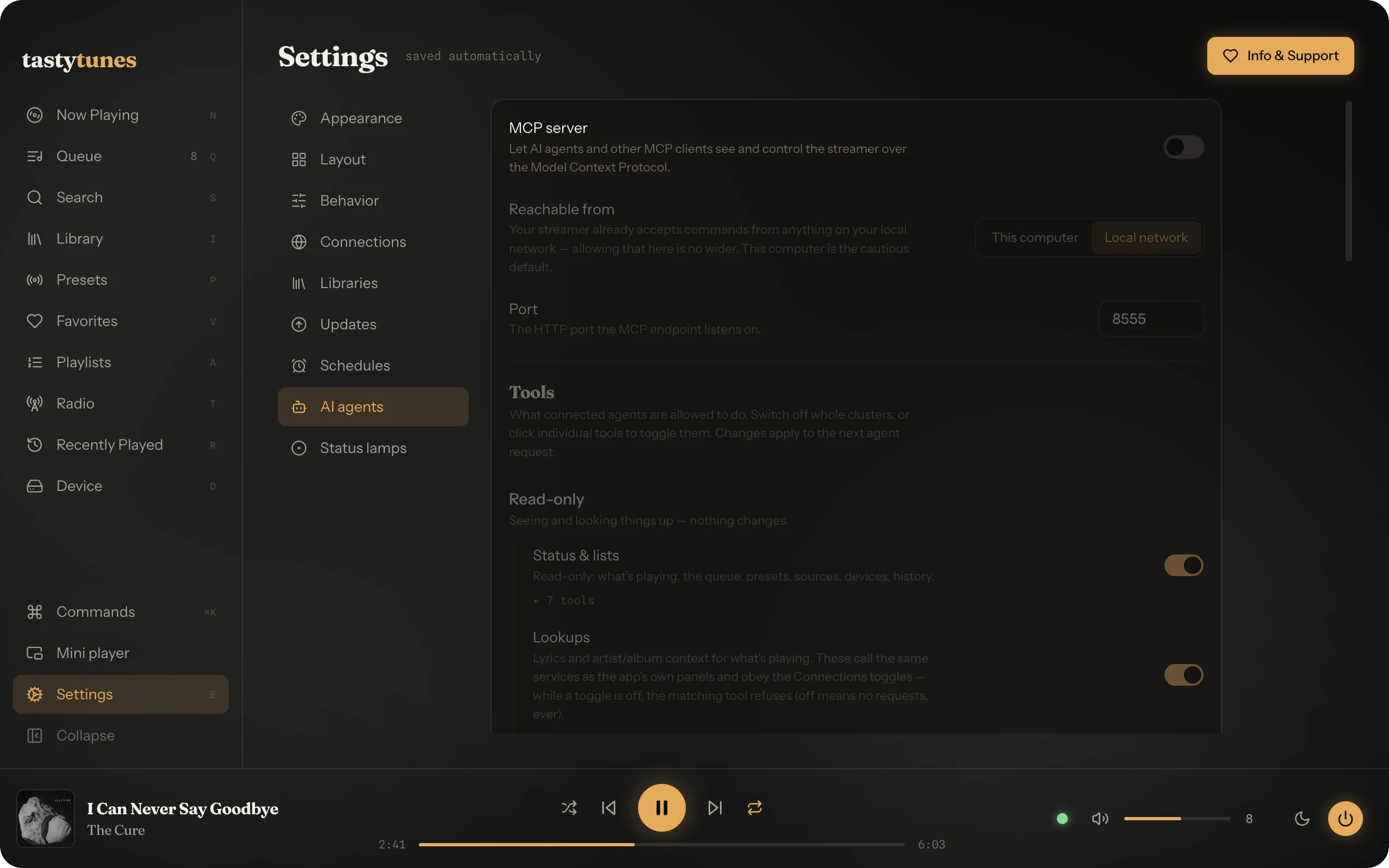
TastyTunes can host a local MCP server (off by default), so AI agents on your network (Claude Code, Claude Desktop, anything that speaks MCP) can see and control the streamer:
claude mcp add --transport http tastytunes http://127.0.0.1:8555/mcp"what's playing?" · "how many albums do I have?" · "play a 90s rock album" · "put on some jazz radio" · "set a sleep timer for the end of this track"
The tools cover what the app itself does: playback and volume, presets and sources, library and radio, favorites, tone and EQ, sleep timers, etc. The editing ones, like queue and preset changes, are kept separate and off until you turn them on. Every tool has its own switch in Settings › AI agents, effective on the agent's next call. Agents inherit the same limits the UI has: the volume cap, the power safeguards, the Connections toggles. A call to a disabled tool is refused. Bind it to localhost, or to your network to reach the streamer from another machine.
- Automatic discovery of streamers on the local network, with manual IP entry when discovery finds nothing
- Device switcher in the playback bar
- Auto-reconnect, and connection health checks after system sleep
- Power and standby
- Demo mode: runs the whole app against a built-in virtual streamer and two sample libraries
- Large artwork over an ambient blurred-art backdrop
- Optional art-derived accent, with a gold tint following the current album
- Format badges: codec, sample rate, bit depth, lossless, MQA
- Signal-quality lamp: gold with a halo for hi-res lossless, blue for lossless, a hollow gray ring for lossy. Each state has its own shape as well as its own color, so they are readable without color vision; the legend is in Settings › Status lamps, and the full signal chain is in a popover
- Internet-radio display, track x of y, and the current lyric line under the track details
- Fullscreen Display mode (F): chrome-free full screen for a desk or shelf display
- Info: what the streamer reports about the current stream (codec, sample rate, bit depth, bitrate, queue position), for any source: local media, radio, AirPlay
- Browse every local UPnP media server and the streamer's own USB storage
- A local, rebuildable index: search as you type, and ⌘F searches every library at once, grouped by server
- Artists & Albums views pooling all sources into one collection, with genre, decade and albums ⇄ compilations filters and sorting
- Albums stay intact: featured guests stay in the album, compilations sit under Various Artists, multi-disc sets show disc dividers; format and size in every album header
- Info on any album, track or artist: performers, album artist, composers, disc and track numbers, format, size, and source ids, as the media server reports them; copy as JSON
- Play now, play next, append, or replace
- Save an album, a track, or the whole queue to one of the streamer's preset slots
- Open in Library from the queue, favorites, playlists, Recently Played and the Info panel: lands on the track's album with the track highlighted
- Backspace goes up a level; filters are remembered per folder
- Search and browse the radio-browser.info directory, with genre and decade categories
- Stations can be favorited and saved to hardware preset slots
- Stations, albums and tracks, hearted from rows, cards or Now Playing
- Favorites key on content definition, so they survive a media server re-indexing
- Ordered collections of tracks, stored locally: built from any track the app shows, or captured whole from the queue
- Entries key on content definition, so a playlist survives a media server re-indexing
- Playing one replaces the queue a track at a time, with progress and a cancel; tracks that can't be found are listed rather than dropped silently
- A playlist whose contents match the live queue is marked as such
- Reorder by drag or keyboard, rename, and delete with undo
- Play, pause, stop, next, previous, seek, scrub; repeat and shuffle
- Only the controls the streamer itself reports (based on source) are enabled
- Pre-amp mode (absolute volume) and Control Bus mode (nudge), mute, and an optional volume limit
- Scroll-wheel volume on the volume cluster and the mini player
- View, jump, drag-to-reorder, remove, clear
- Cards ⇄ rows layouts; follow mode keeps the playing track in view
- All 99 hardware slots: recall, delete, drag-to-reorder; use keys 1–9 for immediate recall
- Per-preset volume: each preset can carry its own volume level, applied on recall
- A preset broken by a media server re-indexing is flagged in place, and can be repaired with a click
- Seven-band EQ, tilt, and balance: changes apply live while dragging, with saveable presets (feature-detected based on streamer model)
- Display brightness, standby mode, and auto power-down, where the streamer supports them
- One-click switching across every source the streamer exposes
- Fetched from LRCLIB; synced lyrics are highlighted and follow the current line, and clicking a line seeks there
- Shown in three locations: a full panel showing all track lyrics in Now Playing, an inline line under the track details also in Now Playing, and in the Fullscreen Display mode
- Falls back to plain text, says why when there's nothing to show (instrumentals, radio), and can be force-refreshed
- A short artist bio and album facts (year, label, genres, credits) in a side panel, from MusicBrainz and Wikipedia, with attribution links
- Lookups cache to disk (with local storage caps, clearable in Settings)
- ListenBrainz: a listen submits only after real played time (half the track or four minutes)
- Paused time doesn't count and seeking doesn't advance it; short tracks and radio never scrobble
- Failed submissions are retried until successful
- Recently played: a capped local log (200 entries, clearable) of tracks and stations; station tracks are also logged when announced by the station
- Sleep timer: 15 minutes to 2 hours, or end of track; pause or standby; keeps running with the window closed, and survives a system sleep
- Schedules: wake the streamer to a preset at a chosen volume, or send it to standby, per weekday (schedules only trigger while the app is running)
- A wake schedule missed while the computer was asleep is offered on waking rather than run late: once, within ten minutes of the missed time, and only if nothing is already playing
- An optional icon in the menu bar (macOS) or system tray (Windows, Linux), on by default, can be disabled in Settings
- On macOS and Windows, clicking the icon opens a compact panel: now playing with transport and volume, plus queue, presets, playlists and Recently Played; picking something while the streamer sleeps wakes it first
- On Windows and Linux, closing the main window keeps TastyTunes running in the tray; Quit is in the icon's menu
- On Linux there's no panel, just the icon and its menu
- Mini player: frameless, always on top, remembers its position
- Command palette (⌘K): transport, sources, presets by name, screens, and much more
- Keyboard controls throughout: single keys jump screens, space toggles play, arrows seek and nudge volume, / filters lists; ? shows the controls overlay
- Back and forward through everywhere you've been, like a browser: ⌘←/⌘→ (Alt+arrows on Windows and Linux), the mouse side buttons, or View › Back/Forward, which also works from inside a text box (⌘[/⌘] on macOS)
- Scroll position remembered in Library, Search and Playlists screens
- Every reorderable list (queue, presets, playlists, the nav rail) reorders by keyboard as well as by drag
- OS media keys, and a track-change notification with artwork when the window isn't focused
- Dark and light themes; optional per-album accent
- Reduced motion: on, off, or follow the system setting
- Card size and grid fill, cards ⇄ rows per screen, resizable side panels
- The left nav can be reordered by drag or keyboard, and individual items hidden
- A requests console (`) listing every outbound request the app makes: service, method, status, timing
- A SMOIP console showing the raw streamer traffic
- Update check on launch and every four hours; the self-updater downloads nothing until you click Download, installs nothing until you click Restart
- Signed and notarized universal macOS builds (Intel and Apple Silicon); one signed Windows installer covering x64 and arm64 (native on Windows-on-ARM); Linux AppImages for x64 and arm64, including 64-bit Raspberry Pi OS
The complete list:
| Traffic | Where it goes | When |
|---|---|---|
| Streamer control | your streamer, on your LAN | always (it's the app) |
| Library browsing | your media servers, on your LAN | always (it's the app) |
| Lyrics | lrclib.net | on by default; toggleable |
| Artist & album context | musicbrainz.org · wikidata.org · wikipedia.org | on by default; toggleable |
| Radio directory | radio-browser.info | when you search or browse Radio |
| Update check | github.com | on by default; toggleable |
| Scrobbles | listenbrainz.org | off until you add your token |
No analytics, no telemetry, no accounts, and no radio "click" pings (the radio directory sees your searches, but not which station you played). Each row of Settings › Connections states what its service is sent, and the requests console shows the traffic live.
npm install
npm run dev        # run with HMR
npm run typecheck  # typecheck main + preload + renderer
npm run check      # typecheck, lint (ESLint) and format check (Prettier); what CI runs
npm run format     # format the source with Prettier
npm run build      # bundle to out/
npm run dist:mac   # package a dmg (also: dist:win, dist:linux)
Development happens on the develop branch; main tracks the latest
release. Pull requests should target develop.
Stack: Electron + electron-vite, React 19, TypeScript, Tailwind CSS v4,
Zustand, ws in the main process for the streamer socket.
src/main/is where device I/O lives: SSDP discovery, the SMOIP WebSocket client (with theOriginheader the streamer requires), reconnect/keepalive, command dispatch, the UPnP browser and library index, the MCP server, the scheduler and sleep timer, external-service fetchers, and the typed IPC push relay.src/preload/is thewindow.tastytunesbridge.src/renderer/is the React UI; a Zustand store fed exclusively by pushed state.src/shared/holds the SMOIP payload types and the IPC contract.
The streamer is the single source of truth: user actions send commands, the
streamer applies them and pushes new state, and the UI re-renders from the
push. Live state arrives over the streamer's SMOIP WebSocket
(ws://<host>:80/smoip); commands go over the same socket, with a couple of
queue/preset edits over SMOIP HTTP.
TastyTunes is free. If it's been worth something to you, there's a name-your-price tip jar at tastytunes.app. For help (bugs, questions, requests) use GitHub issues or the TastyTunes contact form.
TastyTunes is free software, released under the GNU General Public License v3.0.
© 2026 Redacted Cat