



Powerful real-time tracker for Last.fm that brings your music data to life with automated Spotify playback, instant activity alerts and deep scrobble analytics.
pip install lastfm_monitor
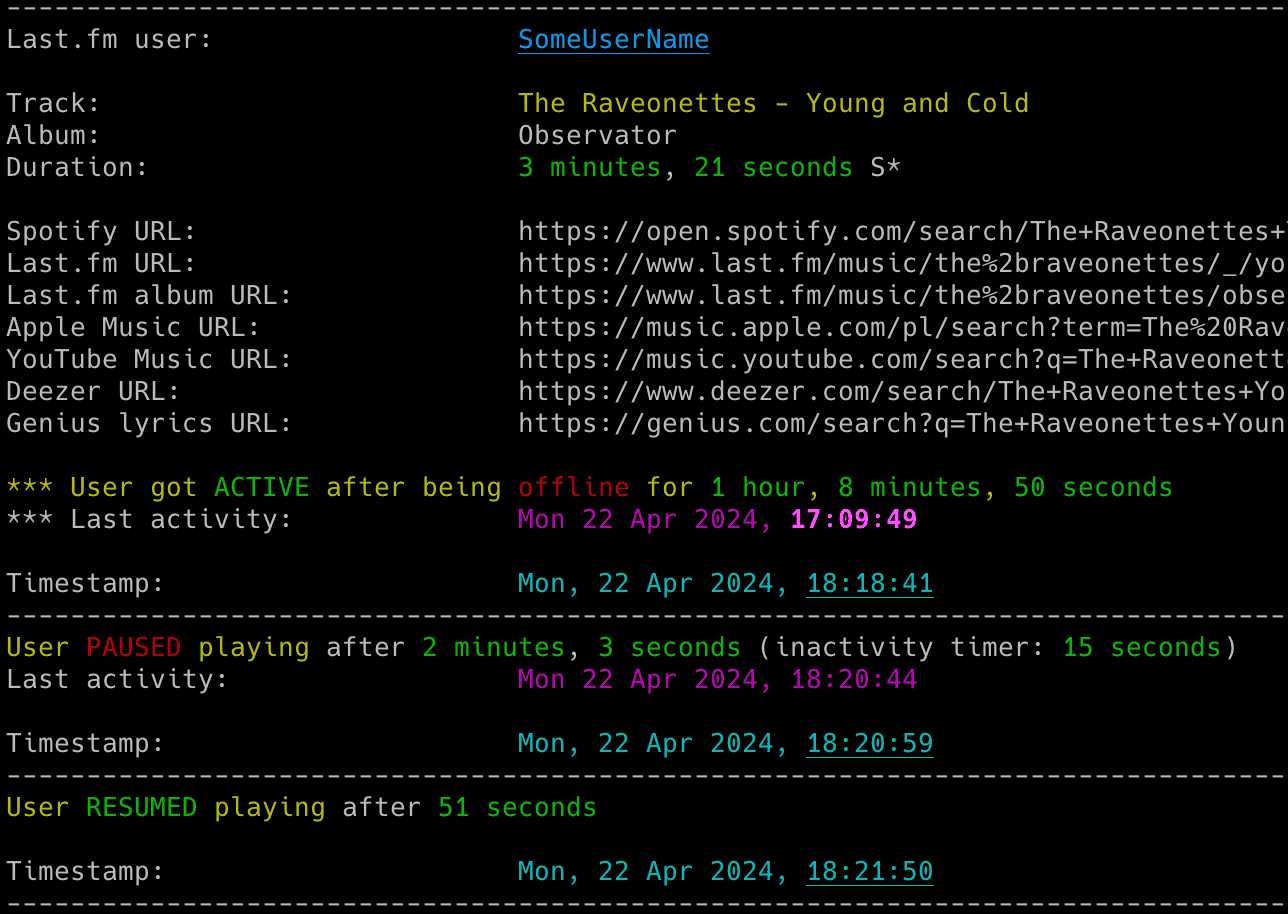
- Real-time tracking of songs listened by Last.fm users (including detection of when a user gets online or offline)
- Possibility to automatically play songs listened by the tracked user in your local Spotify client
- Information about when a user pauses or resumes playback with the option to show a track progress indicator
- Information about the duration the user listened to a song and whether the song was skipped and if it was shorter or longer than the track duration
- Tracking of Last.fm user's followers and followings with notifications when users are added or removed
- Email notifications for various events (user becomes active or inactive, specific or all songs, songs on loop, new entries appearing while user was offline, followers/followings changes, errors)
- Webhook notifications through Discord, ntfy and compatible integrations with event-specific controls
- Saving all listened songs with timestamps to the CSV file
- Last.fm Wrapped tool for generating Spotify Wrapped-style statistics (top artists, tracks, albums) from CSV data
- Clickable Last.fm, Apple Music, YouTube Music, Amazon Music, Deezer, Tidal, Genius Lyrics, AZLyrics, Tekstowo.pl, Musixmatch and Lyrics.com search URLs printed in the console and included in email notifications (configurable per service)
- Displaying basic statistics for the user's playing session (duration, time span, number of listened and skipped songs, songs on loop, paused playback time and number of pauses, songs played count)
- Support for detecting offline mode
- Support for detecting Spotify's private mode (not 100% accurate)
- Status persistence - automatically saves the last activity status and the number and list of followings/followers to JSON files to track changes across restarts
- Flexible configuration - support for config files, dotenv files, environment variables and command-line arguments
- Possibility to control the running copy of the script via signals
- Functional, procedural Python (minimal OOP)
- Requirements
- Installation
- Quick Start
- Configuration
- Usage
- Monitoring Mode
- Listing Mode
- Email Notifications
- Webhook Notifications
- CSV Export
- Last.fm Wrapped Tool
- Automatic Playback of Listened Tracks in the Spotify Client
- Progress Indicator
- Getting Track Duration from Spotify
- Private Mode Detection in Spotify
- Check Intervals
- Signal Controls (macOS/Linux/Unix)
- Coloring Log Output with GRC
- Change Log
- License
- Python 3.9 or higher
- Libraries: pyLast,
requests,python-dateutil, PyOTP, Spotipy,python-dotenv,beautifulsoup4
Tested on:
- macOS: Ventura, Sonoma, Sequoia, Tahoe
- Linux: Raspberry Pi OS (Bullseye, Bookworm, Trixie), Ubuntu 24/25, Rocky Linux 8.x/9.x, Kali Linux 2024/2025
- Windows: 10, 11
It should work on other versions of macOS, Linux, Unix and Windows as well.
pip install lastfm_monitorDownload the lastfm_monitor.py file to the desired location.
Install dependencies via pip:
pip install pylast requests python-dateutil pyotp spotipy python-dotenv beautifulsoup4Alternatively, from the downloaded requirements.txt:
pip install -r requirements.txtTo upgrade to the latest version when installed from PyPI:
pip install lastfm_monitor -UIf you installed manually, download the newest lastfm_monitor.py file to replace your existing installation.
- Grab your Last.fm API Key and Shared Secret and track the
lastfm_usernamemusic activities:
lastfm_monitor <lastfm_username> -u "your_lastfm_api_key" -w "your_lastfm_api_secret"Or if you installed manually:
python3 lastfm_monitor.py <lastfm_username> -u "your_lastfm_api_key" -w "your_lastfm_api_secret"To get the list of all supported command-line arguments / flags:
lastfm_monitor --helpMost settings can be configured via command-line arguments.
If you want to have it stored persistently, generate a default config template and save it to a file named lastfm_monitor.conf:
# On macOS, Linux or Windows Command Prompt (cmd.exe)
lastfm_monitor --generate-config > lastfm_monitor.conf

# On Windows PowerShell (recommended to avoid encoding issues)
lastfm_monitor --generate-config lastfm_monitor.confIMPORTANT: In Windows PowerShell, do not use
>for this command. Some PowerShell versions write redirected text as UTF-16, which makes Last.fm Monitor report a "null bytes" error. Pass the filename to--generate-configso Last.fm Monitor writes a UTF-8 file itself.
When you include the filename, Last.fm Monitor writes the template directly as UTF-8. This avoids PowerShell changing the file encoding during redirection.
Edit the lastfm_monitor.conf file and change any desired configuration options (detailed comments are provided for each).
New in v2.3: The configuration file includes options to enable/disable music service URLs (Last.fm, Spotify, Apple Music, YouTube Music, Amazon Music, Deezer, Tidal) and lyrics service URLs (Genius, AZLyrics, Tekstowo.pl, Musixmatch, Lyrics.com) in console and email outputs.
New in v2.5: The track duration and automatic playback features use the official OAuth app Web API when optional app credentials are configured. The anonymous web-player backend is the new automatic fallback and requires no Spotify credentials.
-
Create your Last.fm
API keyandShared secretat: https://www.last.fm/api/account/create- Or get your existing credentials from: https://www.last.fm/api/accounts
-
Provide the
LASTFM_API_KEYandLASTFM_API_SECRETsecrets using one of the following methods:- Recommended: run
lastfm_monitor --set-lastfm-credentialsand enter both values through hidden prompts - Pass it at runtime with
-u/--lastfm-api-keyand-w/--lastfm-secret - Set it as an environment variable (e.g.
export LASTFM_API_KEY=...; export LASTFM_API_SECRET=...) - Add it to .env file (
LASTFM_API_KEY=...andLASTFM_API_SECRET=...) for persistent use - Fallback: hard-code it in the code or config file
- Recommended: run
If you store the LASTFM_API_KEY and LASTFM_API_SECRET in a dotenv file you can update their values and send a SIGHUP signal to the process to reload the file with the new secret values without restarting the tool. More info in Storing Secrets and Signal Controls (macOS/Linux/Unix).
The hidden setup command keeps both values out of shell history and process listings:
lastfm_monitor --set-lastfm-credentialsIn order to monitor Last.fm user activity, proper privacy settings need to be enabled on the monitored user account.
The user should go to Last.fm Privacy Settings.
The Hide recent listening information setting should be disabled.
Otherwise you will get this error message returned by the pyLast library: 'Login: User required to be logged in'.
The track duration feature and automatic playback feature both need Spotify track metadata:
- Duration lookup needs the Spotify track duration
- Automatic playback needs the Spotify track ID so the local Spotify client knows which track to play
Spotify app credentials are not mandatory for either feature. The tool can obtain the required metadata from the anonymous web-player backend. If you configure OAuth app credentials, the official Spotify Web API is tried first.
Version 2.5 uses this metadata order:
- Official Spotify Web API search through optional OAuth app Client Credentials
- Anonymous web-player search and Pathfinder
getTrackmetadata - Last.fm duration as the final fallback
Follow these steps if you want the official Spotify Web API to be the primary metadata backend:
- Log in to the Spotify Developer Dashboard
- Select Create app
- Enter an app name and description
- For Redirect URI, enter
http://127.0.0.1:1234- The Client Credentials flow does not redirect a user, but Spotify's app form requests a redirect URI
- Use the numeric loopback address exactly as shown because Spotify does not allow
localhost
- Under the API selection, choose Web API
- Accept Spotify's Developer Terms of Service and create the app
- Open the app settings
- Copy the Client ID
- Select View client secret and copy the Client Secret
Spotify currently requires the owner of a Development Mode app to have an active Spotify Premium subscription. See Spotify's February 2026 Development Mode migration guide for the current restrictions.
Provide SP_CLIENT_ID and SP_CLIENT_SECRET using one of these methods:
- Recommended: run
lastfm_monitor --set-spotify-credentialsand enter both values through hidden prompts - Pass them at runtime with
-z/--spotify-creds- Use the
SP_CLIENT_ID:SP_CLIENT_SECRETformat with a colon between the values
- Use the
- Set them as environment variables, for example
export SP_CLIENT_ID=...andexport SP_CLIENT_SECRET=... - Add them to a dotenv file as
SP_CLIENT_ID=...andSP_CLIENT_SECRET=... - Add them to
lastfm_monitor.conf - As a final fallback, hard-code them in
lastfm_monitor.py
Command-line example:
lastfm_monitor <lastfm_username> -z "your_spotify_app_client_id:your_spotify_app_client_secret"The -z value may remain visible in shell history or process listings. Prefer the hidden setup command for persistent credentials:
lastfm_monitor --set-spotify-credentialsThe tool refreshes OAuth app access tokens automatically. The token cache path is configured through SP_TOKENS_FILE and defaults to .lastfm-monitor-oauth-app.json. Set SP_TOKENS_FILE to an empty string to use memory-only caching.
If you store SP_CLIENT_ID and SP_CLIENT_SECRET in a dotenv file, you can update them and send SIGHUP to reload the values without restarting the tool. See Storing Secrets and Signal Controls.
The OAuth backend relies on Spotipy's expiration-aware Client Credentials cache. It does not call a separate Web API endpoint to validate tokens. If credentials are absent, token retrieval fails or OAuth search returns incomplete metadata, the anonymous backend runs automatically.
The tool fetches Spotify server time before generating the required v61 TOTP parameters. It caches the anonymous token until its expiration window and discovers the current persisted-query hashes from the active web-player bundle. An HTTP 401 refreshes the token once. A rejected persisted query refreshes its hash once.
The v61 version and cipher bytes ship as the SPOTIFY_TOTP_VERSION and SPOTIFY_TOTP_SECRET_CIPHER_BYTES config options. If Spotify rotates the secret you can update them from the config file using the spotify_monitor_secret_grabber tool without a code change.
Spotify metadata supplies the track duration, title, artists, album, URI and external URL. Last.fm duration remains the final fallback when Spotify web metadata is unavailable or incomplete.
With -r, a successful duration from either Spotify backend is marked S*. Last.fm fallback duration is marked L*. Without -r, Last.fm remains the duration source while Spotify metadata can still resolve a track ID for -g playback.
If you want to use email notifications functionality, configure SMTP settings in the lastfm_monitor.conf file.
Verify your SMTP settings by using --send-test-email flag (the tool will try to send a test email notification):
lastfm_monitor --send-test-emailWebhook alerts work independently from email. Discord and ntfy are supported directly. Compatible services can use the Discord request format or the advanced payload and header settings.
First save the private destination through a hidden prompt:
lastfm_monitor --set-webhook-urlThe command validates that the destination is a complete HTTPS URL then updates only WEBHOOK_URL in .env. Existing values require confirmation. Use --env-file PATH to select another private settings file.
Set WEBHOOK_ENABLED = True in lastfm_monitor.conf then choose WEBHOOK_PROVIDER = "discord" or WEBHOOK_PROVIDER = "ntfy". Standard Discord and ntfy.sh URLs correct a mismatched configured provider automatically.
Enable the events you want through the WEBHOOK_*_NOTIFICATION settings. Last.fm Monitor supports active, inactive, monitored track, every song, loop, offline entry, follower, following and error alerts. Matching command-line switches are listed under Webhook Notifications.
Test delivery without starting monitoring:
lastfm_monitor --send-test-webhookFor automation or one-run tests, --webhook-url URL overrides the saved destination and enables webhooks. This value may remain visible in shell history or process listings, so --set-webhook-url is recommended for normal setup. --webhook-provider {discord,ntfy} overrides the request format for one run.
Protected ntfy topics can use NTFY_ACCESS_TOKEN from an environment variable or dotenv file. The token is sent with Bearer authentication. A custom Authorization header can also be supplied through WEBHOOK_HEADERS.
WEBHOOK_USERNAME, WEBHOOK_AVATAR_URL, WEBHOOK_TEMPLATE, WEBHOOK_TRANSFORMS and WEBHOOK_HEADERS provide the same Discord-format customization model as Spotify Monitor. Header values and template values support placeholders such as {title}, {description}, {version}, {color}, {timestamp}, {username} and {avatar_url}. NTFY_SHORT = True uses compact activity text on smaller screens without changing Discord or email content.
Last.fm Monitor does not attach artwork to ntfy alerts because it does not retrieve a trusted artwork source. Webhook delivery remains text-only.
It is recommended to store secrets like LASTFM_API_KEY, LASTFM_API_SECRET, SP_CLIENT_ID, SP_CLIENT_SECRET, SMTP_PASSWORD, WEBHOOK_URL or NTFY_ACCESS_TOKEN as either an environment variable or in a dotenv file.
The safest interactive entry methods write only the selected values to .env through hidden prompts:
lastfm_monitor --set-lastfm-credentials
lastfm_monitor --set-spotify-credentials
lastfm_monitor --set-webhook-url
Each command accepts --env-file PATH. Existing values require confirmation and the update is atomic. --env-file none is rejected because these commands must save their values.
Set the needed environment variables using export on Linux/Unix/macOS/WSL systems:
export LASTFM_API_KEY="your_lastfm_api_key"
export LASTFM_API_SECRET="your_lastfm_api_secret"
export SP_CLIENT_ID="your_spotify_app_client_id"
export SP_CLIENT_SECRET="your_spotify_app_client_secret"
export SMTP_PASSWORD="your_smtp_password"
export WEBHOOK_URL="your_private_webhook_url"
export NTFY_ACCESS_TOKEN="your_ntfy_access_token"
On Windows Command Prompt use set instead of export and on Windows PowerShell use $env.
Alternatively store them persistently in a dotenv file (recommended):
LASTFM_API_KEY="your_lastfm_api_key"
LASTFM_API_SECRET="your_lastfm_api_secret"
SP_CLIENT_ID="your_spotify_app_client_id"
SP_CLIENT_SECRET="your_spotify_app_client_secret"
SMTP_PASSWORD="your_smtp_password"
WEBHOOK_URL="your_private_webhook_url"
NTFY_ACCESS_TOKEN="your_ntfy_access_token"
By default the tool will auto-search for dotenv file named .env in current directory and then upward from it.
You can specify a custom file with DOTENV_FILE or --env-file flag:
lastfm_monitor <lastfm_username> --env-file /path/.env-lastfm_monitorYou can also disable .env auto-search with DOTENV_FILE = "none" or --env-file none:
lastfm_monitor <lastfm_username> --env-file noneAs a fallback, you can also store secrets in the configuration file or source code.
To monitor specific user activity, just type Last.fm username as a command-line argument (lastfm_username in the example below):
lastfm_monitor <lastfm_username>If you have not set LASTFM_API_KEY and LASTFM_API_SECRET secrets, you can use -u and -w flags:
lastfm_monitor <lastfm_username> -u "your_lastfm_api_key" -w "your_lastfm_api_secret"To provide optional Spotify OAuth app credentials for one run, use -z / --spotify-creds:
lastfm_monitor <lastfm_username> -z "your_spotify_app_client_id:your_spotify_app_client_secret"By default, the tool looks for a configuration file named lastfm_monitor.conf in:
- current directory
- home directory (
~) - script directory
If you generated a configuration file as described in Configuration, but saved it under a different name or in a different directory, you can specify its location using the --config-file flag:
lastfm_monitor <lastfm_username> --config-file /path/lastfm_monitor_new.confTo enable tracking of followers and/or followings changes:
- set
TRACK_FOLLOWERSand/orTRACK_FOLLOWINGStoTrue - or use the
--track-followersand/or--track-followingsflags
lastfm_monitor <lastfm_username> --track-followers --track-followingsThe tool runs until interrupted (Ctrl+C). Use tmux or screen for persistence.
You can monitor multiple Last.fm users by running multiple copies of the script.
The tool automatically saves its output to lastfm_monitor_<username>.log file. It can be changed in the settings via LF_LOGFILE configuration option or disabled completely via DISABLE_LOGGING / -d flag.
Set ASCII_LOG_SEPARATORS to "Auto" (default) to use ASCII separator-only lines on Windows, "On" to use them on every operating system or "Off" to preserve Unicode separators in logs everywhere. Terminal separators stay Unicode. Log files and all other logged text remain UTF-8.
The tool also saves the last activity information (artist, track, timestamp) to lastfm_<username>_last_activity.json file and the number and list of followings and followers to lastfm_<username>_followings.json and lastfm_<username>_followers.json files (if tracking is enabled), so this data can be reused if the tool is restarted.
There is another mode of the tool that prints the recently listened tracks for the user (-l flag).
You can also add the -n flag to specify how many tracks should be displayed, by default it shows the last 30 tracks:
lastfm_monitor <lastfm_username> -l -n 10
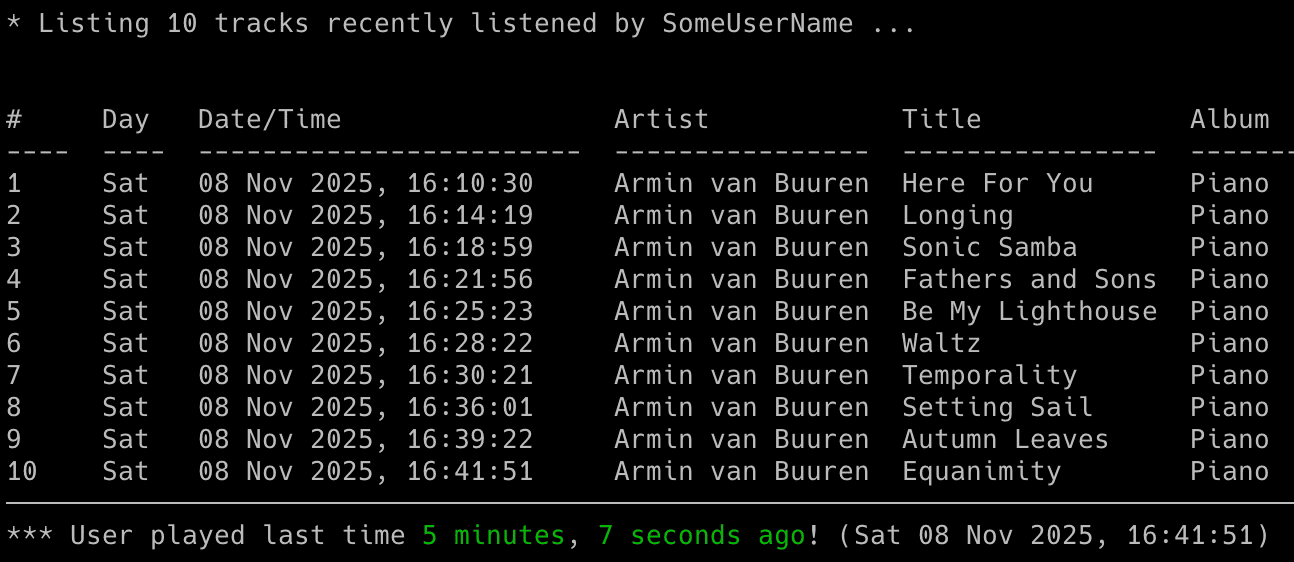
If you want to not only display, but also save the list of recently listened track to a CSV file, use the -l flag with -b indicating the CSV file. As before, you can add the -n flag to specify how many tracks should be displayed/saved:
lastfm_monitor <lastfm_username> -l -n 10 -b lastfm_tracks_username.csvTo enable email notifications when a user becomes active:
- set
ACTIVE_NOTIFICATIONtoTrue - or use the
-aflag
lastfm_monitor <lastfm_username> -aTo be informed when a user gets inactive:
- set
INACTIVE_NOTIFICATIONtoTrue - or use the
-iflag
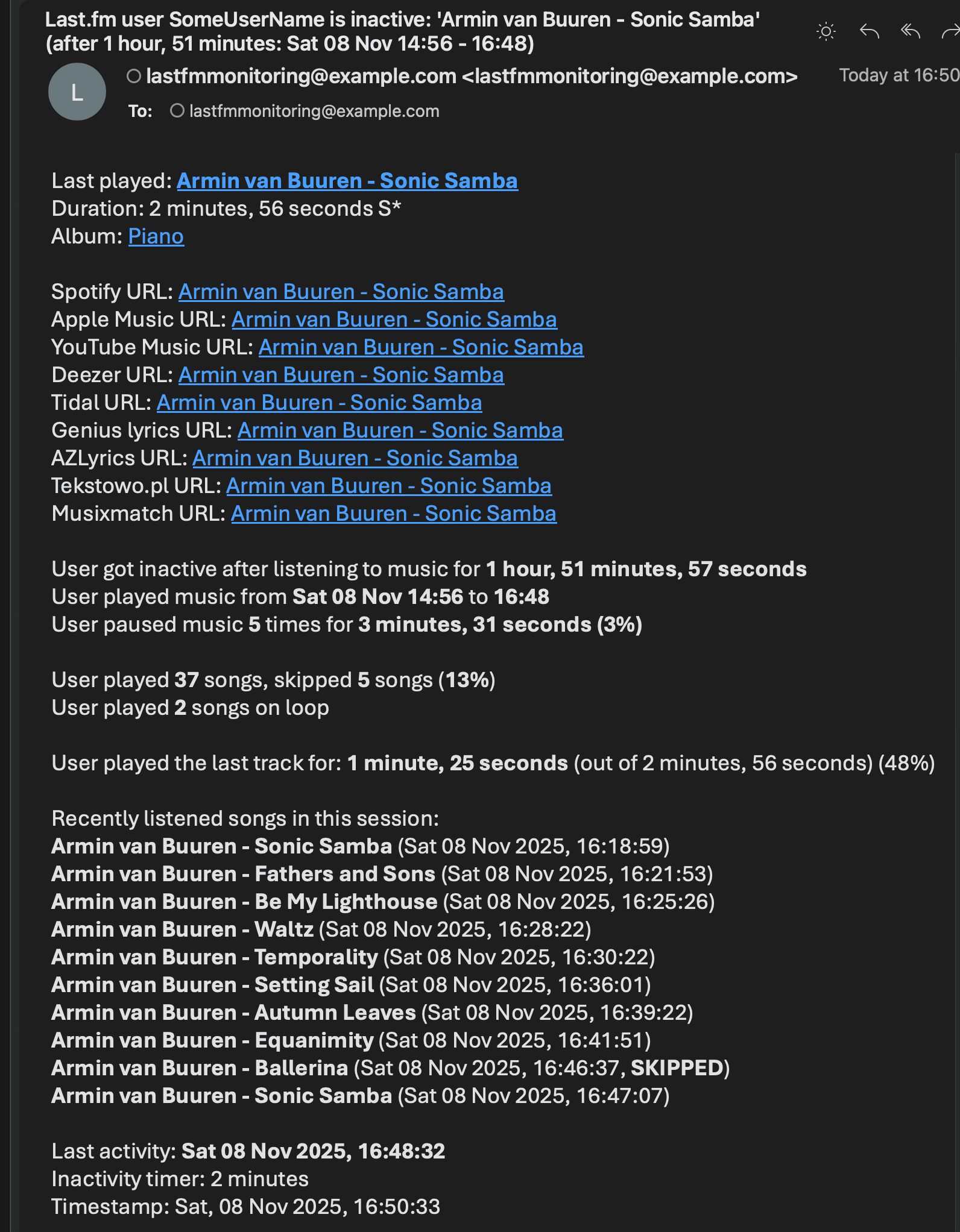
lastfm_monitor <lastfm_username> -iInactivity emails include recent songs from the session with skipped and continued track status. Configure the number of recent songs to include via the INACTIVE_EMAIL_RECENT_SONGS_COUNT configuration option.
To be notified when new entries appear when the user is offline:
- set
OFFLINE_ENTRIES_NOTIFICATIONtoTrue - or use the
-fflag
lastfm_monitor <lastfm_username> -fTo get email notifications when a monitored track or album plays:
- set
TRACK_NOTIFICATIONtoTrue - or use the
-tflag
For that feature you also need to create a file with a list of songs you want to track (one track or album per line). Specify the file using the MONITOR_LIST_FILE or -s flag:
Example file lastfm_tracks_username:
we fell in love in october
Like a Stone
Half Believing
Something Changed
I Will Be There
You can comment out specific lines with # if needed.
Then run the tool with -t and -s flags:
lastfm_monitor <lastfm_username> -t -s lastfm_tracks_usernameTo enable email notifications for every song listened by the user:
- set
SONG_NOTIFICATIONtoTrue - or use the
-jflag
lastfm_monitor <lastfm_username> -jTo be notified when a user listens to the same song on loop:
- set
SONG_ON_LOOP_NOTIFICATIONtoTrue - or use the
-xflag
lastfm_monitor <lastfm_username> -xTo disable sending an email on errors (enabled by default):
- set
ERROR_NOTIFICATIONtoFalse - or use the
-eflag
lastfm_monitor <lastfm_username> -eTo be notified when a user's followers change:
- set
FOLLOWERS_NOTIFICATIONtoTrue - or use the
--notify-followersflag
lastfm_monitor <lastfm_username> --track-followers --notify-followersTo be notified when a user's followings (friends) change:
- set
FOLLOWINGS_NOTIFICATIONtoTrue - or use the
--notify-followingsflag
lastfm_monitor <lastfm_username> --track-followings --notify-followingsNotifications for changed followers and/or followings are only sent if tracking functionality is enabled (--track-followers and/or --track-followings flags).
You can also decide to use Last.fm or Spotify URL in "Last played:" / "Track:" field in HTML email notifications (see USE_LASTFM_URL_IN_LAST_PLAYED config option).
Make sure you defined your SMTP settings earlier (see SMTP settings).
Example email:
Webhook event choices mirror email controls while remaining independent. Enable the master switch in the config file or for one run:
lastfm_monitor <lastfm_username> --webhookChoose events with config settings or matching command-line flags:
| Event | Config setting | Command-line flag |
|---|---|---|
| User becomes active | WEBHOOK_ACTIVE_NOTIFICATION |
--webhook-active |
| User becomes inactive | WEBHOOK_INACTIVE_NOTIFICATION |
--webhook-inactive |
| Monitored track or album plays | WEBHOOK_TRACK_NOTIFICATION |
--webhook-track |
| Every song change | WEBHOOK_SONG_NOTIFICATION |
--webhook-song-changes |
| Song plays on loop | WEBHOOK_SONG_ON_LOOP_NOTIFICATION |
--webhook-loop |
| Offline scrobbles arrive | WEBHOOK_OFFLINE_ENTRIES_NOTIFICATION |
--webhook-offline-entries |
| Followers change | WEBHOOK_FOLLOWERS_NOTIFICATION |
--webhook-followers |
| Followings change | WEBHOOK_FOLLOWINGS_NOTIFICATION |
--webhook-followings |
| Monitoring error occurs | WEBHOOK_ERROR_NOTIFICATION |
--webhook-errors |
An event flag also enables the master switch for that run. Use --no-webhook to disable configured webhook delivery. Use --no-webhook-error-notify to disable only error webhooks.
Examples:
lastfm_monitor <lastfm_username> --webhook-active --webhook-inactive
lastfm_monitor <lastfm_username> --webhook-song-changes --webhook-loop
lastfm_monitor <lastfm_username> --track-followers --webhook-followers
Email and webhook delivery attempts remain independent. When loop, monitored-track and every-song choices overlap, Last.fm Monitor sends no more than one alert per channel for that song change.
See Webhook Settings for Discord, ntfy, private URL setup, test delivery and advanced request customization.
If you want to save all listened songs to a CSV file, set CSV_FILE or use -b flag:
lastfm_monitor <lastfm_username> -b lastfm_tracks_username.csvThe file will be automatically created if it does not exist.
The lastfm_wrapped.py script generates Spotify Wrapped-style statistics from CSV files created by lastfm_monitor.py.
It analyzes your listening data and provides insights including top artists, tracks and albums for a specified time period.
Basic Usage:
By default, it generates statistics for the current year (January 1 to November 15, similar to Spotify Wrapped):
python3 tools/lastfm_wrapped.py lastfm_tracks_username.csvCustom Date Range:
You can specify a custom date range using --from and --to flags:
python3 tools/lastfm_wrapped.py lastfm_tracks_username.csv --from 2024-01-01 --to 2024-12-31Top N Items:
By default, it shows the top 5 items in each category, just like Spotify Wrapped. You can change this with the --top-n flag:
python3 tools/lastfm_wrapped.py lastfm_tracks_username.csv --top-n 10Example Output:
The tool displays:
- Total scrobbles for the period
- Top artists (by play count)
- Top tracks (by play count)
- Top albums (by play count)
If you want the tool to automatically play the tracks listened to by the user in your local Spotify client:
- set
TRACK_SONGStoTrue - or use the
-gflag
lastfm_monitor <lastfm_username> -gYour Spotify client needs to be installed and running for this feature to work.
Automatic playback needs a Spotify track ID for every scrobble. The tool resolves that ID through the Spotify metadata backends. It tries the official OAuth app Web API when credentials are configured, then uses the anonymous web-player backend. OAuth app credentials are optional.
The local playback action itself uses the configured platform method such as AppleScript on macOS or D-Bus on Linux. It does not use Spotify Web API playback control.
The tool fully supports automatic playback on Linux and macOS. This means it will automatically play the changed track. It will also automatically pause and resume playback following the tracked user's actions. Additionally, it can pause or play an indicated track once the user becomes inactive (see the SP_USER_GOT_OFFLINE_TRACK_ID configuration option).
For Windows, it works in a semi-automatic way: if you have the Spotify client running and you are not listening to any song, then the first track will play automatically. However, subsequent tracks will be located in the client, but you will need to press the play button manually.
You can change the playback method per platform using the corresponding configuration option.
For macOS set SPOTIFY_MACOS_PLAYING_METHOD to one of the following values:
- "apple-script" (recommended, default)
- "trigger-url"
For Linux set SPOTIFY_LINUX_PLAYING_METHOD to one of the following values:
- "dbus-send" (most common one, default)
- "qdbus" (try if dbus-send does not work)
- "trigger-url"
For Windows set SPOTIFY_WINDOWS_PLAYING_METHOD to one of the following values:
- "start-uri" (recommended, default)
- "spotify-cmd"
- "trigger-url"
The recommended defaults should work for most people.
If you want to see a real-time progress indicator showing the exact minute and second of the track the user is currently listening to:
- set
PROGRESS_INDICATORtoTrue - or use the
-pflag
lastfm_monitor <lastfm_username> -p
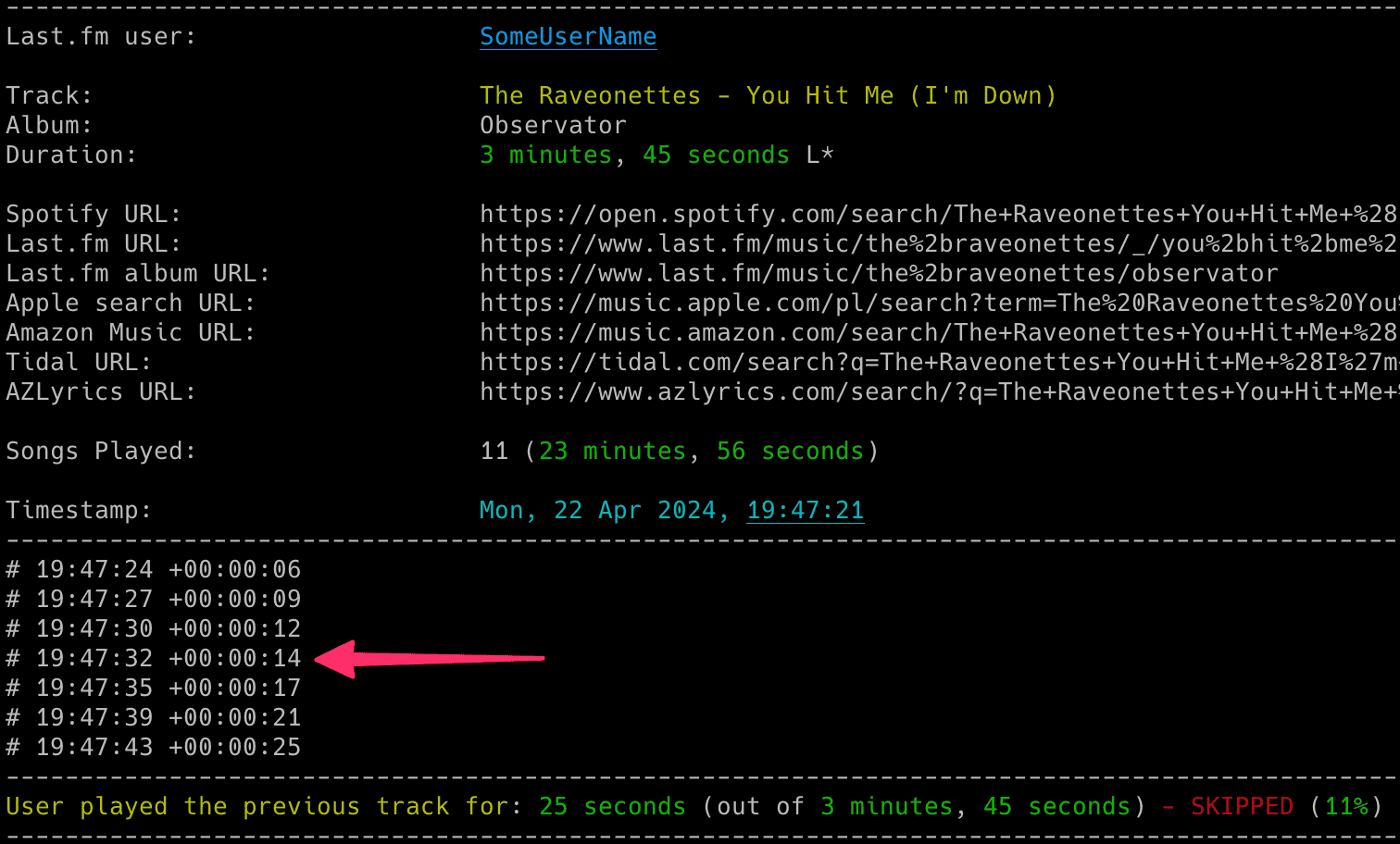
For this functionality to work correctly, it is suggested to set the active check interval (LASTFM_ACTIVE_CHECK_INTERVAL / -k flag) to a low value (such as 2-5 seconds).
If you want the tool to fetch the track duration from Spotify instead of Last.fm, which very often reports the wrong duration (or none at all):
- set
USE_TRACK_DURATION_FROM_SPOTIFYtoTrue - or use the
-rflag
lastfm_monitor <lastfm_username> -rTrack duration is resolved through the Spotify metadata backends. The official OAuth app Web API is tried first when credentials are configured. The anonymous web-player backend runs next. Last.fm duration is used only if both Spotify backends fail or return incomplete metadata.
You will be able to tell if the track duration comes from Spotify as it has an S* suffix at the end (e.g. 3 minutes 42 seconds S*), while those coming from Last.fm have an L* (e.g. 2 minutes 13 seconds L*).
You can disable showing the track duration marks (L* S*) via the -q flag.
lastfm_monitor <lastfm_username> -r -qDuration marks are not displayed if the functionality to retrieve track duration from Spotify is disabled.
The tool includes functionality to detect when private mode is potentially used in Spotify and even estimates the duration of its usage. It is enabled by default and is not configurable.
It is not 100% accurate. I have observed that when private mode is used, especially for extended periods, it often results in many duplicate entries being created in a Last.fm account after private mode is disabled. This leads to different tracks having the same start timestamp.
I suspect this is related to a bug in Spotify and mainly occurs when the user has Spotify on multiple devices.
However, keep in mind that this is not 100% accurate. I have observed duplicate entries even without private mode, but in such cases, the number of duplicate entries is limited. Therefore, do not treat it as something completely certain, but it is a pretty good indicator that private mode was used.
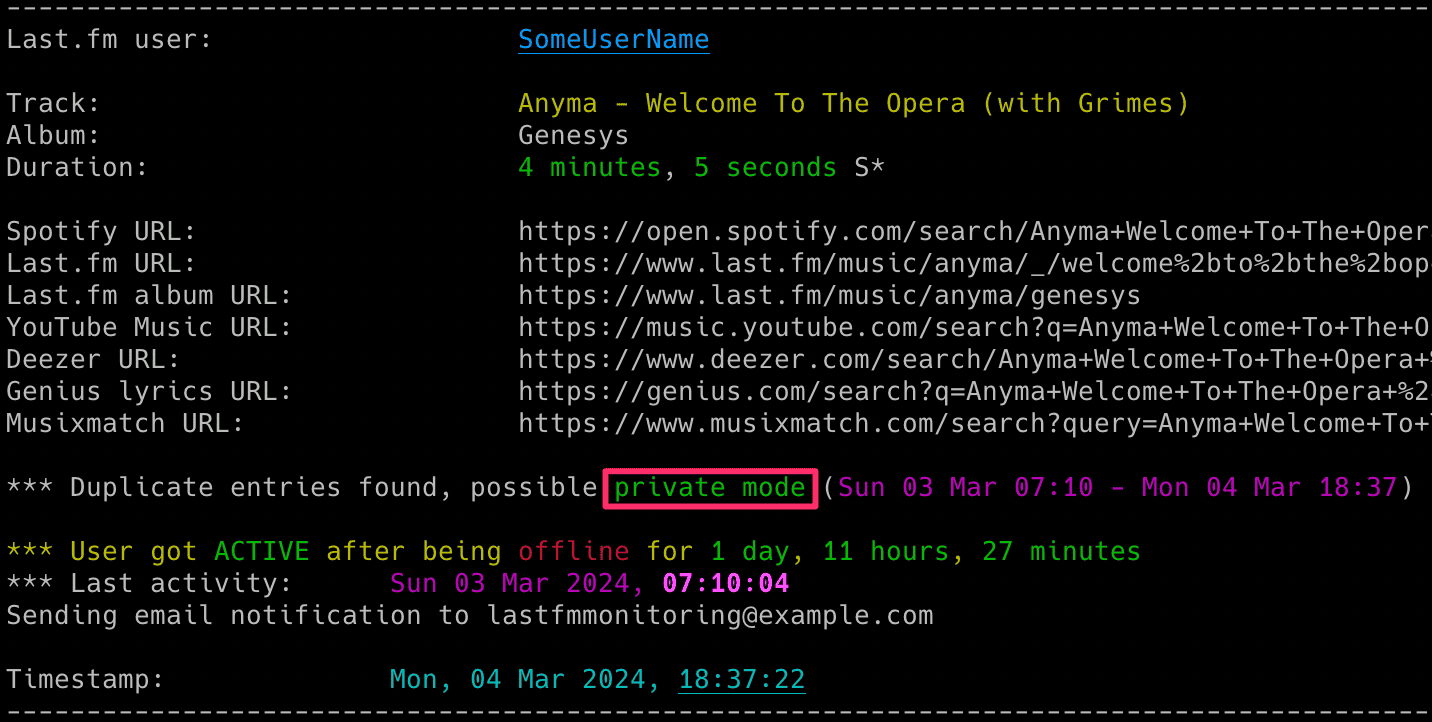
If you want to customize music polling intervals, use -k and -c flags (or corresponding configuration options):
lastfm_monitor <lastfm_username> -k 2 -c 10LASTFM_ACTIVE_CHECK_INTERVAL,-k: check interval when the user is online, i.e. currently playing (seconds)LASTFM_CHECK_INTERVAL,-c: check interval when the user is considered offline, i.e. not playing music (seconds)
If you want to change the time required to mark the user as inactive (the timer starts once the user stops playing the music), use -o flag (or LASTFM_INACTIVITY_CHECK configuration option):
lastfm_monitor <lastfm_username> -o 120Followers/followings tracking functionality uses a separate check interval which you can set via FRIENDS_CHECK_INTERVAL configuration option or --friends-check-interval flag. This is independent from the music polling intervals.
To avoid false notifications caused by transient API glitches, changes are only confirmed after a number of consecutive checks (default: 3). You can configure this via FRIENDS_CHANGE_COUNTER option or --friends-change-counter flag. This setting also controls the threshold for suppressing repeated error messages.
You can also configure the retry timeout used when confirming transient changes or errors via FRIENDS_RETRY_INTERVAL configuration option or --friends-retry-interval flag.
The tool has several signal handlers implemented which allow to change behavior of the tool without a need to restart it with new configuration options / flags.
List of supported signals:
| Signal | Description |
|---|---|
| USR1 | Toggle email notifications when user gets active/inactive or new offline entries show up (-a, -i, -f) |
| USR2 | Toggle email notifications for every song (-j) |
| URG | Toggle showing of progress indicator (-p) |
| CONT | Toggle email notifications for tracked songs (-t) |
| PIPE | Toggle email notifications when user plays song on loop (-x) |
| TRAP | Increase the inactivity check timer (by 30 seconds) (-o) |
| ABRT | Decrease the inactivity check timer (by 30 seconds) (-o) |
| HUP | Reload secrets from .env file |
Send signals with kill or pkill, e.g.:
pkill -USR1 -f "lastfm_monitor <lastfm_username>"As Windows supports limited number of signals, this functionality is available only on Linux/Unix/macOS.
You can use GRC to color logs.
Add to your GRC config (~/.grc/grc.conf):
# monitoring log file
.*_monitor_.*\.log
conf.monitor_logs
Now copy the conf.monitor_logs to your ~/.grc/ and log files should be nicely colored when using grc tool.
Example:
grc tail -F -n 100 lastfm_monitor_<username>.logSee RELEASE_NOTES.md for details.
Licensed under GPLv3. See LICENSE.