| layout | default |
|---|---|
| title | L3: Button Piano |
| description | Build your first interactive CPX program in MakeCode: a simple button piano that plays tones and lights NeoPixels using the board's built-in A and B buttons, speaker, and button events. |
| image | https://img.youtube.com/vi/wCSWP6PhNvY/hqdefault.jpg |
| parent | Circuit Playground Express |
| has_toc | true |
| comments | true |
| nav_exclude | false |
| usetocbot | true |
{: .no_toc }
{: .no_toc .text-delta }
- TOC {:toc}
<iframe width="100%" src="https://www.youtube.com/embed/wCSWP6PhNvY" title="Building a button piano on the Circuit Playground Express in MakeCode" frameborder="0" allow="accelerometer; autoplay; clipboard-write; encrypted-media; gyroscope; picture-in-picture; web-share" allowfullscreen></iframe>
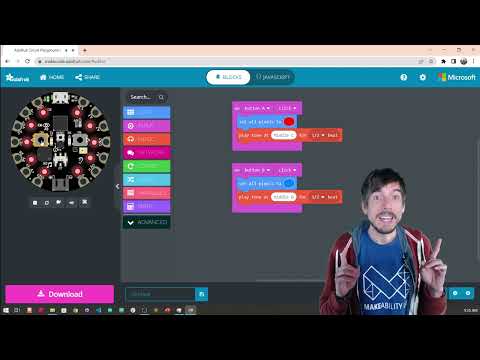
**Video.** A preview of what we'll build: a Button Piano in MakeCode that plays tones and lights NeoPixels from the CPX's built-in A and B buttons. [Full code](https://makecode.com/_EyqF3g3xb6Cy).
{: .fs-1 }
In this lesson, we will make our first interactive CPX program in MakeCode—a simple Button Piano—which makes sounds when we press the CPX's built-in buttons.
Here's the final code. Right-click on the code below and select "Open link in a new tab" to open it directly in the MakeCode editor.
<iframe style="position:absolute;top:0;left:0;width:100%;height:100%;" src="https://makecode.adafruit.com/---codeembed#pub:_EsoWP4RwKXJK" allowfullscreen="allowfullscreen" frameborder="0" sandbox="allow-scripts allow-same-origin"></iframe>
We use the following MakeCode blocks in this example. See the Adafruit MakeCode Reference guide.
For output, we used Light and Music blocks, particularly:
- play tone plays a tone on the speaker for a set amount of time (set the beat length with tempo)
- set all pixel color sets all the NeoPixels to one color
- set volume sets the volume of the output speaker
For Input blocks, we used:
- on button runs code segment when the button is clicked (or down, up, etc.)
To ensure that our volume is properly set, we initialize it to 255 (the highest value) when the program first starts using the on start block
- on start runs once and only once when the program starts
In the next lesson, we'll create a light-responsive instrument!
← Previous Lesson
How to use MakeCode
Next Lesson →
Light-Responsive Instrument