Code Tube is a mobile video application built with React Native using Expo, designed to serve as a knowledge hub for Junior React Native Developers. This app fetches video resources from YouTube’s API, providing a categorized view of content related to JavaScript, TypeScript, React, and React Native. The app includes essential features like video search, video details, and optional functionalities such as sorting, notifications, and note-taking.

- Features
- Installation
- Usage
- API Integration
- Folder Structure
- Optional Features
- Technologies Used
- Contributing
-
Dashboard Screen (Tech Streams):
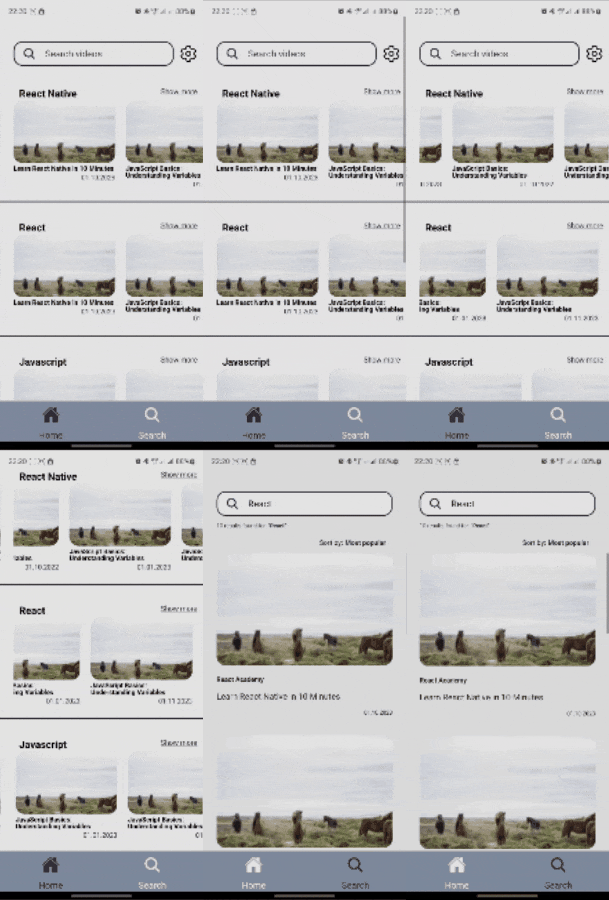
- Displays four main video categories: JavaScript, TypeScript, React, and React Native.
- Each category is scrollable horizontally and includes a "Show more" button to explore more content in that category.
- A search bar at the top allows users to search for videos, redirecting to the Search screen.
-
Search Screen (Video Finder):
- Allows users to search for videos based on specific keywords using YouTube’s API.
- Displays a list of videos matching the search query.
-
Video Details Screen:
- Shows video details including title, description, and a video player.
- Users can play videos, switch to fullscreen mode, and interact with the minimized video player.
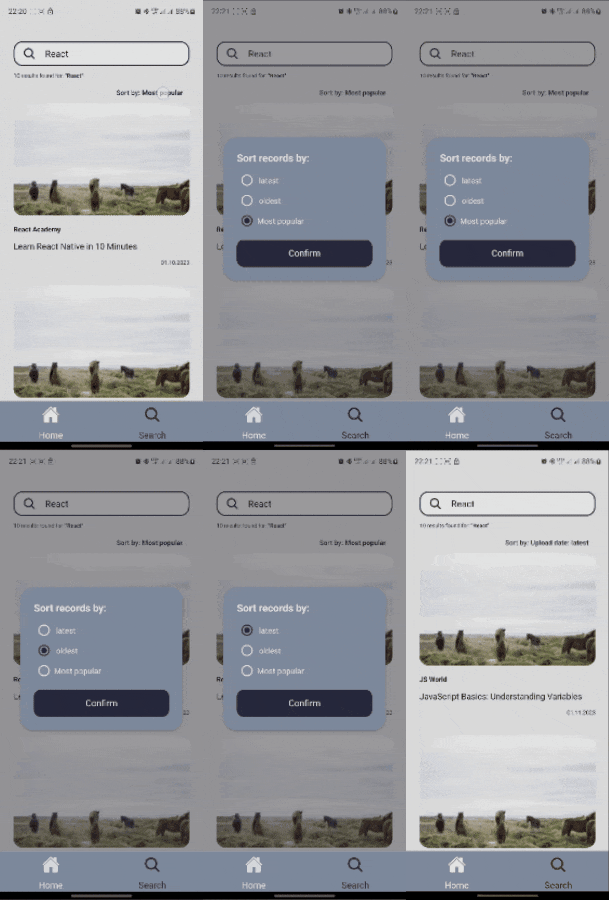
- Sorting: Add sorting options for search results (latest, oldest, most popular).
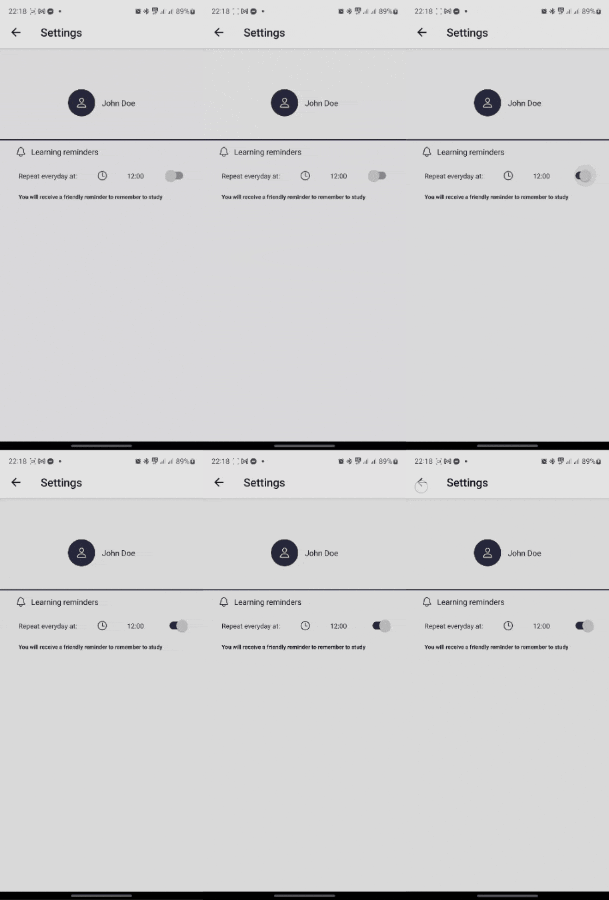
- Notifications: Daily push notifications with the ability to enable/disable and customize the time.
- Notes: Users can add and store notes associated with specific videos.
To run this project locally, follow these steps:
-
Clone the repository:
git clone https://github.com/kfaracik/code-tube.git
-
Navigate to the project directory:
cd code-tube -
Install dependencies:
npm install # or yarn install -
Install the Expo CLI if you haven’t already:
npm install -g expo-cli
   expo start
expo start
-
Start the development server:
npx expo run:android --variant debug
-
Home Screen (Tech Streams):
- On launch, you will see the Dashboard with four categories: JavaScript, TypeScript, React, and React Native.
- Scroll horizontally through the lists or use the Show more button to view more videos.
-
Search Screen (Video Finder):
- Access the search bar to look for videos by keyword.
- The search results will be listed with options to sort by date or popularity (if sorting is enabled).
-
Video Details Screen:
- Select a video to view more details and play the video.
- You can expand the video to fullscreen mode and control playback.
The app integrates with the YouTube Data API v3 to retrieve video data. To use this API:
-
Register on Google Cloud:
- Follow this guide to create a project and get an API key.
-
Update API Key:
- Add your API key in the
.envfile of your project:YOUTUBE_API_KEY=your_api_key_here
- Add your API key in the
-
API Documentation:
- YouTube Data API reference: YouTube API Docs.
-
Sorting:
- Sort search results by latest, oldest, or most popular videos.
- This can be implemented in the
SearchScreenby adding sorting options in the UI.
-
Notifications:
- Add a settings screen to allow users to enable/disable daily push notifications and set the time. (not supported)
-
Notes:
- Enable users to save notes for videos on the Video Details Screen. These notes can be stored locally or on a server, depending on your implementation.
- React Native: For building the mobile interface.
- Expo: For simplifying development and testing.
- TypeScript: For static typing and better code quality.
- React Native Video: For video playback.
- YouTube Data API v3: For fetching video data.
- React Navigation: For handling navigation between screens.
If you'd like to contribute to this project, feel free to open an issue or create a pull request on GitHub. Please make sure your code follows the best practices outlined in the project and that commits are regular and well-documented.
- The quality of your code will take precedence over additional features. Focus on implementing required features well before adding optional ones.
- Make regular commits as if you were working in a commercial team environment.
- Reach out via email if you have any questions or need clarification on any part of the task.