Home
Welcome to the ViveTrack wiki! Here you can read descriptions of ViveTrack Components.
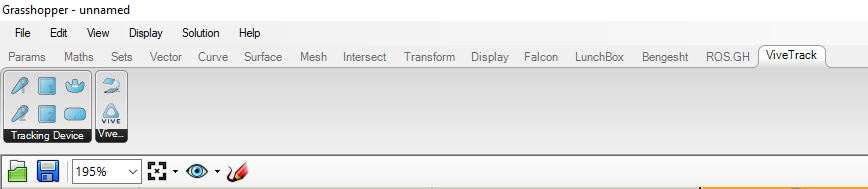
This component runs the core communication with your actual Vive devices through SteamVR. So after started your steamvr application, please add this component into your gh canvas first.
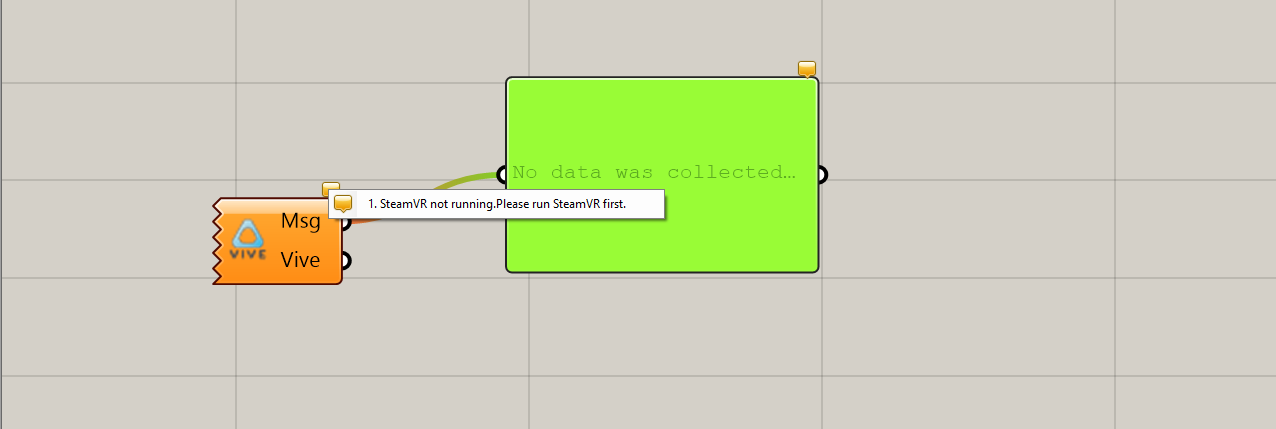
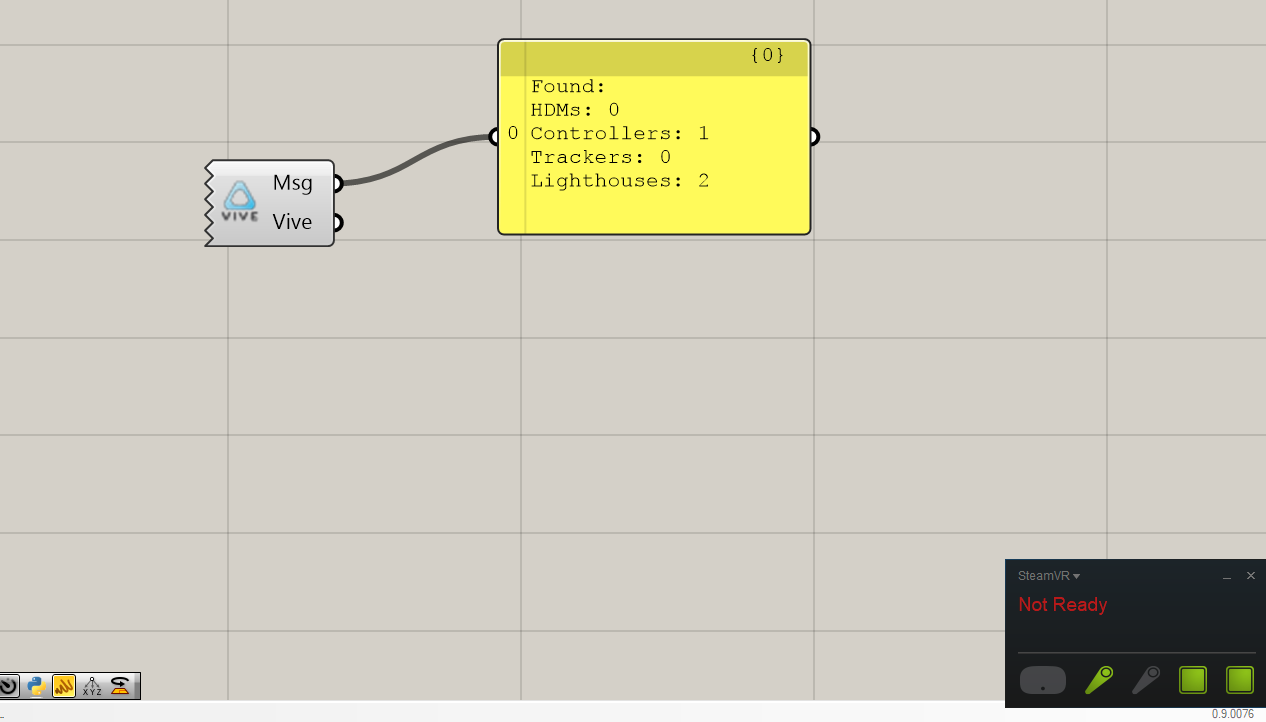
The Msg gives you tracking info once you successfully start Vive, otherwise gives you error messages.
The Vive is the core that you have to pass to other tracking device components.
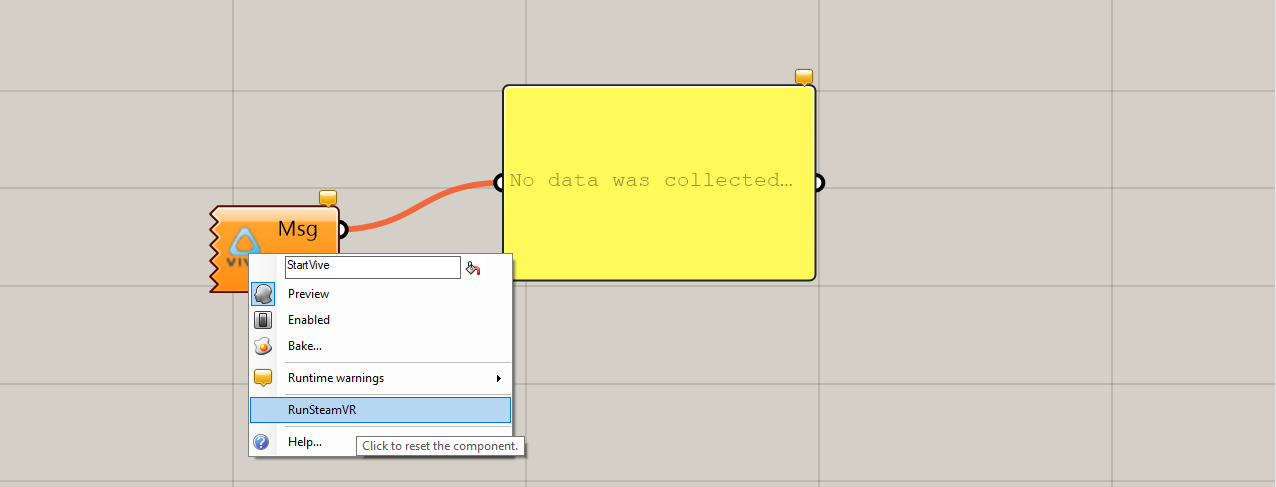
HINT: If you installed your steamvr in default position in your windows, as a shortcut you can run steamvr by right-click this component and choose RunSteamVR.
By adding tracking device components(including HMD,controller, lighthouse and tracker) you can actually track your existing devices already. Of course you choose which components to use based on the hardware running.
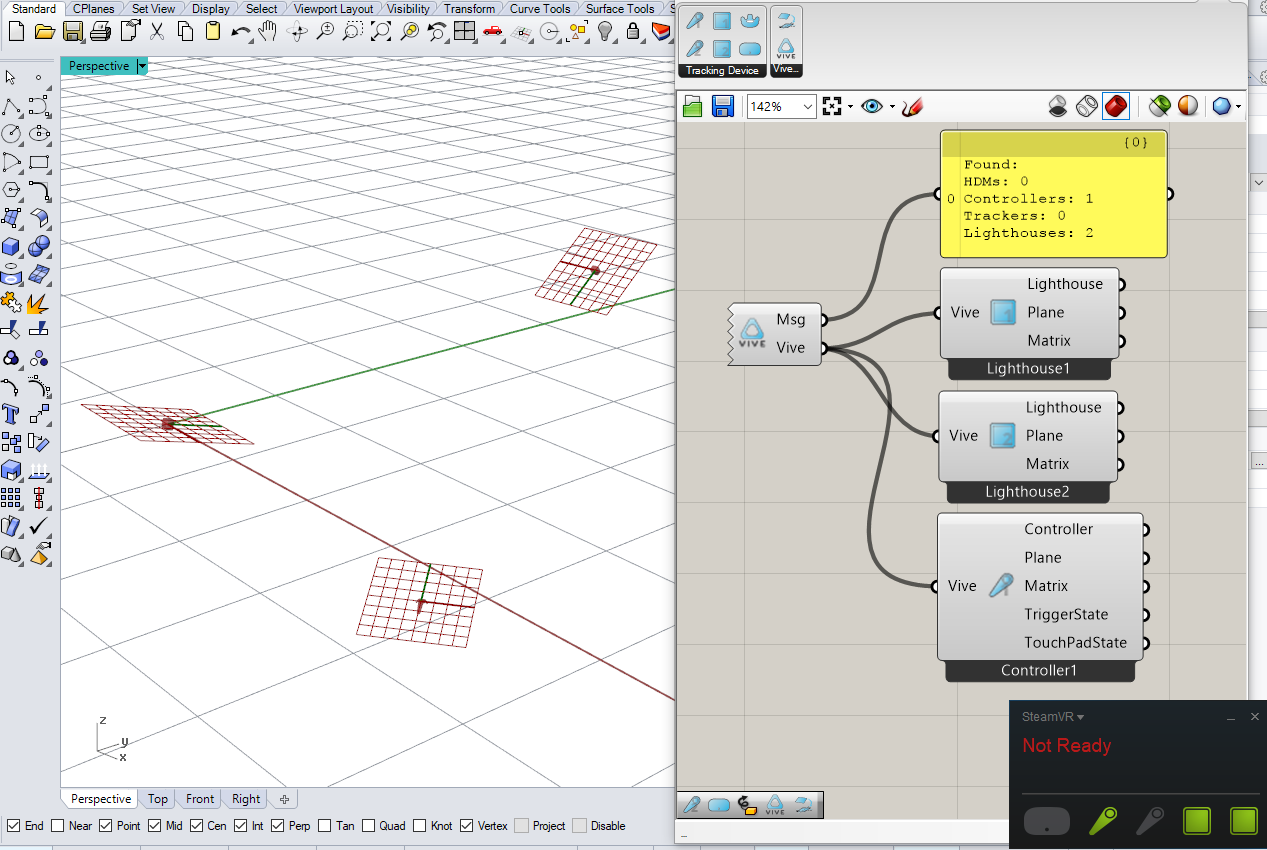
There's nothing special about this component. it gives you the actual HMD geometry, current plane and a matrix` from Rhino XYOrigin plane to current plane.
These two have exact same functions, except that when you just have one lighthouse working, choose lighthouse1.
This component has also same functions as mentioned above. But since current SteamVR setup supports maximum 32 devices, so there's an index input for you to specify which tracker you are tracking. Default number is 0. If you are using more than one tracker, use index 0,1,2.. etc. to tracker others.
The controller component gives you more information. Except pose, it also gives you the state of trigger and touchpad, Whether trigger is pressed, clicked and the value from 0 to 1 indicates how much you have pressed. 1 means fully pressed, i.e clicked. Also same information about touchpad, except that touchpad returns two values x,y representing horizontal and vertical from -1 to 1. 1 means rightmost or topmost.
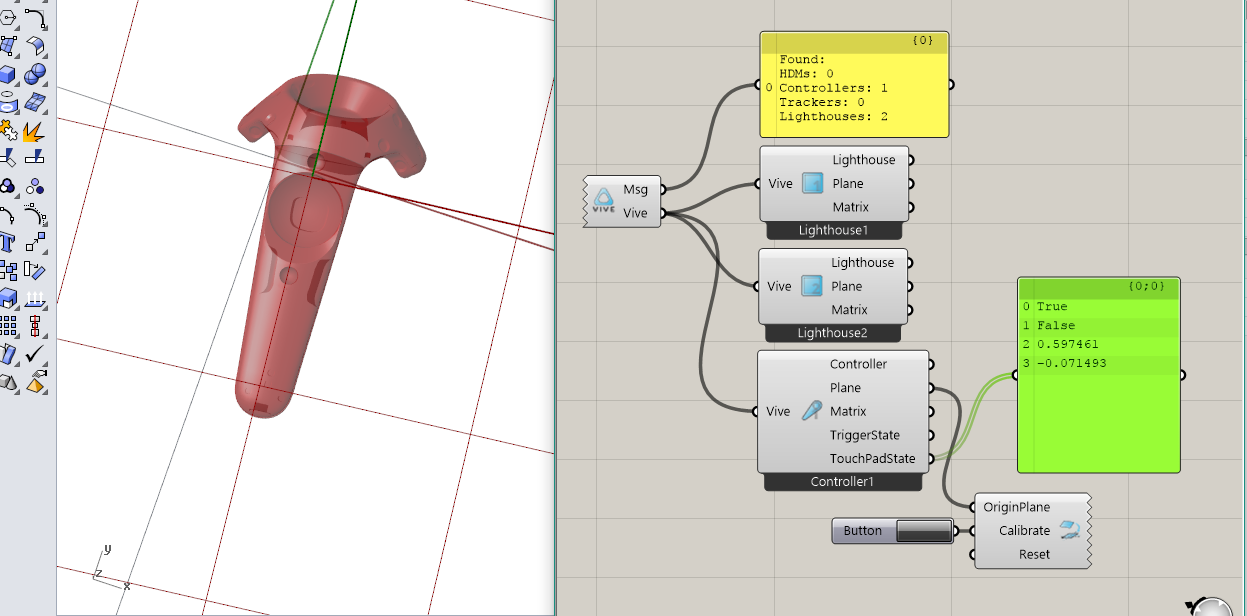
If you are not using HMD, you have a good chance that all the tracking poses in gh are somewhat based on one of the lighthouse, which makes you difficult to directly use it. Therefore this component helps you re-calibrate a plane as XYOrigin plane. Once you clicked calibrate, all the current tracking devices will update their geometry, plane and transformation accordingly.

HINT: After calibration, if you want to use another plane to re-calibrate, you have to first click reset then calibrate again.
HINT: You don't have to keep this component after calibration, but it's recommended to leave it there since next time you open this file you have to calibrate again.
NOTE: If your SteamVR crashed or stopped during running, once you start steamVR again, you MUST close and re-open your grasshopper file.
That's all you need to know! Have fun!