
LobbyOS (formerly JAD) — a minimal, self-hosted start page for your homelab.
Website · Live demo · Source code
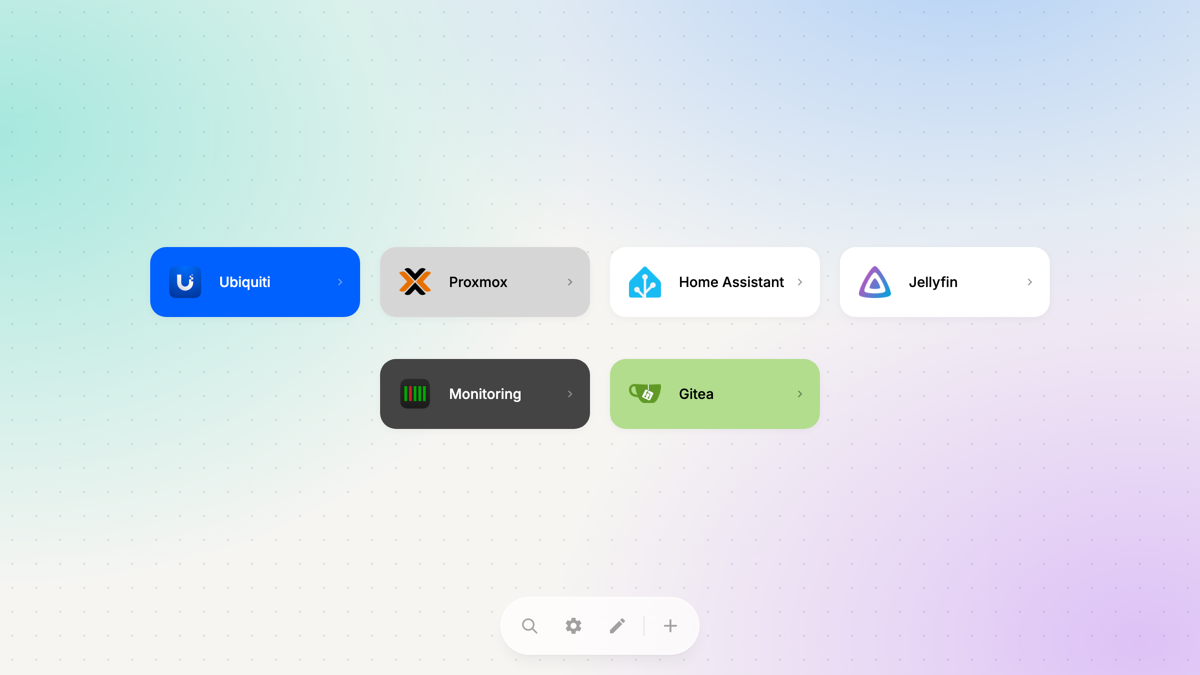
- Named or unnamed groups with inline renaming and drag-and-drop link reordering within and between groups
- Quick search by link name or URL (
/to open, Escape to clear) - Smart URL entry with suggested link names
- 50+ built-in presets for popular apps and services (Proxmox, Home Assistant, Jellyfin, Grafana, Pi-hole, Seerr, Stirling PDF, AWS S3, and more)
- Automatic favicon extraction from linked URLs
- Custom colors with full-color or translucent link cards
- Small, medium, or large cards with automatic or custom links per row
- Dark / Light / System theme
- 12 background themes in a compact selector, including the original Legacy pattern and Color glow; saved per browser
- Import and export links as JSON
- Browser-local preference for opening links in the same or a new tab
- Responsive design for desktop and mobile
Run the Docker image:
docker run -d --name lobby-os -p 8080:8080 -v lobby_os_data:/srv/data exelban/lobby-os:latestservices:
lobby-os:
image: exelban/lobby-os:latest
restart: always
ports:
- "8080:8080"
volumes:
- lobby_os_data:/srv/data
environment:
- PUID=1000
- PGID=1000
volumes:
lobby_os_data:Save this as compose.yaml and run docker compose up -d.
Open http://localhost:8080 in your browser.
For existing installations, reuse your current data volume or bind mount to keep your links. Existing links.json files remain supported and DATA_PATH is unchanged.
- Click Add link to enter an address, choose a preset, and customize the name, icon, color, and group.
- Click the search icon or press
/to search link names and URLs. Outside edit mode, Enter opens the first result. Escape clears and closes the search. Dragging is disabled while filtering. - Use Edit mode to edit links, drag them within or between groups, and rename group headings. In the link editor, select an existing group or create a new one. Names are optional: multiple unnamed groups stay separate, and their headings are hidden outside edit mode. Empty groups are temporary until a link is added. Click the checkmark or press Escape outside a dialog to leave edit mode.
- Addresses without a protocol use HTTP for local hostnames/IPs and nonstandard ports, and HTTPS for public hostnames or port 443. An explicit
http://orhttps://is always respected. - In Settings, choose the color mode, background, full card color, card size, links per row, and whether links open in a new tab. These preferences are saved independently in each browser and are not included in link exports.
The live demo lets you try the dashboard without installing it. Link changes in the demo are temporary and reset when you reload the page.
Use Settings → Export to download links.json, including link order, group IDs, and optional group names. Import accepts a JSON array of links with a name and URL, including existing JAD exports. Importing replaces all current links; export them first if you want to keep a backup.
Self-hosted installations save links in links.json under DATA_PATH. Writes replace the file atomically, and unchanged data is not rewritten. Keep the data volume mounted to preserve links when replacing or updating the container.
| Variable | Default | Description |
|---|---|---|
DATA_PATH |
/srv/data |
Directory where links.json is stored |
You can also pass --data-path as a command-line flag.