


SSH Connect is a Visual Studio Code extension that allows you to manage and connect to SSH servers directly from the interface. It provides a hierarchical view to organize your servers into groups, make quick connections, and easily edit configurations.
-
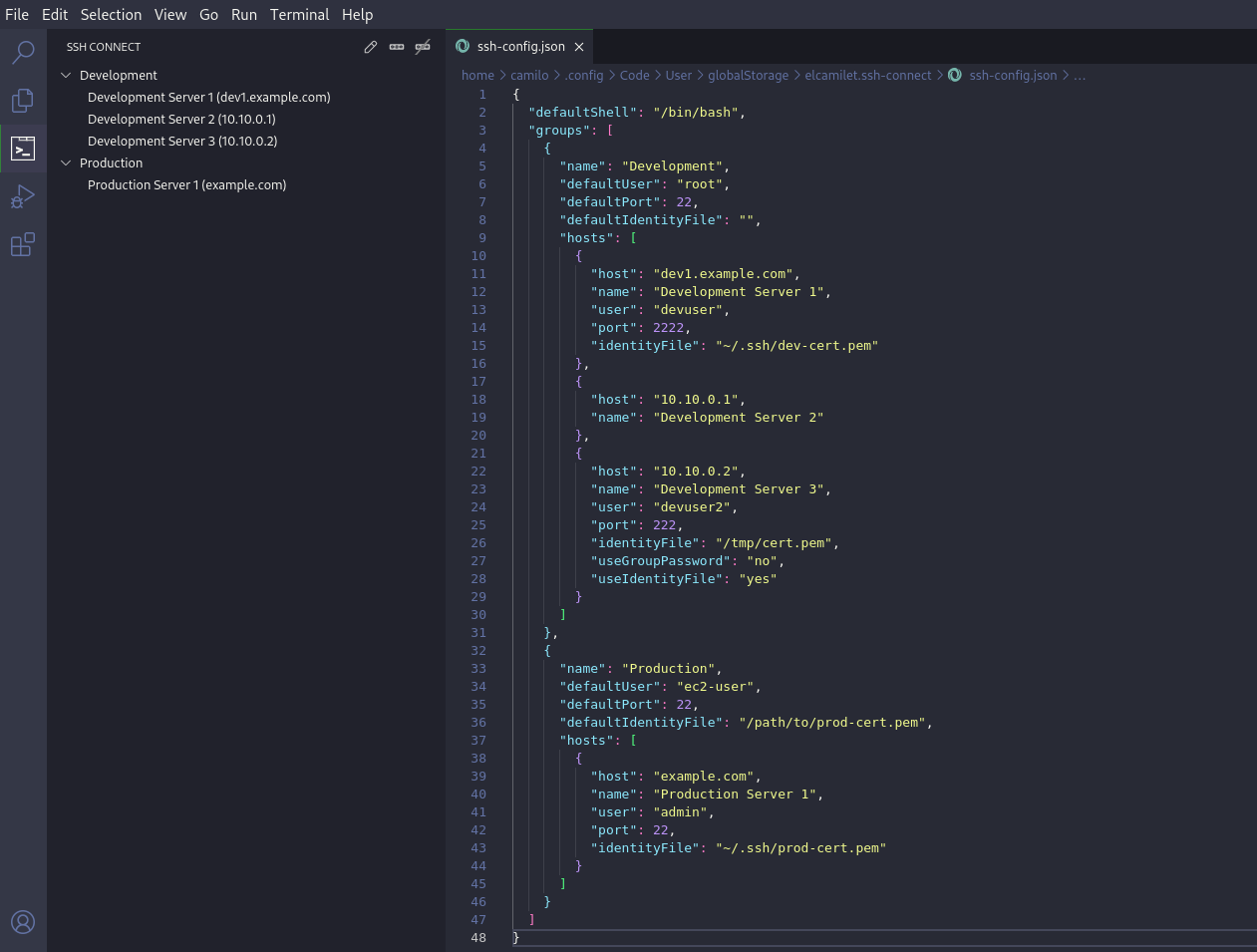
Hierarchical view of SSH servers:
- Group and organize your servers by categories (e.g., Development, Production).
- View server details like name, user, port, and SSH identity file in configuration file.
-
Quick server connection:
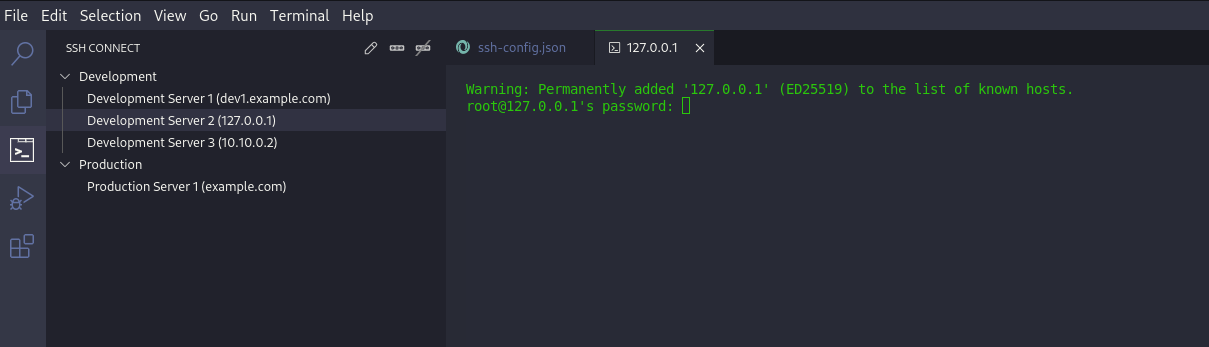
- Connect to a server with a single click from the SSH servers tree.
-
Customizable configuration:
- Auto-generated JSON configuration file to define groups and servers.
-
Real-time updates:
- Saved changes in the configuration file are automatically reflected in the view.
-
Custom Shell configuration:
- You can specify your custom shell (zsh, bash, fish, ...) in the configuration file.
-
Encrypted SSH Passwords:
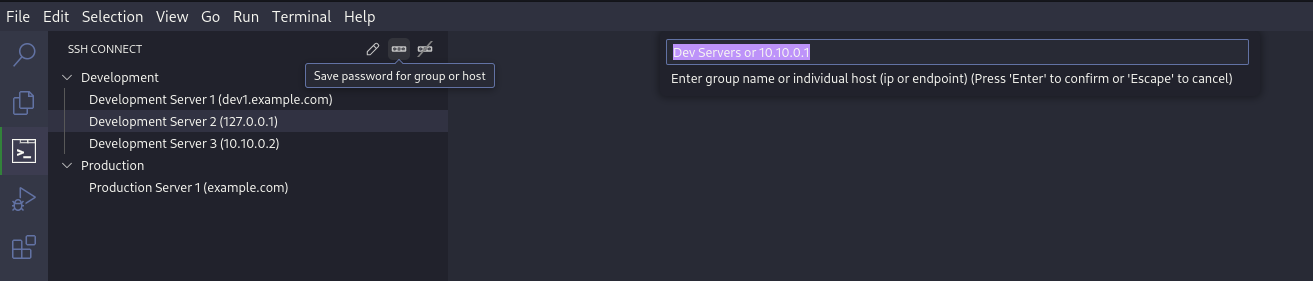
- Store passwords securely in the operating system's credential store.
- Connect directly to servers with stored passwords.
- Open the VS Code Marketplace and search for
SSH Connect. - Click Install.
Or install it using the VS Code CLI:
code --install-extension ssh-connect-
Open the SSH Hosts view:
- Navigate to the sidebar and find the SSH Hosts view.
-
Connect to a server:
- Click on a server to start an SSH connection in an integrated terminal.
-
Edit configuration:
- Use the
Edit configuration filecommand from the command palette (Ctrl+Shift+PorCmd+Shift+P) to edit thessh-config.jsonfile.
- Use the
-
Save passwords:
- Use the
Save password for group or hoscommand from the command palette (Ctrl+Shift+PorCmd+Shift+P) to save passwords for the selected group or individual host.
- Use the
-
Delete passwords:
- Use the
Delete saved password for group or hoscommand from the command palette (Ctrl+Shift+PorCmd+Shift+P) to delete saved passwords for the selected group or individual host.
- Use the
| Command | Description |
|---|---|
Edit configuration file |
Open the fixed JSON configuration file. |
Save password for group or host |
Save password for group or host. |
Delete saved password for group or host |
Delete saved password for group or host. |
The configuration file is located at:
<global_storage_folder>/ssh-config.json
{
  "defaultShell": "/bin/bash",
  "groups": [
    {
      "name": "Development",
      "defaultUser": "root",
      "defaultPort": 22,
      "defaultIdentityFile": "",
      "hosts": [
        {
          "host": "dev1.example.com",
          "name": "Development Server 1",
          "user": "devuser",
          "port": 2222,
          "identityFile": "~/.ssh/dev-cert.pem"
        },
        {
          "host": "10.10.0.1",
          "name": "Development Server 2"
        },
        {
          "host": "10.10.0.2",
          "name": "Development Server 3",
          "user": "devuser2",
          "port": 222,
          "identityFile": "/tmp/cert.pem",
          "useGroupPassword": "no",
          "useIdentityFile": "yes"
        }
      ]
    },
    {
      "name": "Production",
      "defaultUser": "ec2-user",
      "defaultPort": 22,
      "defaultIdentityFile": "/path/to/prod-cert.pem",
      "hosts": [
        {
          "host": "example.com",
          "name": "Production Server 1",
          "user": "admin",
          "port": 22,
          "identityFile": "~/.ssh/prod-cert.pem"
        }
      ]
    }
  ]
}-
Group configuration:
name: The name of the group.defaultUser: The default user to connect as. Defaults toroot.defaultPort: The default port to connect to. Defaults to22.defaultIdentityFile: The default path to the SSH identity file.hosts: An array of host configurations.
-
Minimum host configuration:
host: The host name or IP address.name: The visible name of the host.
-
Optional host configuration:
user: The user to connect as.port: The port to connect to.identityFile: The path to the SSH identity file.useGroupPassword: Whether to use the group password or not ("yes" | "no").useIdentityFile: Whether to use the identity file or not ("yes" | "no").
-
sshpasspackage installed in your system. It's used to connect directly with stored passwords. -
An operating system that supports integrated terminals in Visual Studio Code, like Linux.
-
The
ssh-config.jsonfile must exist for the extension to work correctly. If it does not exist, it will be automatically created with a basic template.
This extension is developed by Camilo Nevot (elCamilet) and is published as is, without any guarantees or support. If you find any issues or have suggestions for improvements, please open an issue on the GitHub repository.
Enjoy this extension and make working with SSH connections from VS Code easier! 🚀