



English | 한국어
Generic BLE Electronic Shelf Label (ESL) Home Assistant Integration
Battery-powered e-paper displays that show your Home Assistant data for months to years on one battery. One action call pushes a calendar, weather, sensor readings or a photo to the tag over Bluetooth — no gateway, no cloud, no wiring.
| 2.1" (250×128) | 2.9" (296×128) | 4.2" (400×300) | 10.2" (960×640) |
|---|---|---|---|
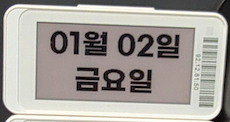 |
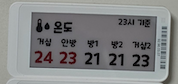 |
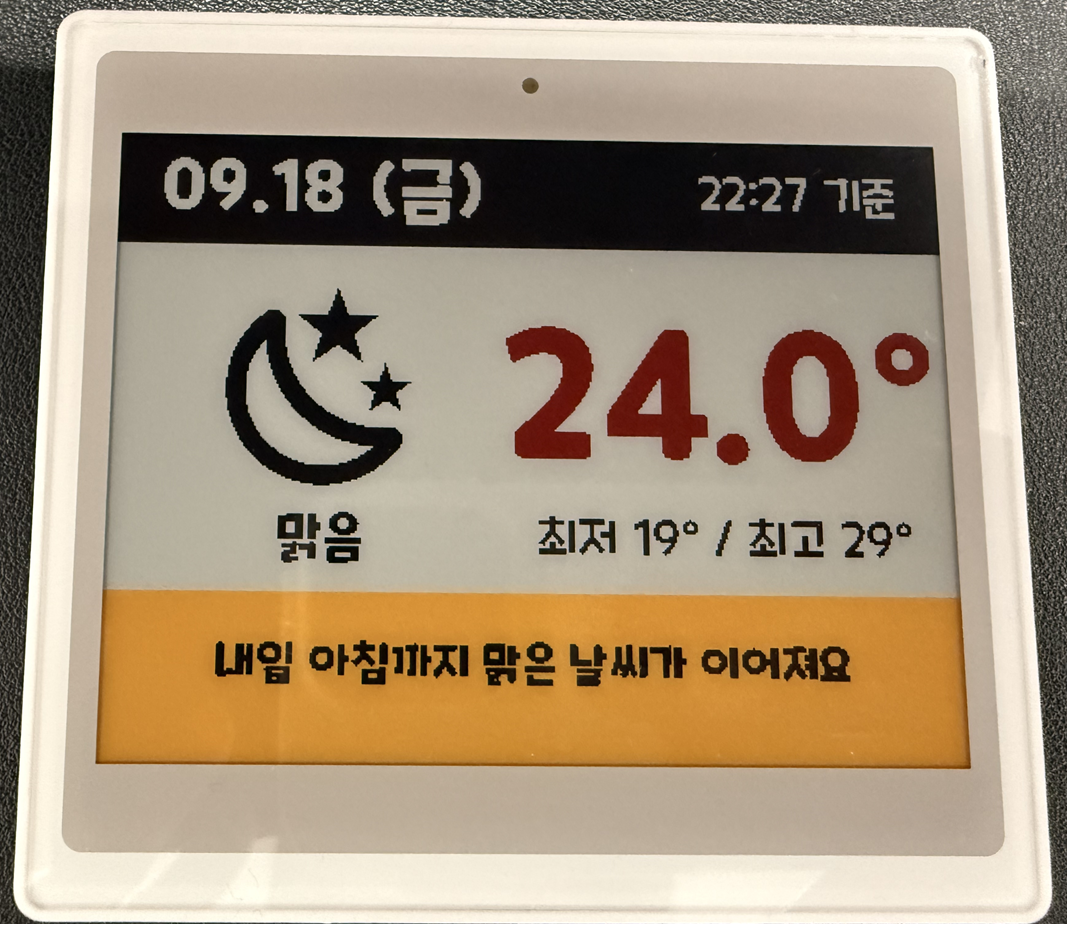 |
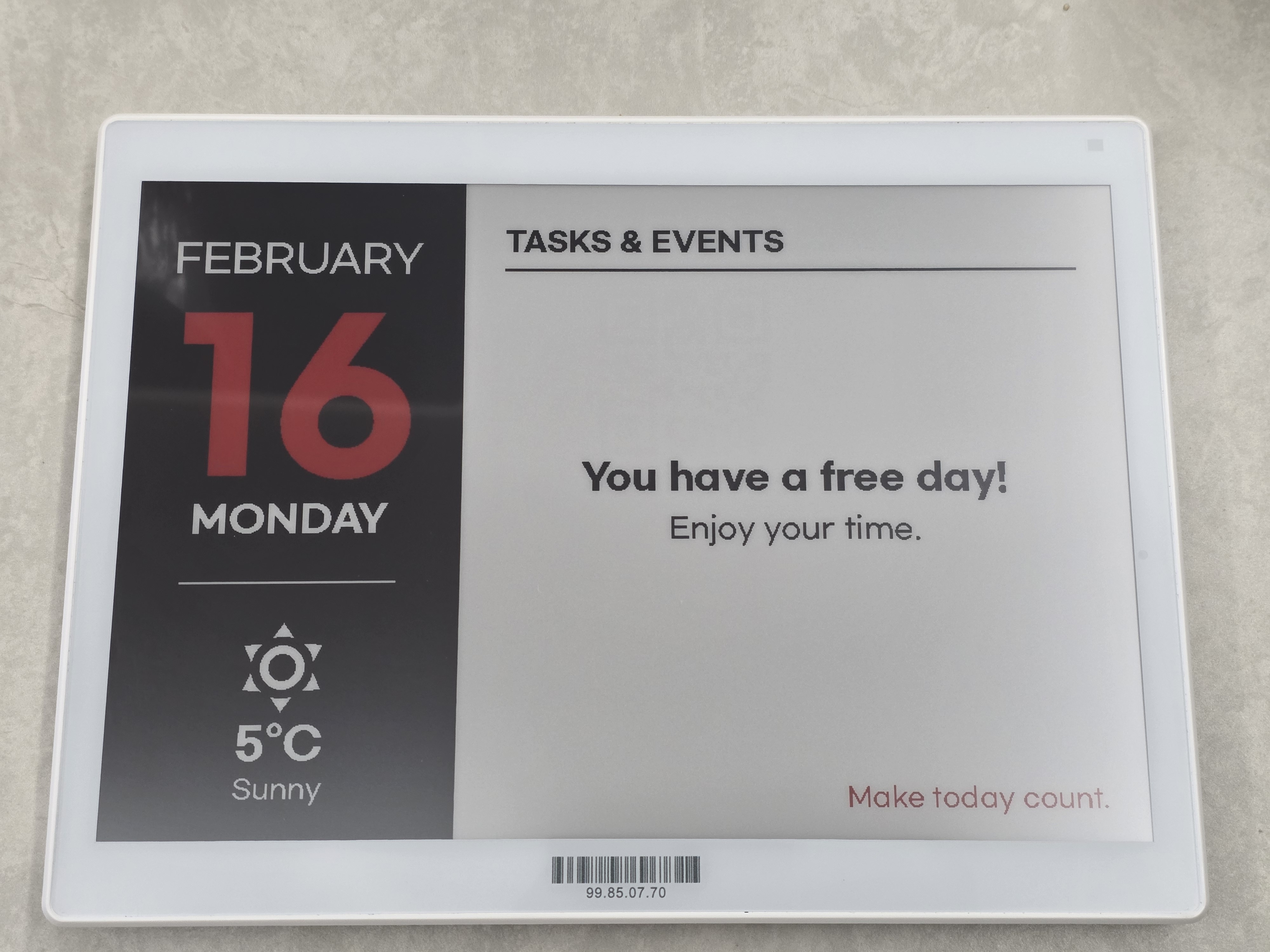 |
| Gicisky | Gicisky | Poshiji PSJ-420 | Gicisky |
Photos of real tags. More examples with YAML →
An electronic shelf label (ESL) is the display retailers use for shelf prices: an e-paper (e-ink) screen with its own battery and a Bluetooth radio. E-paper only draws power while the picture changes — holding a static image costs nothing, so a tag runs for months to years on its battery, is readable in daylight like printed paper, and emits no light.
That makes them ideal for information that should just be there, in places with no power outlet: a room calendar on the door, today's weather by the coat rack, the bin-collection day on the fridge, a "who is home" board, the print progress on the 3D printer, an inventory label on a storage box. Stick one anywhere and forget about charging it.
This integration talks to those tags directly from Home Assistant over BLE. You describe the layout in YAML (text, icons, QR codes, charts, images — anything from your entities), and the tag shows it.
BLE protocol families, sold under these brands:
| Protocol | Brand | Sizes | Colors | Status | Buy |
|---|---|---|---|---|---|
| ETAG | Hipoink | 2.13" (250 × 122) | BWR | ✅ verified; protocol notes | AliExpress |
| PickSmart | Gicisky | 2.1" – 10.2" | BW / BWR / BWRY | ✅ verified on hardware | AliExpress |
| XTE | Poshiji | 1.54" – 7.5" | BWRY | ✅ 2.13", 2.66", 2.9" and 4.2" verified on real tags by owner; other sizes size-only presets | AliExpress |
| WOLINK | Zhsunyco | 1.54" – 13.3" | BWR / BWRY | ✅ 1.54", 2.66", 3.5", 3.7" and 4.2" BWRY and 2.9" BWR verified on hardware; other sizes untested | AliExpress |
| easyTag | Zhsunyco | 1.54" – 10.2" | BW / BWR | — |
Full model list with resolutions and model codes: docs/models.md. Have a tag that speaks another protocol? See Adding a protocol.
Warning
Untested WOLINK and easyTag presets are built from technical specifications and have not been tested on physical tags. If you try one, please report the result in Discussions.
Requires Home Assistant 2025.12 or newer.
- Install via HACS (custom repository
eigger/hass-ble-esl), or copycustom_components/ble_eslinto your config. - Restart Home Assistant.
- Tags in range are discovered automatically — confirm them under Settings → Devices & services, or add one via Add integration → BLE ESL.
Use a Bluetooth proxy rather than the host's built-in adapter whenever you can, and set it to active — most write problems trace back to a passive proxy or a weak adapter. Keep the scan interval at its default.
esp32_ble_tracker:
  scan_parameters:
    active: true

bluetooth_proxy:
  active: true
Tip
Hardware suggestions: the Seeed Studio XIAO W5500 (XIAO ESP32 with wired Ethernet) is a good proxy — Ethernet keeps the radio free for BLE, and the community thread Great ESP32 board for an ESPHome Bluetooth proxy covers other boards.
Coming from hass-gicisky or hass-zhsunyco? Tags must be re-added under the new ble_esl domain and gicisky.write renamed to ble_esl.write — the payload stays the same. Migration guide →
From Developer tools → Actions:
action: ble_esl.write
target:
  device_id: <your device>
data:
  payload:
    - type: text
      value: Hello World!
      x: 10
      y: 10
      size: 40
The tag refreshes in a few seconds. Add dry_run: true to render without sending — the result shows up in the tag's Preview Content image entity, so you can iterate on a layout without wearing the panel.
A layout is a list of imagespec elements — text, icons, lines, QR codes, progress bars, gauges, pie/bar charts, history plots, downloaded images — and any value can be a Jinja template over your entities. Ready-made layouts for every supported resolution are in examples/; the Payload Editor and Image Uploader web tools let you draft one in the browser.
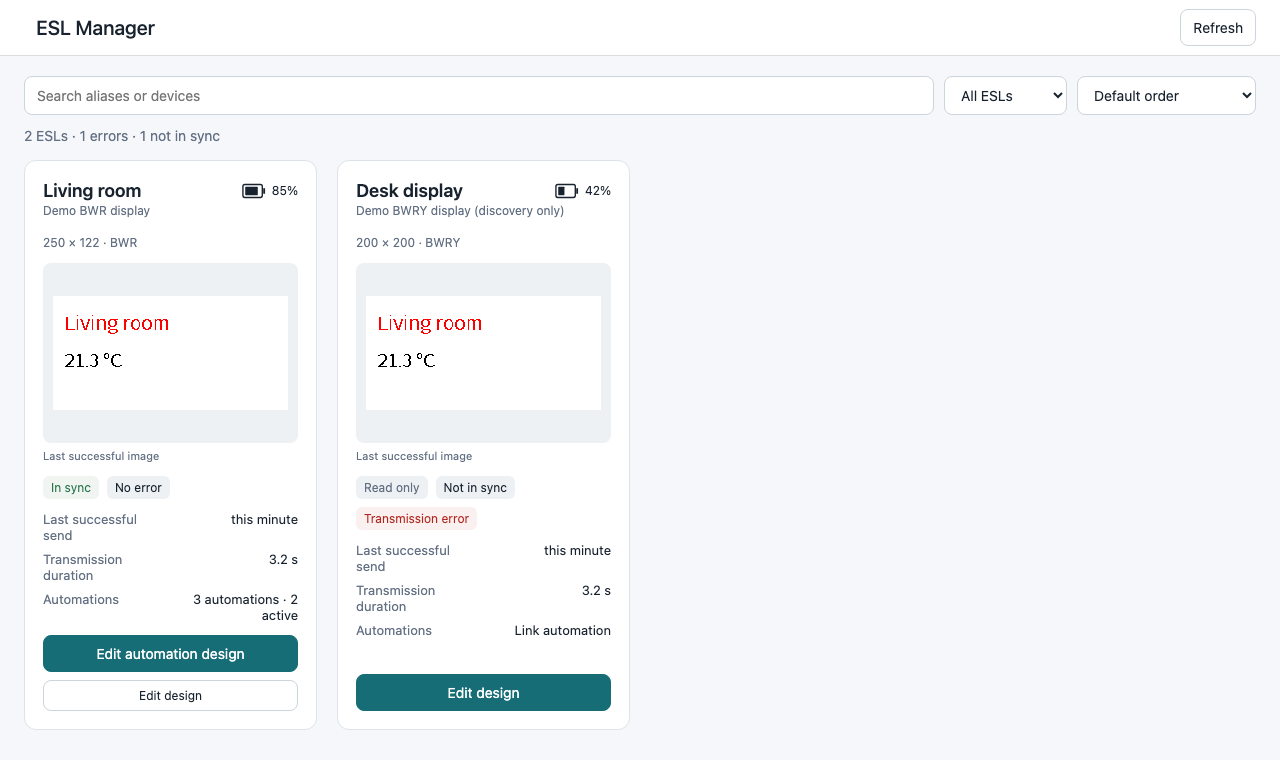
ESL Manager is the dashboard of every tag: its alias, battery, last successfully sent image, whether the display is in sync, the latest transmission result and duration, and its automations — with search, filters and sorting. From a card you open the designer or the automation that draws the tag.
Open ESL Manager in the HA sidebar to build the payload visually: drag, resize and layer elements, add any of the thirty imagespec elements (shapes, text, QR / bar codes, charts, tables, …) and edit every field of each, with Jinja templates allowed. The preview, the image sent to the tag and the Payload YAML it gives you (the payload, or a complete ble_esl.write action with templates kept as written, so an automation follows your sensors) are the same payload drawn by the same renderer. Import YAML brings the payload of an action you already have into the designer, and Convert to elements turns a sensor or any older component into plain elements. Bluetooth Send saves the design first and sends only when requested. The designer does not automatically transmit on sensor changes; schedule updates with Home Assistant automations using the exported action.
Existing YAML actions remain available.
Both actions take a standard target: (a tag device, one of its entities, or an area/floor/label containing tags) and write each target in turn.
| Action | Use it for |
|---|---|
ble_esl.write |
Always send (unless dry_run) |
ble_esl.write_guarded |
Automations that fire often: skips unchanged images, honours the Write Lock switch, and debounces bursts |
| Parameter | Default | Description |
|---|---|---|
payload |
— | List of imagespec elements (required); use [] for an intentional blank screen |
rotate |
0 |
0, 90, 180, 270 |
background |
white |
white, black, red, yellow |
dry_run |
false |
Render to Preview Content only |
debounce_override_ms |
option value | write_guarded only: override the debounce for this call (0 = now) |
Both actions can return a per-tag result via response_variable. Full reference — dithering photos and charts, rotation, response data, the entities each tag exposes, fonts: docs/actions.md.
Settings → Devices & services → BLE ESL → Configure:
| Option | Default | Range | Description |
|---|---|---|---|
| Model | — | model list | Shown only for protocols that cannot report their model (WOLINK, easyTag) |
| Retry Count | 3 | 1–10 | Retries when a BLE write fails |
| Prevent Duplicate Send | off | on/off | Skip sending when the image is unchanged |
| Debounce Delay (ms) | 0 | 0–120000 | Wait before writing; new requests cancel pending ones |
Tip
Frequent automations: enable Prevent Duplicate Send and/or Debounce Delay to save tag battery and BLE airtime. A write that fails mid-transfer is retried with slower packet pacing; if writes keep failing, the Write Duration sensor's attributes say whether it is the link or the placement — see docs/actions.md.
Layouts are rendered by imagespec; its docs are the reference for elements and fields:
| Topic | Link |
|---|---|
| Element examples with preview images | imagespec/docs/elements.md |
| All element fields & defaults | imagespec README — Element Reference |
| Layout, palette, LLM authoring guide | imagespec/docs/authoring.md |
| Dithering (per-element only) | imagespec/docs/dithering.md |
What this integration adds on top:
- Resolution and palette come from the tag's preset, not the call. Off-palette colors are quantized to the nearest supported one (BW, BWR or BWRY).
- Rotation (
rotate: 90/180/270) rotates the canvas; the output stays the panel size. - Dithering is per element: put
ditheron photos and charts (dlimg,pie,diagram,plot,sparkline,progress_bar,gauge), not on text. plotreads history from the Recorder;dlimgaccepts/config/...paths, HTTP(S) URLs and data URIs.- Fonts:
NotoSansKR-Regular.ttfis the default; drop your own.ttfintoconfig/www/fonts/and reference it by name. See fonts. - Prefer
row/column/stacklayout over hand-placed coordinates.
- A label not updating? docs/troubleshooting.md — the failure sensors say where a write died and why.
- Found a bug? Open an issue and attach the tag's diagnostics: the device page → ⋮ → Download diagnostics. It contains the protocol, preset, firmware, options, last advertisement and failure counters (MAC redacted).
- Questions or ideas? Discussions
- Tested a WOLINK or easyTag tag, or have a Poshiji size that asked for a manual model pick? Please share — that is how presets get verified.
- imagespec — the rendering engine behind
payload: - Stash — self-hosted home inventory manager that prints labels to ESL tags via Home Assistant
- hass-gicisky — the archived PickSmart-only predecessor (migration guide)
- Development — running the test suite, lint, adding a protocol