HA-NetMD is a native Python Home Assistant integration for USB-connected NetMD players and recorders. It provides player controls, MiniDisc metadata and safe disc-management actions directly in Home Assistant.
Two optional companion setups are included in this repository:
- NetMD Uploader converts and writes audio files to a MiniDisc. It runs in a separate Home Assistant add-on so that a long USB transfer cannot block Home Assistant Core. Its transfer engine is
netmd-js/netmdcli, isolated inside that add-on. - MiniDisc audio stream takes the recorder's analogue line-in, publishes an MP3 stream at
http://homeassistant.local:8888/live.mp3, and supplies ICY metadata for Music Assistant or another web-radio client.
The integration itself works without either optional setup.
- Quick start
- Features
- HACS Install
- Manual Install
- NetMD Uploader add-on
- Optional audio stream setup
- Playback with Music Assistant
- Troubleshooting
- Pictures
- Use a recorder/player that supports NetMD, connect it with a USB data cable, and insert a MiniDisc. A writable disc is required only for changing or uploading content.
- Install the integration through HACS or manually, then restart Home Assistant.
- Go to Settings → Devices & services → Add integration, select NetMD, and choose the connected player.
- Verify that the created
media_playerentity shows the disc title and track count. Playback controls and metadata work at this point; no extra add-on is required. - Install the optional NetMD Uploader only when audio files should be written to a MiniDisc. Set up the optional streaming examples only when the recorder's analogue output should be listened to remotely.
The media-player entity exposes the original MiniDisc title in raw_track_title. Titles written as Artist - Title are additionally split into media_artist and media_title; titles in every other format remain intact.
The integration provides playback, track selection, seeking, disc and track metadata, capacity sensors, and actions for renaming, moving, playing, deleting, formatting, and uploading tracks. A track named Artist - Title is exposed as separate artist and title metadata; all other titles remain unchanged. Track numbers in action data start at 1.
All actions are available in Developer tools → Actions and can also be used in automations. Select the NetMD media_player as target unless the action says otherwise.
Rename a track on the inserted MiniDisc.
Target: Target NetMD Device or media_player entity.
Track Number: Track to be renamed. Track numbers start at 1.
Title: New Title of the Title.
Rename the inserted MiniDisc while preserving its group metadata.
Target: Target NetMD Device or media_player entity.
Title: New Title of the MiniDisc.
Move a track to another position.
Target: Target NetMD Device or media_player entity.
Source Track Number: Source Track number. Track numbers start at 1.
Destination Track Number: Destination Track number. Track numbers start at 1.
Permanently delete a track from the inserted MiniDisc.
Target: Target NetMD Device or media_player entity.
Track Number: Track to be deleted. WARNING! This cannot be made undone! Track numbers start at 1.
Permanently delete every track on the inserted MiniDisc (the NetMD equivalent of formatting it). The service requires one explicit confirmation, so it remains straightforward in an automation:
action: netmd.erase_disc
target:
  entity_id: media_player.your_netmd
data:
confirm: trueAppend an audio file stored below /media/netmd to a writable MiniDisc. This is a dedicated subfolder of Home Assistant's standard Media area, rather than the publicly served www directory. Create it once in the Media Browser or through Samba/file access. Install and start the local NetMD Uploader app from the Home Assistant app store first. It exclusively owns USB only while a transfer runs, so the potentially long NetMD bulk write cannot block Home Assistant Core. The app uses the same netmd-js transfer engine as Web MiniDisc, not a factory-mode exploit. By default, the source file is sent to atrac.minidisc.wiki for ATRAC conversion before it is transferred to the player.
action: netmd.upload_track
target:
  entity_id: media_player.your_netmd
data:
  source: /media/netmd/album.mp3
  title: Test track
  encoding: lp4
  encoder: local
title is optional and otherwise defaults to the source filename. encoding is lp2 by default; use lp4 to save disc space. Uploads can take several minutes and require a writable disc. For safety, files outside /media/netmd are rejected.
encoder defaults to remote, which sends the selected audio to atrac.minidisc.wiki for conversion. Set encoder: local to convert entirely inside the NetMD Uploader app, using its bundled atracdenc-rs encoder and FFmpeg; the audio file then never leaves Home Assistant. The local encoder is included in the add-on image and does not require a separate binary or an internet connection. The NetMD transfer itself uses netmd-js, the same stable protocol engine as Web MiniDisc. atracdenc-rs is distributed under LGPL-2.1; its source is vendored in addons/netmd_uploader/atracdenc-rs for reproducible add-on builds.
While the app writes, the media-player attributes upload_status, upload_written_bytes, upload_total_bytes, and upload_progress_percent report the transfer state. Progress is available when the NetMD command-line engine emits byte counters; encoding itself has no reliable percentage.
Existing group names are listed in the groups attribute of the NetMD media player. The services netmd.create_group, netmd.rename_group, and netmd.delete_group manage those groups; their group numbers start at 1. Deleting a group only removes its group metadata, never its tracks.
Select and play a track.
Target: Target NetMD Device or media_player entity.
Track Number: Track to be played. Track numbers start at 1.
Start fast-forwarding the current track on the inserted MiniDisc.
Target: Target NetMD Device or media_player entity.
Start rewinding the current track on the inserted MiniDisc.
Target: Target NetMD Device or media_player entity.
- Open HACS → Integrations → ⋮ → Custom repositories.
- Add
https://github.com/dreimer1986/HA-NetMDwith category Integration. - Find and install HA-NetMD, then restart Home Assistant.
- Add the integration under Settings → Devices & services.
HACS installs and updates only custom_components/netmd. It does not install or update the optional NetMD Uploader add-on; see the next section for that separate step.
Copy the complete netmd directory to /config/custom_components/netmd, restart Home Assistant, connect the NetMD device over USB, and add NetMD under Settings → Devices & services.
- Home Assistant OS normally exposes the USB bus to Core automatically.
- Container installations must pass
/dev/bus/usbthrough to the Home Assistant container.
When updating manually, replace the complete netmd directory and restart Home Assistant. Do not copy Python __pycache__ directories.
The uploader is optional and is needed only for netmd.upload_track. It must be installed separately from the HACS integration.
- Open Settings → Add-ons in Home Assistant and click on Install App.
- Click on the ... Menu on the Top right and in there Repositories.
- Click on Add and insert https://github.com/dreimer1986/netmd_uploader as URL.
- Select NetMD Uploader, and install/start it.
- Create
/media/netmdthrough Samba, File Editor, or a terminal, then put audio files there. - Use
netmd.upload_trackfrom Developer tools → Actions or from an automation. The player must be connected and the disc writable.
- Copy the complete repository folder
addons/netmd_uploaderto Home Assistant's local add-on directory asnetmd_uploader(for example/addons/netmd_uploader). Keep the bundledatracdenc-rsfolder; it is the reproducible local encoder source. - In Settings → Add-ons, refresh local add-ons, select NetMD Uploader, and install/start it.
- Create
/media/netmdthrough Samba, File Editor, or a terminal, then put audio files there. - Use
netmd.upload_trackfrom Developer tools → Actions or from an automation. The player must be connected and the disc writable.
After a Git update, update the HACS integration and the local add-on independently. The add-on version is shown in its Home Assistant details page.
The uploader accepts only files below /media/netmd; this prevents accidental access to configuration files and avoids using the public /config/www directory. encoder: remote is the default and sends the audio file to atrac.minidisc.wiki for conversion. Choose encoder: local when the file must remain inside Home Assistant; that encoder needs no internet connection but can take a little longer.
This setup is independent of USB/NetMD control: connect the MiniDisc recorder's analogue output to a line-in on the Home Assistant host. The supplied script reads that line-in and publishes an MP3/ICY web-radio stream. It is useful for listening in Music Assistant, but is not needed for controlling the recorder or uploading tracks.
The files configuration.yaml, automations.yaml, and scripts/minidisc_stream.py are optional examples for the audio-stream setup, not a requirement for the NetMD integration or uploader. Read and adapt them before copying anything:
- Replace
media_player.sony_mz_n505with your own NetMD player entity. - Replace the PulseAudio line-in source with your own USB sound device.
- The examples require FFmpeg and use TCP port
8888; make sure the port is not already occupied. - Import the individual automations in the Home Assistant automation editor, or convert them into your own existing automation include format. Do not blindly replace an existing
automations.yaml.
This automation waits for the NetMD media_player entity to start playback or come online. If this happens it starts the FFmpeg stream.
This automation waits for the NetMD media_player entity to stop playback or become offline. If this happens it stops the FFmpeg stream.
This automation feeds the recent metadata back into the Python Script where these are integrated into the ICY metadata of the stream.
Only needed if your pulse audio sink switches back to microphone port as default after reboot.
Only needed if your line-in volume needs to be set back to 70% after reboot.
The last two are only there for reference. I don't need them anymore after I used both once.
This switch controls the running as background process FFmpeg with the sound card's line-in as input and the URL on port 8888 as stream in MP3 format as output. To allow more than one connection and stay alive when the stream is stopped for a short while a Python script is now creating a asynchronous web server that hosts the FFmpeg conversion via pipe.
This sensor outputs the last line of the debug log the stream service creates. Thus you can follow problems showing up by checking this sensor.
This sensor outputs if the FFmpeg process is running or not. It verifies this by checking if the PID that was logged when FFmpeg was started is still active or not.
This command is meant as way back into the Python script and allows to send the metatadata of the currently running tracks into the stream.
alsa_input.usb-0d8c_USB_Sound_Device-00.analog-stereo is the line-in source on the author's host. You must find and replace it with your own source before using the examples. pactl list | less lists the available PulseAudio sources.
The two optional shell_command examples use the SSH add-on to run pactl on the host audio service. This is an advanced, host-specific configuration; skip it unless the line-in source or volume is reset after a reboot.
mkdir -p /config/.ssh
cd /config/.ssh
ssh-keygen -t rsa -b 4096 -f /config/.ssh/id_rsa -N ""
chmod 700 /config/.ssh
chmod 600 /config/.ssh/id_rsa
chmod 644 /config/.ssh/id_rsa.pub
Now you can use the shell commands I made for that.
Music Assistant is one option for playing the optional MP3/ICY stream. Complete the optional stream setup first and confirm that http://<home-assistant-host>:8888/live.mp3 plays in a browser on your network.
-
Install the Music Assistant add-on from the Home Assistant add-on store and configure one or more playback providers.
-
Optionally copy
custom_components/netmd/brand/icon.pngto/config/www/icon.pngto give the radio station a custom image. This public web asset is unrelated to the protected/media/netmdupload folder. -
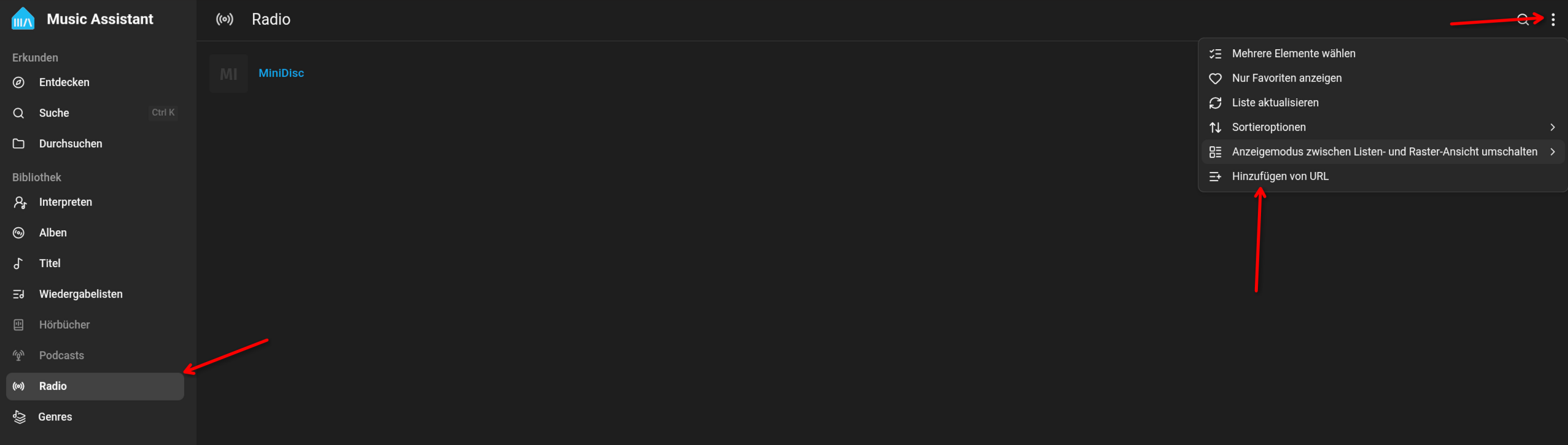
In Music Assistant, open Radios, select the menu in the upper-right corner, and choose Add by URL.
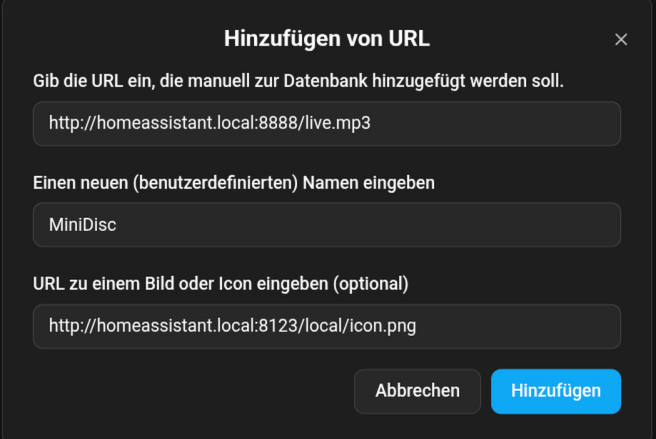
- Enter the stream URL using your Home Assistant hostname or IP address, for example
http://homeassistant.local:8888/live.mp3.
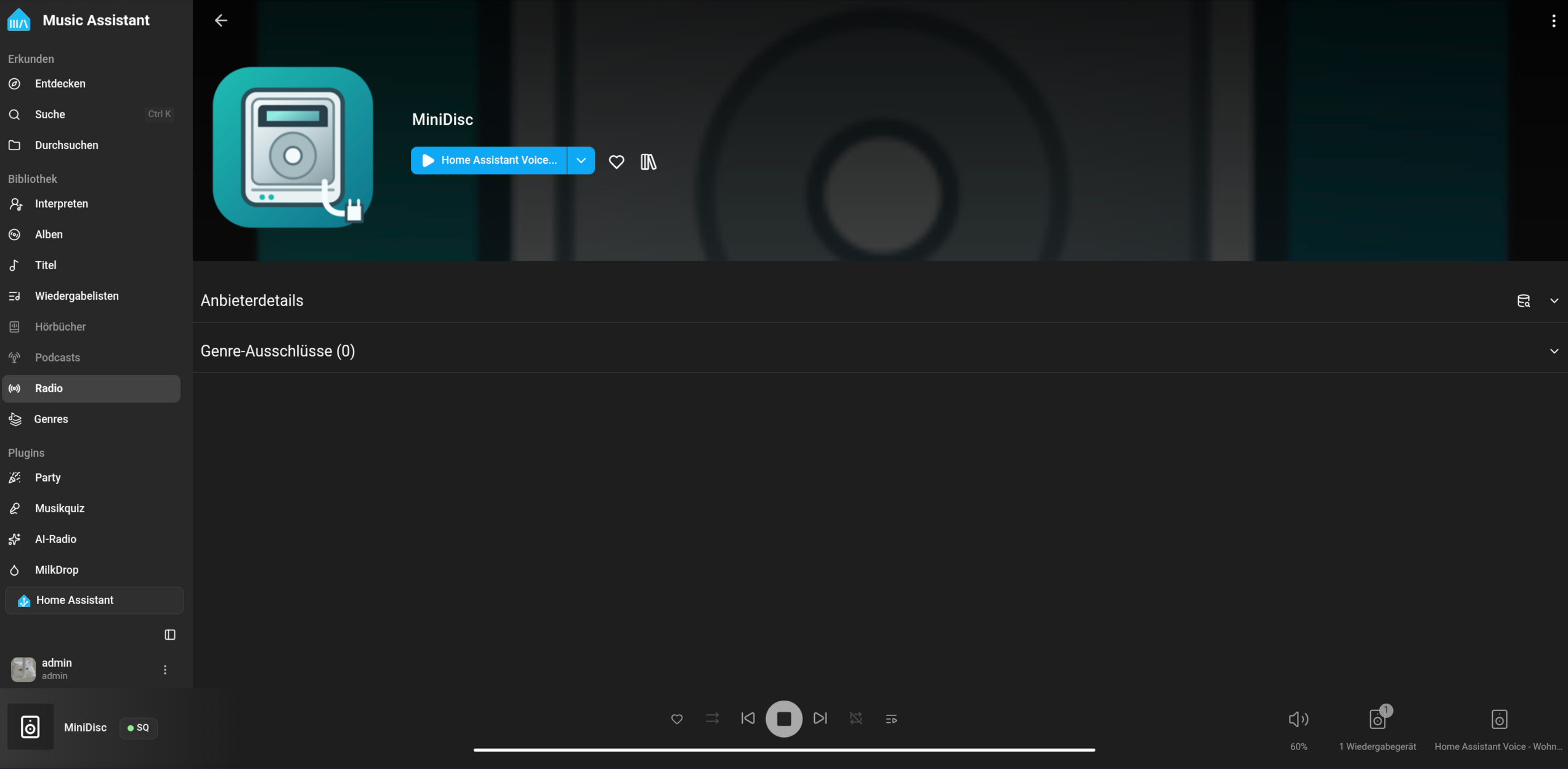
- The radio can now be selected as a source for any Music Assistant player. It has been tested with the Music Assistant mobile app, Android Auto, and CarPlay.
| Symptom | Check |
|---|---|
| No NetMD device appears | Use a USB data cable, wake the recorder from standby, reconnect it, and verify that the Home Assistant container has access to /dev/bus/usb. |
| Player is unavailable during an upload | This is expected. The uploader temporarily owns USB exclusively; wait for upload_status to become completed or failed. |
| Upload is rejected before it starts | Confirm that the file exists below /media/netmd, the disc is inserted and writable, and the NetMD Uploader add-on is started. |
| Upload appears to pause near 100% | Some recorders, including the Sony MZ-N505, do not return a final protocol reply. The add-on verifies completion through the increased track count. |
| Artist is missing | Only titles written exactly as Artist - Title can be split automatically. The complete, unmodified value is always available as raw_track_title. |
| Stream has no audio | The streaming example needs an analogue line-in path from the MiniDisc player to the Home Assistant host; NetMD USB itself does not carry the playback audio. |
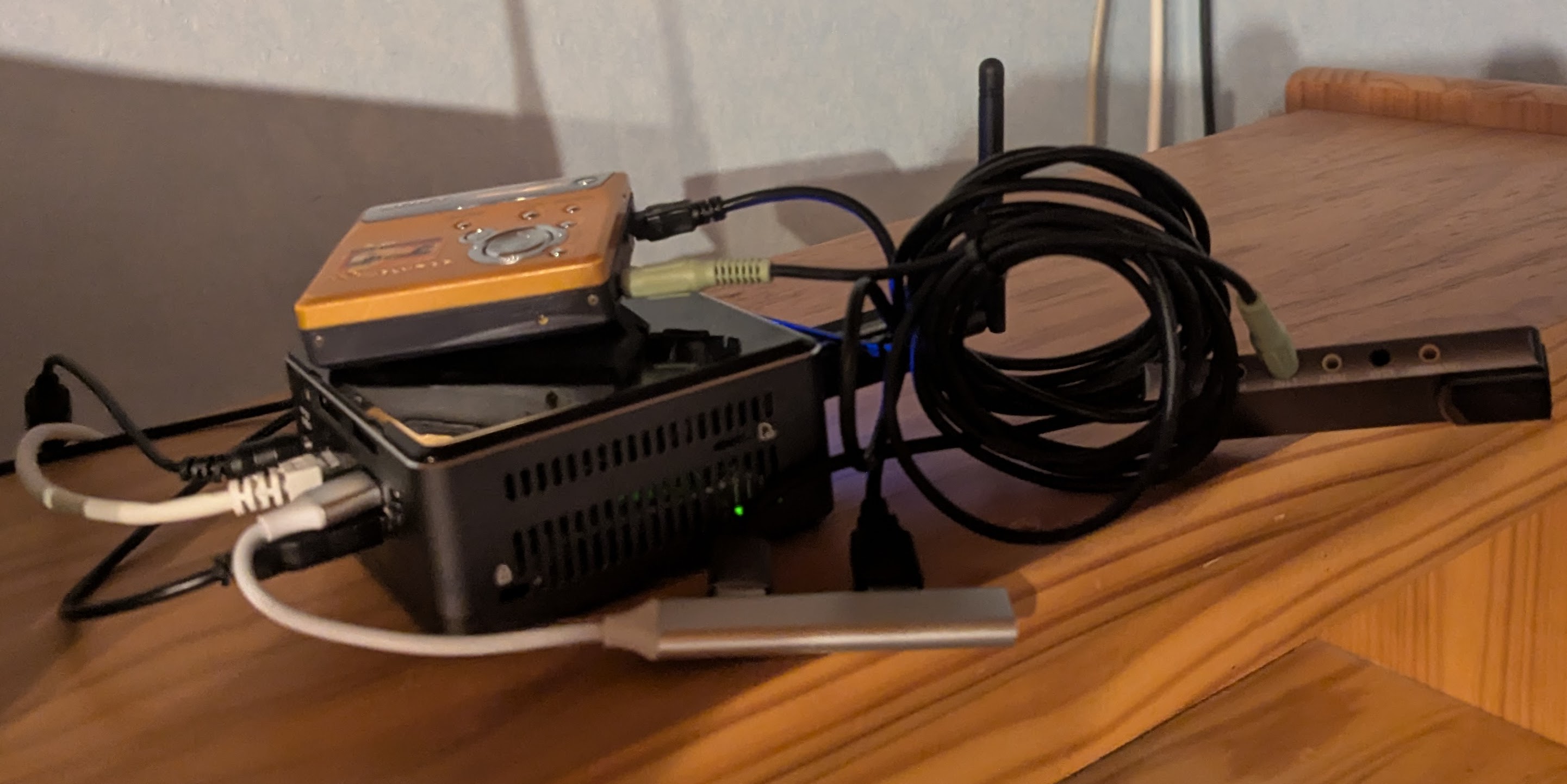
My Home Assistant Server based on a NUC7I7BNB, a CC2652 Dev board for Zigbee, a USB Sound Card and a Sonoff Zigbee USB Dongle for Matter/Thread
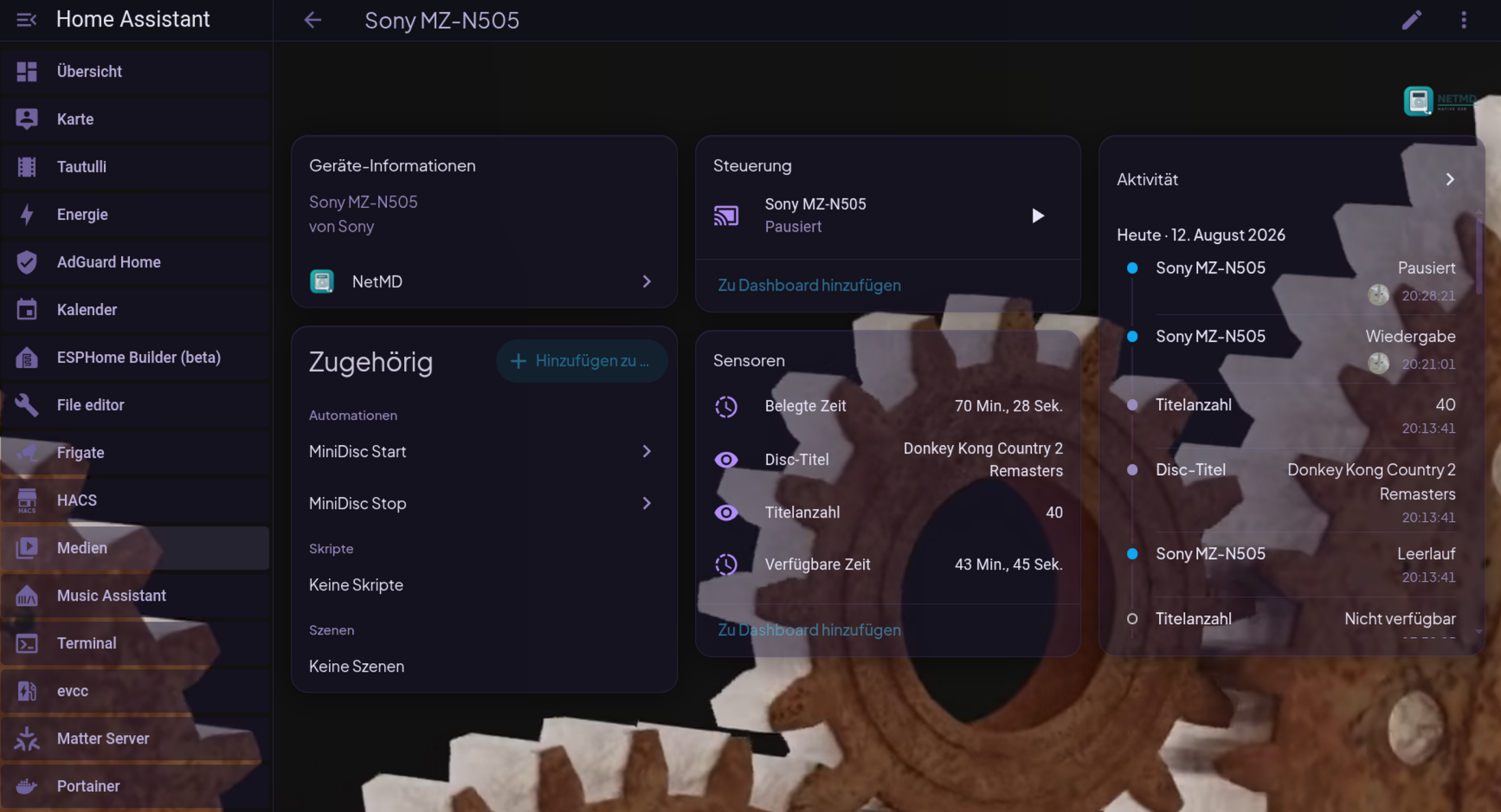
The Add-On running inside Home Assistant.
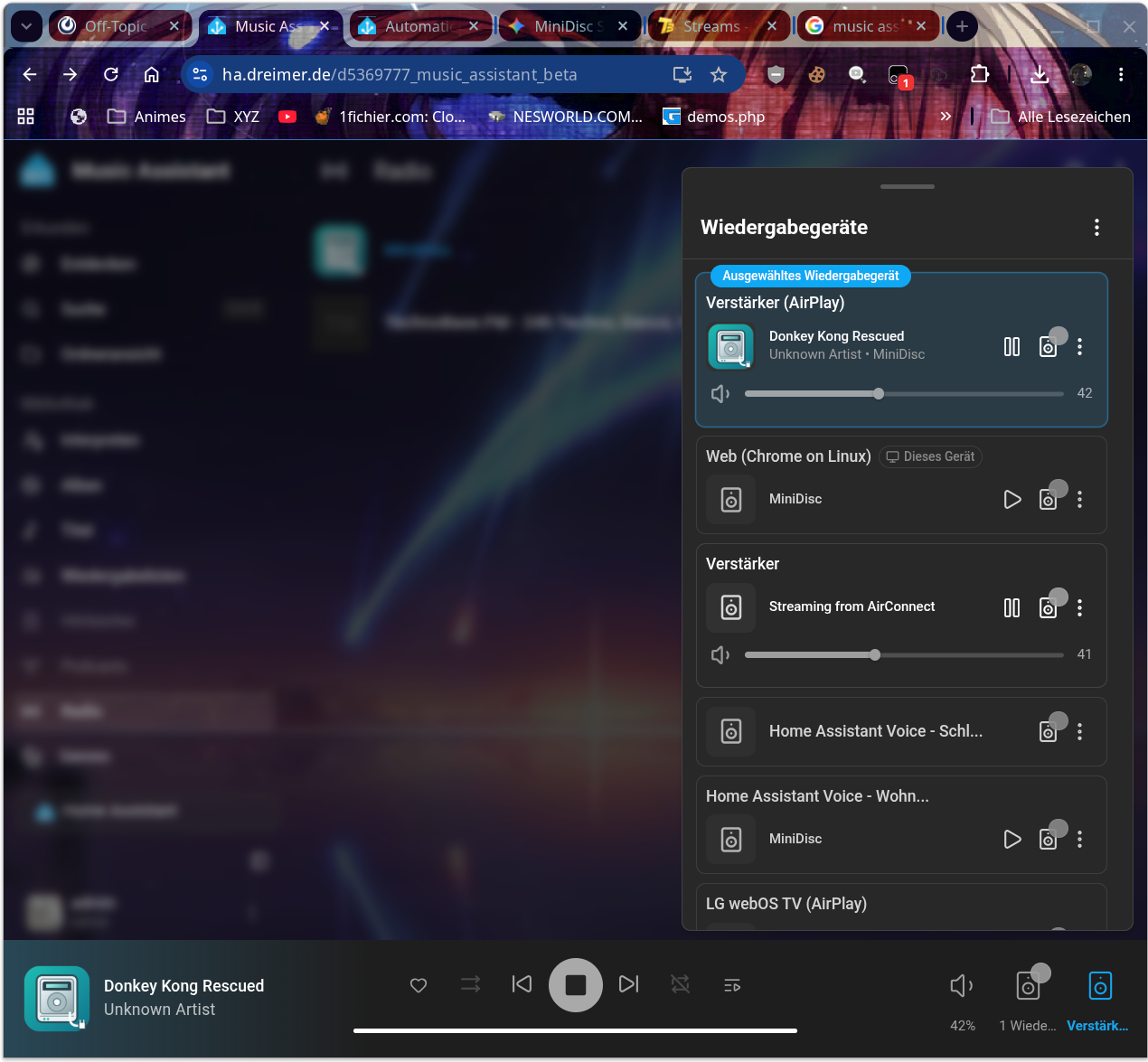
Metadata sent to the media players over ICY protocol.
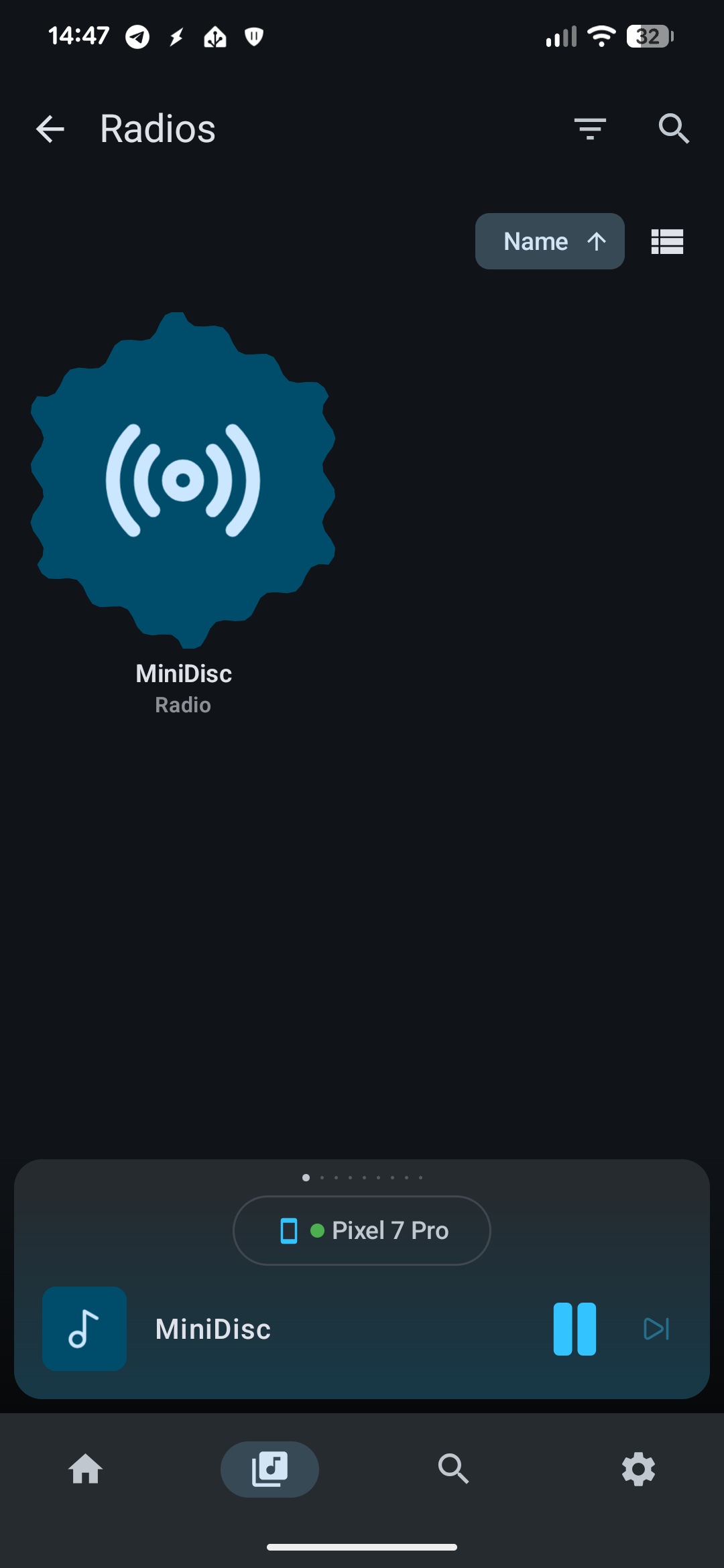
Pics from usage on my Pixel 7 Pro:
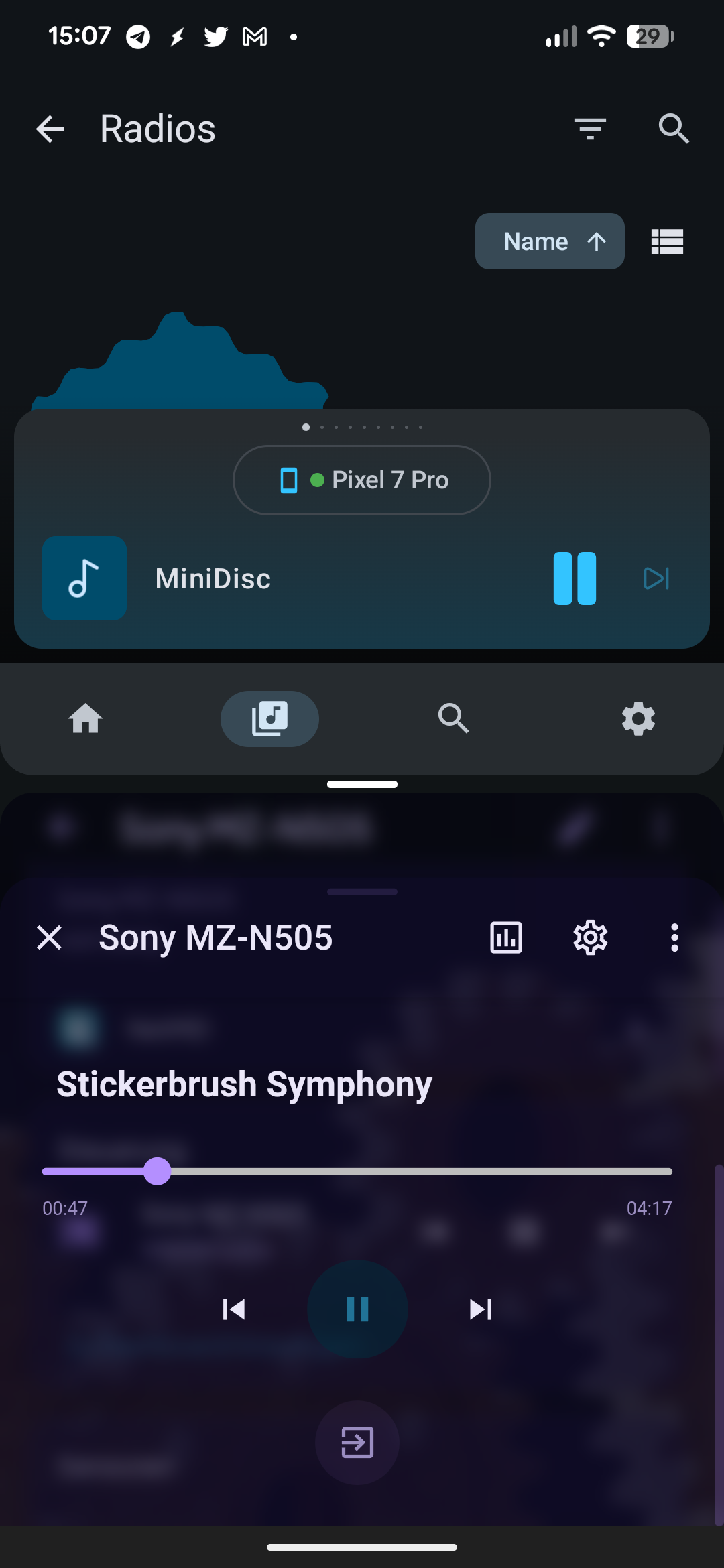
Listening to the Add-On's stream inside Music Assistant.
Splitscreen: Controlling the current track being played back via Home Assistant app (below) and listening to the Add-On's stream inside Music Assistant (above)