Jellyfin Projects | Kodi Projects
Central overview and quick-switching hub for my Jellyfin VideoOSD addons.
This repository collects all my Jellyfin VideoOSD script addons in one place, with links, short descriptions, screenshots where available, and notes about how the scripts can work together.
The goal is simple: make the Jellyfin Web video player more flexible, more comfortable, and more personal.
Tested on & Requirements: Windows 11, Chrome, Jellyfin Web 10.10.7, JavaScript Injector.
Jellyfin-VideoOSD-CustomOnOff-Menu
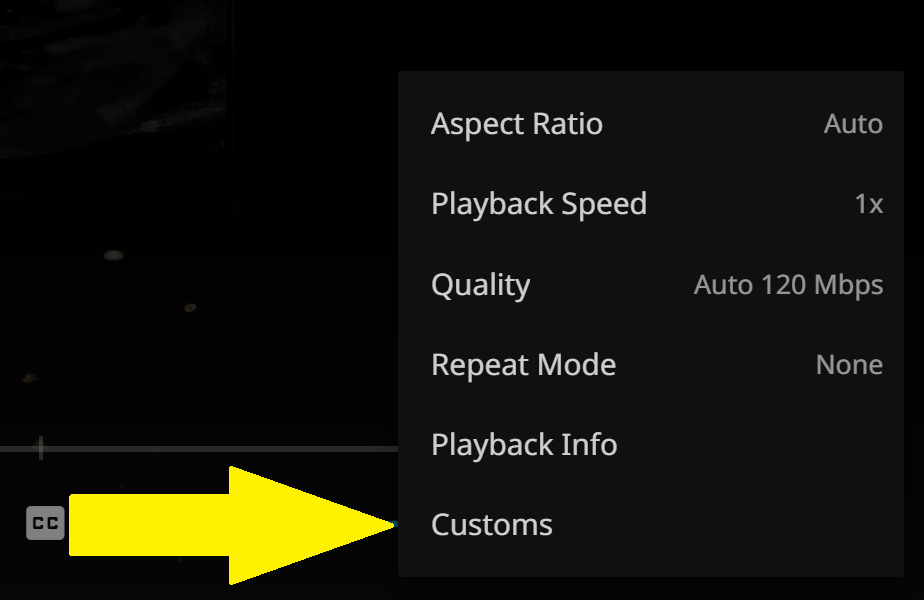
Quick-switching control hub for supported VideoOSD addons. Adds a customizable on/off submenu directly to the Jellyfin video playback settings.
Jellyfin-VideoOSD-Artwork-Display
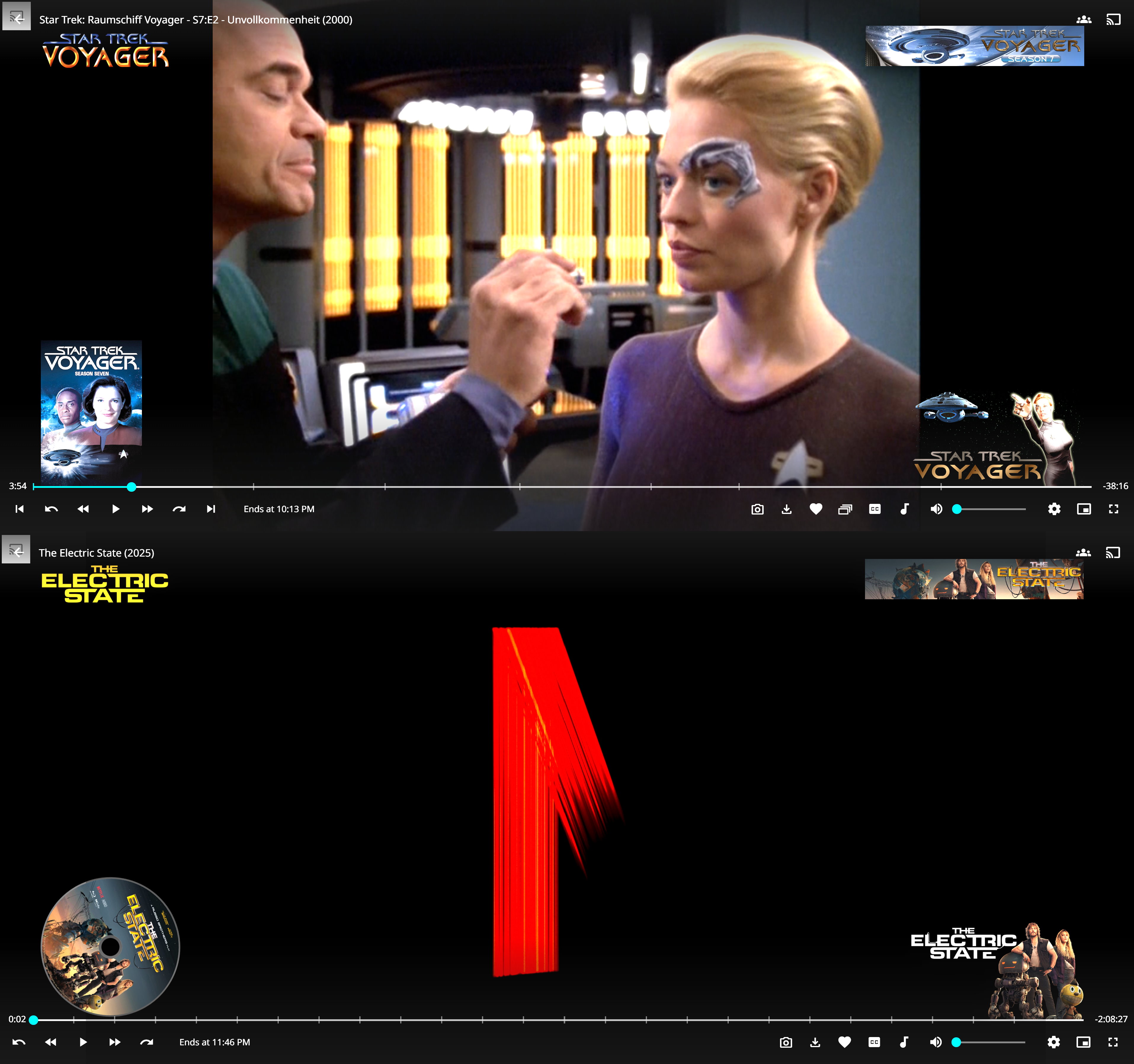
Adds configurable artwork overlays to the Jellyfin VideoOSD, including logos, clearart, discs, posters, banners, thumbs, and backdrops.
Jellyfin-VideoOSD-CustomPlaybackSpeed-Menu
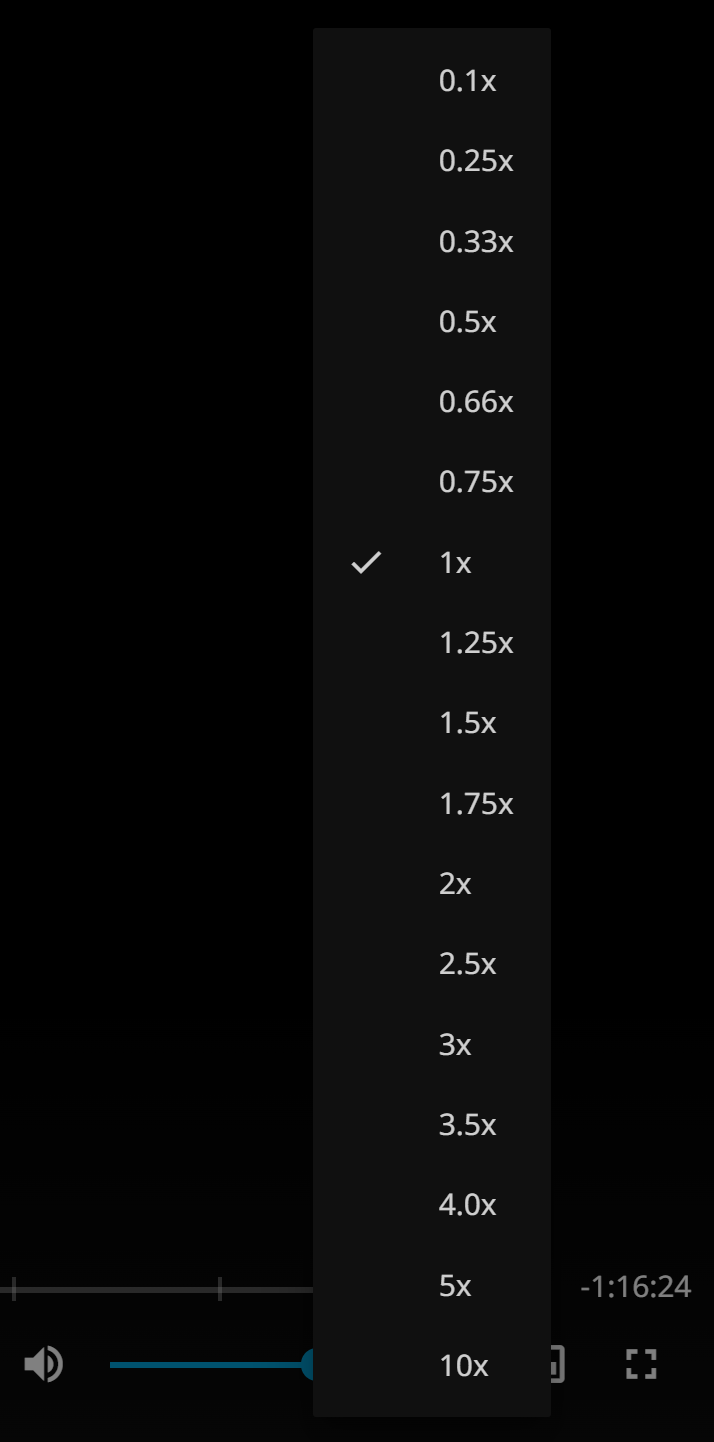
Customizes the Jellyfin playback speed menu in the video playback settings, allowing custom speed values and removal of unwanted vanilla speed entries.
Jellyfin-VideoOSD-CustomPlaybackSpeed-Buttons
Adds playback speed step buttons to the Jellyfin VideoOSD, using custom speed values when available or falling back to Jellyfin vanilla speeds.
Jellyfin-VideoOSD-FrameByFrame-Buttons
Adds frame-by-frame buttons to the Jellyfin VideoOSD for stepping one frame backward or forward during paused playback.
Jellyfin-VideoOSD-Download-Button
Adds a seamless download button to the Jellyfin Web VideoOSD. Downloads the currently playing video as a 1:1 direct copy.
Jellyfin-VideoOSD-Screenshot-Button
Adds a screenshot button to the Jellyfin VideoOSD, including single screenshots, rapid-fire screenshots, and automatic screenshot mode.
Jellyfin-VideoOSD-ABLoop-Button
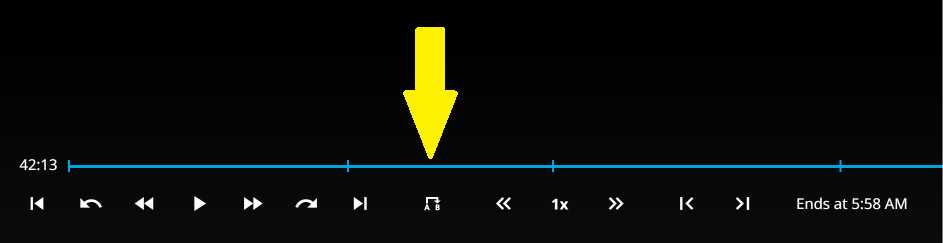
Adds an A-B loop button to the Jellyfin Web VideoOSD. Mark two points on the timeline and repeat that section endlessly — just like VLC's own A-B repeat.
This script is the quick-switching control hub for my Jellyfin VideoOSD script addons.
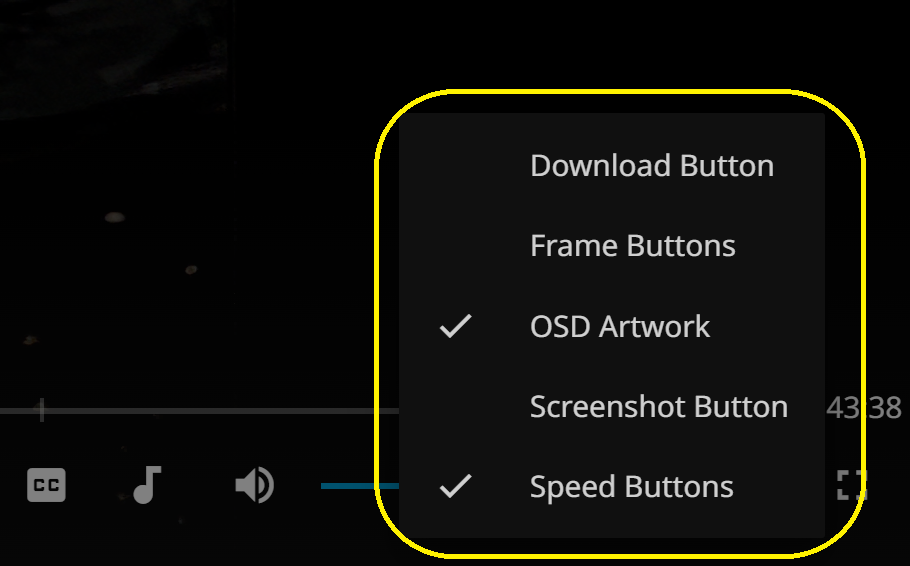
It adds a customizable on/off submenu to the Jellyfin video playback menu, letting you quickly enable or disable supported VideoOSD script addons directly during video playback.
Supported script addons:
- Artwork OSD
- Speed Buttons
- FrameByFrame Buttons
- Download Button
- Screenshot Button
- A-B Loop Button
Screenshot:
Adds configurable artwork overlays to the Jellyfin VideoOSD.
Supported artwork types include:
- Logo
- Clearart
- Disc
- Poster
- Thumb / Landscape
- Banner
- Backdrop
The script supports separate configuration for movies, episodes, and videos.
It can also be toggled through the Custom On/Off Menu when installed.
Screenshot:
Customizes playback speed menu settings.
You can define your own playback speed list, add custom speed values, and remove unwanted Jellyfin vanilla speed entries.
This script is compatible with Jellyfin-VideoOSD-CustomPlaybackSpeed-Buttons
Example use cases:
- Add very slow speeds for detailed viewing
- Add high speeds for quick scanning
- Remove speed values you never use
- Keep the playback speed menu cleaner and more personal
Screenshot:
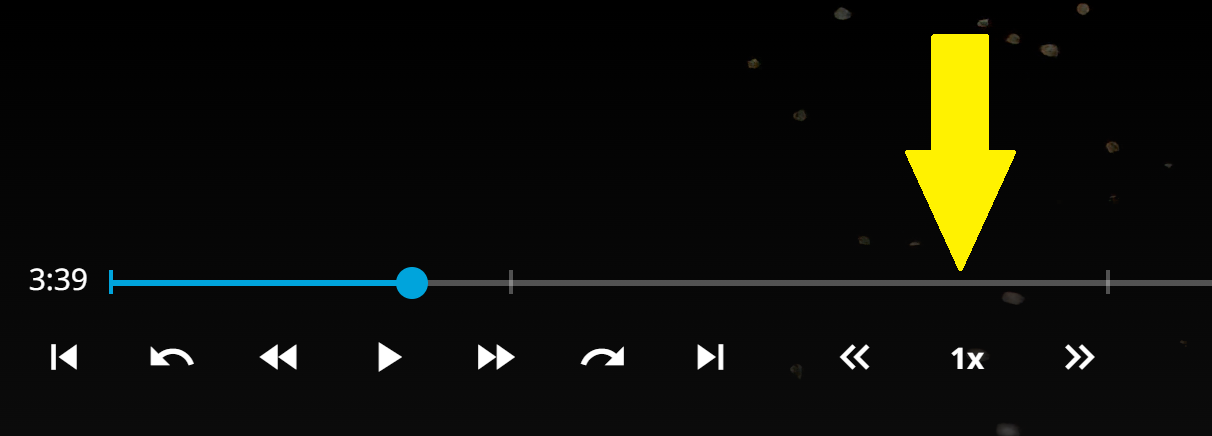
Adds custom playback speed step buttons directly to the Jellyfin VideoOSD.
The buttons let you step up or down through available playback speed values.
A small center field shows the current speed and resets playback speed to 1x when clicked.
This script is compatible with Jellyfin-VideoOSD-CustomPlaybackSpeed-Menu
If the Custom Playback Speed Menu is installed, the buttons use its configured speed values automatically.
If it is not installed, the script falls back to the Jellyfin vanilla playback speed values.
Screenshot:
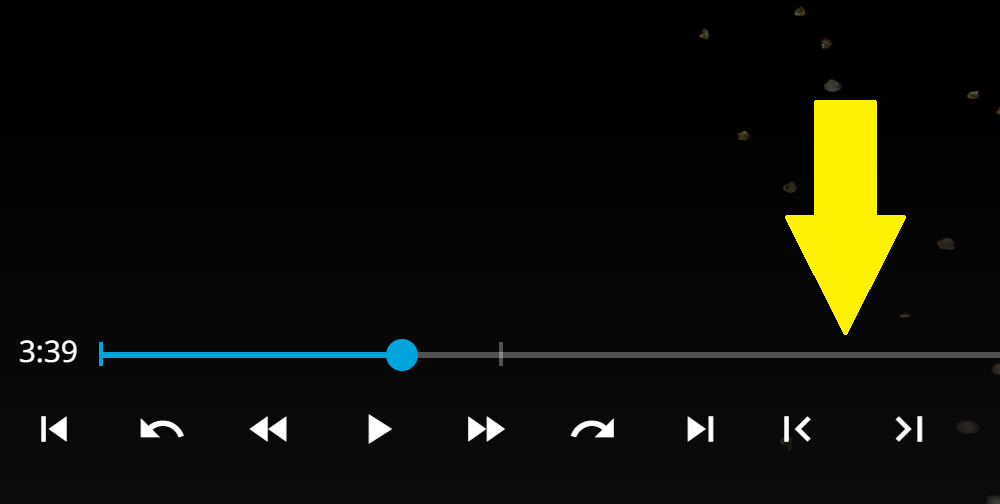
Adds frame-by-frame control buttons to the Jellyfin Web VideoOSD.
The script detects the FPS of the currently playing video and calculates the frame step duration from that value.
It allows stepping one frame backward or forward during paused playback.
Important: This is not a true frame-by-frame engine like VLC.
It works within the limitations of the Chrome / Chromium video engine.
For clean frame rates, for example 30 fps, one click usually results in one visible frame step.
For unusual frame rates, for example around 23.976 fps, occasional empty clicks may happen.
This is intentional to avoid skipping real frames.
Screenshot:
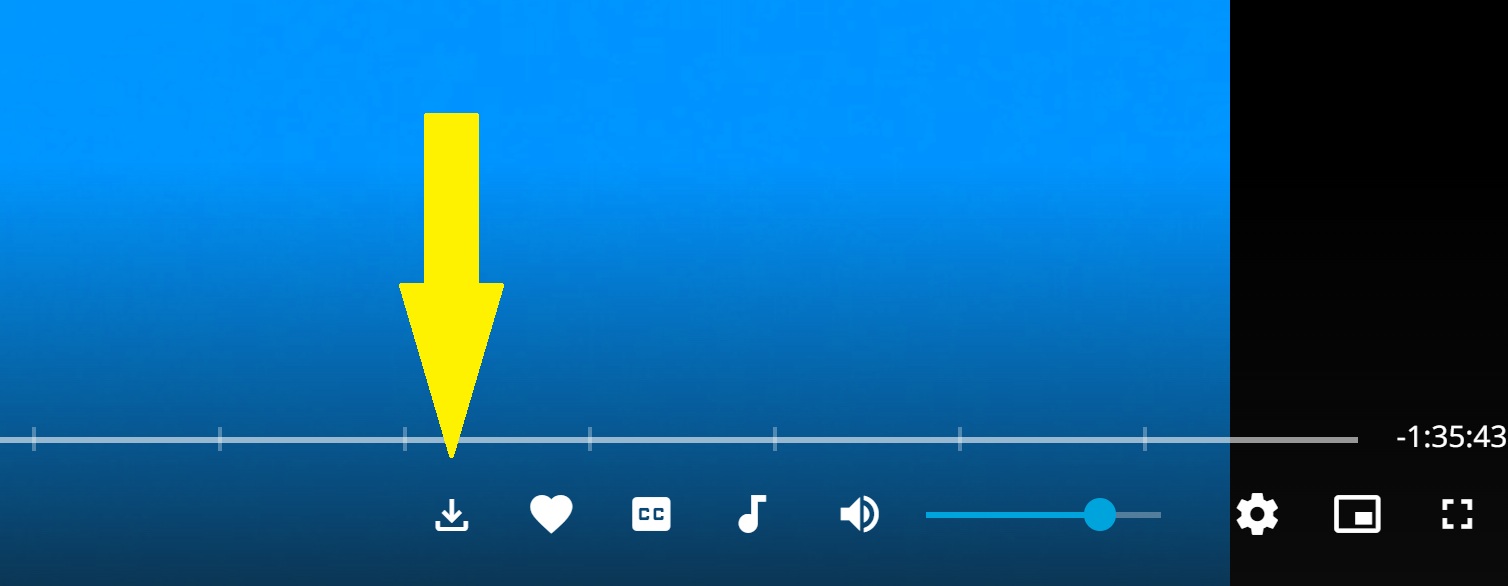
Adds a seamless download button to the Jellyfin Web interface on the VideoOSD screen.
The button downloads the currently playing video as a 1:1 direct copy in your standard download folder.
No transcoding, no quality loss, no extra backend changes.
It can also be toggled through the Custom On/Off Menu when installed.
Screenshot:
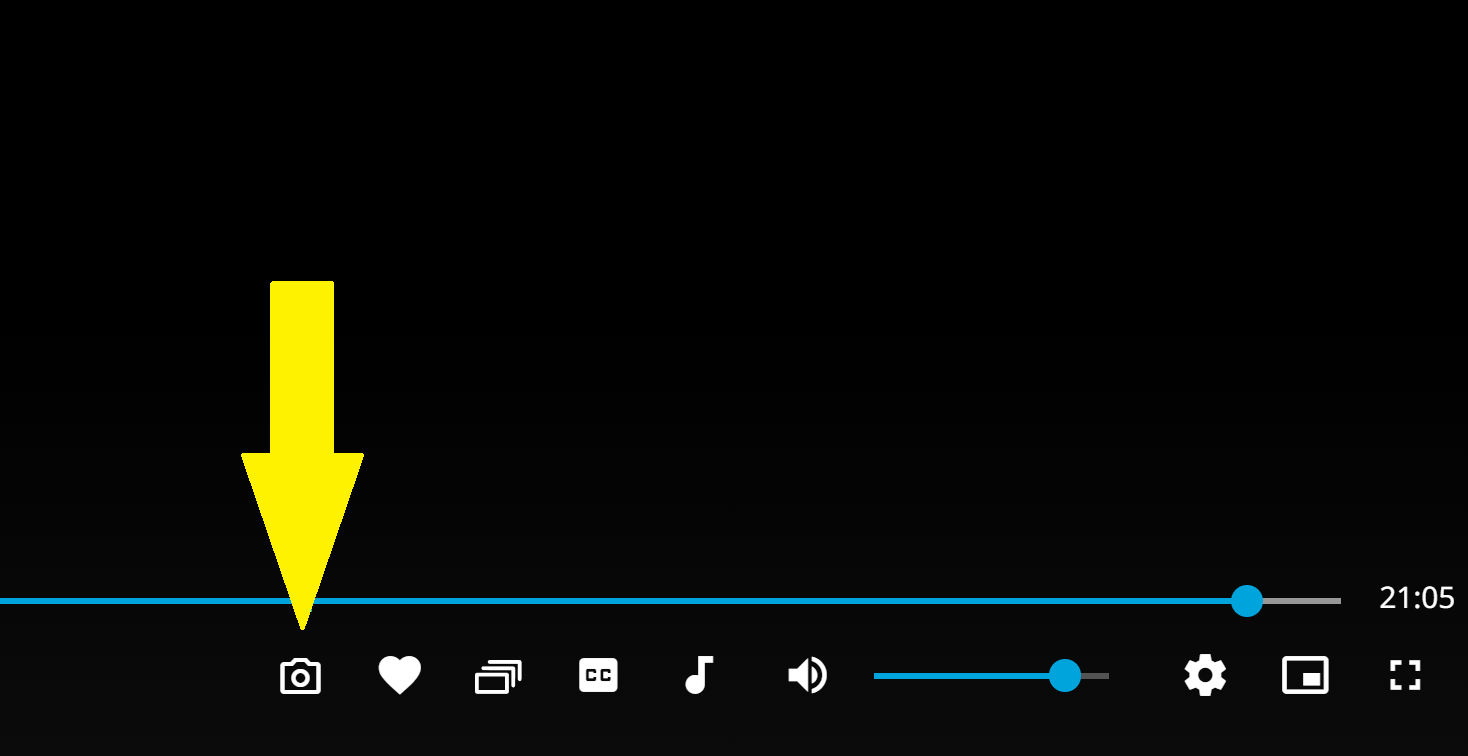
Adds a screenshot button to the Jellyfin Web VideoOSD.
Supported actions:
- Single click: take one screenshot
- Hold click: take rapid-fire screenshots
- Double click: toggle automatic screenshot mode
Screenshots are saved as PNG files and named using the current date, time, and detected video title.
It can also be toggled through the Custom On/Off Menu when installed.
Screenshot:
Adds an A-B loop button to the Jellyfin Web VideoOSD.
Click once to set point A, click again to set point B, and the video loops endlessly between them — just like VLC's own A-B repeat.
A third click clears the loop.
It can also be toggled through the Custom On/Off Menu when installed.
Screenshot:
All scripts are intended for Jellyfin Web and are installed through a JavaScript injector or userscript manager.
Common options:
- Jellyfin JavaScript Injector plugin
- Tampermonkey
- Violentmonkey
- Similar custom JavaScript loaders
General installation flow:
- Install a JavaScript injector or userscript manager.
- Copy the desired script into the injector.
- Save the script.
- Reload Jellyfin Web.
- Start video playback and check the added controls.
- These are Jellyfin Web UI modifications.
- They are designed for browser usage, especially Chrome / Chromium-based browsers.
- They do not modify the Jellyfin backend.
- They do not change Jellyfin server settings.
- Some behavior depends on the browser video engine.
- Some scripts may need adjustment if Jellyfin Web changes its internal layout in future versions.
- Screenshots may show example configurations and may differ from your personal setup.
- Jellyfin Web 10.10.7
- Jellyfin JavaScript Injector plugin
- Google Chrome
- Windows 11
MIT