


Send emails from your terminal.
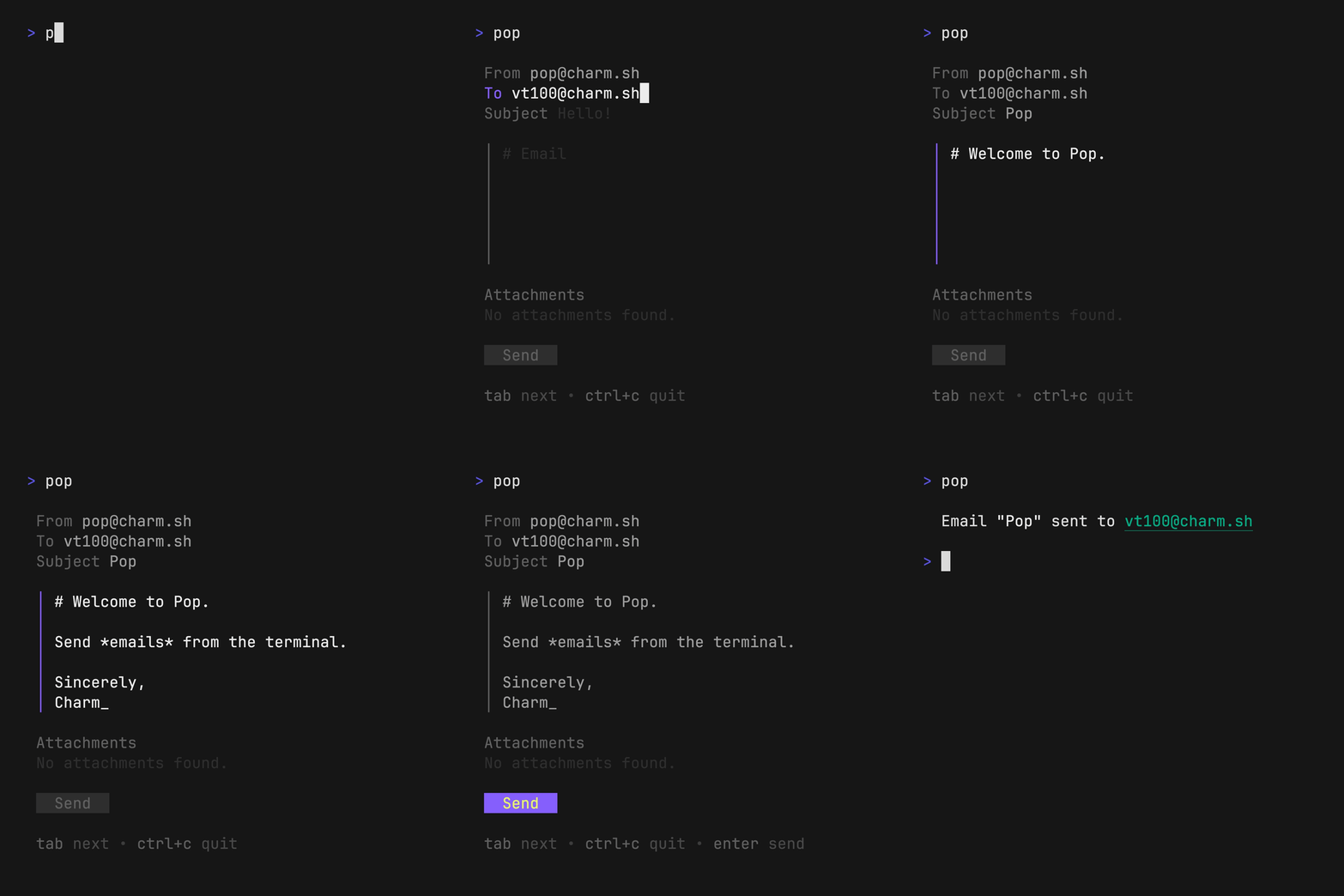
Launch the TUI
poppop < message.md \
--from "me@example.com" \
--to "you@example.com" \
--subject "Hello, world!" \
--attach invoice.pdf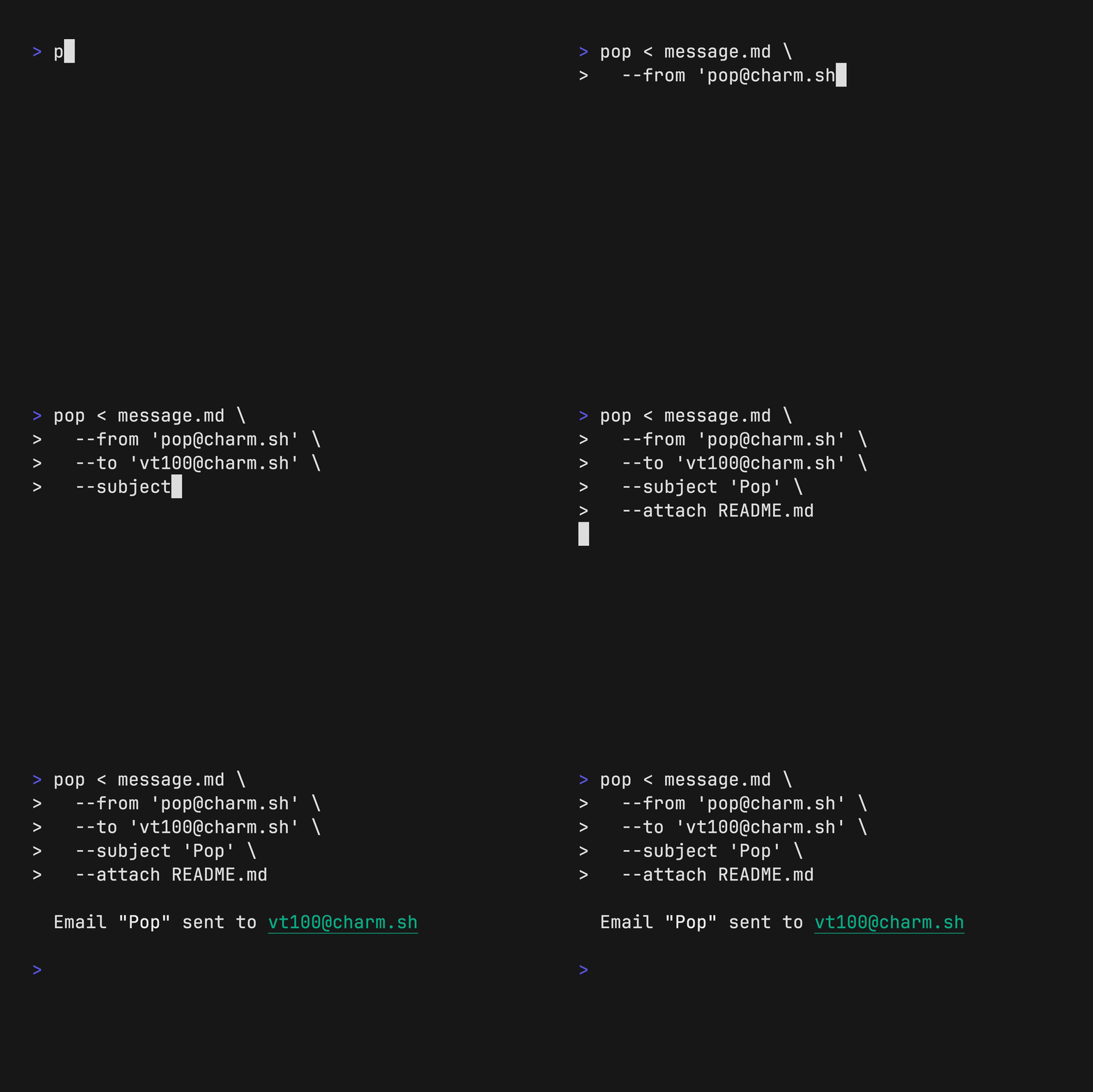

pop works great with Resend, and the quickest way to get
started is to run to authenticate with Resend via OAuth:
pop authYou can also set a RESEND_API_KEY in your environment:
export RESEND_API_KEY=$(pass RESEND_API_KEY)(You can get a Resend API key at https://resend.com/api-keys.)
To configure pop to use SMTP, you can set the following environment
variables.
export POP_SMTP_HOST="smtp.gmail.com"
export POP_SMTP_PORT=587
export POP_SMTP_USERNAME="pop@charm.land"
export POP_SMTP_PASSWORD="babyfrogsquad"To avoid typing your From: email address, you can also set the POP_FROM
environment to pre-fill the field anytime you launch pop.
export POP_FROM="pop@charm.land"
export POP_SIGNATURE="Sent with [Pop](https://github.com/charmbracelet/pop)!"Note: If you wish to use a resend account without a custom domain, you can use
onboarding@resend.devto send emails.
Use a package manager:
# macOS or Linux
brew install pop

# Nix
nix-env -iA nixpkgs.pop

# Arch (btw)
yay -S charm-pop-bin
Install with Go:
go install github.com/charmbracelet/pop@latestOr download a binary from the releases.
AI agents work great with pop. pop --help is typically enough to get them
going, but you can maximize their pop abilities with the builtin pop skill
command, which you can just print to stdout, or write to disk:
mkdir -p .skills/pop
pop skill > .skills/pop/SKILL.md
If you’re using Crush, Claude Code,
Codex, or Cursor, or Pi there’s also a pop install-skill command
pop install-skill crush  # install the Crush skill
pop install-skill codex  # install the Codex skill
pop install-skill --help # more infoPop can be combined with other tools to create powerful email pipelines, such as:
Use crush with pop to write an
email body with AI:
Note: Use the
--previewflag to preview the email and make changes before sending.
pop <<< "$(crush run 'Explain why CLIs are awesome')" \
    --subject "The command line is the best" \
    --preview
Use gum with pop to choose an email
to send to and from:
pop --from $(gum choose "vt50@charm.land" "vt78@charm.sh" "vt100@charm.sh")
    --to $(gum filter < contacts.txt)
Use invoice with pop to generate
and send invoices entirely from the command line.
FILENAME=invoice.pdf
invoice generate --item "Rubber Ducky" --rate 25 --quantity 2 --output $FILENAME
pop --attach $FILENAME --body "See attached invoice."
We’d love to hear your thoughts on this project. Feel free to drop us a note!
Part of Charm.

Charm 热爱开源 • Charm loves open source