-
Notifications
You must be signed in to change notification settings - Fork 0
Home
A Windows 11 tray app that watches gaming-related display and system settings, alerts you (or auto-fixes) when they drift from your preferences, and stays out of the way during gameplay and benchmarks.
Settings is split into ten tabs. See the Settings & tabs guide for what every tab and setting does and means.
| Tab | Covers |
|---|---|
| General | Theme, launch-at-startup, polling interval, update check, change log, and three one-click presets (Reset all to defaults · Apply recommended · Apply extreme) |
| Global gaming | Game Mode, Game DVR, HAGS, Memory Integrity/VBS, MMCSS, USB Selective Suspend, VRR, Fast Startup, Visual effects, power plan |
| Privacy | Advertising ID, Tailored experiences, Cross-Device Platform, Activity History, online speech recognition, inking & typing personalization |
| Debloat | Switches off Windows 11 ads, nags, suggested content, and idle background features — all reversible and off by default |
| Network | Network Throttling, Nagle's algorithm, NIC power management |
| Windows services | Curated catalog with one-click Gaming-optimized preset, per-service Default/Manual/Disabled |
| Windows AI | Policy disables for Copilot, Recall, Click-to-Do, Edge AI, Notepad/Paint AI, search AI, AI Actions, Office Copilot + optional AI UWP removal |
| Display | Per-display HDR, Dynamic Refresh Rate (DRR), refresh rate, resolution |
| CPU / Power | Detected CPU, Power Throttling, CPU-aware gaming power plan, dual-CCD routing dependencies |
| Recommended BIOS | Firmware checklist (guidance only) |
Screenshots: General · Global gaming · Windows services · Display
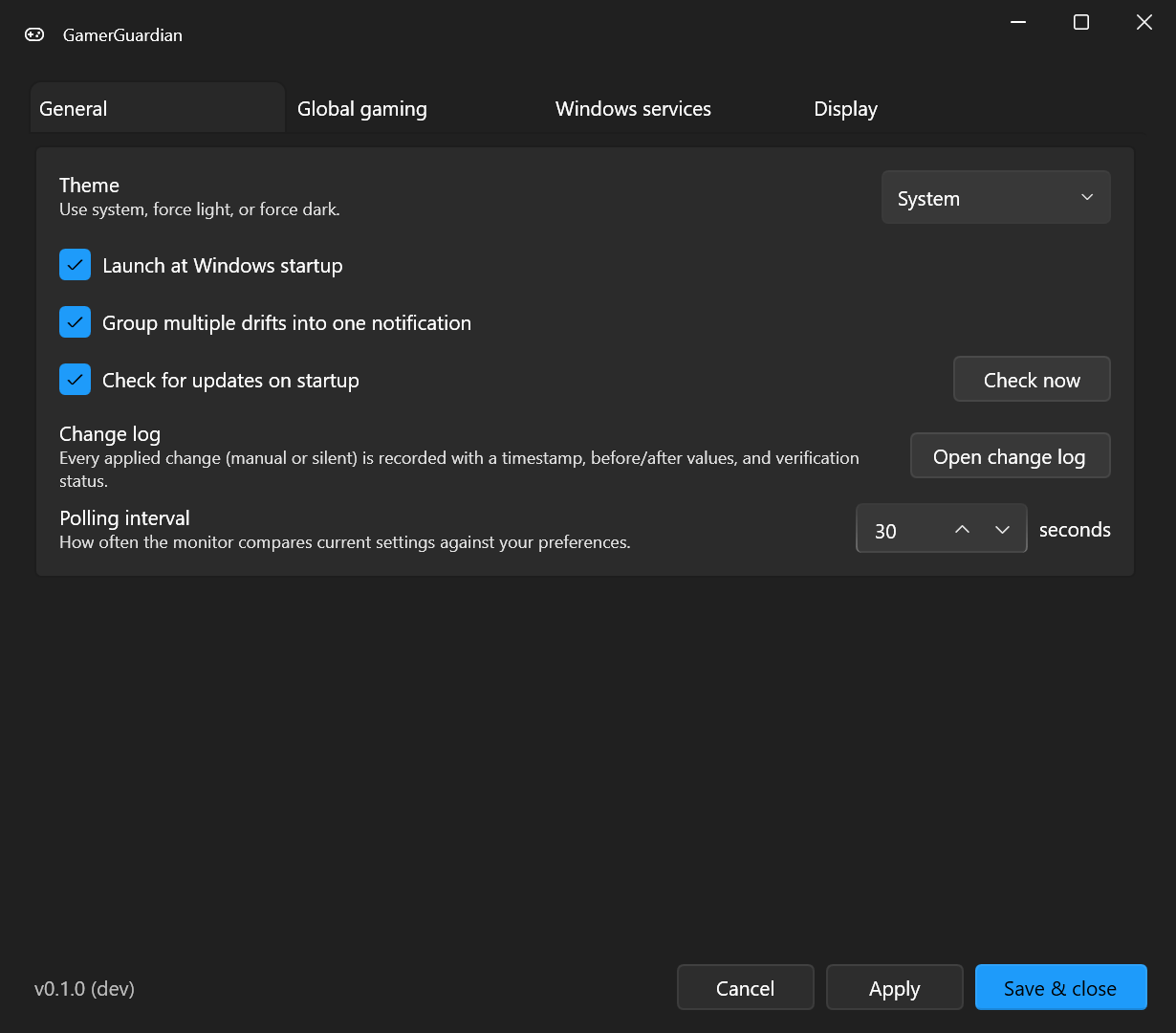
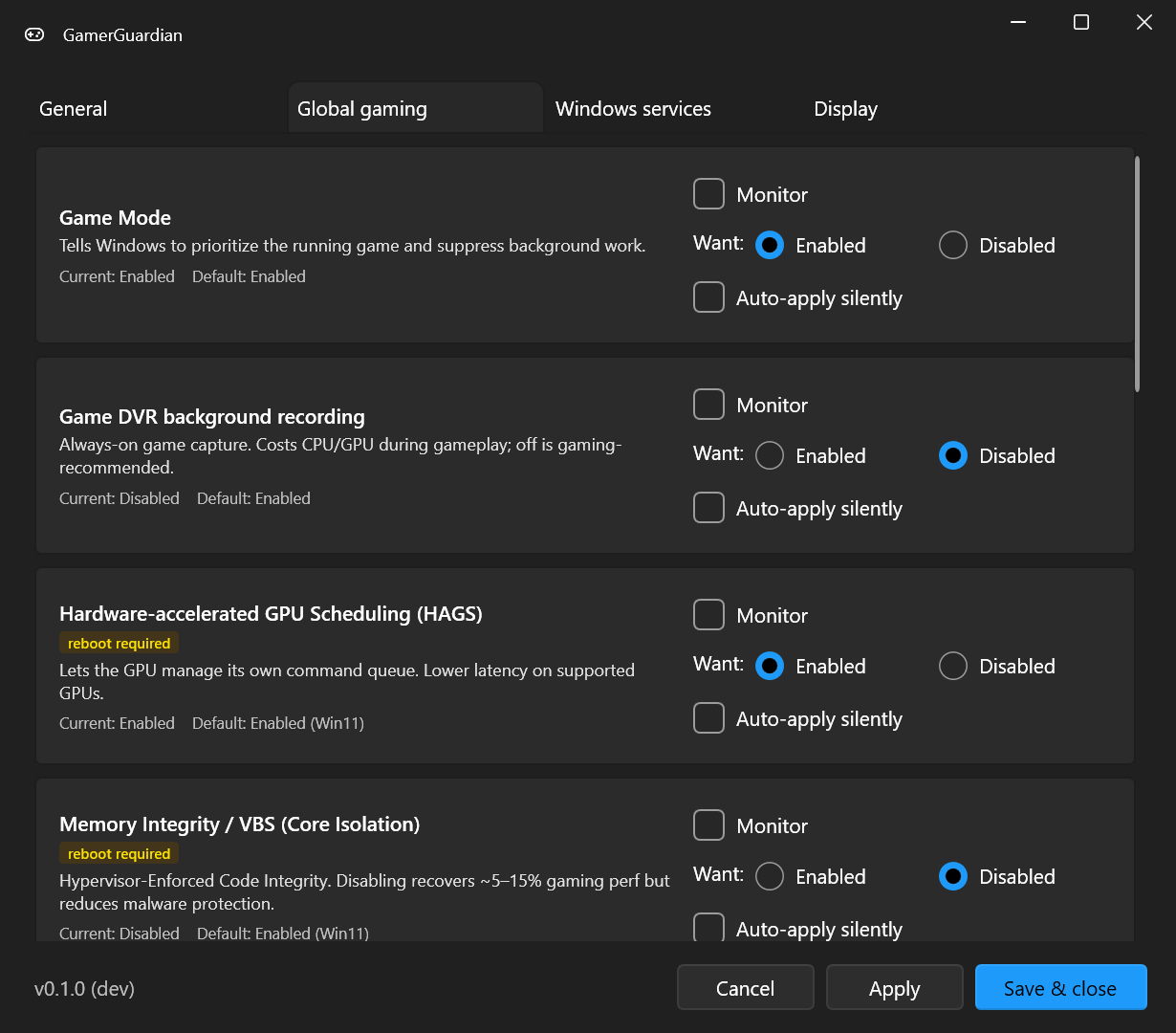
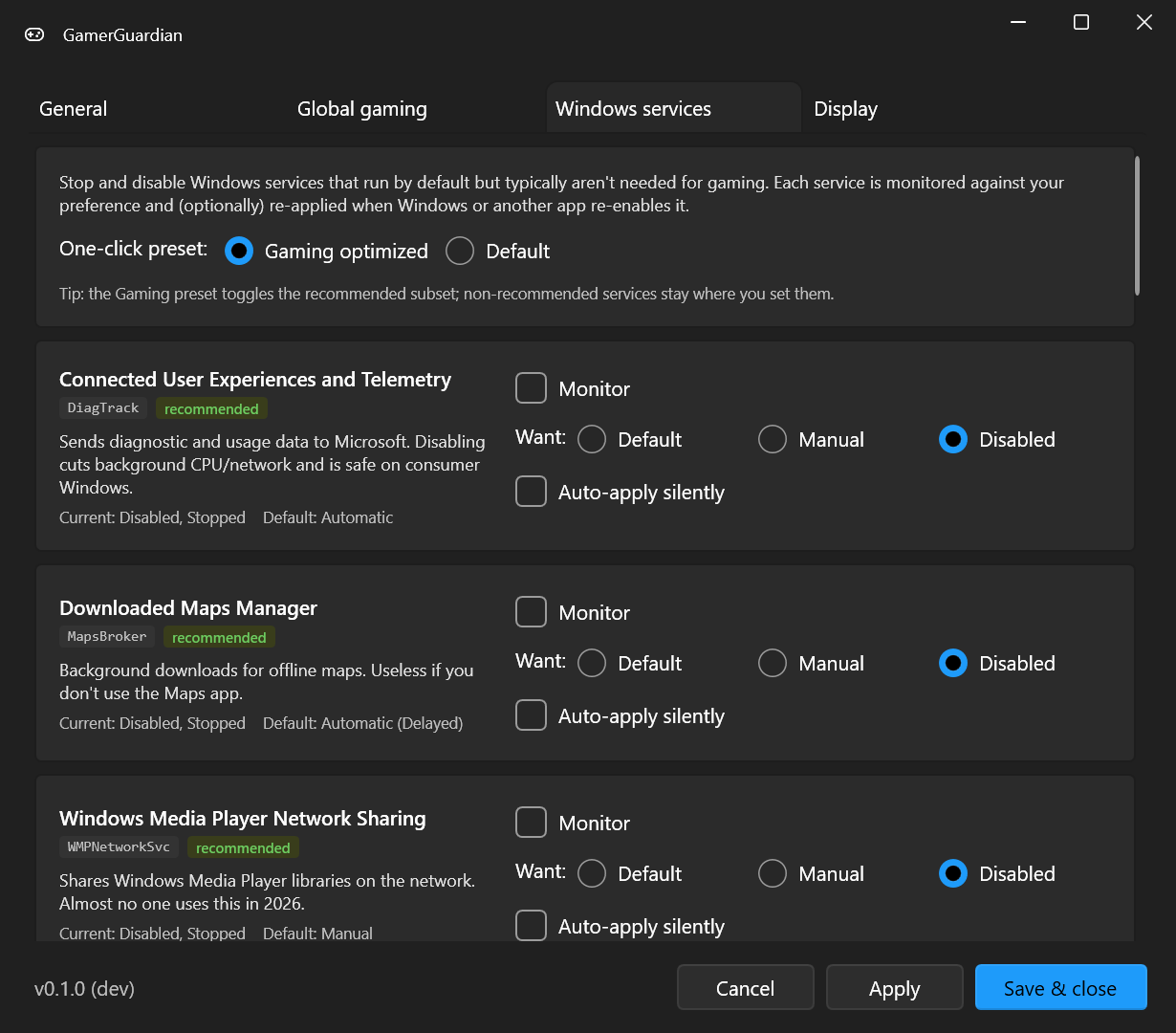
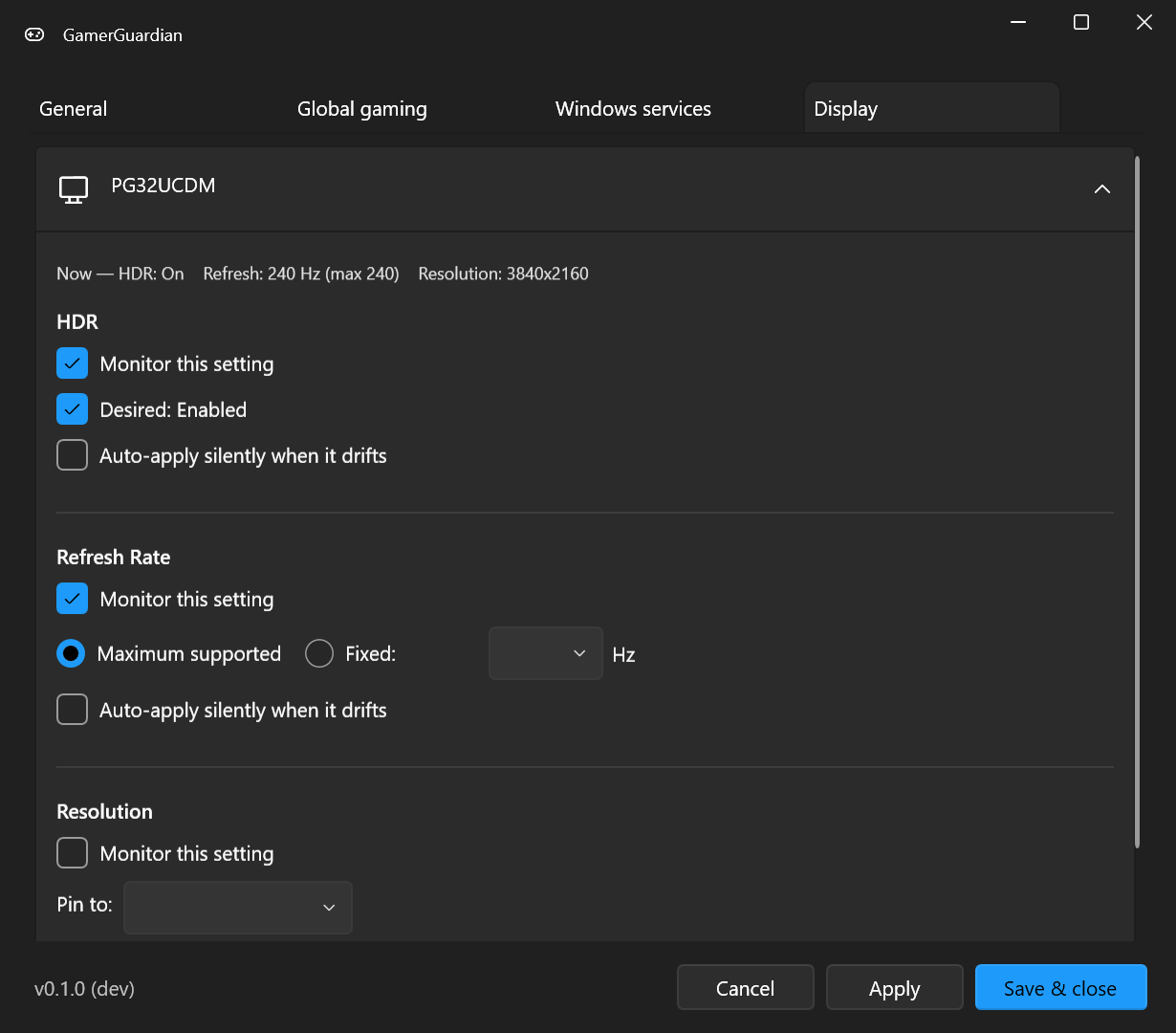
How it watches: the volatile display settings (HDR, refresh rate, resolution, DRR) are re-checked on a fast poll (default every 30 s); the ~40 set-and-forget registry/policy/service settings are re-checked at startup, on resume/unlock, on display changes, and on a slow 10-minute backstop — so the app isn't constantly polling settings that only move across a reboot. A built-in circuit breaker stops re-applying a setting that Windows keeps reverting (logged as [CIRCUIT]). Every setting's Learn more expander gives a plain-English pro/con of each choice plus a copy-pasteable PowerShell block to verify, apply the gaming value, or reverse to the Windows default.
- Installation — download, install, uninstall
- Verifying your download — three independent integrity checks (VirusTotal, SHA-256, SLSA provenance) anyone can run before installing
- Verification — how to confirm GamerGuardian is doing what it says at runtime
- File locations — where config, logs, and the installed binary live
-
Logging —
changes.logschema with worked examples
- Build from source — local debug, local release, local installer
-
Source file reference — what every
.csfile does - Architecture rationale — why GamerGuardian looks the way it does (no kernel driver, polling, single-file publish, etc.)
- Security — how the build pipeline keeps the app trustworthy, and how you can verify it yourself
- OpenSSF Scorecard — what each Scorecard check measures, what the project scores, and why
Source of truth note: these pages are mirrored from
docs/wiki/in the main repo. PRs that touch wiki content go to that directory; a sync workflow pushes them here.
Getting started
Features
Develop
Trust