AI-powered Agentic Writing Assistant for LibreOffice
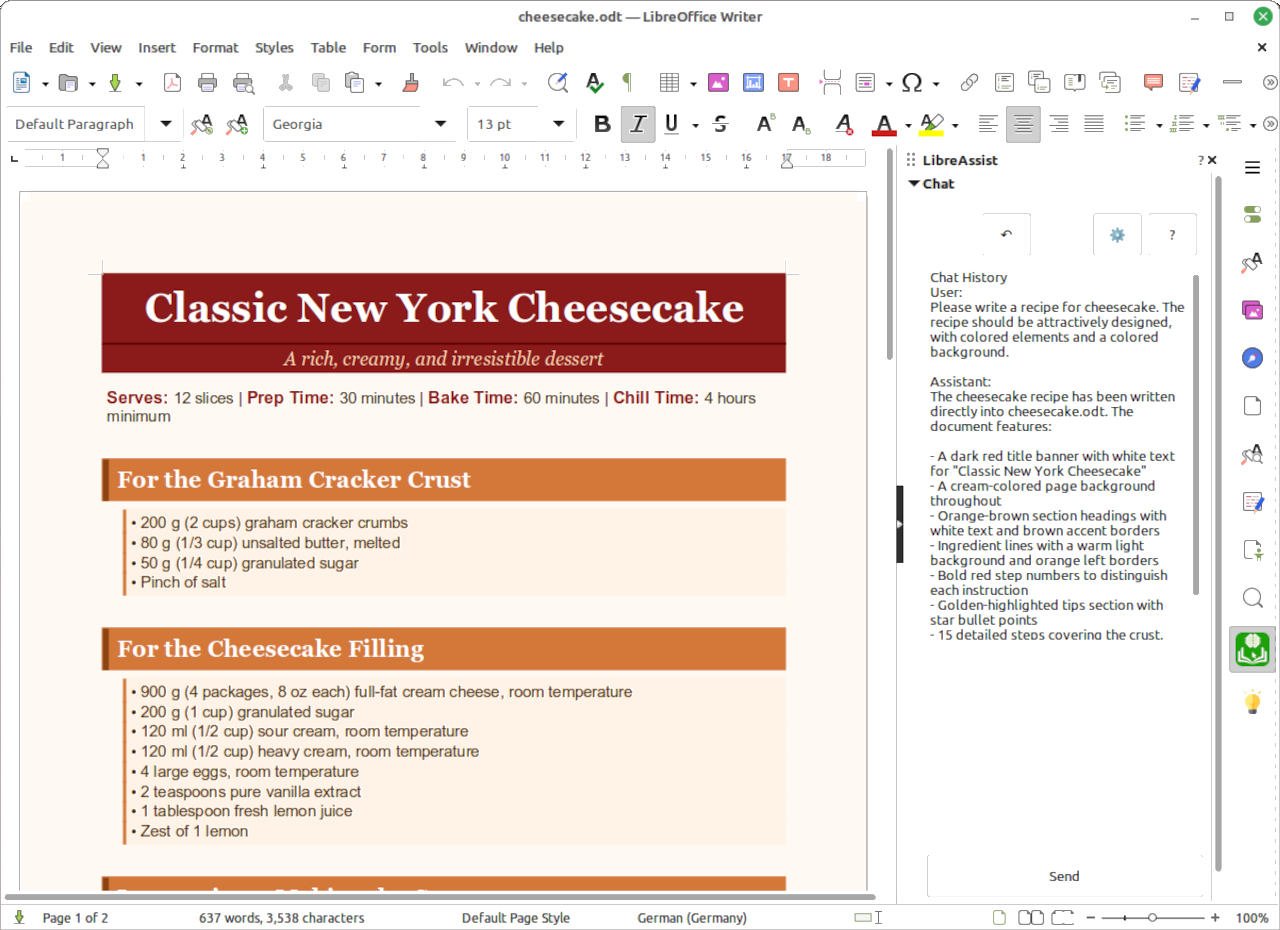
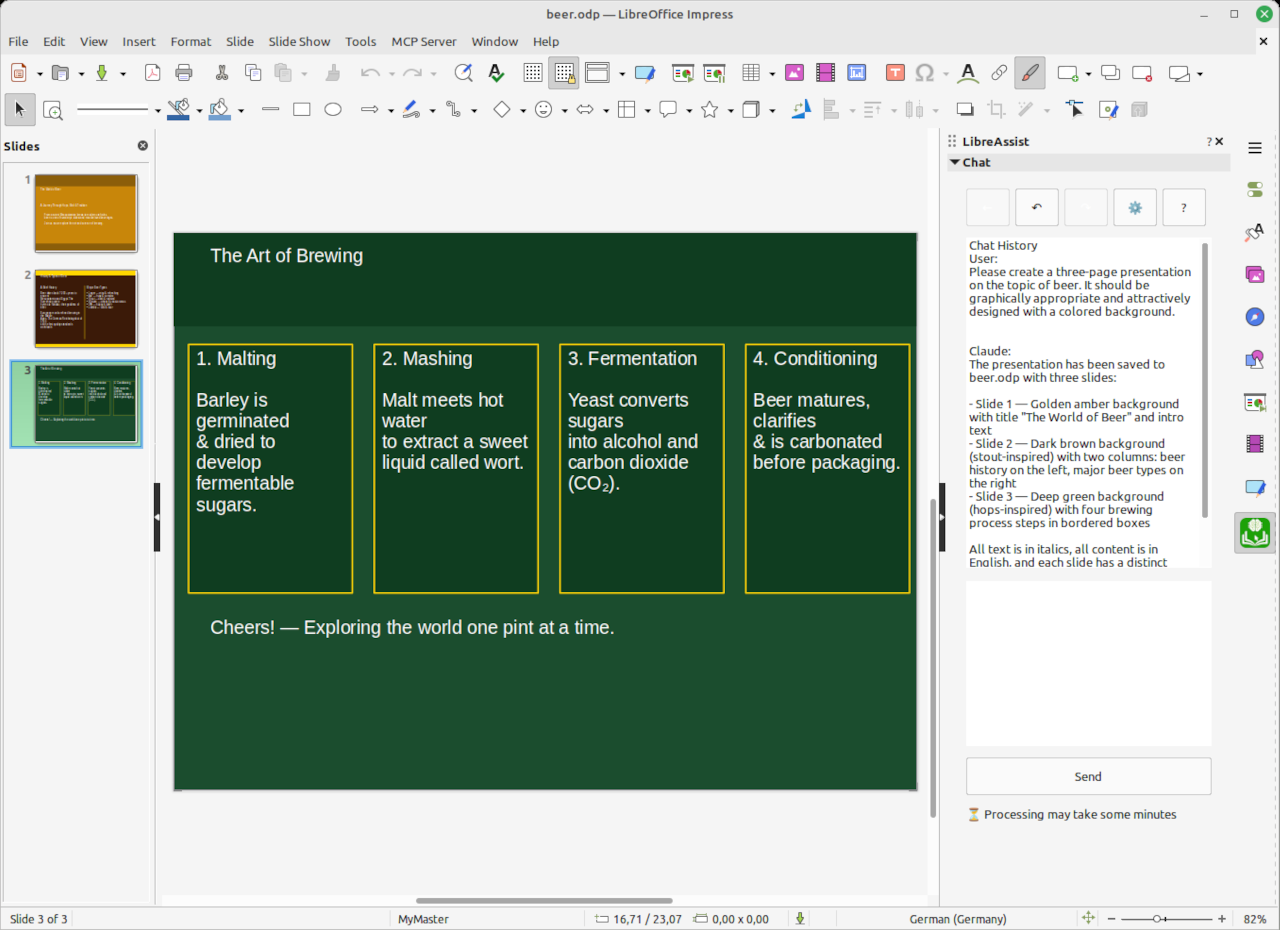
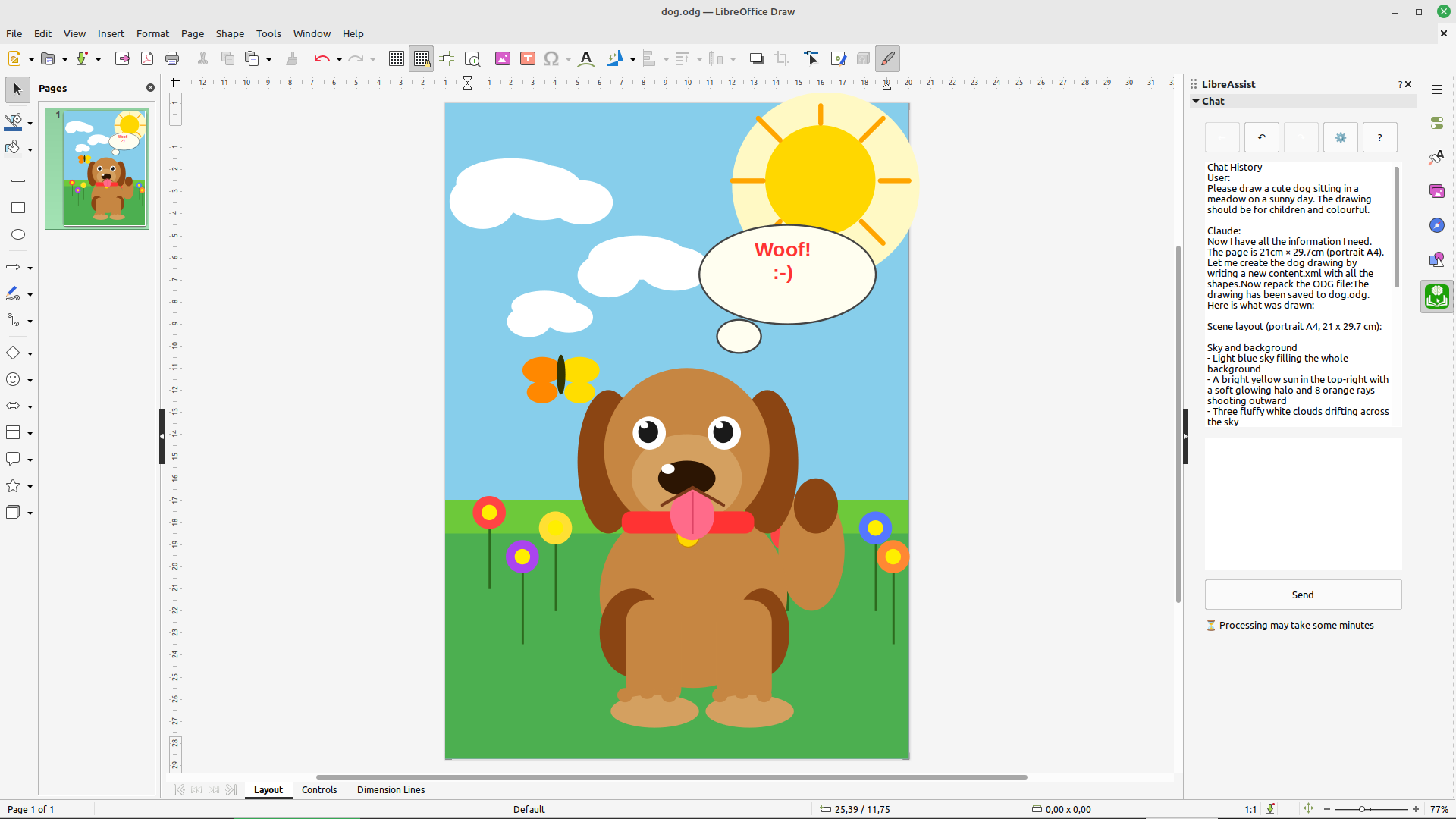
LibreAssist is a LibreOffice extension that brings AI-powered writing assistance directly into your documents. Unlike traditional copy-paste solutions, LibreAssist provides true Agentic Writing - AI tools that can directly manipulate your documents through command-line interfaces, even design.
LibreOffice Extensions page: https://extensions.libreoffice.org/en/extensions/show/99521
🆕 What's new?
- 16.05.2026 Release V1.1.1 with a Linux Codex CLI bug fix.
-- More news? Check the newsblog.
- 🤖 Multi-Provider Support - Works with Claude Code CLI, Codex CLI and Mistral Vibe CLI
- 🔍 Track Changes Support - AI changes shown as tracked changes in Writer (opt-in)
- 💬 Session-Based Conversations - Maintains context across multiple interactions
- ✏️ Direct Document Manipulation - AI writes directly into your document, even design elements
- ↩️ Undo/Redo System - Full backup and restore capabilities for AI changes
- 💾 Persistent Chat History - Conversations are saved per document
- 🌍 Multilingual - en, de, fr, it and es localization included, more will follow
- 🔄 Provider Switching - Easy switching between different AI providers
- ⚙️ Configurable Timeouts - Adjust processing timeouts as needed
-
Claude Code CLI - Anthropic's Claude via command-line interface
- Install:
npm install -g @anthropic-ai/claude-code - Supports LibreOffice files natively
- Install:
-
Codex CLI - OpenAI's GPT models via command-line interface
- Install: Follow instructions at github.com/microsoft/codex-cli
- Requires Node.js v20+
- Supports LibreOffice files natively
-
Mistral Vibe CLI - Mistral AI models via command-line interface
- Install:
pip install mistral-vibe ⚠️ Experimental: Mistral Vibe does not natively support LibreOffice files. LibreAssist works around this via automatic ODT post-processing, which may not always produce correct results. Files can be corrupted.
- Install:
The following providers were tested but cannot edit LibreOffice .odt files:
- Gemini CLI - Google's Gemini models
- Groq Code - Groq's LPU-accelerated models
These providers work for chat-only interactions but lack the ability to manipulate LibreOffice document formats. For use with API Providers, there are many ohter extensions, like LibreThinker.
- LibreOffice
- Python 3.8+ (embedded in LibreOffice)
- At least one supported CLI provider (Claude Code or Codex CLI)
- Node.js v20+ (required for Codex CLI only)
-
Download the latest
LibreAssist.oxtfrom the Releases page -
Install a CLI Provider:
# For Claude Code:
npm install -g @anthropic-ai/claude-code

# For Codex CLI:
# Follow instructions at https://github.com/microsoft/codex-cli

# For Mistral Vibe (experimental):
pip install mistral-vibe
-
Install the Extension:
- Open LibreOffice
- Go to
Tools→Extension Manager - Click
Add - Select the downloaded
LibreAssist.oxtfile - Click
Acceptto install - Restart LibreOffice
-
Access LibreAssist:
- Open or create a Writer document
- Save the document first (required for AI providers to access the file)
- Open the sidebar:
View→Sidebar(or press F5) - Click the
LibreAssistpanel
- Save your document - AI providers need a saved file to work with
- Open the LibreAssist sidebar
- Type your request in the input field
- Click Send or press Enter
- Wait for the AI to process (may take 1-2 minutes)
- Review the changes in your document
You can specify which provider to use by prefixing your prompt:
claude Write an executive summary
codex Fix all typos in this document
mistral Change background color to blue
Without a prefix, the default provider (set in Settings) will be used.
- Undo Button (↶) - Restores the document to the state before the last AI change
- Redo Button (↷) - Re-applies the AI changes after an undo
The document will automatically reload after undo/redo operations.
Click the ⚙ Settings button to configure:
- Provider - Select your default AI provider
- Timeout - Maximum processing time (60-3600 seconds)
- Reset Session - Start a new conversation (with confirmation dialog)
- Clear History - Delete the chat history (with confirmation dialog)
- Custom Instructions - Instructions included in every request
- Open Provider Config - Edit
providers.jsonto add or customize providers - Delete All Data - Remove all chat history, backups and settings
LibreAssist automatically discovers installed CLI providers by searching:
- System PATH
- npm global directories
- nvm Node.js installations
- Common installation locations
- AI.duino: https://github.com/NikolaiRadke/AI.duino
This is a maker project, not a professional software product. Contributions, bug reports, and feature requests are welcome through GitHub issues and pull requests.
LibreAssist is free and open source. If it saved your day, consider buying me a coffee! ☕

