|
./Get-ExifData.ps1
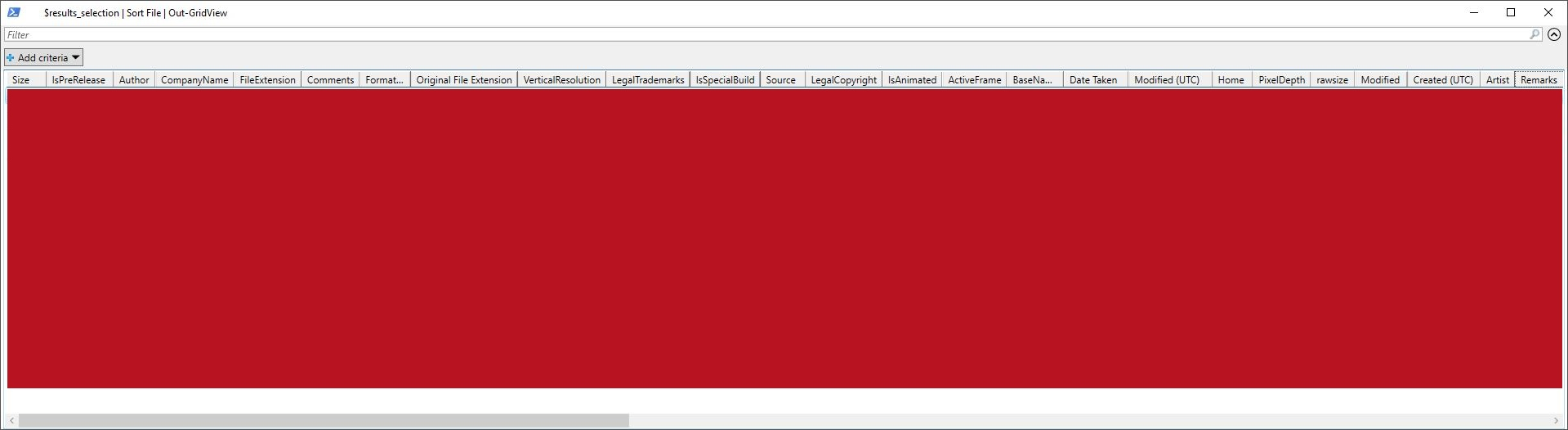
Runs the script. Please notice to insert ./ or .\ before the script name. Tries to read the EXIF data from image files that reside in the "$($env:USERPROFILE)\Pictures\" folder, since no values for the -Path or -File parameters were defined. Saves or updates the CSV log file (exif_log.csv) at the default -Output folder ("$($env:USERPROFILE)\Pictures\exif_log.csv") - a file that contains all the gathered EXIF info columns/data types. A pop-up window listing a partial list of the EXIF info will open, if image files were read. The console will show rudimentary stats about the EXIF data gathering procedure.
help ./Get-ExifData -Full
Displays the help file.
.\Get-ExifData.ps1 -Path "C:\Users\Dropbox\" -Output "C:\Users\Dropbox\dc01" -Audio -Open -Recurse -Force
Runs the script and tries to recursively search for image files at "C:\Users\Dropbox\" and read the EXIF info of the found image files and either (1) update or create the CSV log file (exif_log.csv) at the C:\Users\Dropbox\dc01 folder if the folder exists or (2) create the C:\Users\Dropbox\dc01 folder (and exif_log.csv) without asking any further questions, if the -Output directory doesn't exist (since the -Force was used). Also, since the -Force and -Open parameters were used, the default File Manager will be opened at C:\Users\Dropbox\dc01 regardless whether any image files were read or not. Furthermore, if new image files were indeed read, an audible beep will occur. Also, a pop-up window listing a partial list of the EXIF info will open, if image files were read, and the console will show rudimentary stats about the EXIF data gathering procedure.
Set-ExecutionPolicy -ExecutionPolicy RemoteSigned -Scope LocalMachine
This command is altering the Windows PowerShell rights to enable script execution in the default (LocalMachine) scope, and defines the conditions under which Windows PowerShell loads configuration files and runs scripts in general. In Windows Vista and later versions of Windows, for running commands that change the execution policy of the LocalMachine scope, Windows PowerShell has to be run with elevated rights (Run as Administrator). The default policy of the default (LocalMachine) scope is "Restricted", and a command "Set-ExecutionPolicy Restricted" will "undo" the changes made with the original example above (had the policy not been changed before...). Execution policies for the local computer (LocalMachine) and for the current user (CurrentUser) are stored in the registry (at for instance the HKLM:\Software\Policies\Microsoft\Windows\PowerShell\ExecutionPolicy key), and remain effective until they are changed again. The execution policy for a particular session (Process) is stored only in memory, and is discarded when the session is closed.
Parameters:
Restricted |
Does not load configuration files or run scripts, but permits individual commands. Restricted is the default execution policy. |
AllSigned |
Scripts can run. Requires that all scripts and configuration files be signed by a trusted publisher, including the scripts that have been written on the local computer. Risks running signed, but malicious, scripts. |
RemoteSigned |
Requires a digital signature from a trusted publisher on scripts and configuration files that are downloaded from the Internet (including e-mail and instant messaging programs). Does not require digital signatures on scripts that have been written on the local computer. Permits running unsigned scripts that are downloaded from the Internet, if the scripts are unblocked by using the Unblock-File cmdlet. Risks running unsigned scripts from sources other than the Internet and signed, but malicious, scripts. |
Unrestricted |
Loads all configuration files and runs all scripts. Warns the user before running scripts and configuration files that are downloaded from the Internet. Not only risks, but actually permits, eventually, running any unsigned scripts from any source. Risks running malicious scripts. |
Bypass |
Nothing is blocked and there are no warnings or prompts. Not only risks, but actually permits running any unsigned scripts from any source. Risks running malicious scripts. |
Undefined |
Removes the currently assigned execution policy from the current scope. If the execution policy in all scopes is set to Undefined, the effective execution policy is Restricted, which is the default execution policy. This parameter will not alter or remove the ("master") execution policy that is set with a Group Policy setting. |
| Notes: |
- Please note that the Group Policy setting "
Turn on Script Execution" overrides the execution policies set in Windows PowerShell in all scopes. To find this ("master") setting, please, for example, open the Local Group Policy Editor (gpedit.msc) and navigate to Computer Configuration → Administrative Templates → Windows Components → Windows PowerShell.
|
|
- The Local Group Policy Editor (
gpedit.msc) is not available in any Home or Starter edition of Windows.
Group Policy Setting "Turn on Script Execution" |
PowerShell Equivalent (concerning all scopes) |
Not configured |
No effect, the default value of this setting |
Disabled |
Restricted |
Enabled – Allow only signed scripts |
AllSigned |
Enabled – Allow local scripts and remote signed scripts |
RemoteSigned |
Enabled – Allow all scripts |
Unrestricted |
|
For more information, please type "Get-ExecutionPolicy -List", "help Set-ExecutionPolicy -Full", "help about_Execution_Policies" or visit Set-ExecutionPolicy or about_Execution_Policies.
New-Item -ItemType File -Path C:\Temp\Get-ExifData.ps1
Creates an empty ps1-file to the C:\Temp directory. The New-Item cmdlet has an inherent -NoClobber mode built into it, so that the procedure will halt, if overwriting (replacing the contents) of an existing file is about to happen. Overwriting a file with the New-Item cmdlet requires using the Force. If the path name and/or the filename includes space characters, please enclose the whole -Path parameter value in quotation marks (single or double):
New-Item -ItemType File -Path "C:\Folder Name\Get-ExifData.ps1"
For more information, please type "help New-Item -Full".
|