Project Structure:
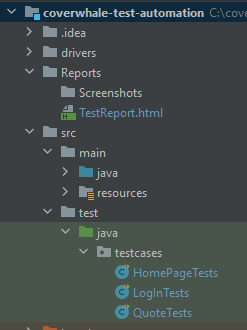
- All the test case files are located under "src/test/java/testcases". You will find separate test case file for each module / functionality. (e.g. Login tests, Home page tests etc...)
- DOM elements / WebElements should be defined under "src/main/java/pages" folder.
- Configuration file "config.properties" in "src/main/java/config" folder contains all the configuration details like execution email details, admin user, password, environment execution URL etc... which are used in automation./
- Utilities folder - "src/main/java/utilities" has code / files for Emailing the report (Emailer.java) and TestListner etc...
- Execution reports and fail step screenshot are saved under "Reports" and "Reports/Screenshots" folder respectively.
- "Test_Case_Steps.xslx" file available under "src/test/java" contains manual steps for the scenarios covered in automation suite/ respective test case file.
Steps to Setup Project on your local:
- Download and install Java SDK 8
- Download and install Intellij Community edition from https://www.jetbrains.com/idea/download/
- Download Apache Maven and extract zip file to specific folder.
- Follow the steps to ensure all the system environment variables are setup correctly. https://www.tutorialspoint.com/maven/maven_environment_setup.htm
- Download and install Git
- Clone the Git repository - {repo}to local folder.
- Open command prompt and navigate to directory where project is cloned and run following command: a. Mvn clean
- Wait till it completes the process and shows “Build Success” status.
- Open the project in Intellij
- Navigate to src\test\java\testcases\ and open any test case file.
- You can run entire test suite / test case from Intellij. OR using maven command “mvn clean test” from command prompt.
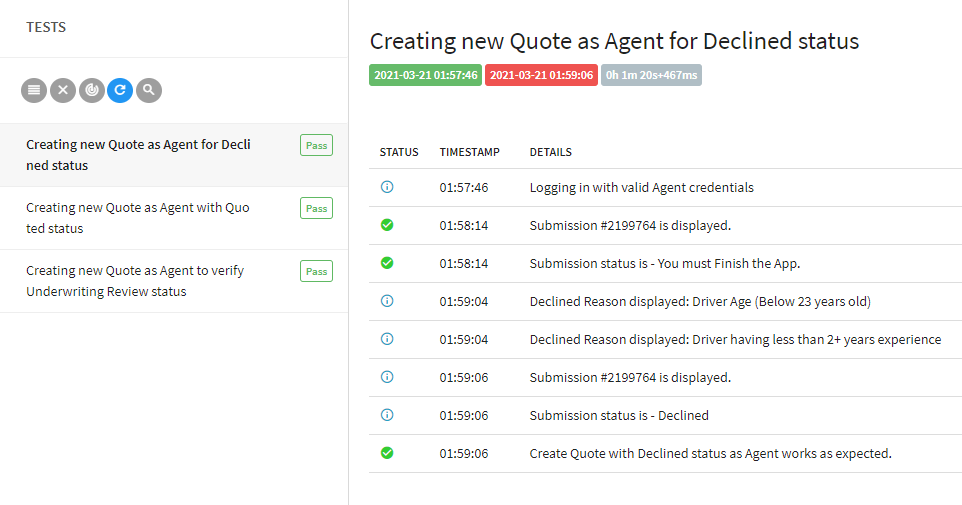
- After execution is complete, you should see the test execution report in Reports folder.
- Open the TestReport.html in Chrome browser to see the result.