
A script designed to export Notion pages as formatted Markdown files. It captures and downloads all Notion page content, including text, images, audio, and more. To overcome Notion API request rate limits and reduce runtimes, performance optimization techniques and workarounds are employed. Incremental export is used to only export pages that have not been previously exported or have been edited since the last export.
Before running the script, the .env file must be created and populated with the relevant information. Additionally, a Notion Integration must be created and linked to the respective database/page on Notion. Once these steps are completed, the script can be executed.
- Create a
.envfile in the root folder. Inside the.envfile, inclde the following structure:
NOTION_API_KEY_0 = ''
NOTION_API_KEY_1 = ''
...

DATABASE_ID_0 = ''
DATABASE_ID_1 = ''
...

AGGREGATE_ID_0 = ''
AGGREGATE_ID_1 = ''
...

PAGE_ID_0 = ''
PAGE_ID_1 = ''
...
Note: Multiple Notion API keys, database IDs, aggregate IDs, and page IDs can be defined by following the below naming scheme. Each entry should use a base prefix corresponding to its type appended with a unique identifier to distinguish individual values.
| Entry Type | Base Prefix | Examples |
|---|---|---|
| Notion API Key | NOTION_API_KEY |
NOTION_API_KEY_0NOTION_API_KEY_ntn_123... |
| Database ID | DATABASE_ID |
DATABASE_ID_0DATABASE_ID_DATABASE_TITLEDATABASE_ID_1a2345bc... |
| Aggregate ID | AGGREGATE_ID |
AGGREGATE_ID_0AGGREGATE_ID_AGGREGATE_TITLEAGGREGATE_ID_1a2345bc... |
| Page ID | PAGE_ID |
PAGE_ID_0PAGE_ID_PAGE_TITLEPAGE_ID_1a2345bc... |
Note: Due to rate limitations, it is highly recommended to create multiple API keys. Although each integration has a request rate limit, different clients using different integrations can run concurrently even if they are accessing the same database/page.
This tutorial provides a comprehensive guide for setting up an integration. A summarized version of the steps is outlined below:
NOTION_API_KEY + Create and Link an Integration
- To create an integration, navigate to Integrations and click
New Integration.
Fill in the Title, Associated workspace, and set Type toInternal.
After creation, retrieve theNOTION_API_KEYfrom the Internal Integration Secret section.
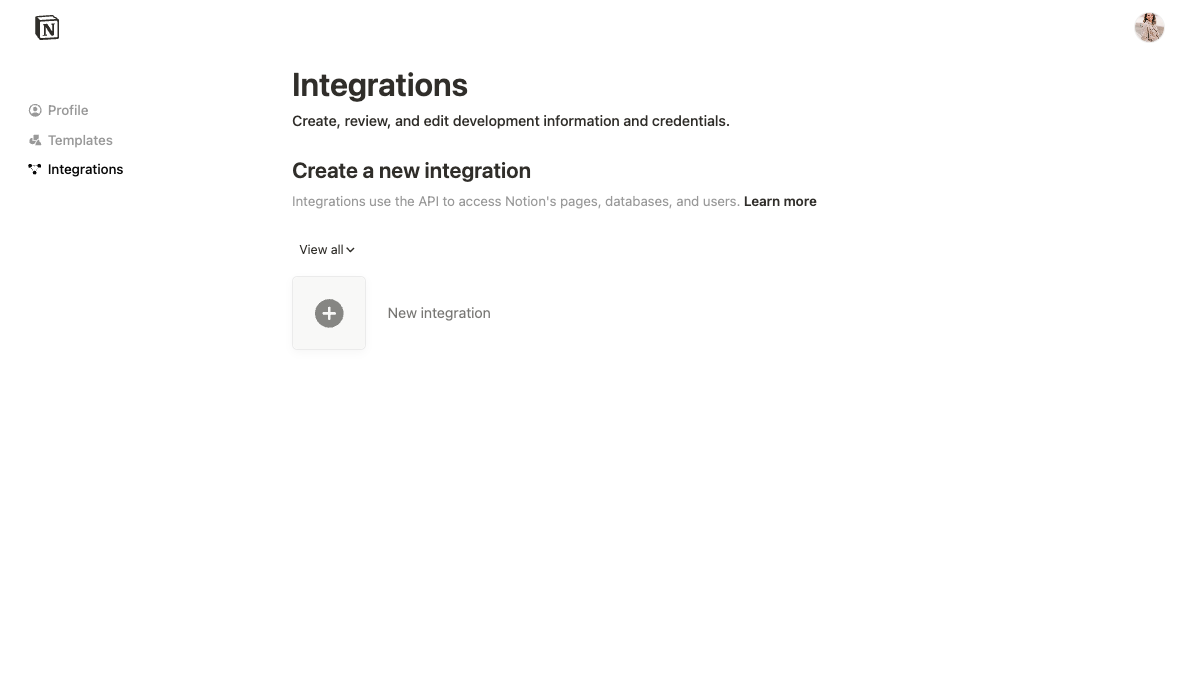
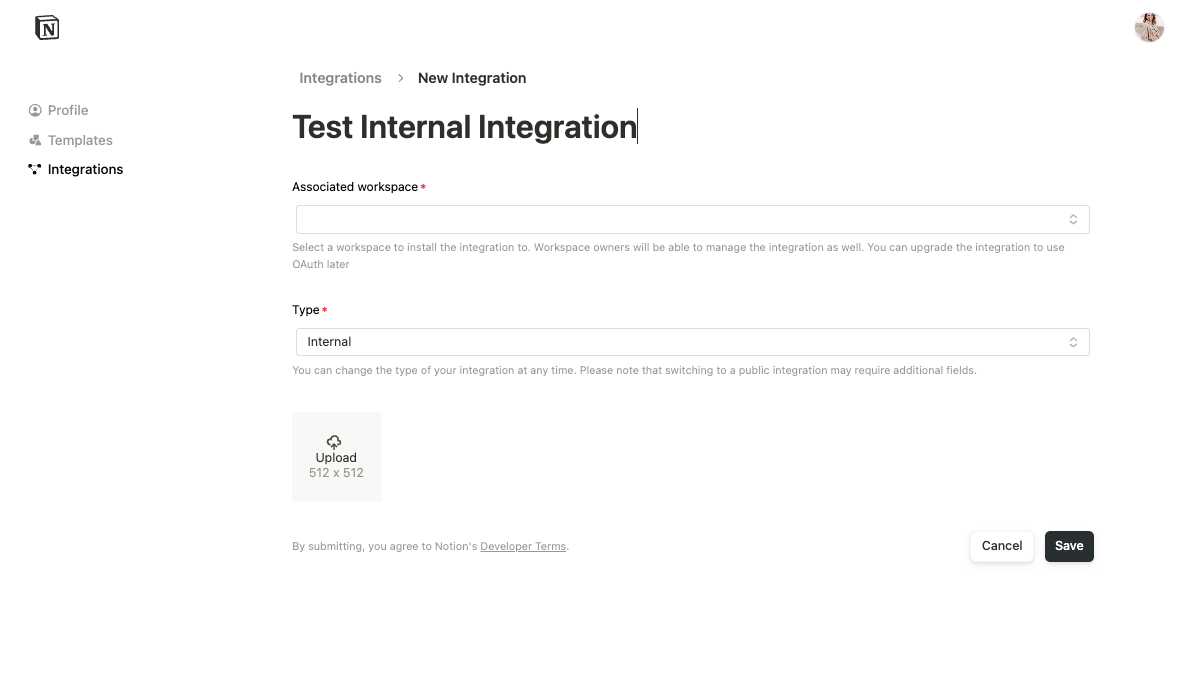
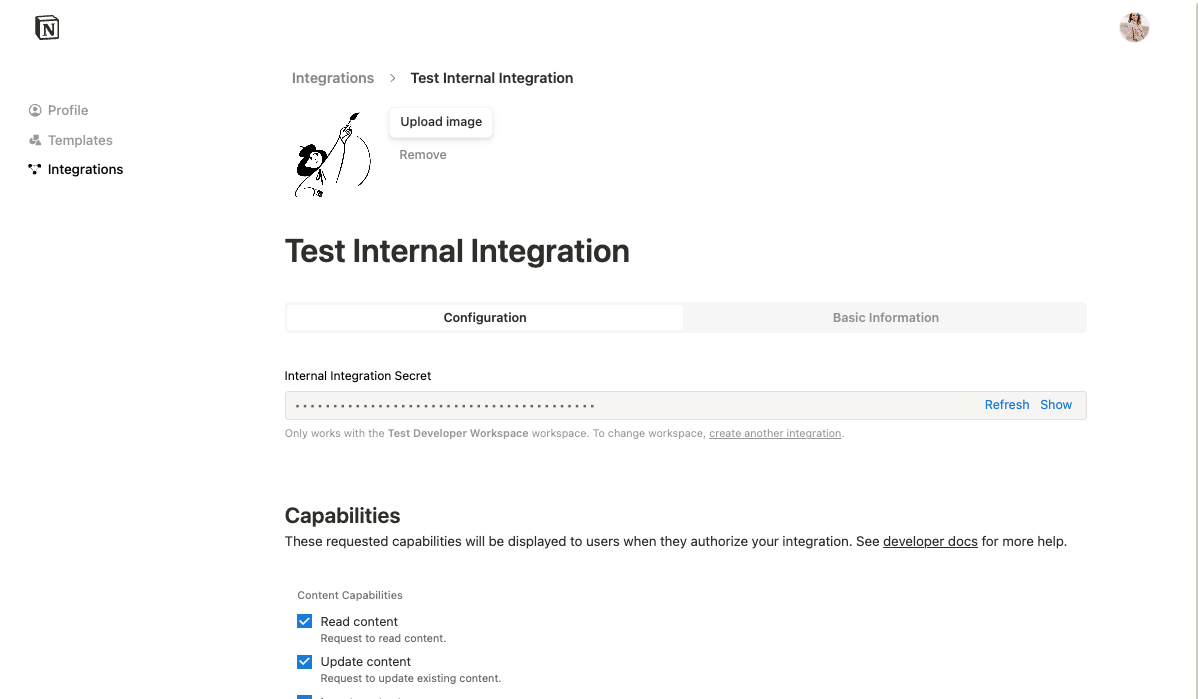
Note: Workspace privileges are required for this next step. If access is needed, consult the relevant parties to either gain access or have them create the integration.
- To link the integration to a database/page, navigate to the database/page. Click the
...menu on the top-right, hover over Connections, search for thetitleof the integration created in the previous step, and select it.
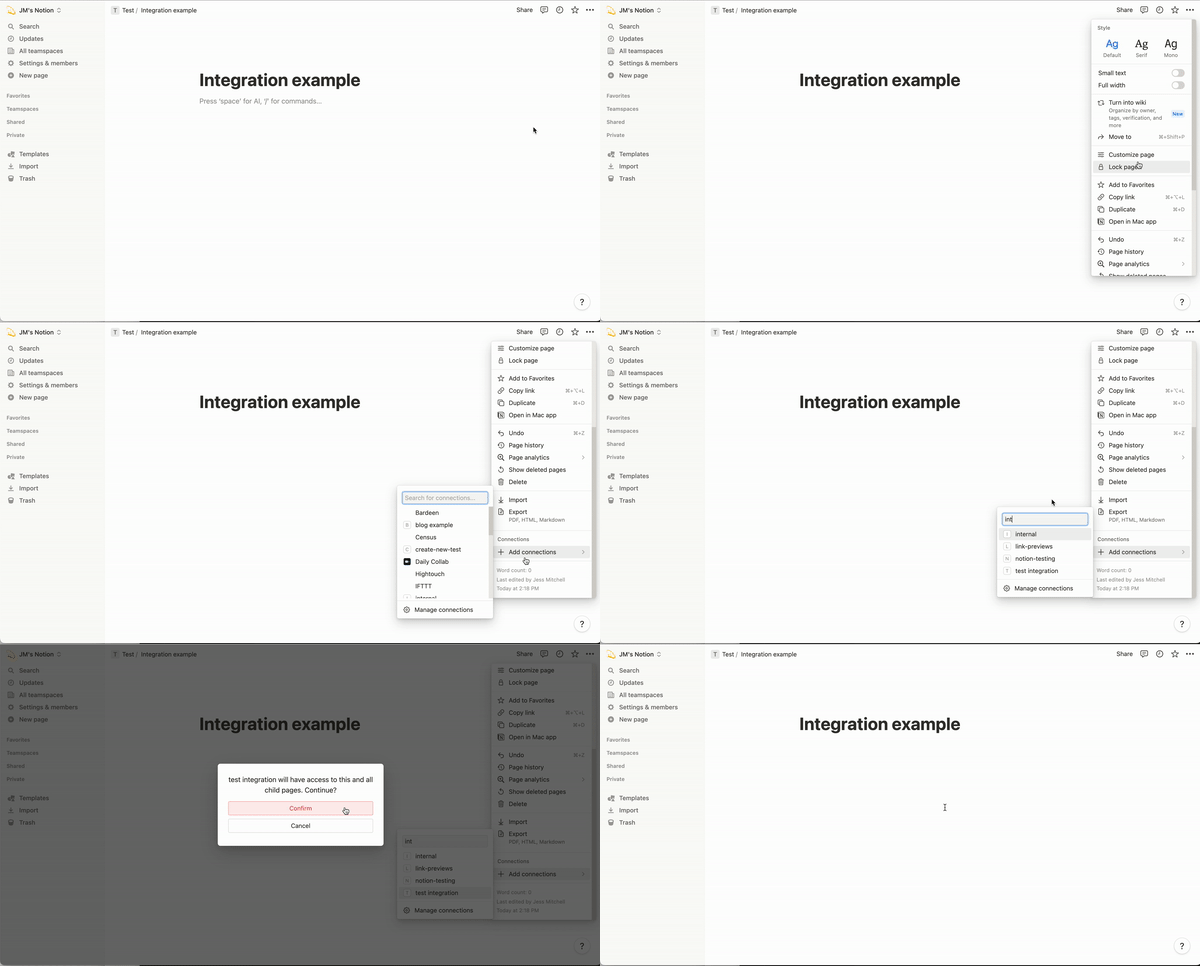
Note: Repeat these steps for as many API keys as desired.
- To retrieve a database ID, navigate to the database and locate it in the URL.
e.g. https://www.notion.so/1b4524ea00fa80ccb6d4c73e660c31a5?v=1b4524ea00fa81ed8ab5000c6b0b1b89&p=242524ea00fa804ca2b2ef7becc57eee&pm=s

Note: Repeat these steps for as many database IDs as desired.
Note: An aggregate is a Notion page that consolidates multiple floating Notion pages and marks them for export by linking them within it. It allows these floating pages to be bundled and managed via links in a Notion page as opposed to individual page IDs in the
.envfile. This is particularly helpful when Notion pages cannot be easily grouped into databases.
- To retrieve an aggregate/page ID, navigate to the page and locate it in the URL.
e.g. https://www.notion.so/aggregate-page-243524ea00fa80f0bbb1df4d5f5fc838
e.g. https://www.notion.so/1b4524ea00fa80ccb6d4c73e660c31a5?v=1b4524ea00fa81ed8ab5000c6b0b1b89&p=242524ea00fa804ca2b2ef7becc57eee&pm=s
Note: Repeat these steps for as many aggregate/page IDs as desired.
- With the
NOTION_API_KEY,DATABASE_ID,AGGREGATE_ID, andPAGE_IDobtained, populate the.env. Remember to enclose them in quotation marks (either single or double) to treat them asstrings.
NOTION_API_KEY_0 = '...'
NOTION_API_KEY_1 = '...'
...

DATABASE_ID_0 = '...'
DATABASE_ID_1 = '...'
...

AGGREGATE_ID_0 = '...'
AGGREGATE_ID_1 = '...'
...

PAGE_ID_0 = '...'
PAGE_ID_1 = '...'
...
Install dependencies (omit this step if previously completed)
npm install
- Run the custom script command from the
rootfolder
npm run export
- Navigate into the
srcfolder (location of the script file)
cd src
- Run the script file from the
srcfolder
npx ts-node script.ts
notion.ts — Handles business logic and interacts with the Notion API
util.ts — Handles general exporting logic
converter.ts — Converts content into HTML and Markdown
fileSystem.ts — Manages file storage operations
syncLog.ts — Manages sync log to only export modified pages
spinner.ts — Displays a terminal spinner and logs metrics
The Notion API can be utilized to fetch/parse data using either a databaseId, pageId, or blockId. It should be noted that pageId = blockId in this context and can be used interchangeably with regard to the Notion API. API requests return page data as JSON files. However, a single request/file does not contain all the contents of the page, but rather the topmost 'layer' of page data. Deeper layers of the page can be reached using additional API requests and metadata within the JSON file.
The Notion API treats a Notion page very similarly to a webpage DOM. Imagine the below HTML block as a Notion page:
<div class="database">
  <div class="page1">
    <div class="section1">
      <p>item 1</p>
      <p>item 2</p>
    </div>
    <div class="section2">
      <p>item 3</p>
      <p>item 4</p>
    </div>
  </div>
  <div class="page2">
    ...
  </div>
  <div class="page3">
    ...
  </div>
</div>
The topmost layer of the DOM is <div class="database">, and in this analogy, it represents the Notion database. An API request can be made to retrieve the next layer down, which would include the <div> elements 'page1', 'page2', and 'page3', which correspond to all the pages in the database. Drilling into each page, and then each element of the page, would follow a similar process, and can continue until the elements no longer have any more layers.
This structure is very akin to a general tree, and thus similar logic to handle trees can be applied. The root node would be the database, the next layer down would be the pages, and each page would be broken down into sections, etc. API requests allow navigation through branches, from a node to its children.
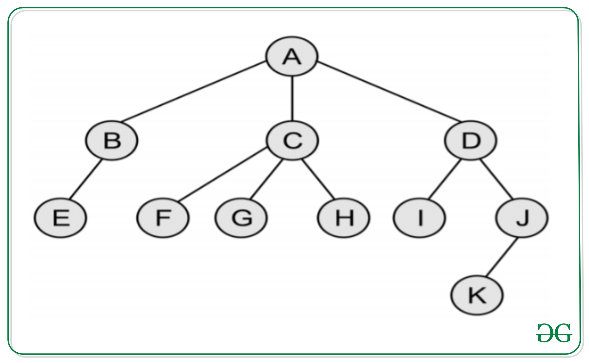
The exporter utilizes a databaseId to retrieve and iterate over all the pages in the database using their pageId. For each page, it verifies if it has been modified since the last time the exporter was ran to eliminate redundant exporting. A modified pre-order traversal is used to fetch all the page data and concatenate it in the correct order. Using the convenient type and annotations properties, the correct styling can be applied to each text/information block via mapped functions.
This exporter can utilize multiple Notion API keys/integrations to reduce export times. Although there is a rate limit for each key, different clients using different keys can be linked and used on the same database. In terms of the exporter, this mean n pages can be exported concurrently where n is the number of API keys defined in the .env file.