We are Team coding n00bies! We are a group of friends who have known one another since secondary school and are new to the world of coding. We signed up for this competition to learn and challenge ourselves! :)
- Short description of our solution and our idea
- Our Video Pitch
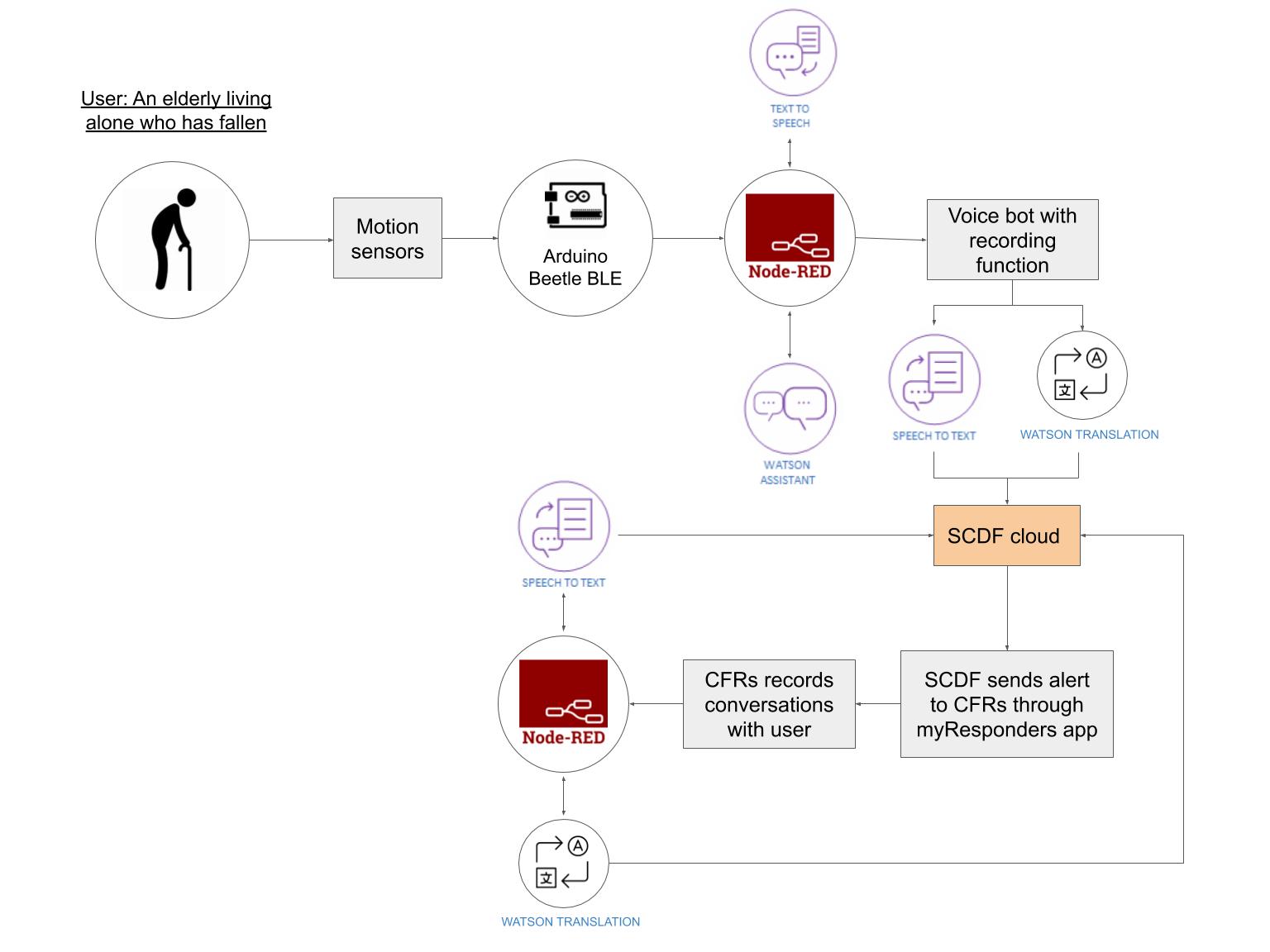
- Architecture of our proposed solution
- Our Detailed Dolution
- Step-by-step Installation Instructions
- Technologies used in Building the Solution
According to the Health Promotion Board Singapore, about one-third of elderly Singaporeans aged 60 and above have recurring falls. Falling down at an old age can be detrimental as older people have more fragile bones, are more likely to have complications from surgeries and have problems recovering.
Our team has identified elderly who are living alone as a particularly vulnerable group amongst the elderly. This is because the elderly in this group do not have family members or relatives living with them who can provide help in the case of a fall or alert emergency medical services. Furthermore, we identified that bathrooms are commonplace for falls due to the slippery surfaces. Therefore, our team’s solution aims to detect such falls, alert the Singapore Civil Defence Force (SCDF) and Community First Responders (CFRs) for the elderly and collect data that is useful for the personnel arriving at the scene.
There are two phases to our solution. Phase One encompasses data collection via motion sensors to detect a fall so that SCDF is alerted as soon as it occurs. This is of utmost importance as the elderly living alone do not have anyone else who can alert emergency medical services and may be immobilised after the fall.
Phase Two is to maximise the effectiveness of CFRs who arrive early to the scene before SCDF personnel through Watson Translation. This is to make communication between the injured senior citizen. Clear communication will allow the CFR to make a better assessment of the situation and provide the necessary aid accordingly. This can significantly impact the outcome of the fall for the elderly. Furthermore, the communication between the CFR and the elderly can be transcribed and sent to SCDF personnel who are on the way so they can remain updated.

More details are available here
Part 1: Setting up your accelerometer containing motion sensor (hardware) and connecting it to Node-Red (software)
Step 1. Connect your PC to Arduino Beetle Ble using a USB cable
Step 2. Connect the accelerometer to Arduino using wires
Step 3. Code Arduino with Python (“Accelerometer_containing_motion_sensor _and_timer.py” and “Accelerometer_with_timer” as stored in Python Codes folder)
Step 4: Disconnect Arduino from PC
Step 5: Using the built-in bluetooth function in Arduino, connect it to a device that node-red is installed in
Step 6: Move the accelerometer to obtain input from it
Step 7: Do steps 1-6 for 4 more identical accelerometers
Step 1. From the IBM Cloud catalog, provision an instance of Watson Assistant.
Step 2. Launch the Watson Assistant service.
Step 3. Create assistant
Step 4. Name the Watson Assistant instance Silver Emergency Response
Step 5. Click ‘Add Dialog’ skill to add this to your assistant.
Step 6. Click Import skill > Choose JSON file and import the skill-Silver_Emergency_Response.json file
Step 7. Go back to the All Assistants page to open ‘Settings’.
Step 8. On the Settings tab, click API Details on the left and make a note of the Assistant ID and Api Key for future use.
Step 9. Go back to the ‘All Assistants’ page and click on the ‘Skills link’.
Step 10. On the ‘Skill page’, open ‘View API Details’.
Step 11. On the ‘Skill Details’ page, make note of the Skill ID for future use.
Step 12. Go back to your dialog skill and click on the ‘Preview Link’ button on the side to get a link to test and verify your assistant.
Step 13. Type in ‘Thump’ to mimic the sound of a falling elderly and to trigger the motion sensor, which would activate the Silver Emergency Response. Continue to answer the questions that the Silver Emergency Response asks to experience how it works!
Step 1. Node-red must be installed on IBM cloud so that data can be accessed by SCDF and CFR
Step 2. Install the following dependencies into the flow:
Node-red-node-ui-microphone Node-red-dashboard Node-red-node-watson Node-contrib-play-audio
This can be done by using IBM cloud toolchain and the git repository in IBM cloud to add the following packages to the package.json file.
"node-red-node-ui-microphone":"0.x", "node-red-dashboard":"2.x", "Node-red-contrib-play-audio":"2.x",
Step 3: Create a flow as such:
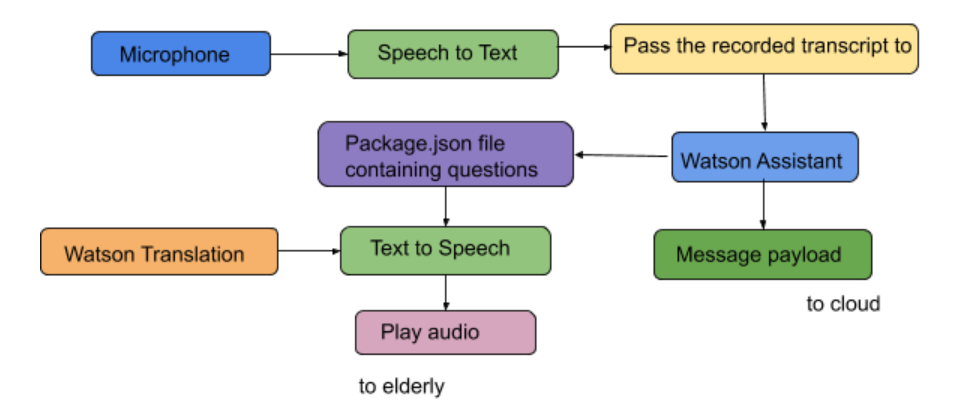 , where the message payload will be stored in IBM cloud in an SCDF database for easy access
*Ensure that the same flow is installed in the motion sensor and the myResponder app in CFR’s phones
(a)Voice bot
Step 1: Configure the motion sensors using parts 1-3.
Step 2: Set up the motion sensors which will be placed at all four walls of the bathroom (which is assumed to be a 4-wall room) and one on the ceiling.
Step 3: Have either a heavy object of 50kg falling to the floor from a distance or lie on the floor not moving for 30 minutes
Step 4: The accelerometer will calculate the root-mean-square speed of the falling object and the timer will detect the inactivity, communicating to Node-Red for it to be prompted. Following that it will activate Watson Assistant. Voice bot will be activated to ask questions to the victim about their condition.
Step 5: Answer each question For an interactive simulation, try out the code in “Chatbot_Simulation.py” (as stored in Python Codes folder) using https://repl.it/languages/python3
(b)myResponder app
Step 1: Open myResponder app after downloading on your phone
Step 2: Go to Node-Red chatbot in the app
Step 3: Press the start button before you start the conversation with the person playing as the victim. Try having a conversation using different languages to make use of the Watson translation function.
- IBM cloud object storage - Location for mass data storage
- IBM watson speech-to-text - Platform to deal with verbal input
- IBM watson text-to-speech - Platform to deal with verbal output
- IBM watson translation - Medium for smooth communication
- IBM cloud Node-RED - Platform for chatbot