






Researchers often need to quickly inspect .npy and .npz files without writing a notebook, launching an IDE, or remembering the array shape in advance.
npyquick is designed as a small, practical viewer for this job:
- open NumPy array files directly from the terminal or file manager
- inspect common scientific data layouts immediately
- stay lightweight and easy to understand
- avoid turning a simple array viewer into a full image-processing application
demo.webm
Linux (AppImage):
On x86-64 Linux, AppImage is available for one-click installation. Download npyquick-<version>-x86_64.AppImage from the latest release, then:
chmod +x npyquick-x86_64.AppImage
./npyquick-x86_64.AppImage path/to/file.npy
To open .npy / .npz by double-clicking in your file manager, register the default handler once with ./npyquick-x86_64.AppImage --install-desktop (details in Linux desktop integration). If you integrate the AppImage with a tool like AppImageLauncher, this association is set up for you automatically.
Linux (Snap):
On Ubuntu and other distributions with snap support, install from the Snap Store:
sudo snap install npyquickTo open .npy / .npz by double-clicking in your file manager, set up the association once (details in Linux desktop integration).
The Snap is sandboxed, so it reads files in your home folder and, once you run sudo snap connect npyquick:removable-media, removable media. Drag-and-drop and double-click are limited to those locations; to open a file elsewhere — another drive, or a home folder that's a symlink to another disk — use File › Open, which reaches any file you pick.
Windows:
Download the npyquick-<version>-setup.exe installer from the latest release and run it. It installs per-user (no administrator rights needed) and adds a Start Menu shortcut. To open .npy / .npz by double-clicking, tick Associate .npy and .npz files with npyquick during setup.
The Windows build is currently unsigned, so the first run may show a SmartScreen prompt. Download only from the official GitHub Releases page; after confirming the file name and source, choose More info → Run anyway.
With pip:
pip install npyquickWith conda:
conda env create -f environment.yml
conda activate npyquicknpyquick # open GUI
npyquick path/to/file.npy # open with a file
npyquick path/to/file.npz # open a multi-array archiveFiles can be opened via File › Open (Ctrl+O) or by dragging and dropping onto the window.
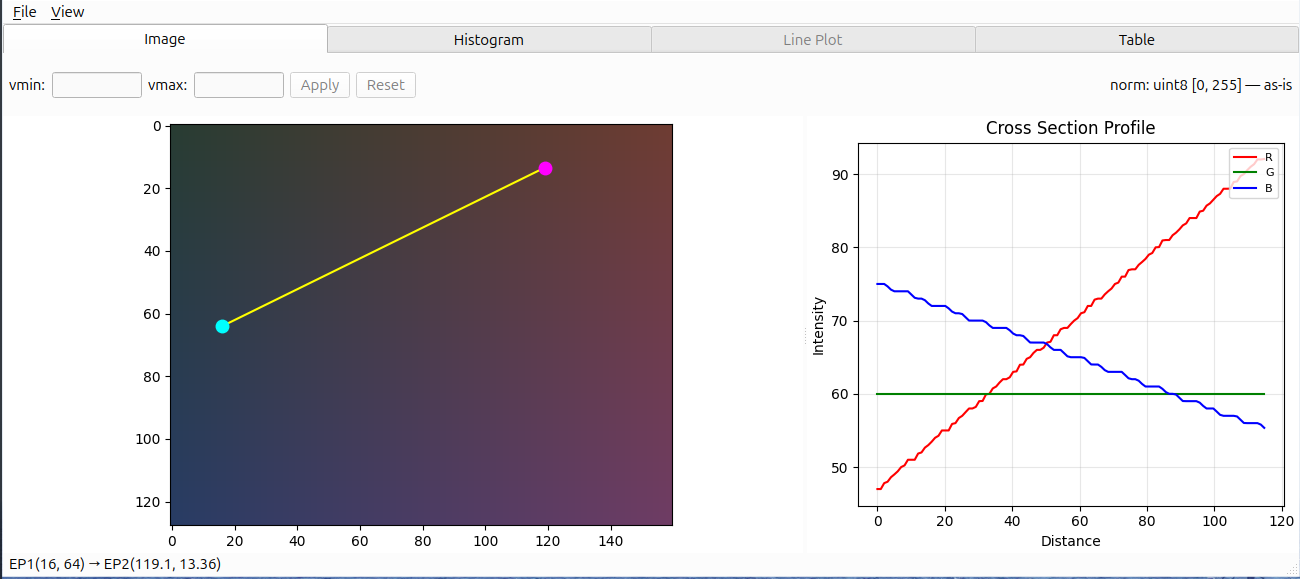
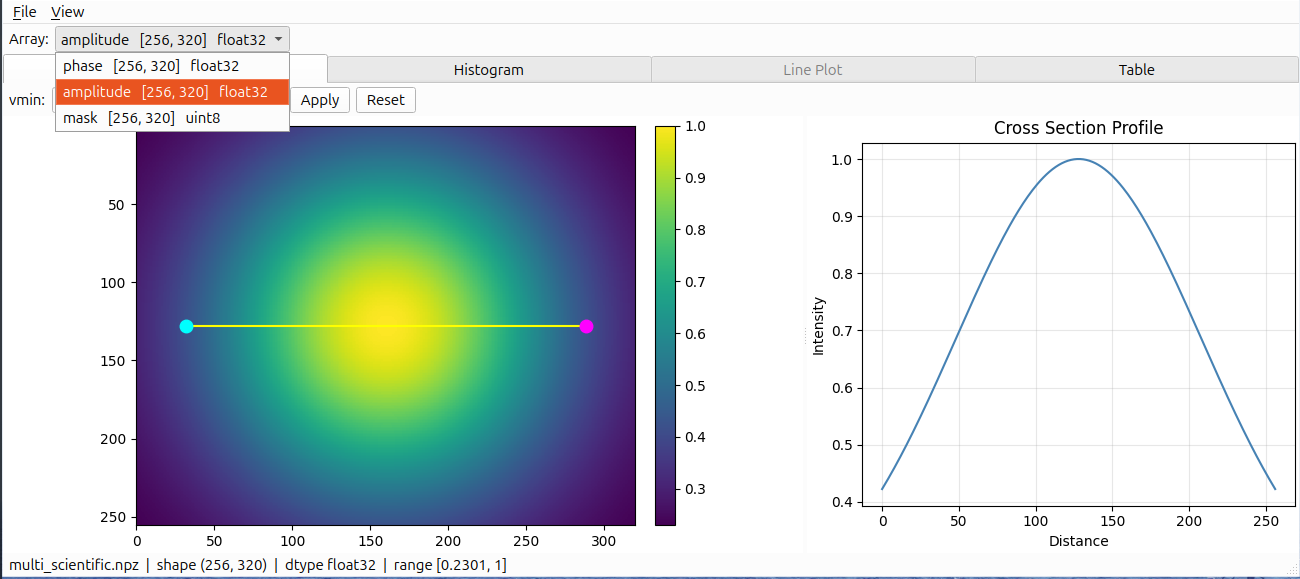
Preview 2D grayscale arrays and RGB arrays with interactive zoom, pan, colormap control, brightness adjustment, and a draggable cross-section profile. Complex arrays are supported too, shown as two side-by-side panels: either real and imaginary parts, or absolute value and argument.
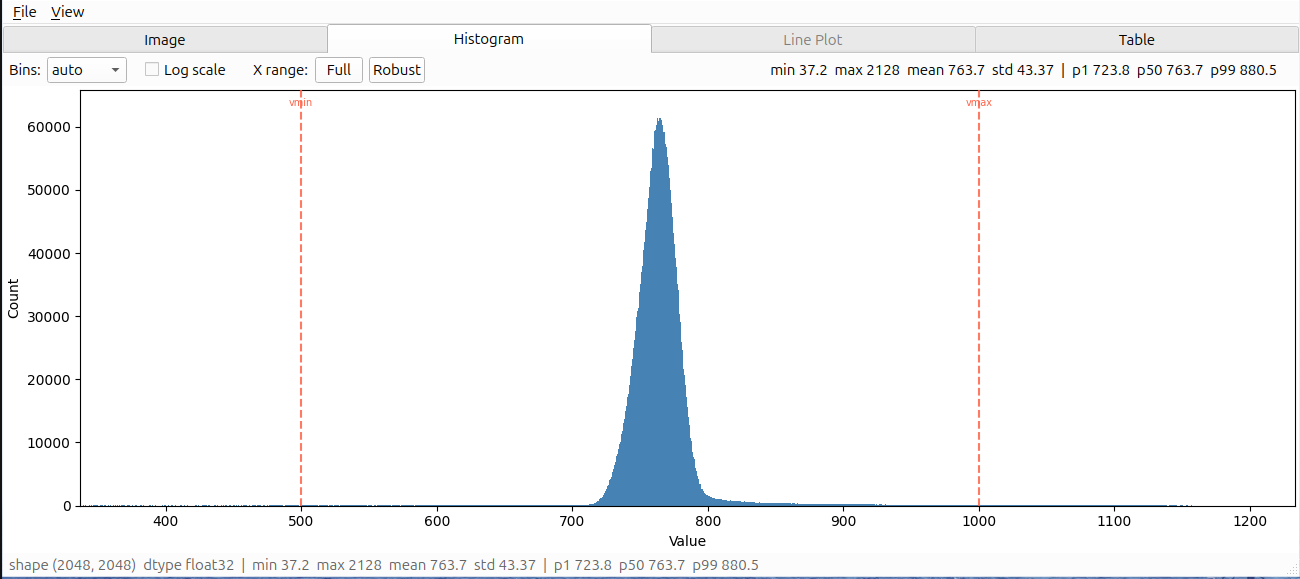
Inspect value distributions with linear or log-scaled counts, robust range selection, summary statistics, and NaN / Inf reporting.
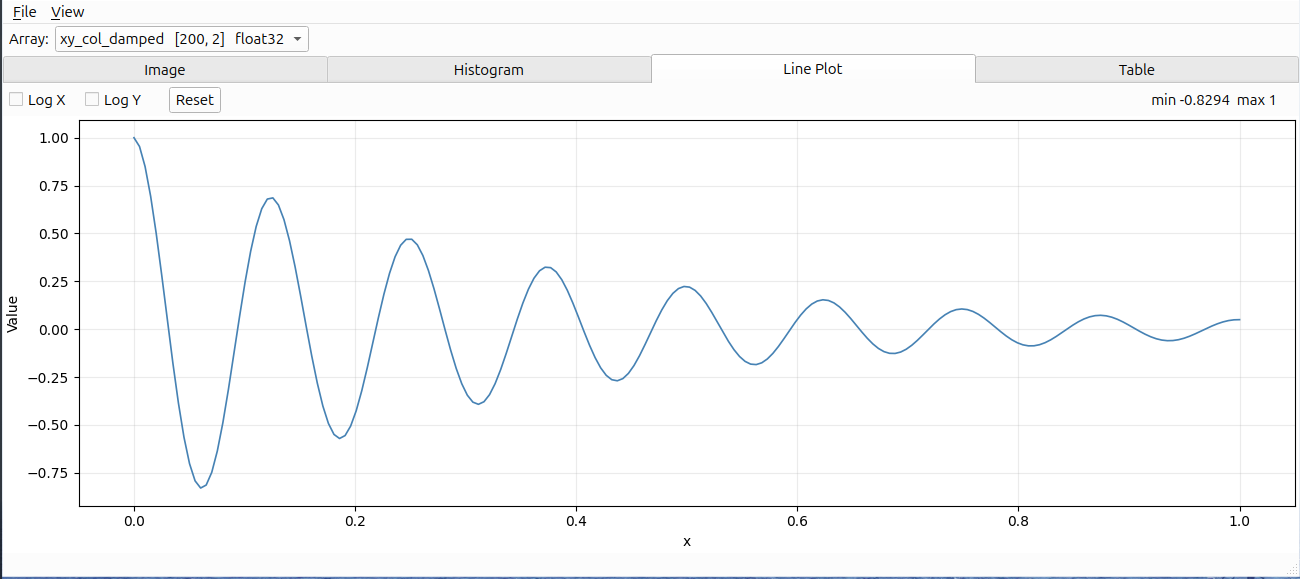
Display 1D signals and paired (x, y) arrays with interactive zoom, pan, reset, and optional log-scaled axes.
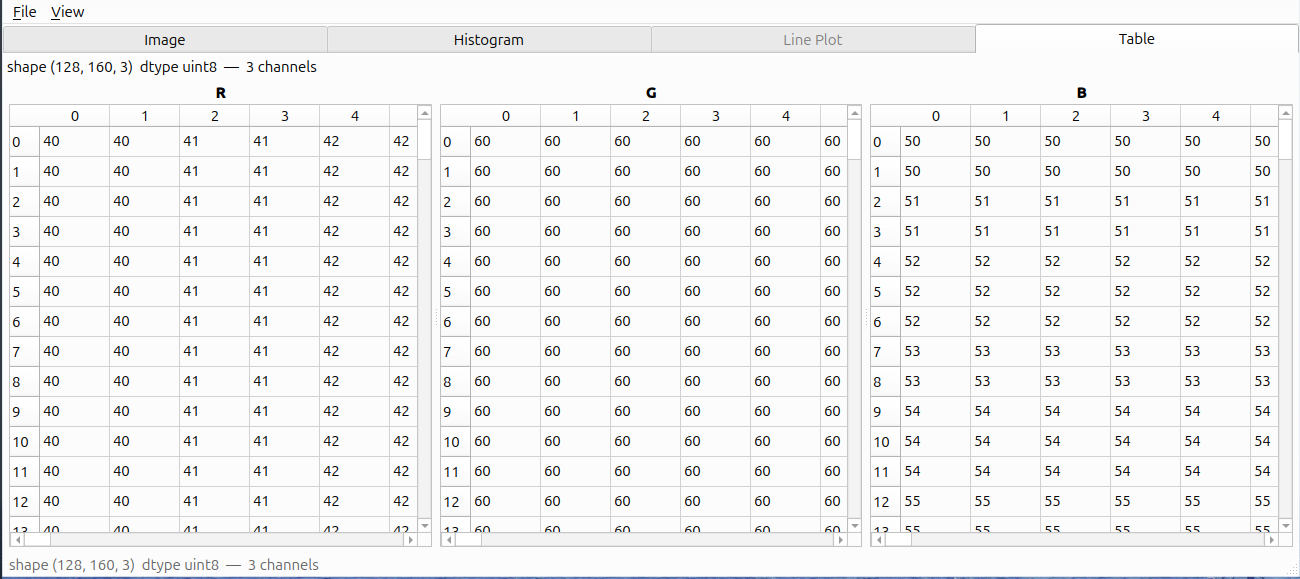
Fallback preview for arrays that are not naturally displayed as images or line plots, including higher-dimensional, object, scalar, or empty arrays.
When a .npz archive contains multiple arrays, npyquick shows a key selector with each array's name, shape, and dtype. Switching the selected key reloads the active view.
For detailed display rules, normalization behavior, downsampling, and performance limits, see Display behavior.
| Shortcut | Action |
|---|---|
Ctrl+O |
Open file |
Ctrl+S |
Export current figure |
Ctrl+C |
Copy current figure |
Ctrl+Q |
Quit |
F5 / Ctrl+R |
Reload current file |
Ctrl+Tab |
Switch to next enabled tab |
Ctrl+Shift+Tab |
Switch to previous enabled tab |
On macOS, ⌘+Tab is reserved by the system for app switching, so tab switching
uses Control+Tab / Control+Shift+Tab or ⌘+Shift+] / ⌘+Shift+[ (as in Safari).
Register npyquick as the handler for .npy / .npz files so you can double-click them in your file manager, or right-click → Open With. How depends on how you installed npyquick.
npyquick --install-desktopThis installs a .desktop entry, the .npy / .npz MIME types, and the app icon under ~/.local/share (user-level, no root). Then double-click a file, or test from the terminal:
xdg-open path/to/file.npyTo remove it:
npyquick --uninstall-desktopWorks on desktops that follow the freedesktop.org desktop-entry and MIME standards (GNOME, KDE Plasma, XFCE, Cinnamon, MATE). Some environments only show the new association after the file manager restarts or you log out and back in.
Manual setup
Create ~/.local/share/applications/io.github.liukdiihmieu.npyquick.desktop, replacing the Exec= path with the output of which npyquick:
[Desktop Entry]
Type=Application
Name=npyquick
Comment=Open NumPy array files
Exec=/path/to/npyquick %f
Icon=io.github.liukdiihmieu.npyquick
Terminal=false
Categories=Science;Utility;
MimeType=application/x-npy;application/x-npz;
StartupNotify=true
Register the MIME types by creating ~/.local/share/mime/packages/npyquick.xml:
<?xml version="1.0" encoding="UTF-8"?>
<mime-info xmlns="http://www.freedesktop.org/standards/shared-mime-info">
  <mime-type type="application/x-npy">
    <comment>NumPy array file</comment>
    <glob pattern="*.npy" weight="100"/>
  </mime-type>
  <mime-type type="application/x-npz">
    <comment>NumPy compressed archive</comment>
    <sub-class-of type="application/zip"/>
    <glob pattern="*.npz" weight="100"/>
  </mime-type>
</mime-info>
The sub-class-of and high glob weight matter for .npz: it is a ZIP container internally, so without them some desktops classify it as application/zip before the extension rule applies.
Then update the databases and set the default handler:
update-mime-database ~/.local/share/mime
update-desktop-database ~/.local/share/applications
xdg-mime default io.github.liukdiihmieu.npyquick.desktop application/x-npy
xdg-mime default io.github.liukdiihmieu.npyquick.desktop application/x-npzThe Snap already ships the launcher and declares the .npy / .npz types, so you don't need to create a .desktop file — you only have to teach your system what those extensions are. Create ~/.local/share/mime/packages/npyquick.xml (the same MIME file shown under Manual setup above), then:
update-mime-database ~/.local/share/mime
xdg-mime default npyquick_npyquick.desktop application/x-npy
xdg-mime default npyquick_npyquick.desktop application/x-npz
Double-clicking then works for files in your home folder (and connected removable media); for a file on another drive, use File › Open instead — the sandbox doesn't reach it.
-
>2Darray slicer - Complex array support: real / imaginary / magnitude / phase
Bug reports, feature requests, and suggestions are welcome — please open an issue.
The code in this repository is primarily written by an AI coding agent and reviewed by a human maintainer.
Copyright 2026 LiukDiihMieu
This project is licensed under the GNU General Public License v3.0 or later. Project logo and visual assets are included for use with this project. See the LICENSE file for details.