A full-stack serverless application that creates a secure image upload workflow. It utilizes a Node.js Express backend to handle uploads to AWS S3, which triggers an event-driven Lambda function to automatically resize and process images using the Sharp library.
The pipeline follows a decoupled, event-driven architecture:
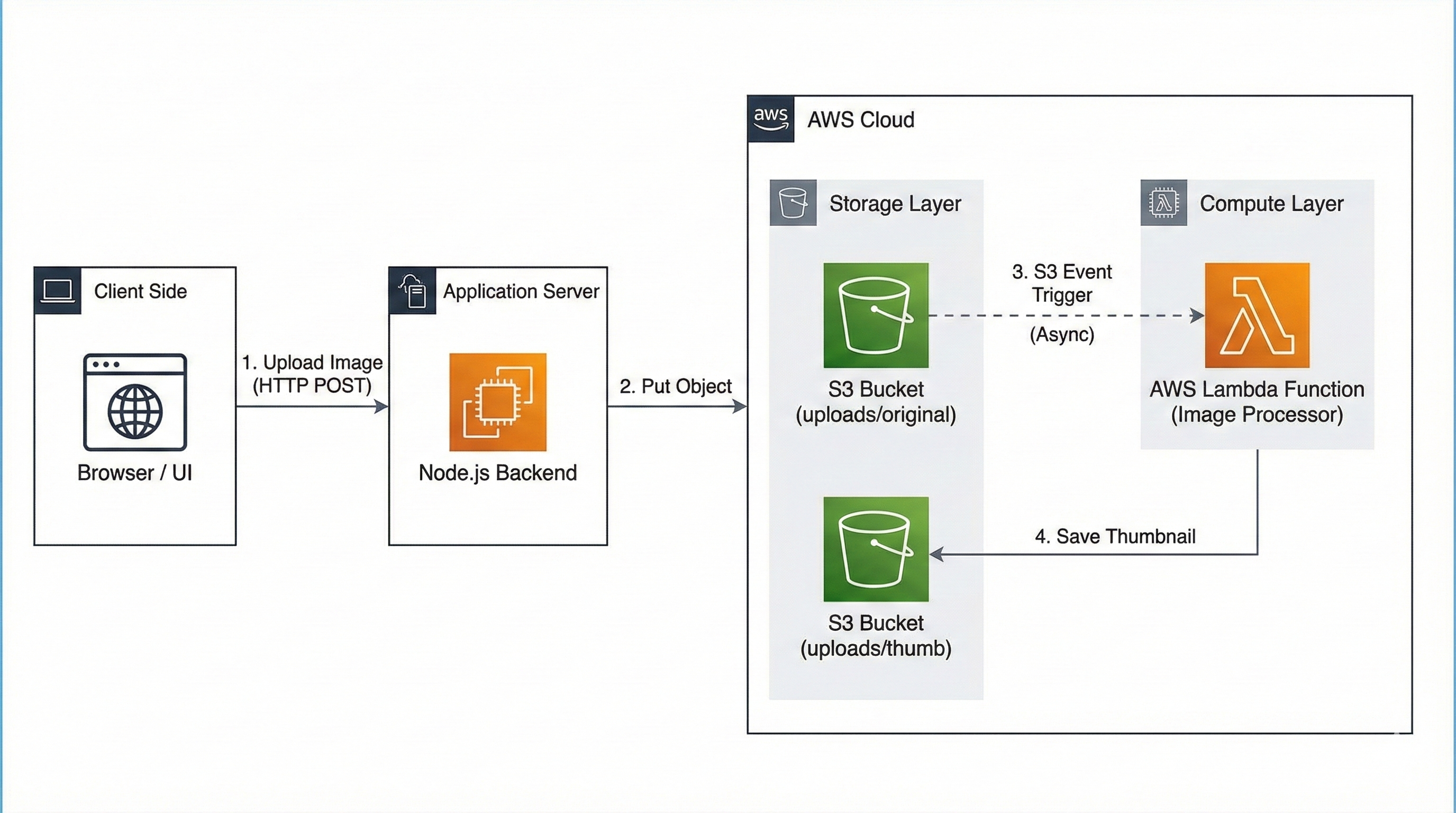
- Secure Uploads: Direct streaming to S3 with validated file types and size limits (5MB).
- Event-Driven Processing: Automatic thumbnail generation triggered immediately upon upload.
- Signed URLs: Secure, time-limited access (1 hour) to private S3 objects.
- Scalable: Leverages AWS Serverless infrastructure (Lambda/S3) to handle variable loads.
- Modern UI: Clean, dark-themed frontend with real-time upload progress.
-
Frontend: HTML5, CSS3 (Grid/Flexbox), Vanilla JavaScript.
-
Backend: Node.js, Express.js, Multer (streaming), AWS SDK v3.
-
Cloud Infrastructure:
-
AWS S3: Object storage for original and processed images.
-
AWS Lambda: Serverless compute for image manipulation.
-
AWS IAM: Granular permission management.
-
Image Processing: Sharp (High-performance Node.js image processor).
serverless-image-processing-pipeline/
├── aws/
│   └── lambda_code.mjs       # The Lambda function logic (triggers on S3 create)
├── backend/
│   ├── server.js             # Main Express application & S3 controller
│   ├── package.json          # Backend dependencies
│   └── .env                  # Environment variables (Gitignored)
├── frontend/
│   ├── index.html            # User Interface
│   └── style.css             # (If separated)
└── README.md
- Node.js (v18+) and npm installed.
- An active AWS Account.
- AWS CLI configured (optional, but helpful).
You need to set up the cloud resources before running the code.
A. S3 Bucket Setup
- Create a bucket (e.g.,
my-image-pipeline-bucket). - Block all public access (Private bucket).
- Create two folders inside:
uploads/original/anduploads/thumb/. - Enable CORS in the bucket permissions to allow your frontend (or localhost) to access it if needed.
B. IAM & Lambda Setup
- Create IAM Role: Create a role for Lambda with
AWSLambdaBasicExecutionRoleand inline permission tos3:GetObject(from original) ands3:PutObject(to thumb). - Create Lambda Function:
- Runtime: Node.js 20.x
- Upload the code from the
aws/directory (ensurenode_modulescontainingsharpis included).
- Add Trigger: Configure the Lambda to trigger on S3 Object Create events specifically for the prefix
uploads/original/.
Clone the repository:
git clone https://github.com/yourusername/serverless-image-processing.git
cd serverless-image-processing-pipeline
Setup Backend:
cd backend
npm install
Configure Environment:
Create a .env file in the backend/ folder:
# AWS Credentials (IAM User with S3 access)
AWS_REGION=us-east-1
AWS_ACCESS_KEY_ID=your_access_key
AWS_SECRET_ACCESS_KEY=your_secret_key
AWS_BUCKET_NAME=my-image-pipeline-bucket

# Server Config
PORT=3000
Run the Server:
npm start
# Output: Server running on port 3000
Run Frontend:
Simply open frontend/index.html in your browser. For best results, use a live server (e.g., VS Code Live Server extension).
Uploads an image to the uploads/original/ S3 folder.
- Endpoint:
POST /upload - Body:
form-datawith keyfile(Image binary). - Response:
{
  "message": "Upload successful",
  "key": "uploads/original/17042836-image.jpg"
}Retrieves signed URLs for viewing the private images.
- Endpoint:
GET /geturl - Query Param:
?key=uploads/original/filename.jpg - Response:
{
  "url1": "https://s3.us-east-1... (Original)",
  "url2": "https://s3.us-east-1... (Thumbnail)"
}-
"Access Denied" on Upload: Check that your IAM User (in
.env) hass3:PutObjectpermissions. -
Thumbnails not appearing:
-
Check AWS CloudWatch logs for the Lambda function.
-
Ensure the Lambda timeout is set to at least 10 seconds (Sharp processing can take time on cold starts).
-
Verify the S3 trigger prefix is strictly
uploads/original/to prevent infinite loops. -
CORS Errors: Ensure your backend
server.jshas CORS enabled and your S3 bucket CORS configuration allows the request methods.
This project is licensed under the ISC License.