


A collection of automated Bash scripts for installing Gentoo Linux with different desktop environments or as a minimal console-only server.
The main intention of this project is to simplify the Gentoo installation process, which is traditionally tedious. With these scripts, you can have a fully functional Gentoo system ready with just a single file to execute.
⏳ Patience Required: Be prepared for a long installation process. Gentoo compiles almost everything from source, so the installation can take several hours depending on your hardware. The only precompiled packages used are:
- Kernel:
gentoo-kernel-bin(precompiled kernel)- Firefox:
www-client/firefox-bin(binary version)Everything else will be compiled on your machine, which ensures optimal performance for your specific hardware but requires patience.
🧩 Minimal Desktop Experience: The desktop environments installed by these scripts are intentionally rustic and minimal. They don't include all the applications that typically come bundled with a full desktop installation. This is by design — it gives you a more modular system and the freedom to install only what you actually need, without bloating your system with components you'll never use.
The scripts include a curated selection of tools that I personally find useful for managing technical aspects of the system (terminal, file manager, text editor, partition manager, system monitors, etc.) — yes, Gentoo can be that modular. Consider this a starting point to build your own tailored system — add what you need, remove what you don't.
| Script | Environment | Display Manager | Description |
|---|---|---|---|
GentooInstall-KDE.sh |
KDE Plasma | SDDM | Full-featured KDE Plasma desktop with Wayland support |
GentooInstall-XFCE.sh |
XFCE | LightDM | Lightweight GTK-based desktop environment |
GentooInstall-GNOME.sh |
GNOME | GDM | Modern GNOME desktop with Wayland support |
GentooInstall-Console.sh |
Console Only | - | Minimal server installation without GUI |
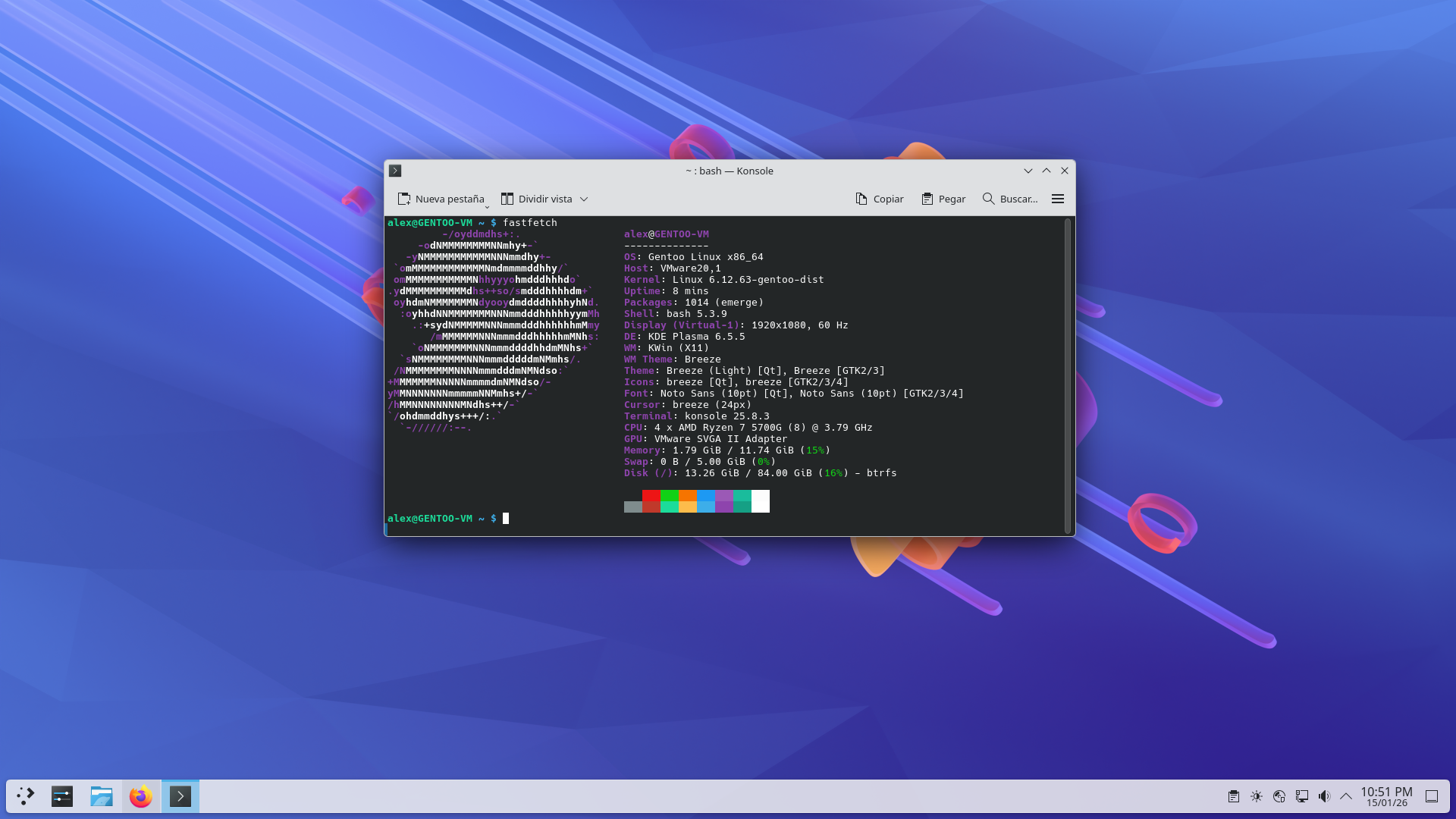
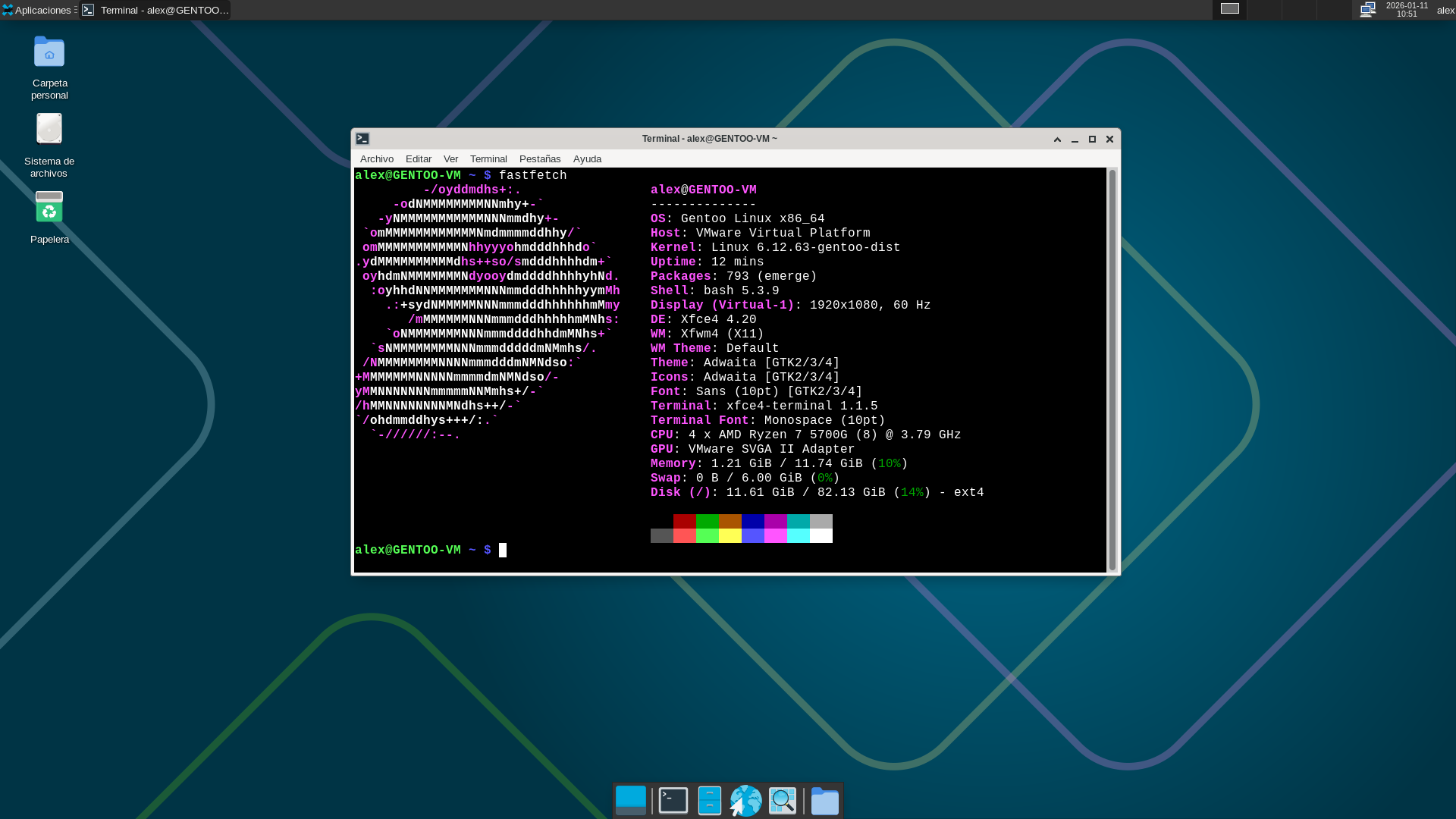
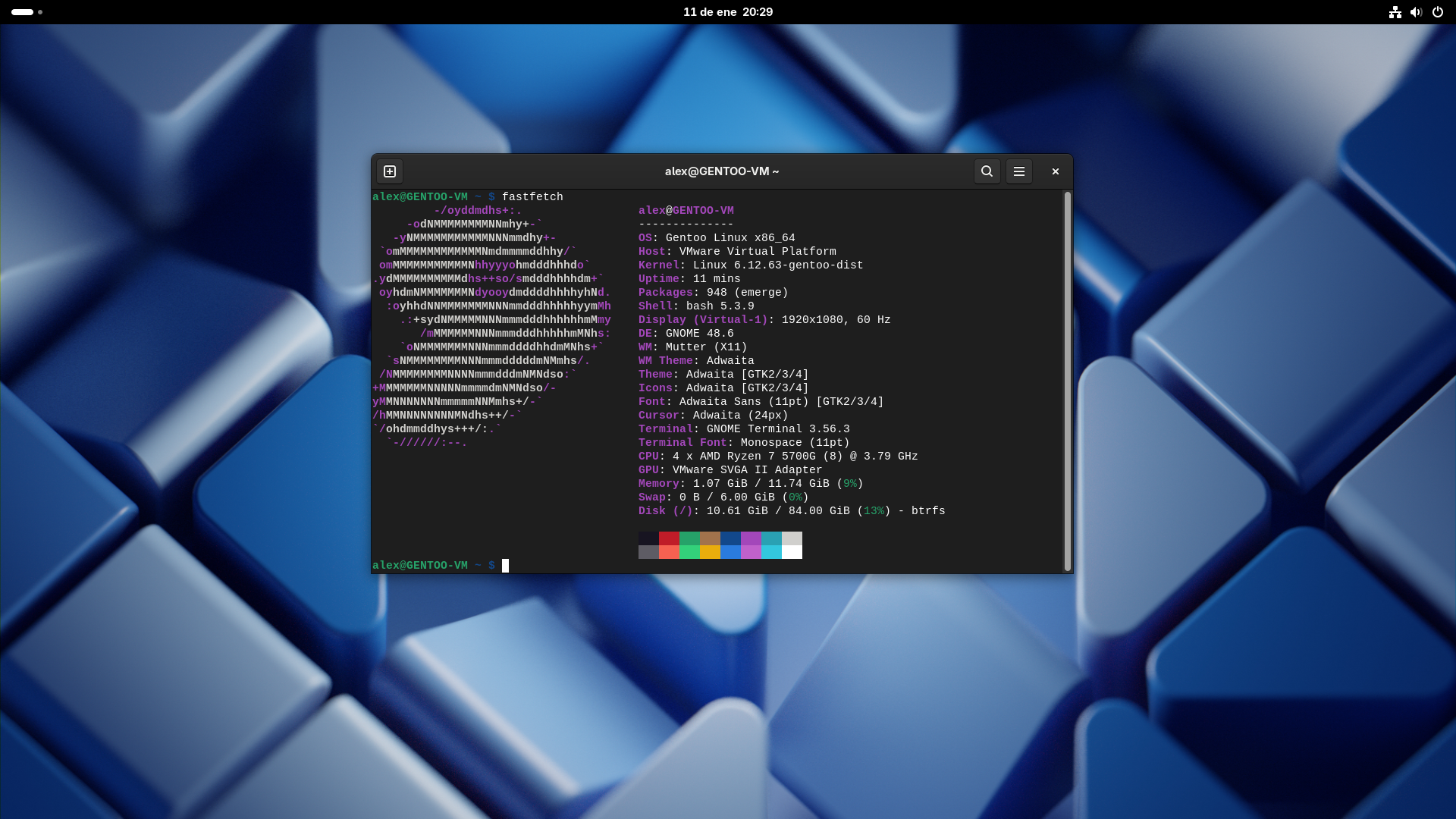
- Fully automated installation - Minimal user interaction required
- UEFI and BIOS support - Works with both boot modes
- ext4 and Btrfs filesystems - Choose your preferred filesystem
- Btrfs includes automatic subvolume creation (
@,@home,@var,@tmp,@snapshots)
- Btrfs includes automatic subvolume creation (
- OpenRC init system - Lightweight and fast init system
- Precompiled kernel - Uses
gentoo-kernel-binfor faster installation - Automatic GRUB configuration - Bootloader installed and configured automatically
- GPU support - AMD, NVIDIA*, and Intel graphics drivers
⚠️ NVIDIA support has not been tested yet
- Network configuration - NetworkManager (desktop) or netifrc (console)
- User creation - Automatic user and password setup
Run these scripts from a Gentoo Live USB/CD or any Linux live environment with the following tools:
partedmkfs.ext4/mkfs.btrfsmkswapwgetcurltarchroot
Boot from a Gentoo Live USB or any Linux live environment.
# Clone the repository
git clone https://github.com/Alexdaz/GentooInstall.git
cd GentooInstall

# Or download a specific script
wget https://raw.githubusercontent.com/Alexdaz/GentooInstall/main/GentooInstall-KDE.shchmod +x GentooInstall-KDE.sh./GentooInstall-KDE.shThe script will ask for:
- Boot type:
uefiorbios - Filesystem:
ext4orbtrfs - Target disk: e.g.,
/dev/sdaor/dev/nvme0n1 - Root partition size: Size in GB (remaining space goes to SWAP)
- Hostname: Your system's hostname
- Username: Non-root user to create
- Passwords: For root and the new user
- GPU:
amdgpu,nvidia*,intel, ormodesetting
⚠️ Note: NVIDIA driver support has not been tested yet. Use at your own risk.
- KDE Plasma Desktop
- Konsole (terminal)
- Dolphin (file manager)
- KWrite (text editor)
- Firefox
- Partition Manager
- fastfetch
- htop
- XFCE Desktop
- XFCE Terminal
- Thunar (file manager)
- Mousepad (text editor)
- Firefox
- GParted
- Various XFCE plugins (pulseaudio, battery, whiskermenu, etc.)
- fastfetch
- htop
- GNOME Desktop (gnome-light)
- GNOME Terminal
- Nautilus (file manager)
- gedit (text editor)
- Firefox
- GNOME Disk Utility
- Various GNOME apps (Calendar, Weather, Calculator, etc.)
- fastfetch
- htop
- Minimal base system
- OpenSSH server (enabled by default)
- btop (resource monitor)
- netifrc + dhcpcd (networking)
- fastfetch
- htop
The following settings are hardcoded in the scripts and may need to be changed manually according to your preferences:
| Setting | KDE/XFCE/GNOME | Console |
|---|---|---|
| Timezone | America/New_York |
UTC |
| Keyboard | us (US English) |
us (US English) |
| Locales | en_US.UTF-8, C.UTF-8 |
C.UTF-8 |
| Default LANG | en_US.UTF-8 |
C.UTF-8 |
| LINGUAS | en |
en |
To change these settings, edit the script before running or modify the system files after installation:
- Timezone:
ln -sf /usr/share/zoneinfo/YOUR/TIMEZONE /etc/localtime - Keyboard: Edit
/etc/conf.d/keymaps→KEYMAP="your_keymap" - Locales: Edit
/etc/locale.gen, runlocale-gen, theneselect locale set <locale>
📝 Note: These settings may become interactive prompts in future versions, but this is not a priority at the moment.
/dev/sdX1 - EFI (1GB, UEFI only)
/dev/sdX2 - Root (user-defined size)
/dev/sdX3 - Swap (remaining space)
@           -> /
@home       -> /home
@var        -> /var
@tmp        -> /tmp
@snapshots  -> /.snapshots
| Environment | Key USE Flags |
|---|---|
| KDE | X wayland kde plasma sddm pipewire pulseaudio udev elogind dbus policykit bluetooth networkmanager opengl vulkan -systemd qt6 qt5 |
| XFCE | X xfce gtk gtk3 pulseaudio udev elogind dbus policykit bluetooth networkmanager opengl vulkan -systemd -kde -plasma -qt5 -qt6 -sddm |
| GNOME | X gnome gtk gtk3 pulseaudio udev elogind dbus policykit bluetooth networkmanager opengl vulkan introspection wayland -systemd -kde -plasma -qt5 -qt6 -xfce -sysprof |
| Console | -dbus -systemd -X -wayland -gtk -qt -pulseaudio -alsa -gdk -opengl |
After the script completes:
-
Review the configuration files:
cat /mnt/gentoo/etc/fstab
cat /mnt/gentoo/etc/portage/make.conf
-
Unmount and reboot:
umount -l /mnt/gentoo/dev{/shm,/pts,} 2>/dev/null || true umount -R /mnt/gentoo swapoff -a reboot -
First boot: The system should boot into your chosen display manager (or console for the server variant).
- Verify kernel exists:
ls /mnt/gentoo/boot/vmlinuz* - Verify initramfs exists:
ls /mnt/gentoo/boot/initramfs* - Check GRUB config:
cat /mnt/gentoo/boot/grub/grub.cfg - Verify fstab:
cat /mnt/gentoo/etc/fstab
- Check service status:
rc-update show default | grep display-manager - Verify configuration:
cat /etc/conf.d/display-manager - Check logs:
cat /var/log/Xorg.0.logorjournalctlequivalent for OpenRC
- Check interface name:
ip link show - Verify netifrc config:
cat /etc/conf.d/net - Restart network:
rc-service net.<interface> restart
- These scripts are not perfect. They may contain redundancies, especially in the KDE variant where some packages might overlap.
- Many configurations reflect personal preferences. Timezone, keyboard layout, locales, USE flags, and package selection are based on what works for the author — not universal standards.
- This is not the definitive way to install Gentoo. The official Gentoo Handbook remains the authoritative guide. These scripts are simply a convenience tool.
- Use at your own risk. Always review the scripts before running them and ensure you have backups of any important data.
Contributions are welcome! Feel free to:
- Open issues for bugs
- Submit pull requests with improvements
- Share your experience and suggestions