| id | spec.android | |
|---|---|---|
| title | Android Devices | |
| description | Android device support matrix and creature rendering behaviour across e-ink readers and tablets. | |
| category | Specs | |
| locale | en | |
| canonical | true | |
| status | stable | |
| owner | Android maintainers | |
| reviewed | 2026-10-25 | |
| revision | 2026-10-25 | |
| source_of_truth | docs/android.md | |
| validators |
|
Detailed reference for the AgentDeck Android app — build, device support, and creature behavior.

Real devices photographed on September 28, 2026: the tablet above, Crema S in portrait, and Moaan Pantone in landscape below. These photographs show the September layout; the current reader layout is described in Choose a view for your screen.
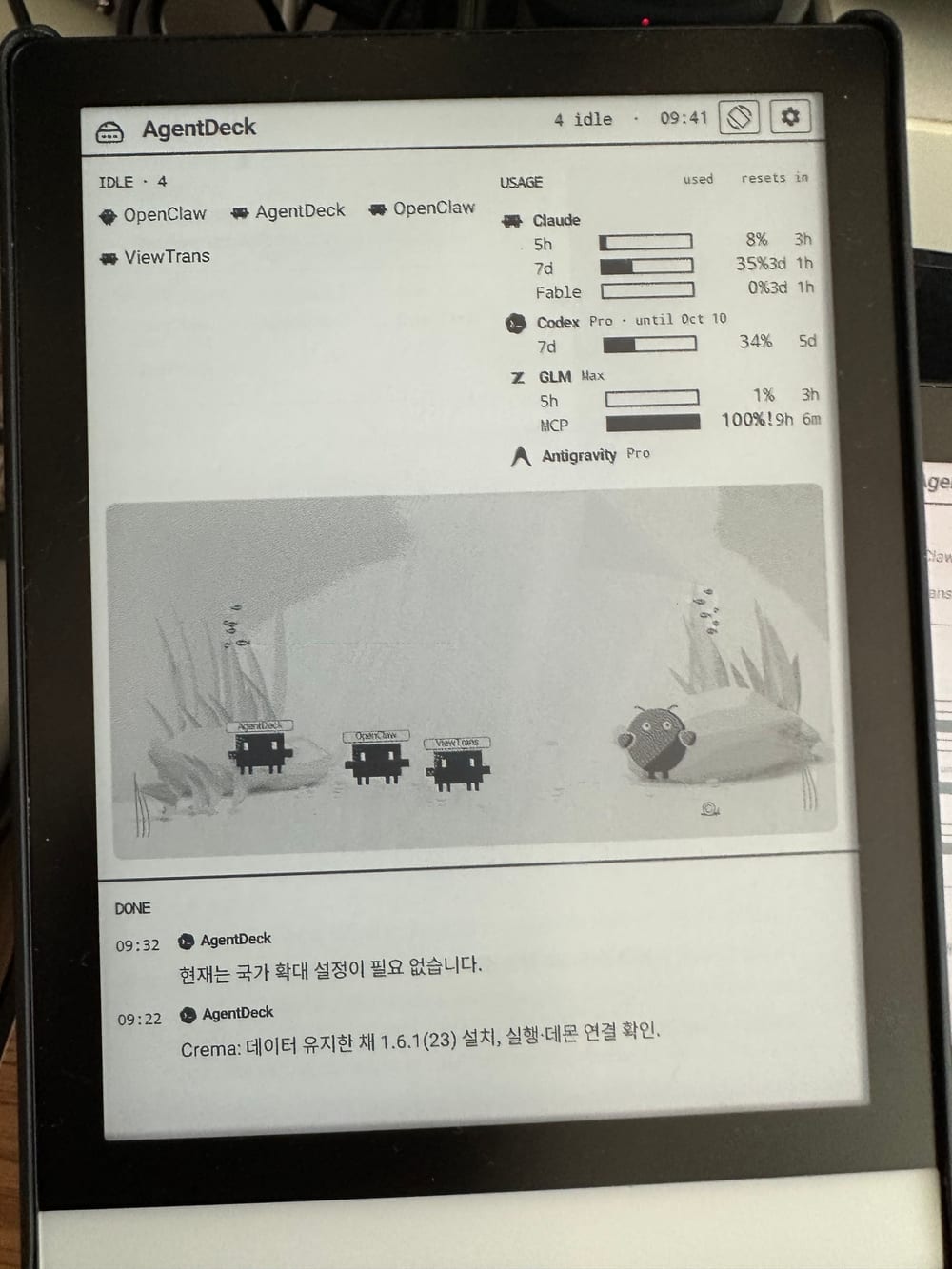

AgentDeck for Android is a companion dashboard, not the daemon itself. It shows the coding-agent sessions reported by AgentDeck on your computer, so the Android device and computer must be on the same local network.
-
Install the Android app. Use Google Play (recommended), or download the signed APK from GitHub Releases.
-
Start AgentDeck on the computer running your agents. On a Mac, open AgentDeck Dashboard from the Mac App Store. On macOS, Windows, or Linux, install and start the local daemon with:
npx @agentdeck/setup
-
Open the Android app. On first use, guided setup lets you choose the dashboard appearance, preview it without live sessions, connect a computer, and check readiness. Choose the intended host when several are discovered. Approve this device from the Mac's Devices → Pair Device, or enter that computer's six-digit code. Readers need no camera. Start an enabled agent on your computer; its sessions then appear on the dashboard.
Setup is skippable, and Settings → Guided setup reopens it. Existing installations keep their appearance and pairing without a forced walkthrough. E-ink uses the same steps with a static high-contrast preview; continuous 3D is only offered on LCD. The preview contains no fabricated live activity.
If the app stays on Searching for AgentDeck, confirm that the computer app or daemon is still running and both devices are on the same Wi-Fi/LAN. Then use the app's Manual URL or USB Connect fallback described in Connection ladder.
On LCD devices, Settings → Display → Dashboard type offers Default and 3D aquarium · Preview. Existing preferences are preserved. The native aquarium keeps the roster, provider information, and timeline over a dimensional habitat. Tap empty water to hide the panels and move closer; tap again to return. Up to eight foreground residents keep busy scenes readable while the roster retains all sessions. Fish are decorative and respond to nearby creatures.
E-ink readers start with one work-and-usage dashboard. Portrait places the full work list above usage; landscape places them side by side. Each region scrolls independently, so a long session list keeps usage visible and expanded usage keeps work visible. A scroll indicator shows when more content is available. There are no separate Sessions or Usage pages.
Usage shows every provider with its primary limits. Tap a provider's additional limit count to expand its model-specific limits in place; critical hidden limits are flagged before expansion. Compact provider columns use the available width when the text fits and switch to a single column for longer labels or larger fonts. Region reading positions and expanded providers survive rotation.
Choose Frame in the header to observe agents moving through the aquarium. Claude and OpenClaw walk through its lower depths while other species swim. Residents face where they are going, slow down for sharp turns, and ease into motion again. At a destination, a working agent finishes braking before starting its task gestures. Feet and tails settle as movement stops, and the resident keeps the direction it was facing. Quiet agents explore slowly and rest; quiet Hermes keeps its resting position. Waiting and CI waiting slow the resident to a stop, and sleeping freezes it immediately.
Names remain upright and terminal glyphs remain readable through body turns. CI companions travel with the resident over a cached Blender-rendered habitat. Up to eight prioritized residents stay readable, with an explicit count when others are outside the scene; the full roster remains on the dashboard. The header toggle and attention remain visible so the reader can return to work or answer a waiting session, and rotating keeps the selected mode. The continuous native 3D renderer is not used on EPD. Color and monochrome readers share the same app, with contrast and refresh behavior adapted to the detected panel. See Android UI for the layout and refresh contract.
One app supports e-ink readers (Crema S, Onyx Boox, MOAAN Pantone 6, Bigme, and supported Android-based readers), LCD tablets, and phones. Device classification happens at runtime. Play and GitHub APK builds use different update channels, not different device layouts. The complete support and panel capability matrix lives in Hardware compatibility.
The engineering reference below covers classification, signing, and rendering; implementation notes retain their original language where no translation exists.
util/DeviceProfile.kt 가 "이 기기는 무엇이고 어떤 대시보드를 그려야 하는가"의 단일 소스다. UI 트리 선택(MainActivity), 컬러 스킴/타이포(AgentDeckTheme), HUD 밀도(MonitorLayoutScale), e-ink 밴드 높이(EinkLayoutScale), 리프레시 전략(EinkRenderer), 토폴로지에 보고하는 kind/라벨(BridgeConnection, TopologyRail)이 모두 여기서 파생된다. Build.* 문자열로 기기 종류를 다시 유도하는 코드를 추가하지 말고 DeviceProfile 에 필드를 추가한다.
분류기 classifyDevice(DeviceFingerprint, PanelOverride) 는 프레임워크에 손대지 않는 순수 함수이므로 Robolectric 없이 전수 테스트된다(app/src/test/.../DeviceProfileTest.kt). 프레임워크 접근은 DeviceProfile.detect(context) 한 곳뿐이다.
이름 매칭보다 capability probe 가 먼저다. probe 는 allowlist 에 없는 리더까지 잡아내므로 커버리지를 넓히고, 동시에 이름 매칭 범위를 좁혀 오탐을 없앤다.
| 순위 | EinkEvidence |
신호 |
|---|---|---|
| 1 | VendorApi |
android.os.EinkManager / getSystemService("eink") / Onyx SDK 클래스 존재 |
| 2 | SystemProperty |
ro.eink.version, ro.hardware.eink, ro.epd.type, persist.sys.eink.mode 등 — 존재가 아니라 참값으로 판단(isTruthySystemProperty) |
| 3 | BuildCharacteristics |
ro.build.characteristics 에 eink/epd |
| 4 | BuildString |
PRODUCT/DEVICE/HARDWARE 에 eink/epd — 약한 신호라 UnverifiedEinkPanel caveat 을 붙여 override 를 안내 |
| 5 | KnownVendor |
e-ink 전용 벤더(Onyx, Crema, Kobo, PocketBook, reMarkable, Supernote, Bigme, MOAAN …) |
| 6 | KnownModel |
두 패널을 모두 파는 벤더(Hisense, Xiaomi, Huawei, B&N, Fujitsu, Sony)는 모델 토큰까지 일치해야 e-ink |
프로퍼티는 정의돼 있으면서 음수값인 경우가 흔하다 — LCD 빌드에 ro.eink_display=false 나 persist.sys.eink.mode=0 이 실려 있으면 단순 존재 검사(isNotEmpty())는 이를 e-ink 로 읽는다. 그래서 false-like 어휘(0/false/off/no/none/null/unset/unknown/disabled)를 배제하고 나머지는 통과시킨다 — enum 모드 2, 버전 1.2, 패널 품번 UC8179 가 모두 유효한 값이기 때문이다. 0 을 false-like 로 두는 이유는 여기서 다루는 enum 키에서 0 이 언제나 "none/off" 이고 사용 가능한 EPD 모드가 아니기 때문이다(EinkRenderer 가 구동하는 Rockchip 모드는 2/12/14).
벤더 규칙은 MANUFACTURER/BRAND(+모델에 담긴 식별력 있는 브랜드 단어)만 본다. PRODUCT/DEVICE/HARDWARE 는 코드네임 필드라 브랜드명과 충돌한다 — LCD 폰인 OnePlus X 의 코드네임이 onyx 다. 이 필드들은 eink/epd 토큰 검사에만 쓴다.
과거 detector 는
"note","nova","leaf","poke"를 벤더 조건 없이Build.MODEL에 substring 매칭했다. Redmi Note·Huawei nova 같은 일반 기기가 흑백 e-ink UI + 강제 landscape + 시스템 rotation 쓰기를 받았고, 사용자가 되돌릴 방법도 없었다.DeviceProfileTest가 이 케이스들을 회귀 가드로 고정한다.
반사형 LCD(RLCD)는 e-ink 가 아니다. Hisense Q5(HITV105C)처럼 흑백 반사형 LCD 로 "e-ink 같은" 사용감을 내는 기기는 EPD 컨트롤러가 없으므로 두 e-ink 표에서 제외한다 — e-ink UI·벤더 refresh 모드·강제 landscape 가 모두 잘못 켜진다. Hisense 의 e-ink 계열은 A5/A7/A9/Hi Reader 다.
smallestScreenWidthDp(= sw qualifier) 기준. Material window size class 경계(600/840)에 대시보드가 성립하지 않는 하한 320dp 를 더했다.
| Size class | 범위 | Monitor 밀도 | e-ink 밴드 |
|---|---|---|---|
Tiny |
< 320dp | (미지원) | (미지원) |
Compact |
320–599dp | phone |
compact (chrome 36dp) |
Medium |
600–839dp | tablet |
regular (chrome 44dp) |
Expanded |
≥ 840dp | expanded |
expanded (chrome 52dp) |
폴더블은 접힘 상태에서 Compact 로 떨어져야 하므로 두 scale 모두 시작 시점 프로필이 아니라 live Configuration 을 읽는다. MonitorLayoutScale.isTablet 은 "고정폭 사이드 레일을 놓을 공간이 있는가"로 남아 있고 Medium/Expanded 에서 참이다.
| Level | 조건 | 동작 |
|---|---|---|
Full |
그 외 전부 | 정상 렌더 |
Limited |
터치스크린 없음(TV/셋톱), Automotive | 정상 렌더 + Settings Device 카드에 caveat 명시 |
Unsupported |
UI_MODE_TYPE_WATCH, 또는 최단변 < 320dp |
UnsupportedDeviceScreen — 기기명·미달 요건·다른 서페이스는 계속 동작함을 안내 + "Show the dashboard anyway" 탈출구 |
Limited 를 인터스티셜로 막지 않는 이유: 벽에 걸린 TV 는 정당한 사용 형태이고, 리모컨으로 dismiss 를 강요하는 편이 더 나쁘다. Unsupported 의 탈출구를 두는 이유: 320dp 하한은 휴리스틱이므로 사용자가 이를 덮을 수 있어야 하며, 선택은 allow_unsupported_device 로 영속된다.
자동 판정이 틀린 기기를 앱 업데이트 없이 교정하는 3-state(Auto/E-ink/LCD) 설정. 태블릿은 Settings 의 Device 카드, e-ink 는 Settings 오버레이의 Display panel 섹션에서 바꾼다. display_prefs DataStore 의 panel_override 키에 저장되고, 변경 시 MainActivity 가 recreate() 한다 — 패널은 UI 트리 전체와 첫 프레임 이전 window flag 를 결정하므로 실행 중 교체할 수 없다.
패널 종류는 첫 프레임 전에 확정돼야 하므로(RK3566 리더는 늦은 requestedOrientation 을 무시한다) readStartupOverridesBlocking() 이 500ms 상한으로 단일 DataStore 스냅샷에서 두 키를 함께 읽는다. 타임아웃은 StartupOverrides.timedOut 으로 보고된다 — 기본값이 중립적이지 않기 때문이다: allowUnsupportedDevice = false 는 과거에 "show anyway" 를 선택한 사용자를 다시 차단한다. 그래서 MainActivity 는 panelOverrideFlow 와 allowUnsupportedDeviceFlow 를 둘 다 관찰하고 적용된 쌍과 어긋나면 recreate() 한다(shouldRecreateForDeviceOverrides). 저장된 panel override 가 Auto 면 기본값과 같아서 override 만 비교하는 방식은 이 복구를 놓친다. recreate 이후의 읽기는 이미 한 번 collect 한 DataStore 를 warm 으로 받으므로 1회 교정에서 수렴한다. "Show anyway" 버튼도 저장만 하고 recreate 는 같은 collector 가 담당해 경로가 하나로 유지된다.
kind 와이어 값은 의도적으로 "eink"/"tablet" 2값 어휘를 유지한다 — 유일한 소비자인 TopologyRail.swift 가 2항 삼항식(kind == "eink" ? "E-ink" : "Tablet")으로 매핑하므로, 어휘 확장은 Swift/Node 라벨 매핑과 함께 별도 커밋에서 해야 한다.
Requires JDK 17+ (brew install openjdk@17). Build script auto-detects Homebrew JDK.
# Build APK locally
bash scripts/build-android-release.sh    # → dist/agentdeck-v{VERSION}.apk

# Or download from GitHub Releases
# git tag android-v{VERSION} && git push origin android-v{VERSION}  → CI builds APK
Use bash scripts/build-android-release.sh --install to update connected devices
in place. An unsuccessful adb install -r prints its actual output and stops with
its exit status. The script never automatically uninstalls the existing app,
including on signing mismatch, downgrade, storage or transport failures. Use a
build signed for the installed channel (Play or sideload); replacing it and
erasing private app data is a separate explicit operation.
The signed APK from GitHub Releases includes Settings → App updates on both e-ink readers and tablets. Check for a release, download it over Wi-Fi, then tap Install update. Android may first ask to allow installs from AgentDeck; return to Settings and tap Install update again. Android still asks for installation confirmation. The app verifies the published SHA-256, package name, newer version code and matching installed signing certificate. Failed or interrupted downloads are discarded.
Install this version once by USB or the device's browser to enable future wireless
updates. Google Play builds open Play instead and do not request APK installation
permission. assembleSideload builds the GitHub APK; bundleRelease builds the Play AAB.
No device-specific build or ADB connection is needed after that initial installation.
Dashboard devices (e-ink readers, tablets) can take silent APK updates over WiFi
once their adbd is switched to TCP mode:
bash scripts/deploy-android-wifi.sh enable           # one-time per device, USB attached:
                                                     #   tcpip:5555 + record wlan0 IP
bash scripts/deploy-android-wifi.sh deploy [--build] # install newest dist/agentdeck-v*.apk
                                                     #   to every recorded device + relaunch
bash scripts/deploy-android-wifi.sh status           # reconnect + show device states
Device IPs persist in ~/.agentdeck/android-adb-devices.json. tcpip mode does
not survive a device reboot — after a reboot, plug the device in over USB
once and re-run enable. USB adb keeps working alongside TCP mode.
For local builds, create android/signing.properties (gitignored):
storeFile=/path/to/keystore.jks
keyAlias=agentdeck
keyPassword=your-key-password
storePassword=your-store-password
For CI (GitHub Actions), set these secrets:
ANDROID_KEYSTORE_BASE64— base64-encoded keystore fileANDROID_KEY_ALIASANDROID_KEY_PASSWORDANDROID_STORE_PASSWORD
Tag-triggered CI builds:
git tag android-v{VERSION}
git push origin android-v{VERSION}
# → GitHub Actions builds + creates Release with APKCremaS and some other locked-down e-ink readers reset USB debugging on every reboot. AgentDeck's BootReceiver re-enables it automatically, but needs a one-time adb grant:
adb shell pm grant dev.agentdeck android.permission.WRITE_SECURE_SETTINGSAfter this, on every boot BootReceiver writes global adb_enabled=1 + development_settings_enabled=1, so USB debugging comes back without any manual toggling. Verify with:
adb logcat -s AgentDeckBootReceiverThe same grant also powers stay_on_while_plugged_in from MonitorService. Note: AppOps grants can be lost on app reinstall — re-run the pm grant command after reinstalling the APK.
With display sync enabled, LCD dashboards dim when the host display sleeps; e-ink dashboards retain their image and dim only the frontlight. Settings access belongs to the installed package: a separate QA package does not inherit the production app's brightness permission.
Pantone 6's Android 14 firmware uses the vendor LightUtils mode settings.
AgentDeck uses the existing WRITE_SECURE_SETTINGS grant: full-off selects the
vendor's close mode; minimum brightness uses a temporary custom preset while
retaining the original color temperature and channel status. The previous mode
and both touched presets are committed to private recovery preferences before
any setting changes, then restored on wake or process recreation. Missing keys
are restored as missing, and a failed write retains the recovery journal for retry.
Generic Android screen_brightness, sysfs aliases and procfs cache writes can
disagree with the physical light on this firmware. Acceptance checks both LED
drivers' power-mode bits and the physical panel, rather than requiring the
brightness register to become zero while its engine is disabled. No root access,
driver debug mode or raw-register write is part of the app. Other firmware or a
missing existing vendor-settings grant can still refuse the operation.
net/BridgeAutoConnect.kt is the only auto-connect ladder, shared by
MainActivity.TabletDashboard and EinkMonitorScreen. Do not inline a second
one in a new screen — there were two copies, they drifted, and the fix for a
hammering reconnect loop landed in the tablet copy while the e-ink readers it
was written for kept the broken one (430f61c3).
The order is loopback → saved URL → mDNS, and the reasoning behind it is the device tiering:
| Path | Credential | Who it serves |
|---|---|---|
ws://127.0.0.1:9120 via adb reverse |
none — same-machine | any adb-attached device, USB or tcpip:5555 |
saved URL with ?token= |
a pairing code redeemed in Settings, or a URL typed once | devices with no adb link |
| mDNS-discovered LAN endpoint | inherits a stored token for the same endpoint | reconnect / daemon moved |
The saved URL's credential now arrives by pairing code, not by typing.
agentdeck pair on the Mac prints six digits; Settings → Connection → Pair
with code redeems them against the daemon mDNS already found
(net/PairingCodeClient.kt) and hands the resulting ws://host:port?token=… to
adoptPairedUrl, which is the single place allowed to seed
BridgeConnection.pairedUrl and persist. Seeding matters as much as
persisting: only pairedUrl is consulted by PairingCredential.resolve, so a
pairing that is written to disk but not seeded works until the next launch and
then looks like a device that was never paired.
This is what the "camera-less reader cannot scan a pairing QR" rule below is
now an answer to rather than just an explanation. disconnectedDetail points at
it too — it used to advise typing ws://…?token=… on an e-ink keyboard, which
is possible and never actually done.
The offer must survive a live dashboard. A device on adb reverse is
working and unpaired at the same time, and that is the only moment its user can
fix it — so PairingCredential.shouldOfferPairing gates on connected over a LAN
endpoint, not on "disconnected". Two consequences, and both were needed before
a single reader could actually pair:
- The settings screen keeps the pairing input visible while the URL is loopback.
- Discovery must keep running there too. A code is worthless without an
endpoint to spend it at, and all three screens stopped discovering the moment
they connected.
BridgeAutoConnectpublishes the list while on loopback, andTabletSettingsDialog/SettingsScreen— which keep their own collectors, since either can be opened before the ladder runs — use the same predicate. Dialling stays blocked regardless:mayDialDiscoveredrefuses whileconnection.urlis non-null, which it is.
Rules any new dial site must keep:
- The loopback probe gets the turn. mDNS seeing a daemon says nothing about
whether the reverse tunnel works. The turn is held by
BridgeConnection.url(an attempt in flight blocks a preempt and releases itself when the socket layer gives up), never by a re-armed boolean. - An endpoint that closed us 4001 is not dialled again without a credential
—
PairingCredential.mayDialDiscovered, backed by the refusal set inBridgeConnection.unauthorizedEndpoints. A camera-less reader cannot scan a pairing QR, so hammering it is both useless and invisible to its user. - Probes are paced: loopback fails fast (2 retries — the kernel answers immediately) and re-probes on a 10s→120s backoff, reset only when mDNS shows a daemon that had disappeared.
adb reverse rides whichever adb transport exists, so a device stays connected
after the USB cable is pulled as long as tcpip:5555 is up (see WiFi adb
deploy above). That link does not survive a device reboot; a device with a
typed token URL needs no adb link at all.
The aquarium creatures respond to agent state in real-time:
| Creature | Agent | Visual States |
|---|---|---|
| Claude resident (canonical brand silhouette) | Claude Code | Frame: turns toward travel, walks between destinations with feet driven by distance, then settles before working hand gestures. Quiet: slower exploration and rest. Waiting: stops with a question cue and retains its direction. Its name stays upright. |
| Crayfish (SVG path art) | OpenClaw | Frame: direction follows travel through the lower depths, with separate claw gestures during work pauses. Native aquarium: ROUTING adds claw clap, signal waves, eye flash and glow pulse; SITTING uses a heartbeat glow; SICK desaturates and droops the resident; DORMANT stays still. |
| Neon Tetra | Ambient | Native aquarium: 14 fish in two schools use boids and Lissajous school paths. Frame: 12 fish in two schools follow continuous paths with turning body projection and tail strokes. These decorative schools remain separate from the agent residents. |
The bridge runs openclaw doctor --json every 30 seconds and sends gatewayHasError in state_update events. When errors are detected (channel warnings, memory sync failures, config issues), the crayfish enters the SICK visual state:
| Property | SICK Effect | Normal (SITTING) |
|---|---|---|
| Body color | 55% desaturated gray-pink | Red gradient |
| Tilt | -12° lean | Upright |
| Claws | Droop downward (-8°) | Rest at sides |
| Eyes | Dim flickering (alpha 0.35–0.55) | Gentle breathing (0.85) |
| Antennae | Hang down, minimal wiggle | Slow gentle wave |
| Position | Droops +8% lower | On rock |
| E-ink gray | 0x66 (washed out) |
0x33 (dark) |
| Env overlay | Red error tint | None |
Once errors are resolved, the crayfish recovers at the next 30-second check.
On e-ink devices, creatures use native 16-level grayscale (no dithering):
- Creature body:
0x44, limbs/claws:0x33, starburst:0x99 - Sick crayfish body:
0x66(lighter — visually washed out) - Fish body:
0x55, stripe:0xBB - Environment: sand
0xCC, rock outline0x22, seaweed 2px stroke - 12 tetra (6+6 schools) on e-ink vs 14 (7+7) on tablet