Requirements
What you need are these two packages:
- qemu-arm
- qemu-uefi-aarch64
1. Testing aarch64 installation
Get an installation ISO. I was using openSUSE-Tumbleweed-DVD-aarch64-Current.iso (Snapshot20210203 at the time I'm writing this).
Create an empty disk image to install into; for example:
qemu-img create -f qcow2 foo.qcow2 60G
Then run this qemu command (as non-root user):
qemu-system-aarch64 -machine virt -cpu cortex-a57 -m 2048 -bios qemu-uefi-aarch64.bin \
  -device virtio-gpu-pci \
  -device qemu-xhci -device usb-kbd -device usb-tablet \
  -device virtio-scsi -device scsi-hd,drive=id0 \
  -device virtio-net,netdev=net0 \
  -drive file=foo.qcow2,id=id0,media=disk,format=qcow2,if=none \
  -drive file=openSUSE-Tumbleweed-DVD-aarch64-Snapshot20210203-Media.iso,media=cdrom,format=raw,readonly \
  -netdev user,id=net0,hostfwd=tcp::22222-:22
Notes:
- virtio-gpu-pci seems to work best; UEFI firmware, kernel, and Xorg support it
- you need to add some keyboard and mouse explicitly; these usb devices work fine: qemu-xhci, usb-kbd, usb-tablet
- you could go simply for
-cpu max - but the emulation runs much (factor 3) slower with the Tumbleweed image
- the port forwarding (the
hostfwd parameter) allows you to connect without having to setup a bridge device; pick any port that suits you, 22222 is just an example
At the boot screen, edit boot options to add:
plymouth=0 console=tty1 sshd=1 password=xxxxx
Boot screen
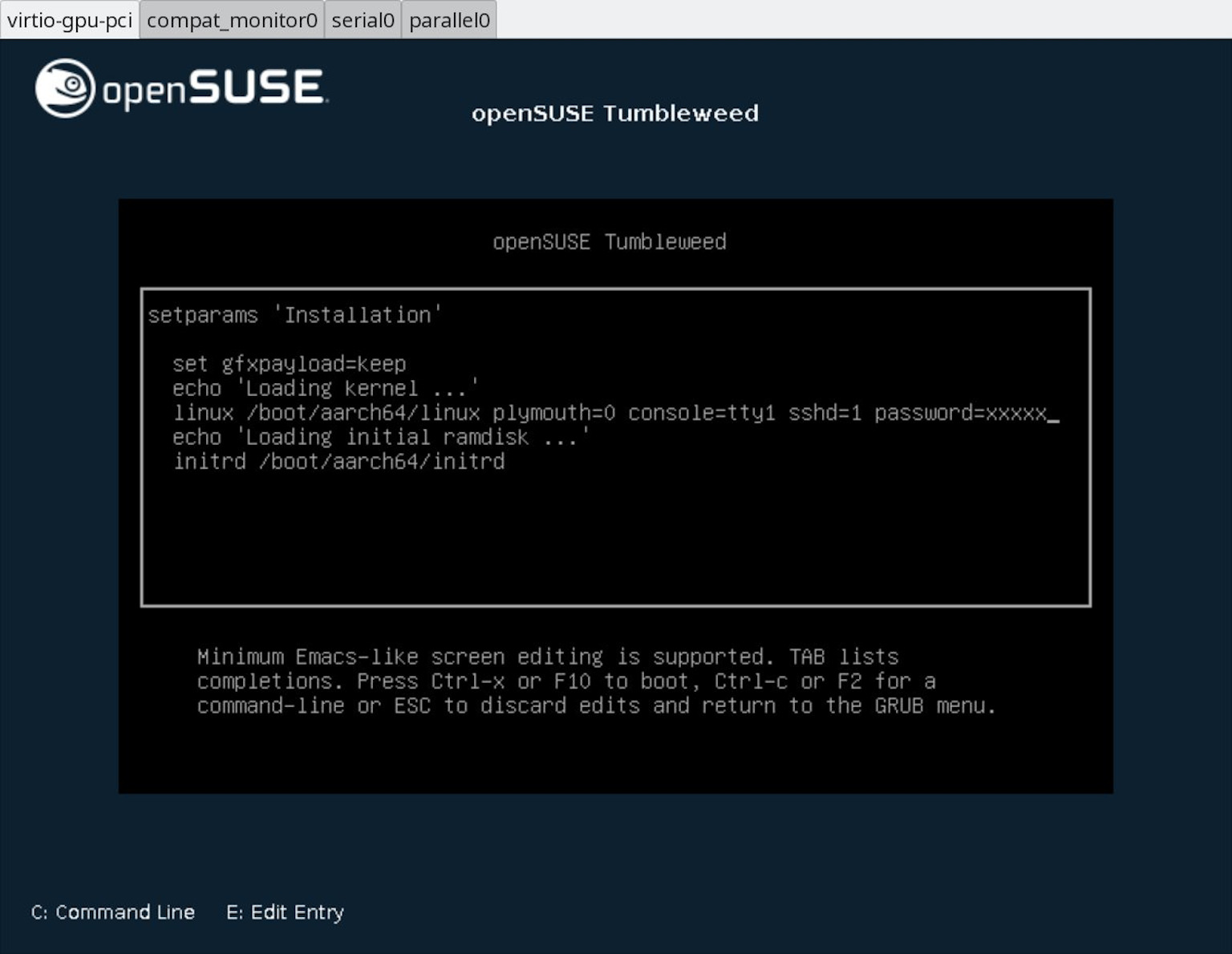
Note:
- an explicit
console=tty1 is needed - else you end up doing a serial console install (the default console is ttyAMA0)
When yast is running, you can connect to the virtual machine running:
ssh -Xl root -p 22222 -o NoHostAuthenticationForLocalhost=yes localhost
The emulation is incredibly slow. You might think it's dead at some spots.
See these timestamps on the serial console
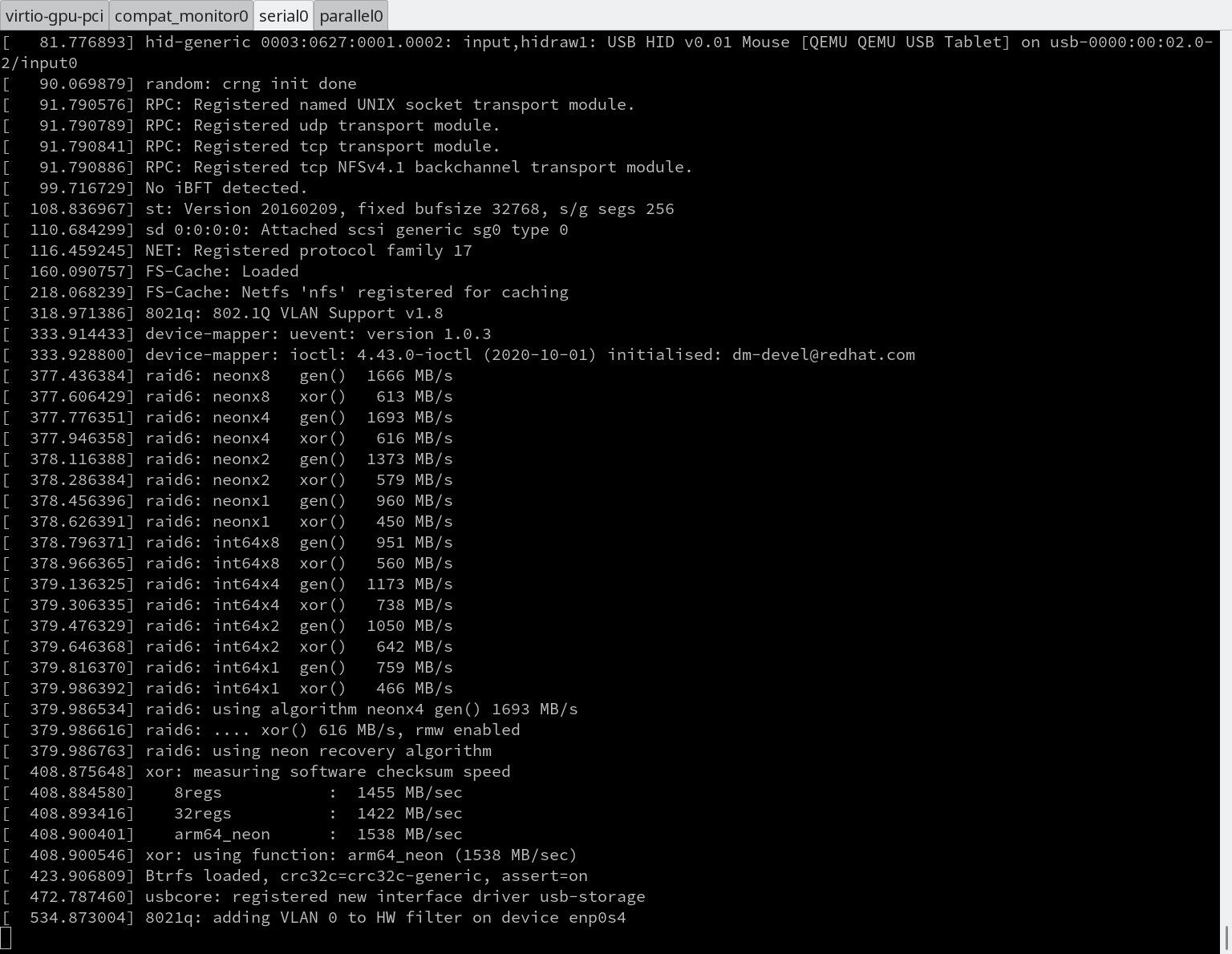
Switch between serial0 and virtio-gpu-pci consoles in qemu when you get bored.
Finally, installation is starting:

2. Testing aarch64 using pre-built images
Get one of the pre-built images. I was using openSUSE-Tumbleweed-ARM-JeOS-efi.aarch64.qcow2 (Snapshot20210203 at the time I'm writing this).
Then run this qemu command (as non-root user):
qemu-system-aarch64 -machine virt -cpu cortex-a57 -m 2048 -bios qemu-uefi-aarch64.bin \
  -device virtio-gpu-pci \
  -device qemu-xhci -device usb-kbd -device usb-tablet \
  -device virtio-scsi -device scsi-hd,drive=id0 \
  -device virtio-net,netdev=net0 \
  -drive file=openSUSE-Tumbleweed-ARM-JeOS-efi.aarch64.qcow2,id=id0,media=disk,format=qcow2,if=none \
  -netdev user,id=net0,hostfwd=tcp::22222-:22
There are (text console) login prompts on both the serial0 and virtio-gpu-pci screens in qemu.
The initial root password is:
Click here
Note:
- Some of the (open)SUSE images have the
quiet kernel option set. This may make the boot process appear to be stuck. But it's just really really slow. Consider removing this option if you're of the impatient type.
Requirements
What you need are these two packages:
1. Testing aarch64 installation
Get an installation ISO. I was using openSUSE-Tumbleweed-DVD-aarch64-Current.iso (Snapshot20210203 at the time I'm writing this).
Create an empty disk image to install into; for example:
Then run this qemu command (as non-root user):
Notes:
-cpu max- but the emulation runs much (factor 3) slower with the Tumbleweed imagehostfwdparameter) allows you to connect without having to setup a bridge device; pick any port that suits you, 22222 is just an exampleAt the boot screen, edit boot options to add:
Boot screen
Note:
console=tty1is needed - else you end up doing a serial console install (the default console is ttyAMA0)When yast is running, you can connect to the virtual machine running:
The emulation is incredibly slow. You might think it's dead at some spots.
See these timestamps on the serial console
Switch between
serial0andvirtio-gpu-pciconsoles in qemu when you get bored.Finally, installation is starting:
2. Testing aarch64 using pre-built images
Get one of the pre-built images. I was using openSUSE-Tumbleweed-ARM-JeOS-efi.aarch64.qcow2 (Snapshot20210203 at the time I'm writing this).
Then run this qemu command (as non-root user):
There are (text console) login prompts on both the
serial0andvirtio-gpu-pciscreens in qemu.The initial root password is:
Click here
Note:
quietkernel option set. This may make the boot process appear to be stuck. But it's just really really slow. Consider removing this option if you're of the impatient type.