| layout | post | ||||||
|---|---|---|---|---|---|---|---|
| date | 2025-02-25 | ||||||
| changes | v003 + code img :chromebook2linux.md | ||||||
| file | chromebook2linux | ||||||
| title | Chromebook to Linux | ||||||
| excerpt | How to work with cheaper Chromebooks and turn them into useful Linux laptops. | ||||||
| tags |
|
||||||
| image |
|
||||||
| comments | true | ||||||
| created | 2016-07-10 |
 {{ page.excerpt }}
{% include l18n.html %}
{% include _toc.html %}
{{ page.excerpt }}
{% include l18n.html %}
{% include _toc.html %}
Following the steps below would enable you to add to your resume/LinkedIn profile:
- Independently converted Chromebooks to Ubuntu Linux. Applied skill with Linux CLI commands to display Google Calendar and Task List constantly, and as a Plex server to display mp4 videos and mp3 music playlists. Referenced Subreddits and AI Chats.
Chromebooks run a barebones operating system with just a browser on top. So they are inexpensive, low-powered, and thus relatively slow.
Many schools buy them for use in the classroom.
CAUTION: Chromebooks too old to receive updates from Google should NOT be connected to the internet.
There are thousands of malicious bots constantly scanning every IP address to find zombie bots used for Denial of Service (DDoS) attacks. Once in your network, malicious bots can corrupt your other computers and steal your information.
But a Chromebook with internet disabled can display photos from its hard drive locally by a photoframe, music player, or video player.
Chromebooks are cheap, but they don't have the same features as a desktop computer. So the options are limited.
PROTIP: A Chromebook can be rendered safer by installing a Linux operating system that contains updated security patches. Such computers can have an internet connection.
Using a Linux-based operating system enables a wide range of apps, which makes Chromebook hardware far more versatile than it was before.
- Firefox, Transmission (BitTorrent), LibreOffice, Steam, VLC Media Player, Kodi Media Center, the GIMP, VirtualBox, etc.
VIDIEO: Windows OS has a built-in "dumb" Calendar app, but older Chromebooks did not. Newer Chromebooks have a keyboard shortcut to access the calendar view: ALT + SHIFT + C
PROTIP: I wanted to repurpose my Chromebook to display my Google Calendar and Google Tasks List like a photo frame.
So it's useful to be comfortable making use of Linux.
There are several approaches:
- Chrome Unblocked
- Google Crostini
- Gallium
- Chrultrabook uses a Chromebook's coreboot firmware to run Linux, Windows, and maybe macOS.
References:
- "Linux on a Chromebook, my favorite way" by Veronica Explains
Google provides "Crostini" as its official method for running custom Linux within containers Under ChromeOS:
- https://www.chromium.org/chromium-os/developer-library/guides/containers/containers-and-vms/
- https://www.chromium.org/chromium-os/developer-library/guides/containers/crostini-developer-guide/
CAUTION: Crostini is not a replacement for a full Linux distribution. It runs in ChromeOS "Developer Mode" within a sandbox, which makes it even slower.
-
Look for you Chromebook manufacturers are listed in what supports ChromeOS:
https://www.chromium.org/chromium-os/chrome-os-systems-supporting-linux/
If your Chromebook doesn't support Crostini, you can install an Ubuntu desktop alongside Chrome OS with an unofficial chroot environment called Crouton. It's extremely quick and easy to set up, and most users will probably end up going this route.
-
If you see "This device is managed by an Administrator" when you try to sign in, then you need to remove the Administrator lock. Open the Chrome OS settings: VIDEO:
At the same time, press Shift + Control + Alt + R.
- https://www.youtube.com/watch?v=DMQ2nXx3TDY "How to Factory Reset a Chromebook by SelmaTeacher7 - TechGenius Tips" Press the power button + the volume down button at the same time.
-
VIDEO: Click "Confirm Powerwash".
-
WARNING: Any OS needs to have drivers that supports specific hardware. Several manufacturers make Chromebooks using Intel chips.
- Acer Chromebook Spin 713,
- Dell Chromebook 11 (3100)
- HP Chromebook x360 14c
- Lenovo
-
Obtain THREE removeable USB drive (I use a 16 GB USB Flash drive). Older laptops have a USB-A port. Newer laptops have a USB-C port. So an adapter from USB-A to USB-C may be needed.
- A recovery disk before you start messing with your Chromebook as it is, so you have a fall-back.
- A boot-up to convert to Linux.
- Backup of your new configuration with Linux.
-
Type the model number at the back of your Chromebook hardware.
-
Use a Chrome browser to install the Chromebook Recovery Utility extension from:
https://chromewebstore.google.com/detail/chromebook-recovery-utili/jndclpdbaamdhonoechobihbbiimdgai
-
Paste the model number into the Chromebook Recovery Utility search field.
-
Click Install.
-
Create a recovery disk using the removeable USB drive described at a previoius step above.
See https://www.pcmag.com/3/281780/creating-a-recovery-disk-for-your-chromebook
-
Enable Developer Mode on your Chromebook. CAUTION: This erases all files and settings. See https://www.pcmag.com/how-to/install-linux-on-your-chromebook
-
Turn off your Chromebook, hold down the Esc and Refresh keys, then press the Power button.
-
At the recovery screen that appears, press Ctrl + D, then press Enter when asked if you want to turn off OS verification. From now on, you'll need to press Ctrl + D every time you boot your Chromebook and see the OS verification screen.
Notice that https://github.com/dnschneid/crouton describes why Crouton has reached its EOL (End of Life) and so should no longer be used except for Chromium OS version 110 and earlier. From there, Chromium OS has introduced several security features that impede the installation and usage of crouton.
-
Download the firmware utility script by opening a terminal (Ctrl + Alt + T) and entering:
bash
cd; curl -LO https://mrchromebox.tech/firmware-util.sh && sudo bash firmware-util.sh
Once you're back in Chrome OS, download Crouton by clicking the link at the top of this page. Then, press Ctrl + Alt + T to open the Chrome OS terminal, type shell, and press Enter to open a shell. Next, run the following command, which copies the Crouton installer to the /usr/local/bin folder, where it can be executed:
...
- Cycle between the Chrome OS and Linux desktops with Ctrl + Alt + Shift + Back and Ctrl + Alt + Shift + Forward on your keyboard - no rebooting required.
From the Linux desktop you can install apps, customize your workspace, and basically live your life within that Linux environment.
-
Run the script and select option 3 to flash a full UEFI-capable ROM onto your system.
-
Power off the Chromebook and insert a USB drive containing your chosen Linux distribution2.
-
Boot from the USB drive and follow the standard Linux installation process2.
-
(Optional) Set up UEFI boot options following the instructions in the MrChromebox FAQ2.
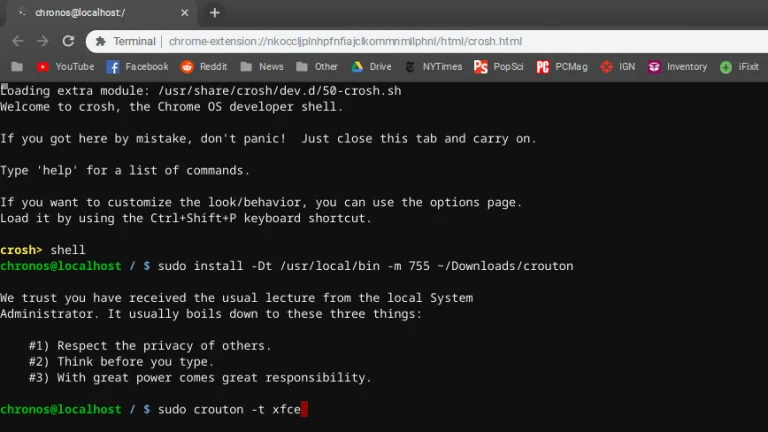

https://www.youtube.com/watch?v=HgsvbkPbb3E Install Kali Linux On A Chromebook (No Rooting!) by Ruth Ake
https://www.youtube.com/watch?v=RCRKUD1gWJ4 Linux Desktop Scaling On A Chromebook Ruth Ake