Chained Engine features a visual, data-driven Animation Graph system (.chag) for driving state machine animations with smooth blending.
- Overview & Graph File Format
- Editor Workflow
- Driving from C# Scripts
- Transition Condition Operators
- Runtime vs. Edit Mode
Animation Graphs are node-based state machines serialized as YAML. A graph contains:
- Default Variables: Declares the schema of parameters (e.g.,
speed,isMoving,isGrounded). - Nodes (
AnimNode): Define animation states, frame ranges, looping, and playback speed. - Transitions (
AnimTransition): Define connections between states with blend durations and variable-based conditions.
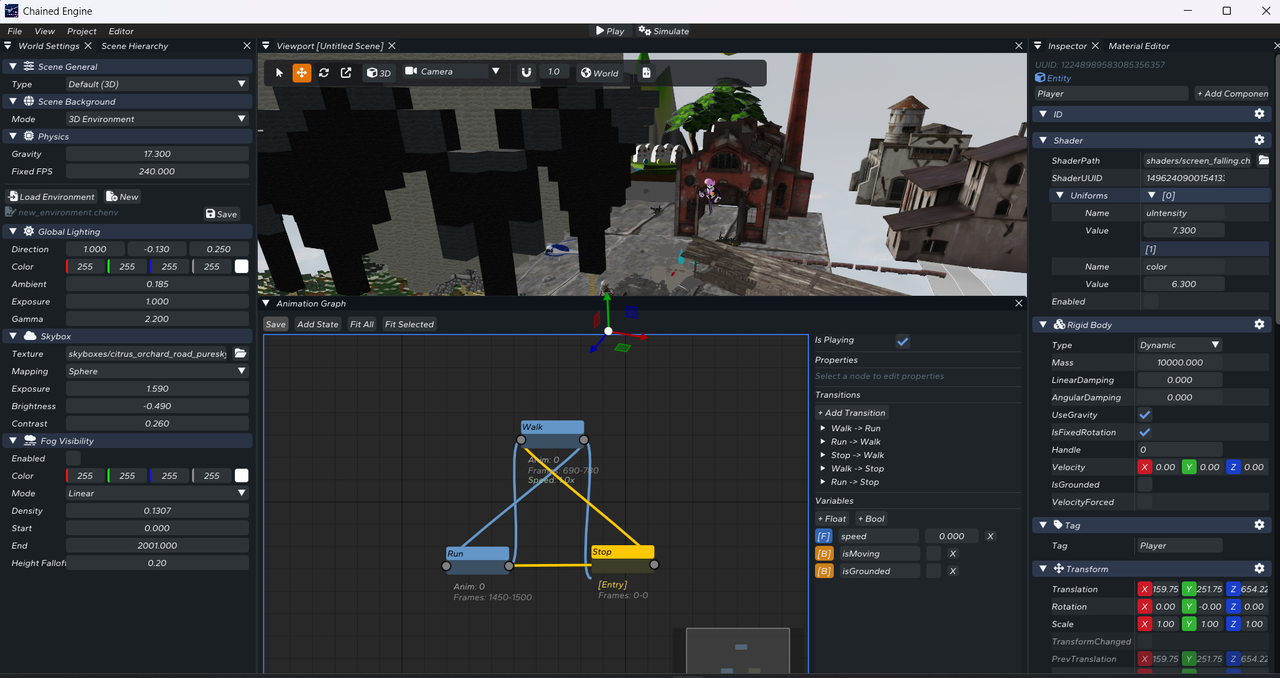
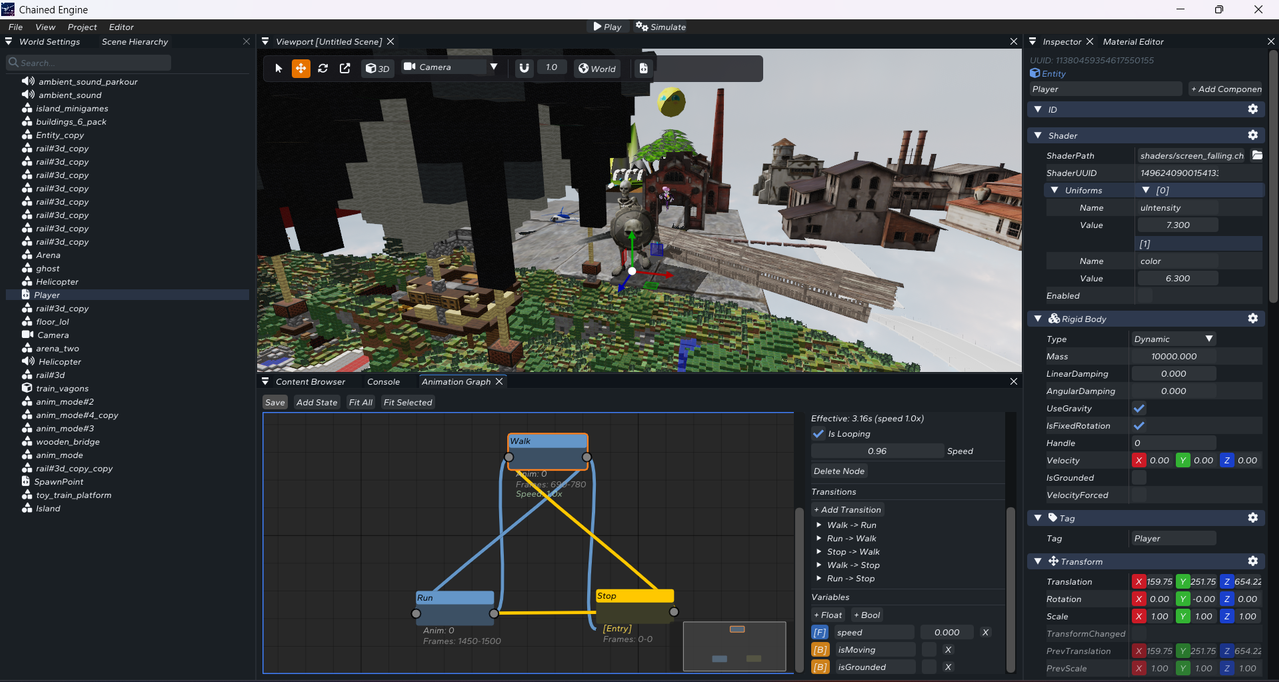
Example new_graph.chag structure:
AnimationGraph:
  EntryNodeID: 4
  NextNodeID: 5
  Variables:
    speed: 0
    isMoving: 0
    isGrounded: 1
  Nodes:
    - ID: 1
      Name: Walk
      AnimationIndex: 0
      IsLooping: true
      StartFrame: 690
      EndFrame: 780
      Speed: 1.0
    - ID: 2
      Name: Run
      AnimationIndex: 0
      IsLooping: true
      StartFrame: 1450
      EndFrame: 1500
      Speed: 1.0
    - ID: 4
      Name: Stop
      AnimationIndex: 0
      IsLooping: true
      StartFrame: 0
      EndFrame: 0
      Speed: 1.0
  Transitions:
    - ID: 1
      SourceNodeID: 1
      TargetNodeID: 2
      BlendDuration: 0.2
      HasExitTime: false
      Conditions:
        - VariableName: speed
          Op: 4 # GreaterThan (>)
Value: 0.9- Open the Animation Graph Panel: In the editor top menu, open Panels -> Animation Graph Editor.
- Create/Load Graph: Click New Graph or select an existing
.chagfile. - Configure Nodes:
- Add nodes for states like
Idle/Stop,Walk,Run,Jump. - Set
StartFrameandEndFrameaccording to your model asset's animation tracks.
- Add nodes for states like
- Manage Variables:
- Add variables (e.g.,
speed,isMoving,isGrounded). - Use the type toggle in the editor to switch between
FloatandBoolparameter types.
- Add variables (e.g.,
- Create Transitions & Conditions:
- Drag connections between nodes.
- Select a transition to edit
BlendDuration(e.g.,0.2scrossfade) and add conditions (e.g.,isMoving == 1,speed >= 0.9).
- Assign to Entity:
- Select an entity with an
AnimationComponent. - Set
GraphPathtoassets/animations/new_graph.chag.
- Select an entity with an
C# gameplay scripts pass parameters directly to AnimationComponent. The engine automatically seeds graph variables on entity initialization and updates state transitions at runtime during simulation.
using Chained;

public class PlayerController : Script
{
    private AnimationComponent? m_Anim;

    public override void OnCreate()
    {
        m_Anim = GetComponent<AnimationComponent>();
    }

    public override void OnUpdate(float ts)
    {
        Vector3 movement = GetInputVector();
        bool isMoving = movement.LengthSquared() > 0.01f;
        bool isSprinting = Input.IsKeyDown(Key.LeftShift);

        float speed = 0.0f;
        if (isMoving)
        {
            speed = isSprinting ? 1.0f : 0.5f;
        }

        // Drive graph variables dynamically from script
        m_Anim?.SetBool("isMoving", isMoving);
        m_Anim?.SetFloat("speed", speed);
        m_Anim?.SetBool("isGrounded", IsGrounded());
    }
}| Op Code | Operator | Description |
|---|---|---|
0 |
== |
Equal |
1 |
!= |
Not Equal |
2 |
< |
Less Than |
3 |
<= |
Less Than or Equal |
4 |
> |
Greater Than |
5 |
>= |
Greater Than or Equal |
- Simulation Mode (
Play): C# scripts updateAnimationComponent.Variables, andAnimationSystemevaluates transitions frame-by-frame with smooth interpolation. - Edit Mode: Animation transitions are paused to keep the editor viewport stable and prevent state jitter while authoring.